Lightning Experience vs Classic is a question every new admin meets early. Most orgs run in Lightning today, but some old orgs still have users in Classic. So you need to know both, and you need to know how to move people across.
This post builds on the Setup Menu tour. We will compare the two interfaces, then switch a real user at Bright Path Tutors.
What is Lightning Experience vs Classic?
Salesforce has two user interfaces. Salesforce Classic is the older one, launched long ago with tabs and plain pages. Lightning Experience is the modern interface, built from reusable components.
Think of it like two versions of a phone app. Both open the same data, because the records live in one database. However, the new version has better screens and gets every new feature.
Why Lightning Experience vs Classic Matters
The choice changes what your users can do. Lightning gets new features in every release, such as Dynamic Forms, Path and Agentforce. Classic gets almost nothing new.
So the comparison of Lightning Experience vs Classic matters for planning. If some users stay in Classic, they miss features and need extra support. Also, many interview questions test this exact topic.
How Lightning Experience vs Classic Works in One Org
In the Lightning Experience vs Classic setup, both interfaces share the same objects, fields and records. Only the screens differ. An admin decides who can use Lightning and whether users can switch back.
The switch is controlled by the Lightning Experience User permission. When it is on, users land in Lightning. If the Hide Option to Switch to Salesforce Classic permission is also on, they cannot go back.
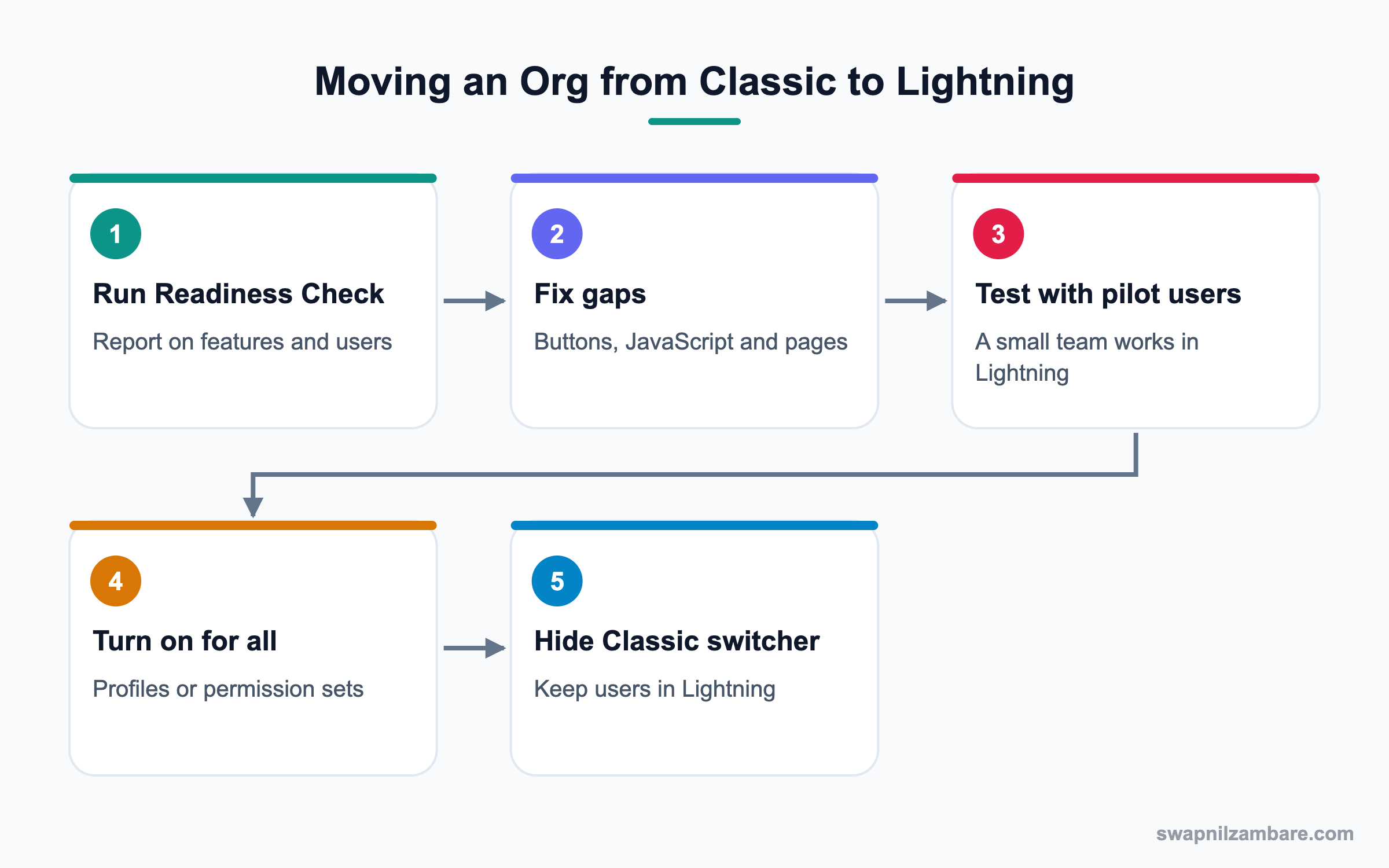
The Lightning Experience Transition Assistant
The Transition Assistant lives in Setup. It has three phases called Discover, Roll Out and Optimize. Each phase lists tasks, such as running the Readiness Check and turning on Lightning.
The Readiness Check
The Readiness Check scans your org and builds a report. It lists features that need work, like JavaScript buttons and Visualforce pages. It also shows which users will see the most change.
The Switcher
In Classic, users click Switch to Lightning Experience at the top. In Lightning, they click their profile picture and choose Switch to Salesforce Classic. Admins can hide this option.
Lightning Experience vs Classic: Key Differences
This table shows the Lightning Experience vs Classic differences an admin should remember.
| Feature | Lightning Experience | Salesforce Classic |
|---|---|---|
| Look and feel | Modern, component-based | Older, tab-based |
| Record pages | Lightning record pages | Page layouts only |
| Kanban and Path | Available | Not available |
| Dynamic Forms | Available | Not available |
| Agentforce and Einstein | Available | Mostly not available |
| Release updates | Every release | Very few |
| JavaScript buttons | Not supported | Supported |
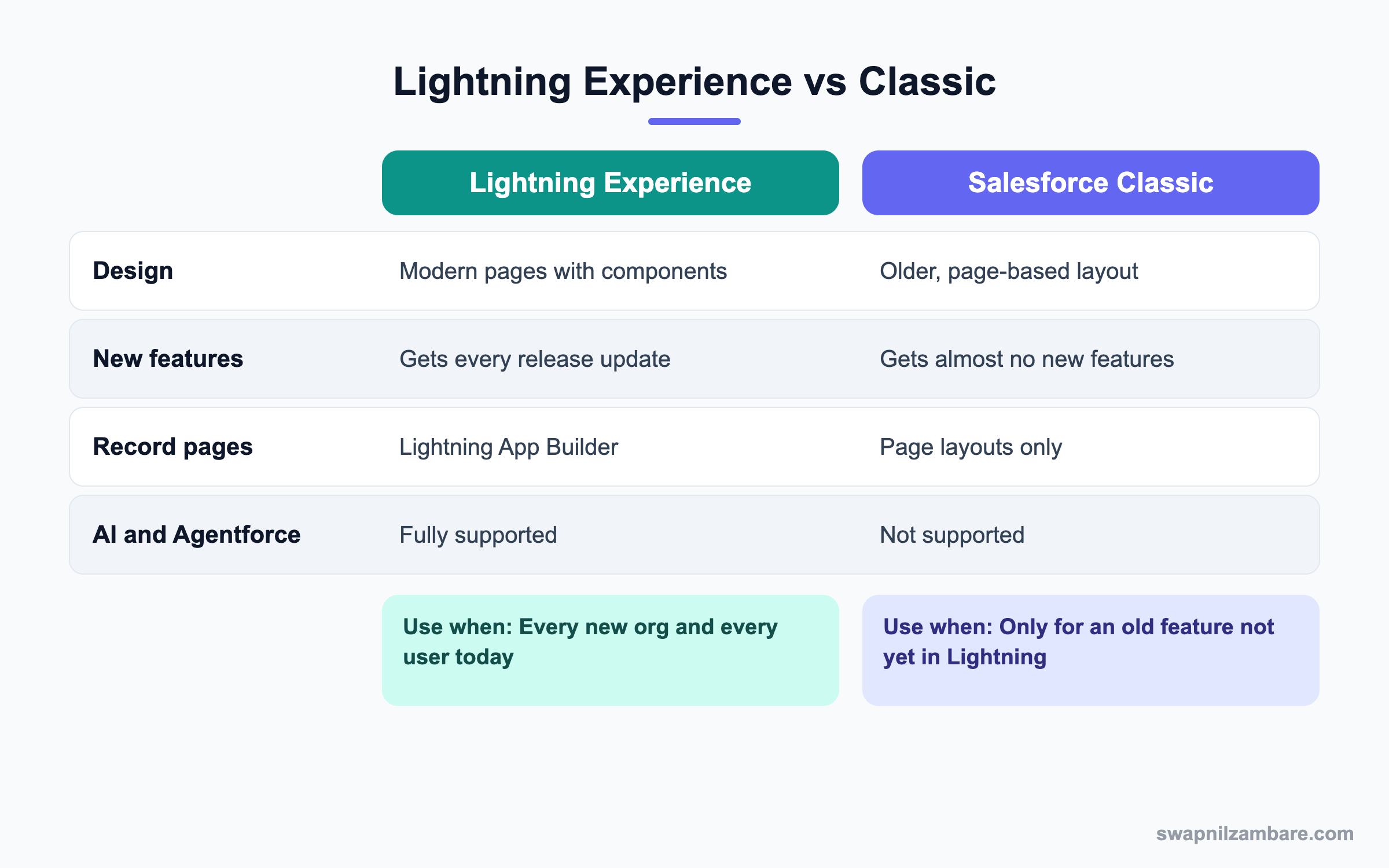
In short, Lightning wins the Lightning Experience vs Classic choice for everything new. Classic is kept only for a feature that has no Lightning version yet.
Lightning Experience vs Classic: A Real Switch Example
Bright Path Tutors still has two support users in Classic. Let’s move Ravi Kumar to Lightning and stop him from switching back.
Step 1: Run the Readiness Check
- Open Setup and type “Lightning Experience Transition Assistant” in Quick Find.
- Click Discover, then click Run Readiness Check.
- Wait for the email and open the report.
- Fix any listed item, such as a JavaScript button on Course.
Step 2: Give Lightning Access
- Create a permission set called Lightning Users.
- Open System Permissions and tick Lightning Experience User.
- Tick Hide Option to Switch to Salesforce Classic as well.
- Save, then click Manage Assignments and add Ravi Kumar.
These are the permission set values we used.
| Setting | Value |
|---|---|
| Label | Lightning Users |
| Lightning Experience User | Checked |
| Hide Option to Switch to Salesforce Classic | Checked |
| Assigned to | Ravi Kumar |
Now Ravi logs in and lands in Lightning Experience. He no longer sees the switch option in his profile menu.
Step 3: Replace a JavaScript Button
JavaScript buttons do not run in Lightning. So replace them with a quick action, a screen flow or a Lightning Web Component. For example, a “Mark as Full” button can become a quick action that sets a field.
Common Mistakes with Lightning Experience vs Classic
- Turning on Lightning for all users without a pilot group first.
- Ignoring the Readiness Check report and its list of JavaScript buttons.
- Leaving the Classic switcher visible, so users keep going back.
- Forgetting to train users on new pages like the Home page and list views.
- Assuming Visualforce pages look the same in Lightning without testing.
Best Practices for Lightning Experience vs Classic
- Start with one team as a pilot. Their feedback shapes the full rollout.
- Use permission sets for Lightning access, because they are easy to remove.
- Build Lightning record pages before the switch, so users see value on day one.
- Hide the Classic switcher once users are trained.
- Track adoption with the Lightning Usage app in Setup.
Practice Task
Create a test user in your Developer Edition org. Give them a permission set without Lightning Experience User and log in as them. Then add the permission and log in again to see the Lightning Experience vs Classic difference.
Most Asked Lightning Experience vs Classic Interview Questions
These Lightning Experience vs Classic questions appear often in admin interviews, especially for orgs that are still moving away from Classic.
Basic Lightning Experience vs Classic Interview Questions
Q1: What is the difference between Lightning Experience and Salesforce Classic?
In Lightning Experience vs Classic, both are user interfaces for the same data. Lightning is modern and component-based, while Classic is older and page-based. Lightning gets new features in every release.
Q2: Do Lightning and Classic use different data?
No. They read and write the same records in the same database. Only the screens and some features differ.
Q3: How does a user switch from Lightning to Classic?
The user clicks their profile picture and chooses Switch to Salesforce Classic. This option shows only if the admin has not hidden it.
Q4: Which permission gives a user Lightning Experience?
The Lightning Experience User permission. You can give it through a profile or a permission set.
Q5: Can you stop users from switching back to Classic?
Yes. Give them the Hide Option to Switch to Salesforce Classic permission.
Q6: Name three features that work only in Lightning.
Dynamic Forms, Path and Kanban list views. Agentforce and most Einstein features also need Lightning.
Q7: What is the Lightning Experience Transition Assistant?
It is a guided tool in Setup with Discover, Roll Out and Optimize phases. It helps admins plan and complete the move from Classic.
Intermediate Lightning Experience vs Classic Interview Questions
Q8: What does the Readiness Check do?
It scans the org and creates a report of features that need work in Lightning. It also lists the users who will be affected most.
Q9: Do JavaScript buttons work in Lightning?
No. You replace them with quick actions, screen flows, Lightning Web Components or URL buttons.
Q10: Can page layouts still be used in Lightning?
Yes. Page layouts still control fields and related lists unless you use Dynamic Forms. Lightning record pages control the overall page design.
Q11: How do you track Lightning adoption?
Use the Lightning Usage app in Setup. It shows active users, switches to Classic and the most visited pages.
Q12: What happens to Visualforce pages in Lightning?
Most Visualforce pages still run inside Lightning. However, you should test them, since some styles and scripts may behave differently.
Q13: What is the difference between a page layout and a Lightning record page?
A page layout decides which fields and related lists appear. A Lightning record page decides where components sit on the page.
Q14: Why would an org still keep some users in Classic?
Usually because of an old feature, a custom Visualforce tool or a JavaScript button that is not yet rebuilt. It should be a short-term choice.
Advanced Lightning Experience vs Classic Interview Questions
Q15: Scenario: users keep switching back to Classic. What do you do?
Check the Lightning Usage app to see why they switch. Then fix the missing feature, give short training and finally hide the Classic switcher.
Q16: How would you plan a Lightning migration for 500 users?
Run the Readiness Check, fix the gaps in a sandbox and pilot with one team. Then roll out in waves by profile or permission set group.
Q17: How do you replace a Classic custom button that calls JavaScript?
Find out what it does first. If it updates fields, use a quick action. If it needs logic or screens, use a screen flow or a Lightning Web Component.
Q18: What is the role of permission sets in a phased rollout?
Permission sets let you turn Lightning on for a chosen group without changing profiles. You can add or remove users quickly as waves move ahead.
Q19: Does Salesforce still support Classic?
Classic still works for existing orgs, but it gets very few new features. New features, AI and Agentforce are built only for Lightning.
Q20: Scenario: a Visualforce page looks broken in Lightning. How do you fix it?
Check the Available for Lightning Experience setting and test with the Lightning stylesheet. If it still fails, plan to rebuild it as a Lightning Web Component.
Q21: How would you explain Lightning Experience vs Classic to a non-technical manager?
I would say both are two screens on top of the same data. Lightning is the newer screen with faster tools and AI, so staying in Classic means missing new features.
Q22: Can one user use Lightning while another uses Classic in the same org?
Yes. Access is set per user through profiles or permission sets. That is why a phased rollout works well.
Q23: What is the Optimize phase of the Transition Assistant?
It comes after rollout. You review usage data, collect feedback and tune pages so users get the most from Lightning.
Q24: How do Lightning apps differ from Classic apps?
Lightning apps have a navigation bar, utility bar, branding and their own page settings. Classic apps are simple groups of tabs.
Official Resources
- Trailhead: Lightning Experience Rollout
- Salesforce Help: Lightning Experience Transition Assistant
- Trailhead: Lightning Experience Basics
Quick Recap
- Lightning Experience vs Classic is a choice of screens, not data.
- Lightning gets every new feature, while Classic gets almost none.
- The Lightning Experience User permission controls access.
- Use the Transition Assistant and Readiness Check to plan a move.
- Replace JavaScript buttons with quick actions, flows or LWC.
What’s Next?
Next, we will build a better landing page in Lightning Home Page customization. Users see it first every day, so it is worth getting right.