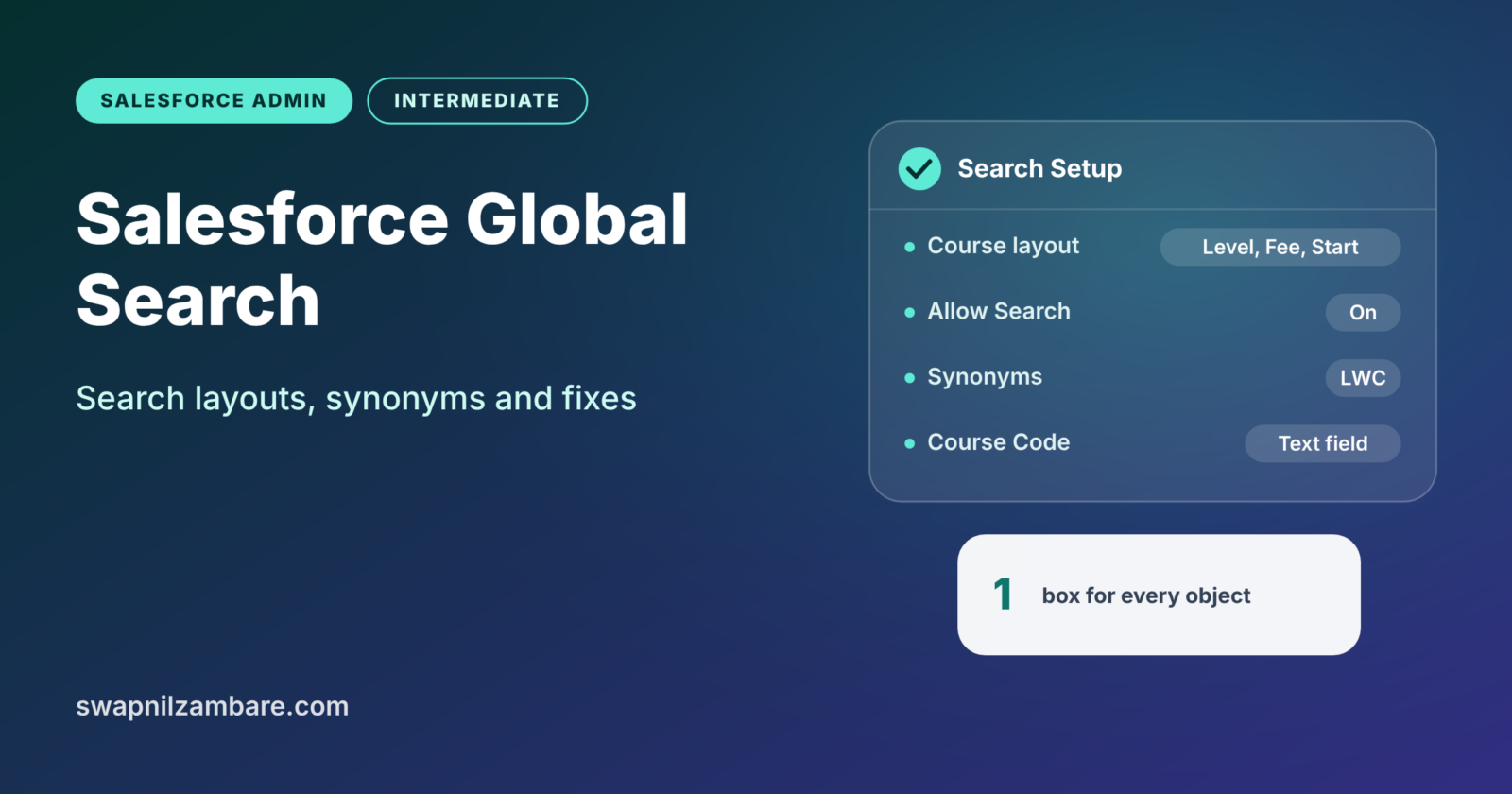
Salesforce Global Search is the search box at the top of every page. It finds records across many objects at once. Users rely on it more than any menu. If search is slow or misses records, users quickly lose trust in Salesforce.
In this post, you will learn how Salesforce Global Search works and which fields it searches. Then you will improve results with search layouts, synonyms and settings. You will also learn how to fix the common “I cannot find my record” problem. This builds on list views, Kanban and search layouts. It also connects to Salesforce Knowledge, which has its own search features. If sharing hides records from users, our post on sharing rules, roles and OWD explains why.
What is Salesforce Global Search?
Salesforce Global Search looks for your words across all searchable objects you can access. It shows matches as you type, then a full results page when you press Enter. The results page groups records by object, such as Accounts, Contacts and Courses.
Think of a library catalogue. You type “Python” and it shows books, magazines and DVDs in one list. You do not search each shelf separately. Global search is the library catalogue for your org.
Why Salesforce Global Search Matters
Most users start their work with Salesforce Global Search. So good search saves time all day long. Here is how it helps at Bright Path Tutors.
- A support agent types a phone number and finds the student at once.
- Next, a sales rep types “Infotech” and sees the account, contacts and open deals together.
- Also, a trainer types a course code, such as “APX-101”, and opens the course.
- Managers search for a person’s name and find every record they own.
So when global search works well, users spend less time clicking and more time helping customers.
How Salesforce Global Search Works
Salesforce Global Search relies on an index. When you create or edit a record, Salesforce adds its searchable fields to that index. The index is a fast lookup table, like the index at the back of a book. When you search, Salesforce checks the index, then applies your sharing access. Finally, it shows only the records you may see.
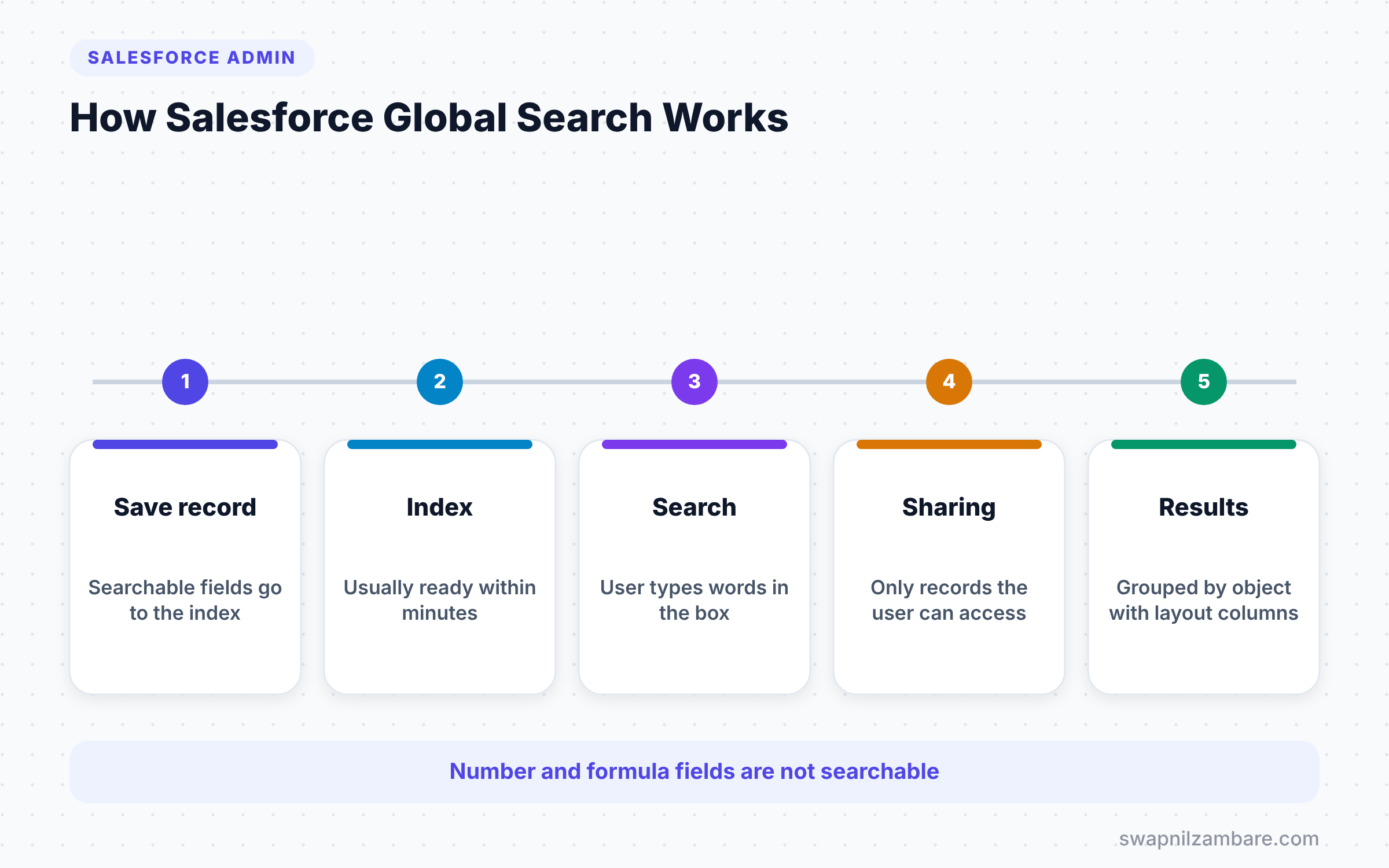
New and changed records usually appear in search within a few minutes. So if a user creates a record and searches for it straight away, it may not show yet.
Searchable Fields
Salesforce Global Search looks at text-based fields. These include Name, text fields, email, phone and many standard fields. Number fields and formula fields are not searchable. So if users need to search a course code, store it in a text field.
Search Results Layouts
Each object has a search results layout. It decides which columns appear in the results list, such as Fee and Start Date for courses. You edit it in Object Manager.
Einstein Search Features
Einstein Search adds personalised results, based on what each user works with most. In supported objects, users can also type simple phrases, such as “my open opportunities”. Admins manage these options in Einstein Search settings.
Salesforce Global Search vs List View Search
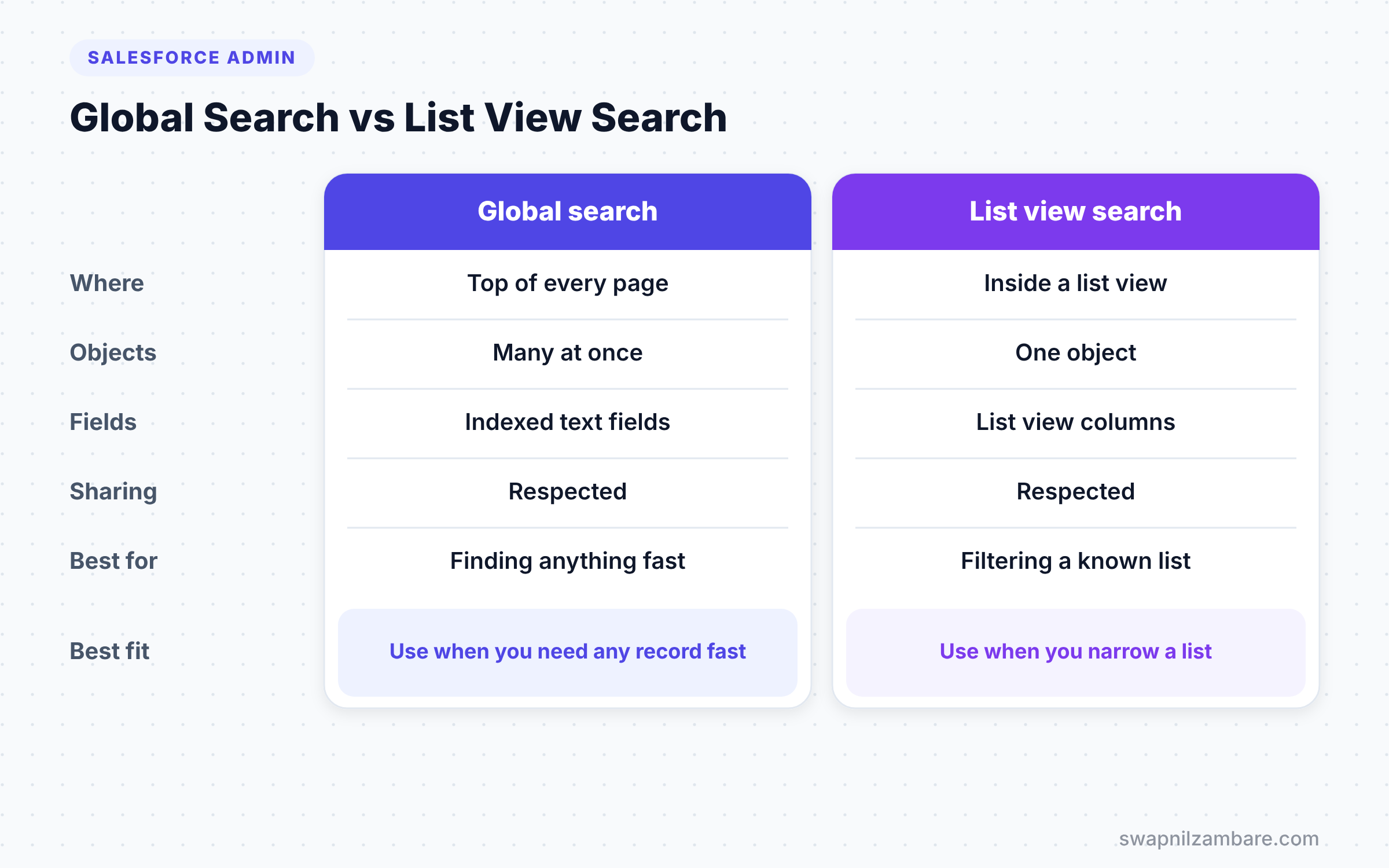
Users can also search inside a list view. The table below compares the two.
| Feature | Global search | List view search |
|---|---|---|
| Where | Top of every page | Inside one list view |
| Objects searched | Many objects at once | One object |
| Fields searched | Indexed searchable fields | Columns in that list view |
| Respects sharing | Yes | Yes |
| Best for | Finding any record fast | Filtering a known list |
When to use which is simple. Use global search to find something anywhere. Use list view search to narrow down a list you already have open.
How to Improve Salesforce Global Search Step by Step
Let’s improve Salesforce Global Search for Course records at Bright Path Tutors. Users complain that results show only the course name, which is not enough to pick the right one.
Step 1: Edit the Search Results Layout
- Go to Setup > Object Manager > Course > Search Layouts.
- Click the arrow next to Search Results and choose Edit.
- Next, add Level, Fee, Start Date and Is Online to Selected Fields.
- Then click Save.
Step 2: Make Sure the Object Is Searchable
- Open Object Manager > Course and click Edit on the object details.
- Then confirm that the Allow Search box has a tick.
- Next, confirm that the Course object has a tab, so users can open results easily.
Step 3: Store Codes in Text Fields
- Create a Text field called Course Code on Course.
- Then fill it with values such as “APX-101”.
- Now users can search for course codes directly.
Step 4: Add Synonyms
Students often say “LWC” when they mean “Lightning Web Components”. Synonyms help search treat both as the same.
- Go to Setup and type “Synonyms” in Quick Find.
- Click New.
- Enter the terms from the table below as one synonym group.
- Then click Save.
The table below shows the synonym groups for Bright Path Tutors.
| Synonym group | Terms |
|---|---|
| Lightning components | LWC, Lightning Web Components |
| Admin course | Admin, Administrator |
| Developer course | Dev, Developer |
Now a search for “LWC” also finds courses named “Lightning Web Components Basics”.
Search Settings Admins Should Know
Setup has a few pages that shape search for everyone. The Search Settings page holds org-wide options, such as how lookups search and whether Knowledge searches use spell correction. Einstein Search settings control personalised results and natural language search where available.
Change these settings one at a time and ask a few users to test. Search affects everyone, so even a small change can surprise people. Also note each change in your admin log, so you can undo it if users complain.
Search Tips for Users
Admins can also teach users a few Salesforce Global Search tricks. These small habits make global search much more useful.
- Use quotes for exact phrases, such as “Apex Basics”.
- Add an asterisk for partial words, such as “Infot*”.
- Pick one object from the scope menu next to the search box.
- Type at least two characters, because very short searches return too much.
- Try the record’s phone or email, which are often unique.
Fixing “I Cannot Find My Record”
This is one of the most common admin tickets. Work through these checks in order.
- First, ask if the user created the record in the last few minutes. If so, wait and search again.
- Next, check sharing. If the user cannot open the record, search will not show it.
- Then check the field. If the user searched a number or formula field, it is not searchable.
- Also check that the object allows search and the user has object access.
- Finally, try the exact phrase in quotes, in case common words dilute the results.
Common Mistakes with Salesforce Global Search
- Storing searchable codes in number or formula fields.
- Forgetting search results layouts, so users cannot tell similar records apart.
- Expecting new records to appear in search instantly.
- Blaming search when the real issue is sharing access.
- Leaving custom objects without Allow Search turned on.
Best Practices for Salesforce Global Search
- Add helpful columns to search results layouts for every key object.
- Keep important identifiers in text fields.
- Use synonyms for common short forms in your business.
- Train users on quotes, wildcards and object scoping.
- Check search problems against sharing first, since that is the most common cause.
Practice Task
Edit the search results layout for Account to show Phone, Industry and Owner. Then add a synonym group for two words your team uses as the same thing. Hint: search for one word and confirm records with the other word appear.
Most Asked Interview Questions on Salesforce Global Search
Questions on Salesforce Global Search test practical admin skills. Here are the ones interviewers ask most.
Basic Questions on Salesforce Global Search
Q1. What is global search?
It is the search box at the top of every page. It searches across many objects at once and shows only records the user can access.
Q2. Which fields does global search look at?
It searches text-based fields such as Name, text, email and phone. Number fields and formula fields are not searchable.
Q3. What is a search results layout?
It decides which columns show for an object in the search results. You edit it in Object Manager > Search Layouts.
Q4. What are synonyms in Salesforce search?
A synonym group lists words that search should treat as the same, such as “LWC” and “Lightning Web Components”.
Practical Questions on Salesforce Global Search
Q5. A user creates a record and cannot find it in search. Why?
The search index may not have updated yet, which usually takes a few minutes. If the record still does not appear later, check sharing and object access.
Q6. Why does a custom object not appear in search results?
First, confirm that the object allows search and that the user has access to it. Also check that the searched field is a searchable text field.
Q7. Does search respect sharing?
Yes. Users only see records they can access. So missing results are often a sharing issue, not a search issue.
Q8. How would you let users search by a course code?
First, store the code in a text field. Next, add it to the search results layout and make sure the object allows search. Then users can search the code directly.
Official Resources
Quick Recap
- Salesforce Global Search finds records across many objects at once.
- It searches indexed text fields, not number or formula fields.
- Search results layouts decide which columns users see.
- Synonyms help search match short forms and full names.
- Missing results are often caused by sharing or a fresh record.
What’s Next?
Search helps people find records. Collaboration helps them talk about them. Next, read our guide to Salesforce Chatter groups, topics and tags.


