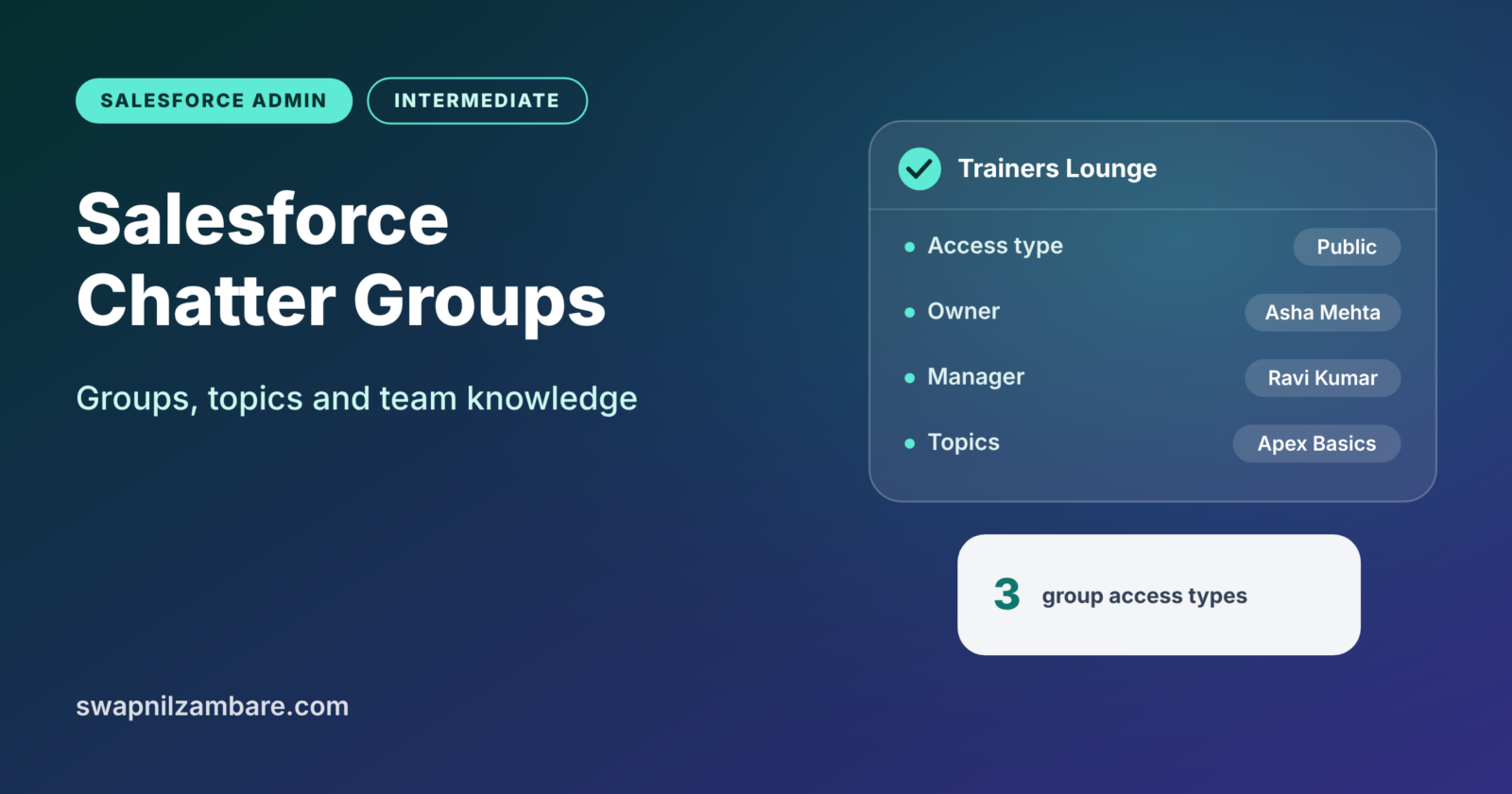
Salesforce Chatter Groups let people discuss work inside Salesforce, close to the records they talk about. Topics add simple labels to posts and records, so related conversations are easy to find. Together, they turn scattered emails into searchable team knowledge.
In this post, you will learn the group types, member roles, archiving and how topics work on records. You will also see where old tags fit today. This builds on our guide to Chatter, files and collaboration. It also connects to Salesforce and Slack for admins, since many teams now use both. If you plan to share groups with customers, see Experience Cloud sites as well.
What Are Salesforce Chatter Groups?
A Chatter group is a shared feed where members post updates, questions, files and polls. Each group has an owner, optional managers and members. Groups can be public, private or unlisted, which decides who can see and join them.
Think of a WhatsApp group for a project team, but inside your company’s CRM. Everyone sees the same messages, can reply in threads and can share files. The difference is that posts can link to Salesforce records, such as a course or an account.
Why Salesforce Chatter Groups Matter
Email threads get lost, and new team members cannot read old conversations. Salesforce Chatter Groups fix both problems. Chatter groups keep discussion in one place that people can search later. Here is how Bright Path Tutors uses them.
- The “Trainers Lounge” public group shares teaching tips and new course ideas.
- A private “Leadership Updates” group discusses plans before they go public.
- An unlisted “Mergers Project” group stays hidden from everyone except members.
- Topics like “Apex Basics” link posts and Course records about the same subject.
- New trainers read past posts to learn how the team works.
So groups and topics give teams memory, not just messages.
How Salesforce Chatter Groups Work
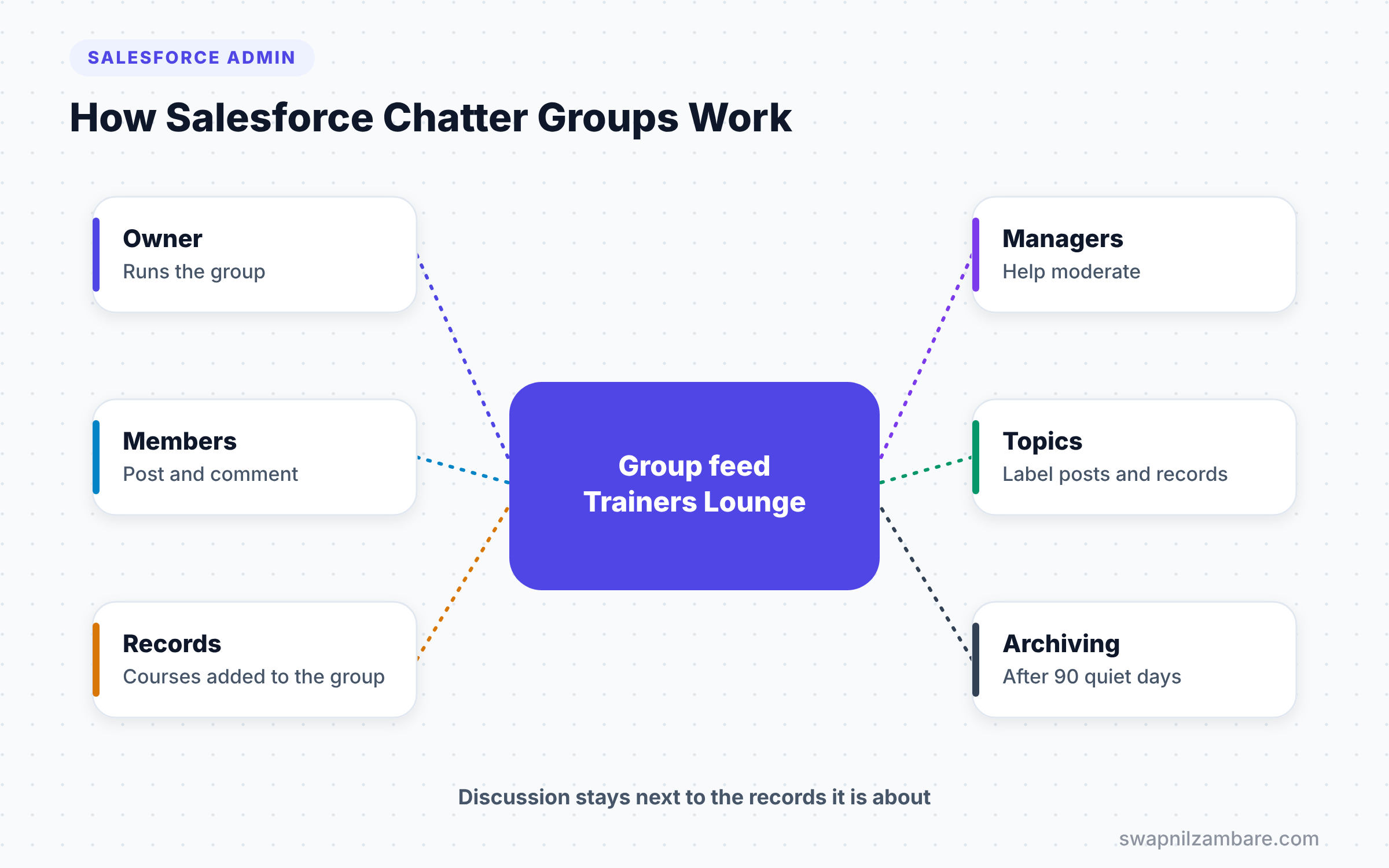
Salesforce Chatter Groups follow a simple setup. First, an admin turns on Chatter and sets group options in Chatter Settings. Next, users create groups and choose the access type. Then owners invite members and assign managers. Finally, members post, comment and add topics to make posts easy to find.
Group Access Types
Public groups let anyone in the org see posts and join. Private groups show the group name, but only members can see posts, and people must ask to join. Finally, unlisted groups stay out of search and lists, so only members and admins with the right permission know they exist.
Group Roles
Every group has one owner. The owner can add managers, who help run the group. Owners and managers can add or remove members, edit settings and moderate posts. Members can post and comment.
Archiving
Salesforce can archive groups with no posts for 90 days, if your org allows it. Archived groups become read-only until someone activates them again. Owners can turn off automatic archiving for important groups.
Types of Salesforce Chatter Groups
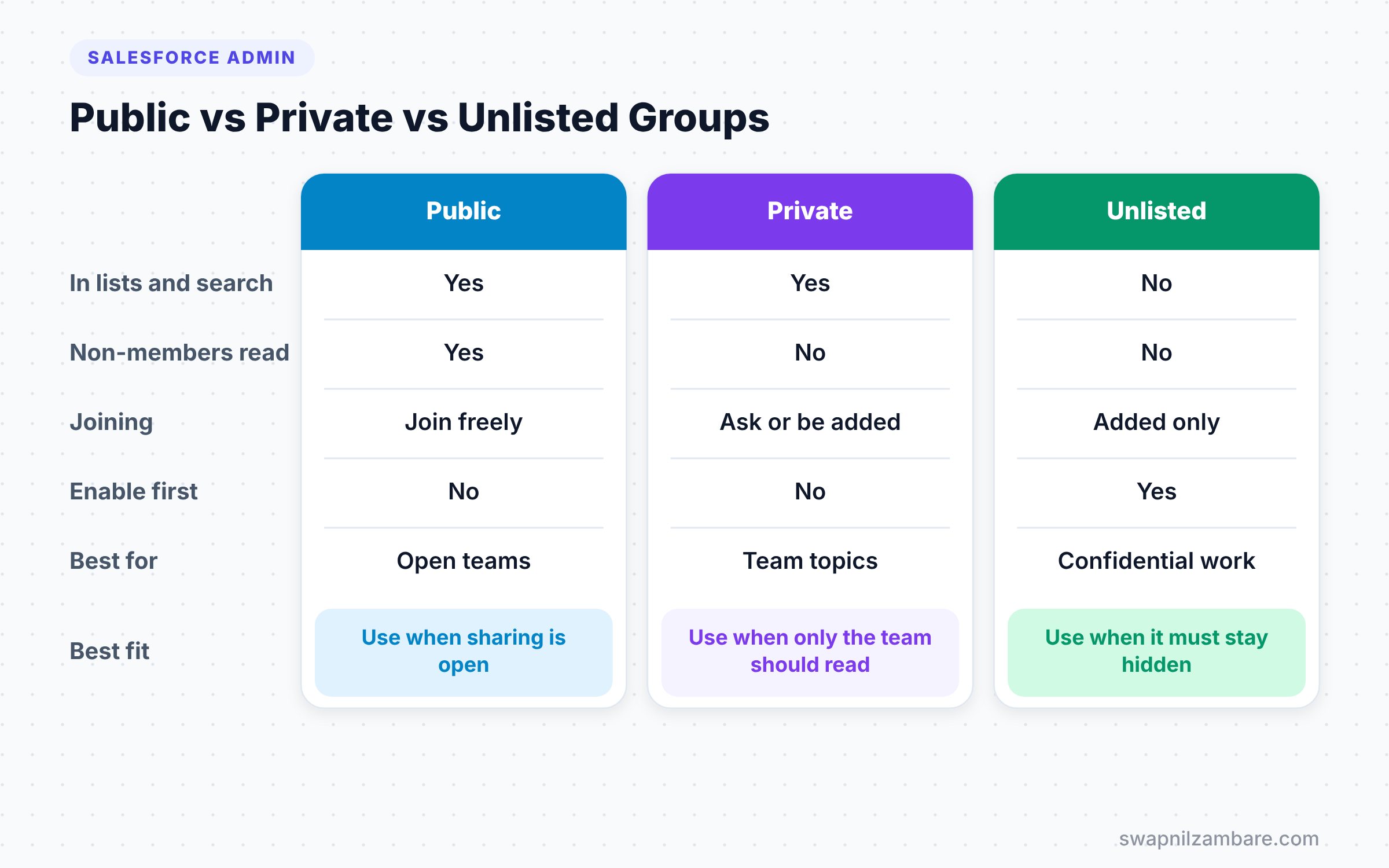
The table below compares the three access types.
| Feature | Public | Private | Unlisted |
|---|---|---|---|
| Group shows in lists and search | Yes | Yes | No |
| Non-members can read posts | Yes | No | No |
| How people join | Join freely | Ask to join or be added | Be added by owner or manager |
| Best for | Open teams and communities | Sensitive team topics | Confidential projects |
| Must be enabled first | No | No | Yes, in Chatter Settings |
When to use which depends on how private the discussion is. Use public for open sharing, private for team-only topics, and unlisted for confidential work.
What Are Topics and Tags?
A topic is a simple label, such as “Apex Basics” or “Pune Batch”. Users add topics to posts and to records. Clicking a topic shows every post and record with that label, across groups.
Tags are an older Salesforce Classic feature with personal and public tags on records. In Lightning Experience, topics replace tags for most needs. So if you are building something new, use topics.
How to Set Up Salesforce Chatter Groups Step by Step
Let’s set up Salesforce Chatter Groups and topics for Bright Path Tutors.
Step 1: Check Chatter Settings
- Go to Setup and type “Chatter Settings” in Quick Find.
- Then confirm that Chatter is on.
- Next, tick Enable Unlisted Groups if you need hidden groups.
- Then tick Allow Group Archiving.
- Finally, click Save.
Step 2: Create a Group
- Open the Groups tab and click New.
- Enter the values from the table below.
- Then click Save & Next and add members.
The table below shows the settings for the trainers’ group.
| Setting | Value |
|---|---|
| Name | Trainers Lounge |
| Description | Teaching tips, new course ideas and trainer updates |
| Access Type | Public |
| Owner | Asha Mehta |
| Managers | Ravi Kumar |
| Disable automatic archiving | Checked |
Step 3: Turn On Topics for Courses
- Go to Setup and type “Topics for Objects” in Quick Find.
- Select the Course object.
- Next, tick Enable Topics.
- Then choose the fields Salesforce should use to suggest topics, such as Course Name and Description.
- Finally, click Save.
Step 4: Add Topics to a Record
- Open the Apex Basics course.
- Then, in the Lightning record page, add the Topics component if it is missing.
- Next, add the topic “Apex Basics” to the record.
Now a trainer posts about Apex Basics with the same topic. As a result, both the post and the course appear on the topic page.
Moderating Chatter
Most teams post politely in Salesforce Chatter Groups, but admins still need some controls. Users with the “Moderate Chatter” permission can delete posts and comments. Group owners and managers can moderate their own groups too.
Some orgs also add keyword lists that block or flag certain words, using moderation rules. Use these lightly. Too many rules can make people stop posting.
Salesforce Chatter Groups and Slack
Many companies now use Slack for daily chat. So where do Chatter groups fit? A simple rule helps. Use Slack for fast, everyday conversation. Use Salesforce Chatter Groups when the discussion belongs next to Salesforce records and should stay searchable there.
For example, Bright Path Tutors keeps general team chat in Slack. However, record-level questions, such as “Why did this course fee change?”, stay in the Chatter feed on the course. Admins can also connect Salesforce and Slack so key record updates post to the right Slack channel.
Record Feeds and Group Feeds
Chatter has two kinds of feeds. Group feeds hold posts for a team. Record feeds sit on records, such as a course or an account, and hold posts about that one record.
You can also allow records in groups. Then members can add a course record to a group, and its updates appear in the group feed. This is handy for project teams who follow the same few key records.
Common Mistakes with Salesforce Chatter Groups
- Creating too many groups with overlapping purposes, so people do not know where to post.
- Using public groups for sensitive topics that should be private.
- Forgetting to enable unlisted groups before promising a hidden group.
- Letting important groups archive automatically after a quiet period.
- Ignoring topics, which makes old posts hard to find.
Best Practices for Salesforce Chatter Groups
- Give each group a clear name and a one-line purpose in the description.
- Assign at least one manager besides the owner, so the group is never left alone.
- Use topics for course names, projects and products.
- Pin key posts, such as rules or FAQs, at the top of busy groups.
- Review inactive groups every quarter and archive or merge them.
Practice Task
Create a private group called “Support Leads” and add two members. Then enable topics on Course and add a topic to one course and one post. Hint: click the topic to see both items on one page.
Most Asked Interview Questions on Salesforce Chatter Groups
Questions on Salesforce Chatter Groups are lighter, but they show you understand how teams use Salesforce. Here are the ones asked most.
Basic Questions on Salesforce Chatter Groups
Q1. What is a Chatter group?
It is a shared feed where members post updates, files and questions. Each group has an owner, optional managers and members.
Q2. What are the types of Chatter groups?
Public, private and unlisted. Public groups are open to all, and private groups limit posts to members. Unlisted groups stay hidden.
Q3. What roles exist in a Chatter group?
Owner, manager and member. Owners and managers can manage members and settings, while members can post and comment.
Q4. What is the difference between topics and tags?
Topics are labels on posts and records that work in Lightning. Tags are an older Classic feature. For new work, use topics.
Practical Questions on Salesforce Chatter Groups
Q5. How do you enable topics on a custom object?
Go to Setup > Topics for Objects, select the object, enable topics and choose fields for topic suggestions. Then add the Topics component to the record page if needed.
Q6. What happens when Salesforce archives a group?
It becomes read-only. Members can still read posts but cannot add new ones until an owner or manager activates the group again.
Q7. How do you create a hidden group for a confidential project?
First, enable unlisted groups in Chatter Settings. Then create the group with the Unlisted access type and add members directly.
Q8. How do you stop inappropriate posts?
First, give trusted users the Moderate Chatter permission. Next, ask group owners to moderate. Then use moderation rules for blocked keywords if needed.
Official Resources
Quick Recap
- Salesforce Chatter Groups keep team discussion inside Salesforce.
- Groups can be public, private or unlisted.
- Owners and managers run groups, and members post and comment.
- Topics label posts and records, while tags are an older Classic feature.
- Archiving keeps quiet groups tidy, but protect important ones.
What’s Next?
You have finished the intermediate admin topics in this set. Coming soon: Flow Approvals, the first topic in our advanced admin list.


