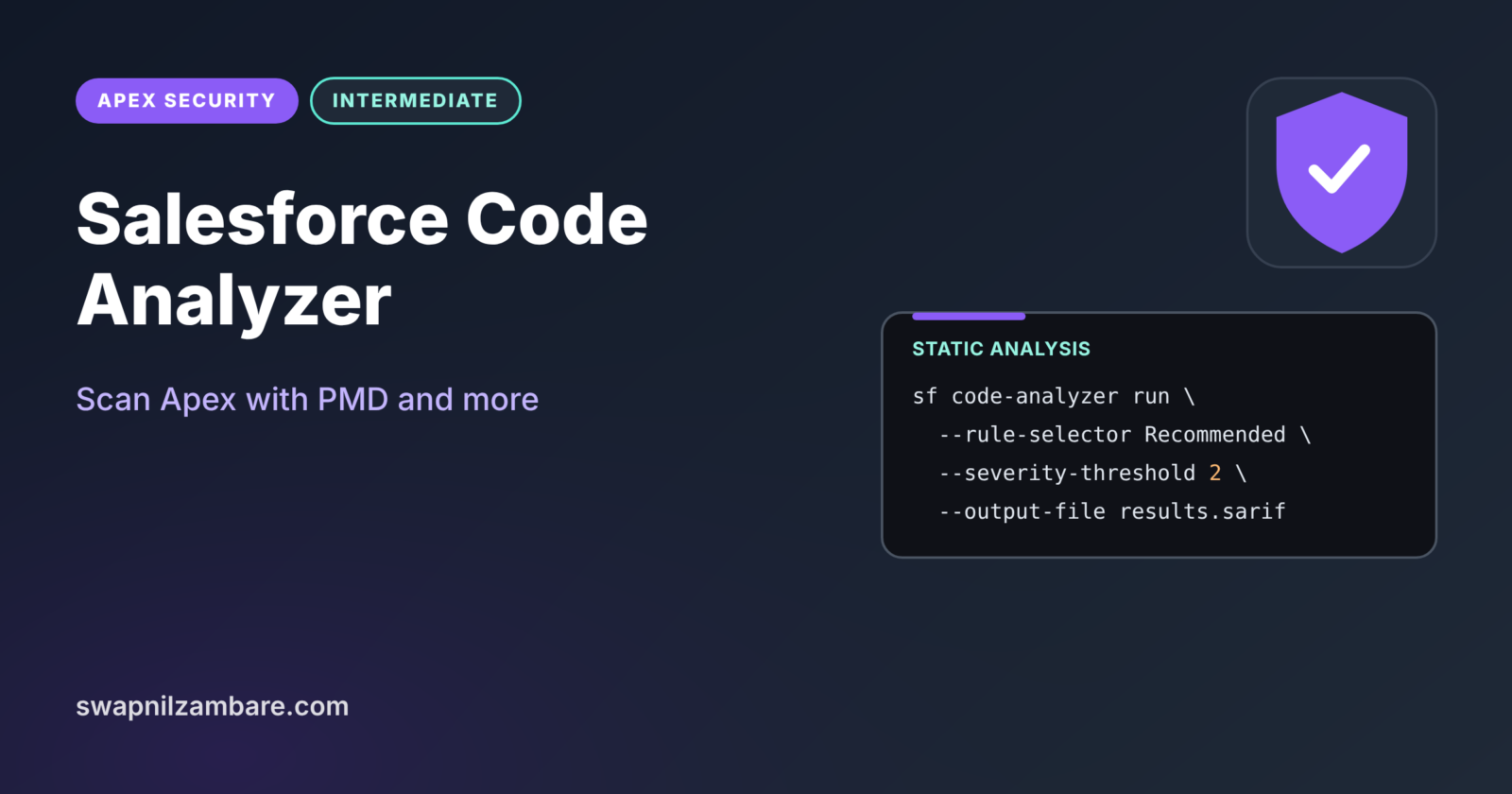
Salesforce Code Analyzer is a free scanner that reads your Apex, Lightning, Visualforce and Flow code and reports security and quality problems before they reach production. It bundles well-known engines such as PMD and ESLint, so one command can find a missing sharing keyword, a query inside a loop or a hard-coded secret.
In this post, you will install Code Analyzer, run it from the CLI and VS Code, read its results, and add it to a CI pipeline. It builds on Apex secure coding, Apex CRUD and FLS and Salesforce CLI and VS Code setup. This is the last post of Level 6.
What is Salesforce Code Analyzer?
Salesforce Code Analyzer is a Salesforce CLI plugin and VS Code extension that runs static analysis on your project. Static analysis means it reads the code without running it. Each engine brings rules, and each rule reports a violation with a file, a line, a severity and a link to help.
Think of a spell checker for code. It does not know your story, but it underlines words that look wrong and explains why. You still decide what to fix, but you miss far fewer mistakes.
Why Salesforce Code Analyzer Matters
Manual reviews miss things, especially in large projects. Here is why Salesforce Code Analyzer matters at Bright Path Tutors.
- First, it flags classes that run queries without a sharing declaration.
- Also, it finds DML and SOQL that skip CRUD and FLS checks.
- Next, it spots SOQL and DML inside loops before they hit governor limits.
- AppExchange partners must scan code before security review.
- Finally, it runs in CI, so every pull request gets the same checks.
So the scanner acts as a tireless first reviewer for every change.
How Salesforce Code Analyzer Works
Salesforce Code Analyzer follows a clear flow. First, you choose which files to scan with –target, or the whole project. Next, you pick rules with –rule-selector, such as Recommended or Security. Then each engine, such as PMD, ESLint or Flow Scanner, checks the files against its rules. After that, Code Analyzer collects every violation with a severity from 1 (Critical) to 5 (Info). Finally, it shows a table in the terminal or writes a report file, such as HTML, JSON or SARIF.
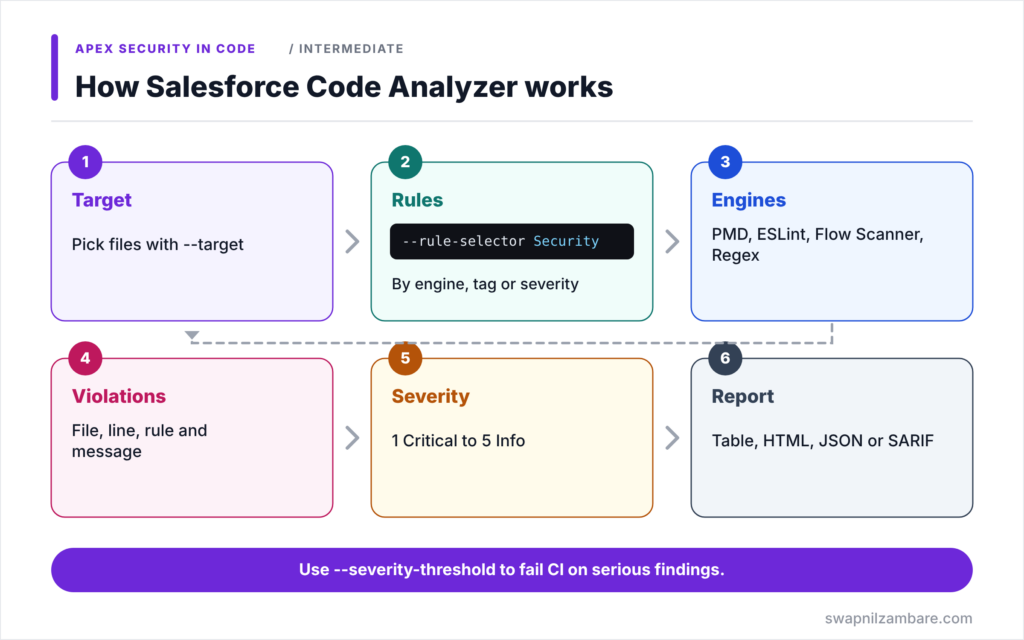
Engines
PMD checks Apex and Visualforce. ESLint checks JavaScript and LWC. Retire.js finds old libraries with known problems. Flow Scanner checks flows, Regex runs pattern rules, and CPD finds copied code.
Rule Selectors
The –rule-selector flag picks rules by engine, tag or severity. For example, pmd:Security selects PMD security rules, and Recommended selects the default set.
Severities
Severities run from 1 (Critical) to 5 (Info). Fix 1 and 2 first, and decide team rules for the rest.
Configuration File
A code-analyzer.yml file in the project changes rule severities, turns engines off, or adds tags. Run sf code-analyzer config to generate a starting file.
Suppressions
When a violation is a false alarm, you can suppress it in code, for example with @SuppressWarnings(‘PMD.ApexCRUDViolation’). Always add a comment that explains why.
Common PMD Rules for Apex
The table below lists rules you will see often in Apex projects.
| Rule | What it flags |
|---|---|
| ApexCRUDViolation | SOQL or DML without CRUD and FLS checks or user mode |
| ApexSharingViolations | Classes with SOQL or DML but no sharing keyword |
| ApexSOQLInjection | Dynamic SOQL built from untrusted input |
| ApexXSSFromURLParam | URL parameters used without escaping |
| OperationWithLimitsInLoop | SOQL, DML or similar calls inside loops |
| ApexUnitTestClassShouldHaveAsserts | Test methods with no asserts |
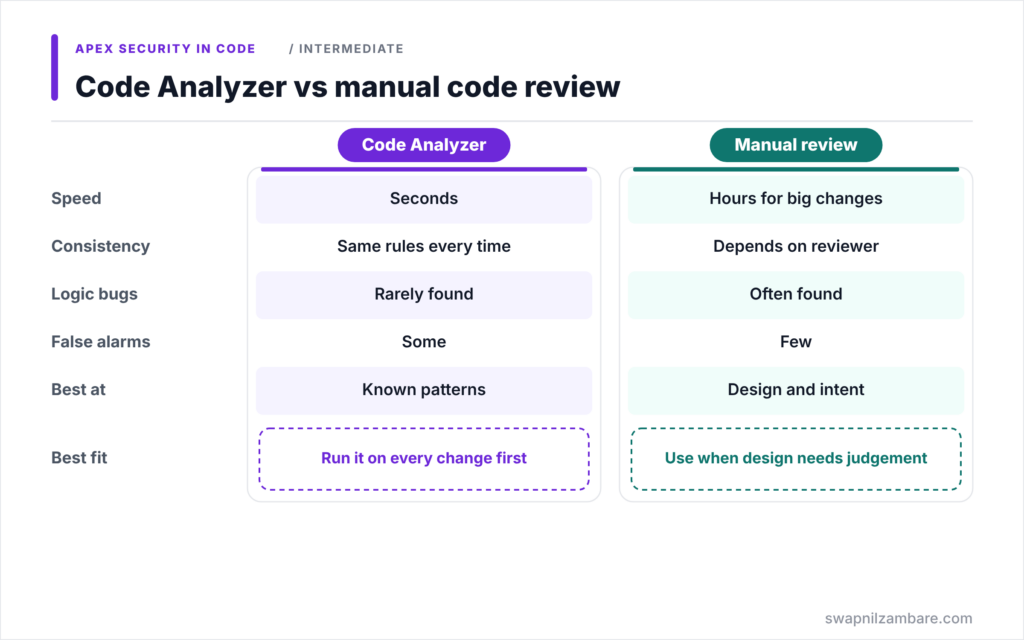
Code Analyzer vs Manual Code Review
The table below compares the scanner with a human reviewer.
| Feature | Salesforce Code Analyzer | Manual code review |
|---|---|---|
| Speed | Seconds for a project | Hours for a big change |
| Consistency | Same rules every time | Depends on the reviewer |
| Business logic bugs | Rarely found | Often found |
| False alarms | Some | Few |
| Best at | Known patterns and rules | Design and intent |
When to use which is easy. Use both. Let Code Analyzer catch known patterns first, so reviewers can focus on design and business rules.
A Real Salesforce Code Analyzer Example
Let’s run Salesforce Code Analyzer on the Bright Path Tutors project in VS Code’s terminal.
Step 1: Install the Plugin
sf plugins install @salesforce/plugin-code-analyzer
sf code-analyzer rules --rule-selector "pmd:Security"
The first command installs or updates the plugin. The second lists the PMD security rules, so you can see what will run.
Step 2: Scan a Class
Here is an old class that the scanner should flag.
public class CourseSearch {
    public static List<Course__c> find(String text) {
        return Database.query('SELECT Id FROM Course__c WHERE Name = \'' + text + '\'');
    }
}
The class has no sharing keyword and builds a query from raw text. Now run the scan.
sf code-analyzer run --target force-app/main/default/classes/CourseSearch.cls --rule-selector Security --view detailStep 3: Read the Results
Here is a shortened version of the output.
=== 1. ApexSOQLInjection
    severity: 2 (High)
    engine:   pmd
    location: force-app/main/default/classes/CourseSearch.cls (3:16)
=== 2. ApexSharingViolations
    severity: 3 (Moderate)
    engine:   pmd
    location: force-app/main/default/classes/CourseSearch.cls (1:1)
Both problems from the Level 6 posts show up. So the fix is to add with sharing and use a bind variable with user mode, then scan again until the list is empty.
Step 4: Add It to CI
sf code-analyzer run --rule-selector Recommended --severity-threshold 2 --output-file results.sarifThe –severity-threshold flag makes the command fail when it finds violations of severity 2 or worse. So a CI job can block a pull request, and the SARIF file can show results in tools such as GitHub code scanning.
Salesforce Code Analyzer in VS Code
The Salesforce Code Analyzer extension for VS Code scans files as you work. It underlines violations in the editor and shows them in the Problems panel. So you can fix issues before you even commit.
Common Mistakes with Salesforce Code Analyzer
- Running it only once before release instead of on every change.
- Suppressing violations without a written reason.
- Treating every finding as equal instead of fixing high severities first.
- Using an old version of the plugin with outdated rules.
- Assuming a clean scan means the code is fully secure.
Best Practices for Salesforce Code Analyzer
- Run it locally in VS Code and again in CI.
- Fail builds on severity 1 and 2 findings.
- Keep a shared code-analyzer.yml in the repository.
- Review suppressions during code review.
- Update the plugin regularly to get new rules.
Practice Task
Run sf code-analyzer run --rule-selector Recommended --output-file results.html on your project and open the HTML report. Then fix the three highest-severity findings. Hint: sort by severity and start with Security tags.
Most Asked Interview Questions on Salesforce Code Analyzer
Teams expect developers to know their quality tools. Here are the 21 questions asked most about Salesforce Code Analyzer.
Basic Questions on Salesforce Code Analyzer
Q1: What is Salesforce Code Analyzer?
A CLI plugin and VS Code extension that scans Salesforce code with engines such as PMD and ESLint.
Q2: What is static analysis?
Checking code for problems by reading it, without running it.
Q3: Which engine checks Apex?
PMD, along with others such as Regex and CPD.
Q4: How do you install the plugin?
Run sf plugins install @salesforce/plugin-code-analyzer.
Q5: Which command runs a scan?
sf code-analyzer run.
Q6: What do severities mean?
They rank findings from 1 (Critical) to 5 (Info).
Q7: Which rule flags missing sharing keywords?
ApexSharingViolations.
Code and Scenario Questions on Salesforce Code Analyzer
Q8: How do you scan only security rules?
Use –rule-selector Security, or an engine-specific selector such as pmd:Security.
Q9: How do you scan a single file or folder?
Use the –target flag with the path.
Q10: How do you save results to a file?
Use –output-file with an extension such as .html, .json, .csv or .sarif.
Q11: How do you make CI fail on serious findings?
Use –severity-threshold, for example 2, so the command exits with an error.
Q12: Which rule flags queries in loops?
OperationWithLimitsInLoop.
Q13: How do you suppress a false alarm?
Use @SuppressWarnings with the PMD rule name, and add a comment explaining why.
Q14: How do you change a rule’s severity for your team?
Set it in code-analyzer.yml.
Advanced Questions on Salesforce Code Analyzer
Q15: Why is a clean scan not proof of security?
Scanners find known patterns but miss business logic and design flaws.
Q16: What is the Flow Scanner engine for?
It checks flows for issues such as unsafe data paths and bad practices.
Q17: What is SARIF?
A standard format for static analysis results that many CI and code hosting tools understand.
Q18: Why is Code Analyzer important for AppExchange partners?
Partners scan code as part of preparing for security review.
Q19: How do you roll out Code Analyzer on a large old project?
Start with high severities, fix or document them, then tighten the threshold over time.
Q20: What does CPD find?
Copy-pasted code blocks, which are harder to maintain.
Q21: Where should the scanner run in a team workflow?
In VS Code while coding, and in CI on every pull request.
Official Resources
- Use CLI Commands to Analyze Your Code (Salesforce Code Analyzer)
- Salesforce Code Analyzer Release Notes
Quick Recap
- Salesforce Code Analyzer scans code with PMD, ESLint and other engines.
- Use sf code-analyzer run with –target and –rule-selector.
- Severities run from 1 (Critical) to 5 (Info).
- Use –severity-threshold to fail CI on serious findings.
- A clean scan helps, but it does not replace code review.
What’s Next?
You have finished Level 6: Security in Code. Next, start Level 7 with our guide to Asynchronous Apex.