Salesforce Platform Events let different parts of a system talk by sending messages instead of calling each other directly. One part publishes an event, such as “payment received”, and any number of subscribers react to it: an Apex trigger, a flow, a Lightning component or an outside system. The publisher does not need to know who is listening.
In this post, you will learn how to define an event, publish it from Apex, subscribe with an Apex trigger, and handle retries and replay. It builds on Asynchronous Apex, Apex trigger basics and Scheduled Apex.
What are Salesforce Platform Events?
Salesforce Platform Events are custom messages that you define like a custom object, with an API name ending in __e. Each event has fields that carry data, such as Enrolment_Id__c and Amount__c. Events go onto the event bus, a stream that keeps them for a short time so subscribers can read them in order.
Think of a radio station. The station broadcasts a message once, and every radio tuned to that channel hears it. The station does not call each listener, and new radios can tune in at any time. In this picture, the event bus is the radio channel, and subscribers are the radios.
Why Salesforce Platform Events Matter
Direct calls between systems make them depend on each other. Here is why Salesforce Platform Events matter at Bright Path Tutors.
- First, the payment partner sends a “payment received” event, and Salesforce updates the enrolment.
- Also, when a course is cancelled, several systems must react, such as email, accounting and the website.
- Next, the publisher stays simple, because it only sends one event.
- New subscribers can join later without changing the publisher.
- Finally, events can carry data out of Salesforce in near real time.
So Salesforce Platform Events keep systems loosely coupled and easy to extend.
How Salesforce Platform Events Work
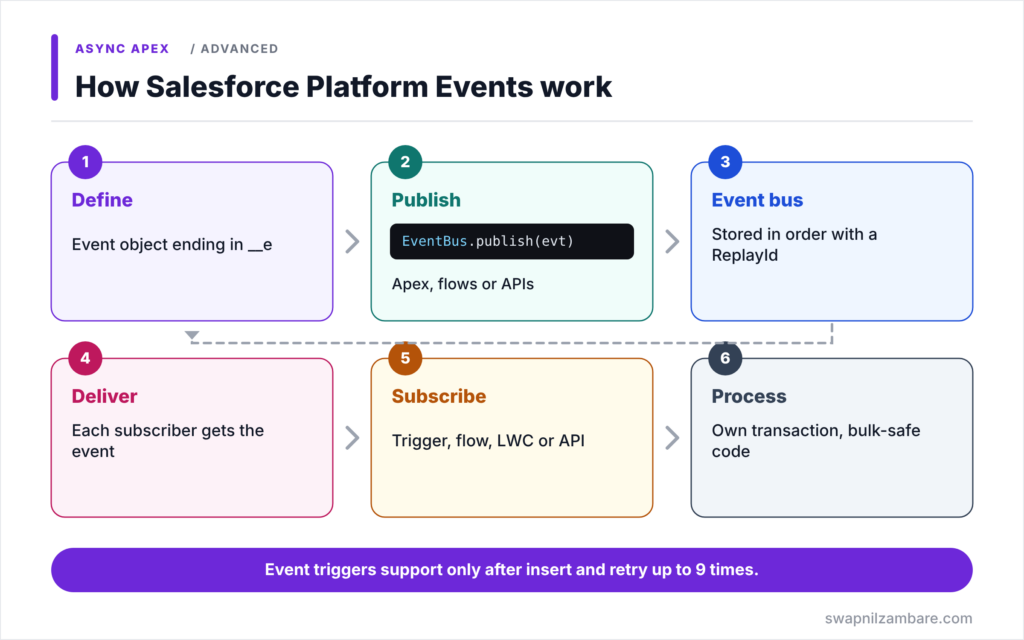
Salesforce Platform Events follow a publish and subscribe flow. First, an admin or developer defines the event and its fields in Setup. Next, a publisher creates an event instance and calls EventBus.publish, or an outside system publishes through an API. Then the event goes onto the event bus, with a ReplayId that marks its position. After that, each subscriber receives the event, for example an Apex trigger on the event object. Finally, the subscriber processes it in its own transaction, separate from the publisher’s.
Defining an Event
Create events in Setup > Platform Events. Add fields like you would on a custom object. Events have no record pages and are not stored like normal records.
Publish Behaviour
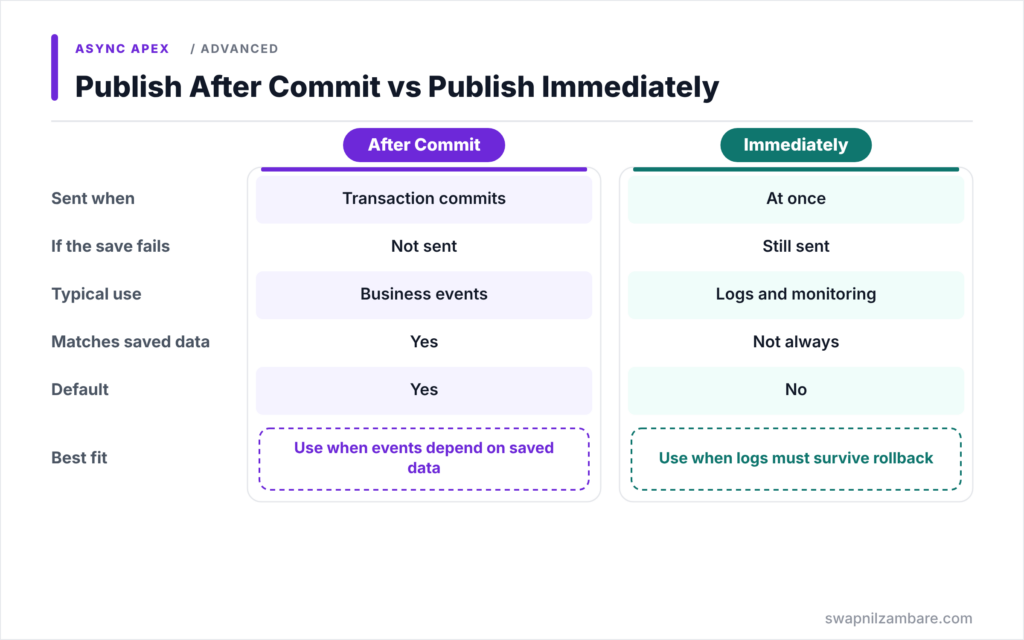
Each event has a publish behaviour. Publish After Commit sends the event only if the transaction succeeds. Publish Immediately sends it at once, even if the transaction later fails, which suits logging.
Publishing from Apex
Call EventBus.publish with one event or a list. It returns Database.SaveResult values that tell you whether publishing was accepted.
Subscribing with Apex Triggers
Event triggers support only after insert. They run in their own process, by default as the Automated Process user, and can receive up to 2,000 events per batch.
Other Subscribers
Flows can start from a platform event. Lightning components can subscribe with the empApi module. Outside systems use the Pub/Sub API.
Retries and Replay
Throw EventBus.RetryableException to ask Salesforce to send the batch again, up to 9 times. Each event has a ReplayId, so subscribers can resume from a position after a break.
Publish After Commit vs Publish Immediately
The table below compares the two publish behaviours.
| Feature | Publish After Commit | Publish Immediately |
|---|---|---|
| Sent when | Transaction commits | At once |
| If the transaction fails | Event is not sent | Event is still sent |
| Typical use | Business events | Logs and monitoring |
| Matches saved data | Yes | Not always |
| Default for new events | Yes | No |
When to use which is simple. Use Publish After Commit for business events that depend on saved data. Use Publish Immediately for logs that must survive a rollback.
Payment_Received__e Fields
The table below lists the fields of our event.
| Field | Type | Example |
|---|---|---|
| Enrolment_Id__c | Text(18) | a025g00000XyZ12AAB |
| Amount__c | Number(16, 2) | 5000 |
| Payment_Ref__c | Text(50) | PAY-2026-0911 |
A Real Salesforce Platform Events Example
Let’s use Salesforce Platform Events at Bright Path Tutors. The payment partner publishes Payment_Received__e, and Salesforce marks the enrolment as paid.
Step 1: Publish from Apex
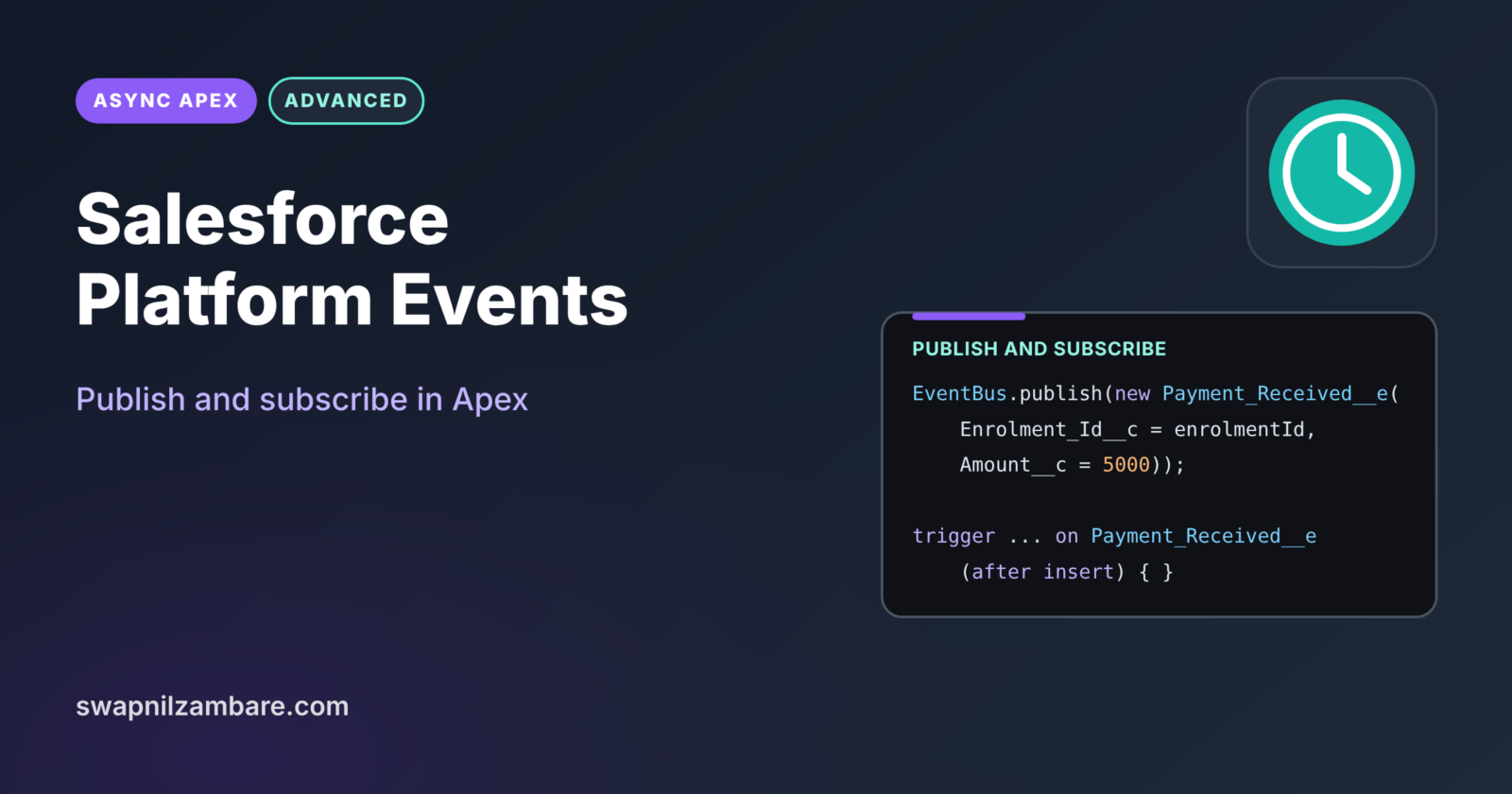
Payment_Received__e evt = new Payment_Received__e(
    Enrolment_Id__c = 'a025g00000XyZ12AAB',
    Amount__c = 5000,
    Payment_Ref__c = 'PAY-2026-0911');

Database.SaveResult sr = EventBus.publish(evt);
System.debug(sr.isSuccess() ? 'Event published' : 'Publish failed: ' + sr.getErrors());
In production, the partner publishes through an API. Here we publish Salesforce Platform Events from anonymous Apex to test. The SaveResult shows whether the event bus accepted it.
Step 2: Subscribe with a Trigger
trigger PaymentReceivedTrigger on Payment_Received__e (after insert) {

    Map<Id, Payment_Received__e> byEnrolment = new Map<Id, Payment_Received__e>();
    for (Payment_Received__e evt : Trigger.new) {
        byEnrolment.put(Id.valueOf(evt.Enrolment_Id__c), evt);
    }

    List<Enrolment__c> updates = new List<Enrolment__c>();
    for (Id enrolmentId : byEnrolment.keySet()) {
        updates.add(new Enrolment__c(Id = enrolmentId, Is_Paid__c = true));
    }
    Database.update(updates, false, AccessLevel.SYSTEM_MODE);
}
The trigger collects the enrolment Ids from all events in the batch, then updates them in one DML statement. Because it runs as the Automated Process user, it uses system mode explicitly, and allOrNone false keeps one bad Id from failing the rest.
Step 3: Check the Result
Here is what the debug logs show for the publisher and the subscriber.
Publisher:  USER_DEBUG|Event published
Subscriber: CODE_UNIT_STARTED|PaymentReceivedTrigger on Payment_Received__e
            DML_BEGIN|Op:Update|Type:Enrolment__c|Rows:1
The publisher and subscriber run in separate transactions. So the trigger’s log has its own entry, and its success does not affect the publisher.
Testing Salesforce Platform Events
Publish events between Test.startTest and Test.stopTest. The events are delivered at stopTest, so your asserts see the trigger’s results. You can also call Test.getEventBus().deliver() to deliver them earlier.
Common Mistakes with Salesforce Platform Events
- Expecting event triggers to support before insert or update events.
- Using Publish Immediately for business events that need saved data.
- Forgetting that event triggers run as the Automated Process user.
- Retrying forever with RetryableException instead of handling the error.
- Writing non-bulk trigger code for batches of up to 2,000 events.
Best Practices for Salesforce Platform Events
- Name events after business facts, such as Payment_Received__e.
- Keep event payloads small and focused.
- Write bulk-safe triggers that handle many events at once.
- Check SaveResult after every publish.
- Monitor event usage against your org’s allocations.
Practice Task
Create a Course_Cancelled__e event with a Course_Id__c field. Publish it from the course trigger when Status changes to Cancelled, and subscribe with a flow that emails enrolled students. Hint: use Publish After Commit so emails go out only when the cancellation is saved.
Most Asked Interview Questions on Salesforce Platform Events
Event-driven questions are common in integration interviews. Here are the 21 questions asked most about Salesforce Platform Events.
Basic Questions on Salesforce Platform Events
Q1: What are platform events?
Custom messages, ending in __e, that publishers send and subscribers receive through the event bus.
Q2: How do you publish an event in Apex?
Call EventBus.publish with an event instance or a list of events.
Q3: What does EventBus.publish return?
Database.SaveResult values that show whether publishing was accepted.
Q4: Who can subscribe to platform events?
Apex triggers, flows, Lightning components with empApi, and outside systems through the Pub/Sub API.
Q5: Which trigger event do platform event triggers support?
Only after insert.
Q6: What is the event bus?
A stream that holds events in order so subscribers can receive them.
Q7: What is a ReplayId?
A value that marks an event’s position on the bus, used to resume subscriptions.
Code and Scenario Questions on Salesforce Platform Events
Q8: What is the difference between the two publish behaviours?
Publish After Commit sends only if the transaction succeeds. Publish Immediately sends at once.
Q9: Which user runs a platform event trigger by default?
The Automated Process user.
Q10: How many events can a trigger batch contain?
Up to 2,000.
Q11: How do you retry an event trigger?
Throw EventBus.RetryableException. Salesforce retries up to 9 times.
Q12: How do you test a platform event trigger?
Publish between startTest and stopTest, or call Test.getEventBus().deliver(), then assert.
Q13: Can you roll back a published event?
Not with Publish Immediately. With Publish After Commit, a failed transaction never sends it.
Q14: How do you process part of a batch and resume later?
Use setResumeCheckpoint with the last processed ReplayId.
Advanced Questions on Salesforce Platform Events
Q15: Why use platform events instead of direct callouts?
They decouple systems, so publishers and subscribers can change independently.
Q16: Why should an event trigger use explicit access modes?
It runs as the Automated Process user, which may lack object and field permissions.
Q17: How long are events kept on the bus?
For a limited time, typically up to 72 hours, so subscribers can replay recent events.
Q18: Can you change the running user of an event trigger?
Yes, with a PlatformEventSubscriberConfig setting.
Q19: What are event allocations?
Limits on how many events an org can publish and deliver in a period.
Q20: How do platform events differ from Change Data Capture?
Platform events carry custom messages you design. Change Data Capture sends events for record changes automatically.
Q21: How do you avoid duplicate processing?
Make subscribers idempotent, for example by checking a unique Payment_Ref__c before updating.
Official Resources
- Platform Events Developer Guide
- Retry Event Triggers with EventBus.RetryableException
- Platform Events Basics (Trailhead)
Quick Recap
- Salesforce Platform Events are custom messages that end in __e.
- Publish with EventBus.publish and check the SaveResult.
- Event triggers support only after insert and run in their own process.
- Publish After Commit suits business events, Publish Immediately suits logs.
- Retries and ReplayIds help subscribers recover from errors.
What’s Next?
Salesforce can also publish events for record changes automatically. Next, read our guide to Change Data Capture in Salesforce.