LWC in Flows lets admins drop your custom component onto a flow screen, pass values in and get values back, just like a standard screen field. The same component can also run as a quick action button on a record page or appear on an Experience Cloud site. The key is the .js-meta.xml file, which tells Salesforce where the component can live.
In this post, you will learn flow screen targets and properties, how to send values back to a flow, how to validate input, how to build screen and headless quick actions, and how to expose components to sites. It builds on the Salesforce Flow types guide, LWC parent to child communication and SLDS styling hooks.
What is LWC in Flows?
LWC in Flows means using a Lightning Web Component as a screen component inside a Screen Flow. The component lists lightning__FlowScreen as a target and declares properties that Flow Builder shows as inputs and outputs. When users move through the flow, the component reads inputs, collects data and returns outputs to flow variables.
Think of a kitchen appliance that fits a standard socket. The kitchen (the flow) provides power and decides when to use it. The appliance (your component) does one special job, such as blending. Because it fits the standard socket, any kitchen can use it.
Why LWC in Flows Matters
Standard flow screen fields cover a lot, but not everything. Here is why LWC in Flows matters at Bright Path Tutors.
- First, an enrolment flow needs a visual seat picker that standard fields cannot draw.
- Also, admins want to change the flow without asking a developer.
- Next, a quick action on Course must open a custom booking screen.
- A one-click “Mark as full” action needs no screen at all.
- Finally, the student website needs the same course card as the internal app.
So with LWC in Flows, one well-built component can serve flows, actions and sites.
How LWC in Flows Works
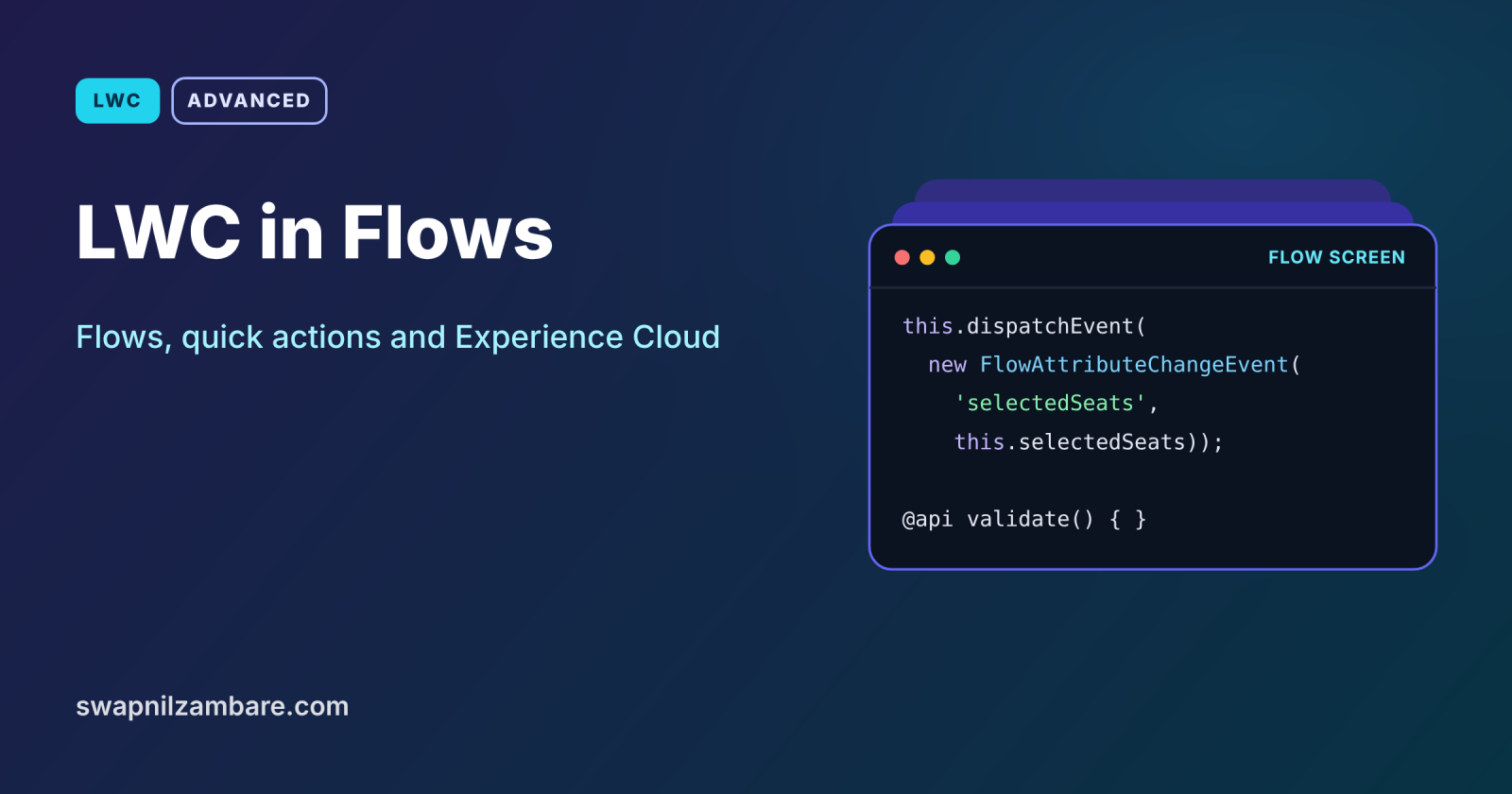
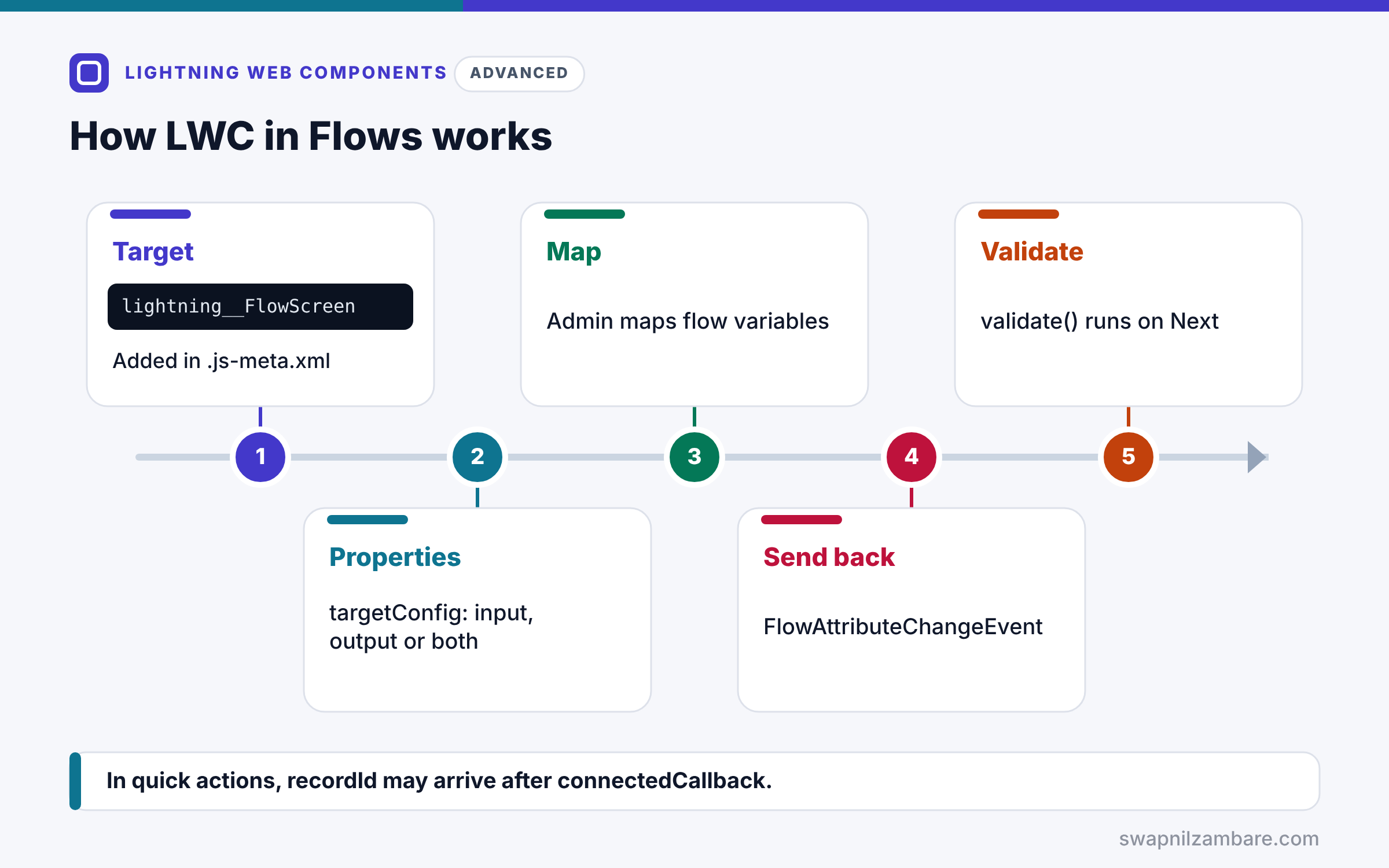
LWC in Flows follows a short setup. First, you add lightning__FlowScreen to the targets in .js-meta.xml. Next, you declare properties in a targetConfig, each with a role: input, output or both. Then the admin drags the component onto a flow screen and maps flow variables to those properties. After that, the component sends changes back with FlowAttributeChangeEvent. Finally, when the user clicks Next, the flow can call the component’s validate method before moving on.
Flow Screen Properties
Each property in the targetConfig has a name, type and optional role. inputOnly means the flow sends a value in. outputOnly means the component sends a value out.
FlowAttributeChangeEvent
When a value changes, dispatch FlowAttributeChangeEvent from lightning/flowSupport with the property name and new value. The flow then updates its variable.
Validation
An @api validate() method returns { isValid, errorMessage }. The flow calls it when the user clicks Next, and blocks the move if isValid is false.
Screen Quick Actions
Add lightning__RecordAction with actionType ScreenAction. The component opens in a modal on the record page, and CloseActionScreenEvent from lightning/actions closes it.
Headless Quick Actions
With actionType Action, there is no screen. Instead, Salesforce calls an @api invoke() method when the user clicks the button.
Experience Cloud
Add lightningCommunity__Page and lightningCommunity__Default to make the component available in Experience Builder, with editable properties.
Targets at a Glance
The table below lists the targets this post covers.
| Target | Where it appears |
|---|---|
| lightning__FlowScreen | Screen Flow screens |
| lightning__RecordAction (ScreenAction) | Quick action with a modal screen |
| lightning__RecordAction (Action) | Headless quick action |
| lightningCommunity__Page | Experience Builder pages |
| lightningCommunity__Default | Property panel in Experience Builder |
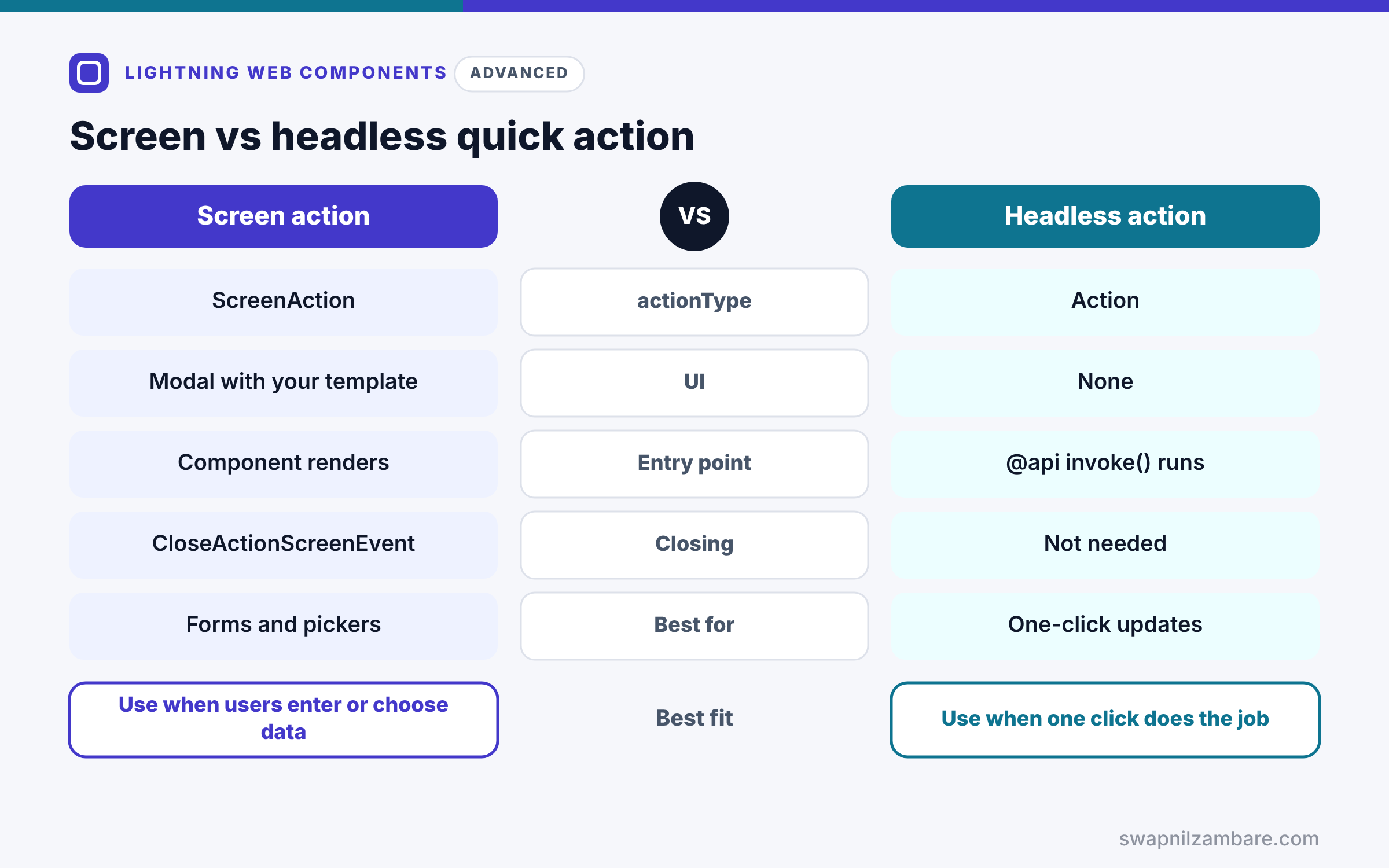
Screen Quick Action vs Headless Quick Action
The table below compares the two quick action styles.
| Feature | Screen quick action | Headless quick action |
|---|---|---|
| actionType | ScreenAction | Action |
| UI | Modal with your template | None |
| Entry point | Component renders | @api invoke() runs |
| Closing | CloseActionScreenEvent | Not needed |
| Best for | Forms and pickers | One-click updates |
When to use which depends on input. Use a screen action when the user must enter or choose something. Use a headless action for one-click jobs.
A Real LWC in Flows Example
Let’s build LWC in Flows at Bright Path Tutors: a seat picker for the enrolment flow that also works as a quick action.
Step 1: The Metadata File
<?xml version="1.0" encoding="UTF-8"?>
<LightningComponentBundle xmlns="http://soap.sforce.com/2006/04/metadata">
    <apiVersion>66.0</apiVersion>
    <isExposed>true</isExposed>
    <targets>
        <target>lightning__FlowScreen</target>
        <target>lightning__RecordAction</target>
    </targets>
    <targetConfigs>
        <targetConfig targets="lightning__FlowScreen">
            <property name="maxSeats" type="Integer" role="inputOnly" label="Max seats"/>
            <property name="selectedSeats" type="Integer" label="Selected seats"/>
        </targetConfig>
        <targetConfig targets="lightning__RecordAction">
            <actionType>ScreenAction</actionType>
        </targetConfig>
    </targetConfigs>
</LightningComponentBundle>
The flow sends maxSeats in, and selectedSeats goes both ways. The same component is also a screen quick action.
Step 2: The Component Class
import { LightningElement, api } from 'lwc';
import { FlowAttributeChangeEvent } from 'lightning/flowSupport';
import { CloseActionScreenEvent } from 'lightning/actions';

export default class SeatPicker extends LightningElement {
    @api maxSeats = 5;
    @api selectedSeats = 1;
    @api recordId;   // set when used as a quick action

    handleChange(event) {
        this.selectedSeats = Number(event.target.value);
        this.dispatchEvent(new FlowAttributeChangeEvent('selectedSeats', this.selectedSeats));
    }

    @api
    validate() {
        if (this.selectedSeats < 1 || this.selectedSeats > this.maxSeats) {
            return { isValid: false, errorMessage: `Choose between 1 and ${this.maxSeats} seats.` };
        }
        return { isValid: true };
    }

    handleClose() {
        this.dispatchEvent(new CloseActionScreenEvent());
    }
}
handleChange updates the value and tells the flow. Then validate stops the flow when the number is out of range. In quick action mode, handleClose closes the modal.
Step 3: Use It in the Flow
- Open Setup > Flows and edit the Enrolment screen flow.
- Add a Screen element, then drag SeatPicker from the Custom section.
- Set Max seats to {!Course.Max_Seats__c} and Selected seats to a number variable.
- Save and run the flow.
Here is what happens when a student picks too many seats.
Seat picker: 8   [Next]
Error: Choose between 1 and 5 seats.
The flow stays on the screen until the value is valid, and then it stores the seats in the flow variable.
LWC in Flows and Quick Actions: The recordId Timing
In screen quick actions, recordId may not be set when connectedCallback runs. So use an @api setter for recordId, or load data in a wired function that waits for ‘$recordId’.
Common Mistakes with LWC in Flows
- Changing an output property without firing FlowAttributeChangeEvent.
- Forgetting the targetConfig, so Flow Builder shows no properties.
- Loading record data in connectedCallback in a quick action before recordId exists.
- Building a screen action for a one-click job that should be headless.
- Missing Experience Cloud targets, so the component is absent in Experience Builder.
Best Practices for LWC in Flows
- Keep flow components focused on one input or display job.
- Always fire FlowAttributeChangeEvent for output values.
- Add validate() so flows block bad input.
- Use headless actions for one-click updates.
- Test the component in each target where it is exposed.
Practice Task
Turn the seat picker into a headless “Add one seat” quick action. Hint: set actionType to Action, add an @api invoke() method that calls Apex, and show a toast when it finishes.
Most Asked Interview Questions on LWC in Flows
Admins and developers often work together on these targets. Here are the 21 questions asked most about LWC in Flows, quick actions and sites.
Basic Questions on LWC in Flows
Q1: How do you make an LWC available in Flow Builder?
Add lightning__FlowScreen to the targets and set isExposed to true.
Q2: How do you declare flow inputs and outputs?
Add property elements in a targetConfig for lightning__FlowScreen.
Q3: What does role=”inputOnly” mean?
The flow can only send a value in, not read one back.
Q4: How does a component send a value back to the flow?
It dispatches FlowAttributeChangeEvent with the property name and value.
Q5: How do you validate input in a flow component?
Add an @api validate() method that returns isValid and an errorMessage.
Q6: Which target makes a quick action?
lightning__RecordAction.
Q7: Which targets expose a component to Experience Builder?
lightningCommunity__Page and lightningCommunity__Default.
Code and Scenario Questions on LWC in Flows
Q8: What is a headless quick action?
A quick action with actionType Action, which runs @api invoke() with no screen.
Q9: How do you close a screen quick action?
Dispatch CloseActionScreenEvent from lightning/actions.
Q10: Why might recordId be undefined in a quick action?
Because it can arrive after connectedCallback, so use a setter or a wire.
Q11: How do you move the flow to the next screen from LWC?
Dispatch FlowNavigationNextEvent from lightning/flowSupport, if the action is available.
Q12: Can the same component work in a flow and a quick action?
Yes, so you list both targets with separate targetConfigs.
Q13: How do you give admins editable properties in App Builder?
Add property elements in the targetConfig for those page targets.
Q14: When does the flow call validate()?
When the user clicks Next or Finish on that screen.
Advanced Questions on LWC in Flows
Q15: Why fire FlowAttributeChangeEvent instead of just setting the property?
Because the flow does not see direct changes, so the event updates the flow variable.
Q16: How do you pass a record collection into a flow component?
Declare a property with an sObject collection type, such as @salesforce/schema/Course__c[].
Q17: What should a headless action do on success?
Finish the work, then show a toast so the user gets feedback.
Q18: What do you check for guest users on Experience Cloud?
That Apex and data access follow guest user security rules.
Q19: Can flow components call Apex?
Yes, so they can load or save data like any LWC.
Q20: How do you keep a flow component reusable?
Expose clear properties, avoid hard-coded Ids and keep logic inside the component.
Q21: When should you build a flow component instead of a full LWC page?
When admins own the process and need one custom step inside a flow.
Official Resources
- Configure a Component for Flow Screens (LWC Developer Guide)
- Create Quick Actions with Lightning Web Components (LWC Developer Guide)
Quick Recap
- LWC in Flows uses the lightning__FlowScreen target and targetConfig properties.
- FlowAttributeChangeEvent sends values back to the flow.
- validate() blocks bad input on Next.
- Quick actions use lightning__RecordAction as ScreenAction or Action.
- Experience Cloud targets expose components to sites.
What’s Next?
Components need tests, just like Apex. Next, read our guide to LWC Jest testing.