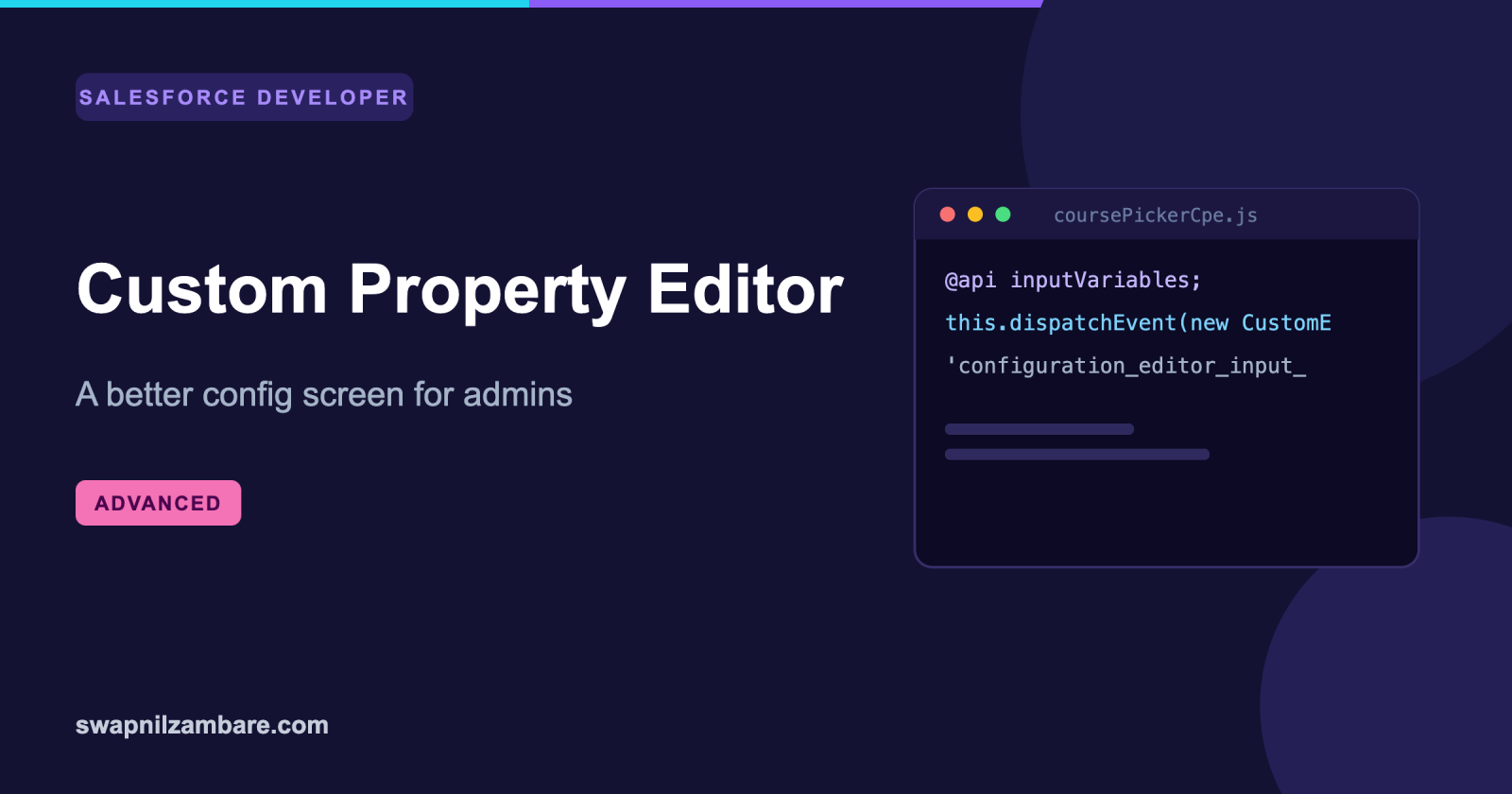
An LWC Custom Property Editor replaces the plain list of inputs an admin sees when they configure your component in Flow Builder. Instead of six text boxes with API names, the admin gets a designed panel with pickers, toggles and live validation.
This matters once a component has more than a couple of settings. A list of raw inputs invites mistakes, and every mistake surfaces as a broken screen in production rather than an error at build time.
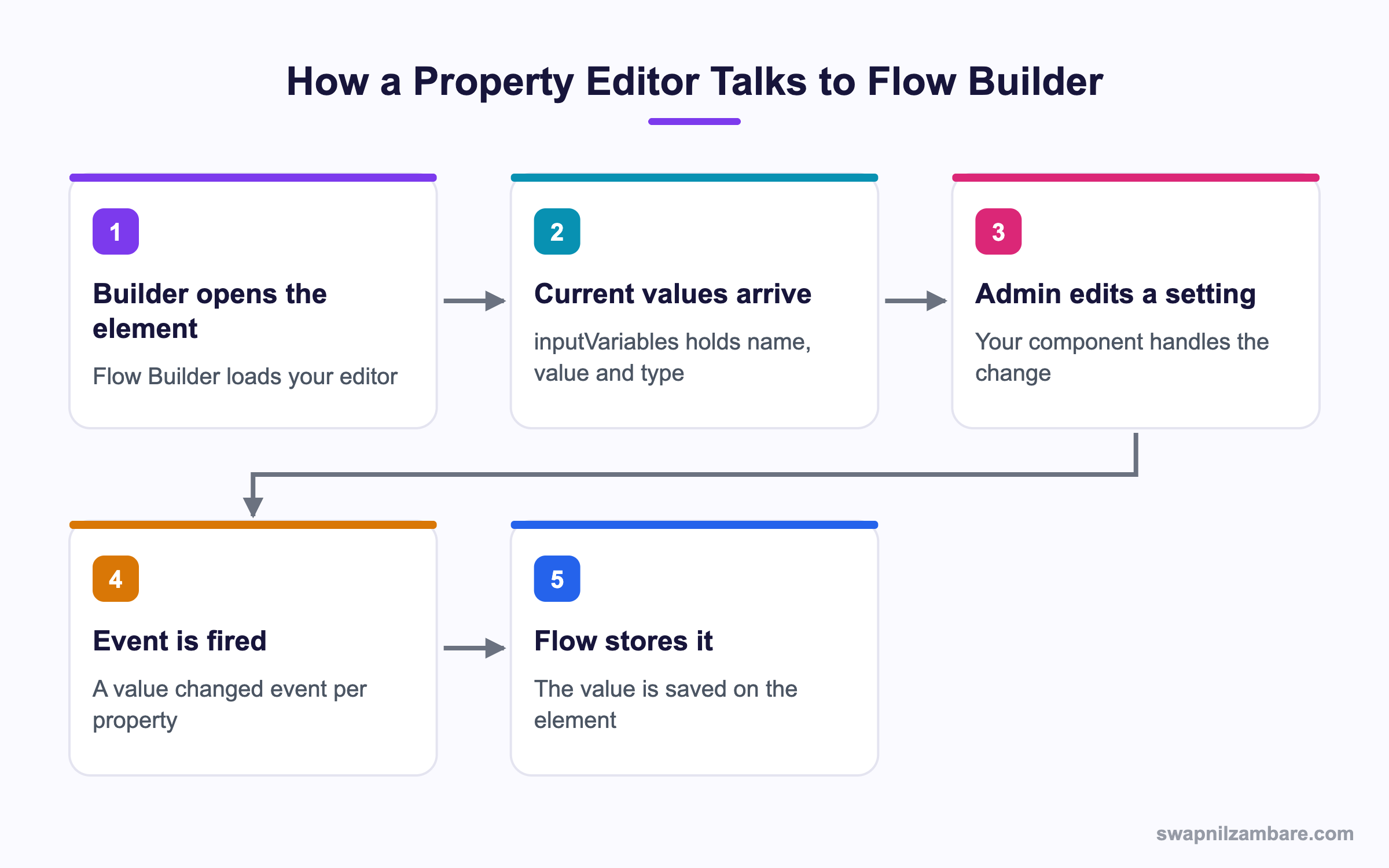
Caption: Flow Builder owns the saved values, and your editor only reports changes.
What Is an LWC Custom Property Editor
An LWC Custom Property Editor is a separate Lightning Web Component that Flow Builder renders inside the element configuration panel. It is not the component the user sees at runtime. You build two bundles, one for the screen and one for its editor.
| Bundle | Where it runs | Who sees it |
|---|---|---|
| Screen component | In the running Flow | The end user |
| Property editor | In Flow Builder | The admin building the Flow |
The editor receives the current settings in a public property called inputVariables, and it reports every change by firing an event. It never writes the values itself.
The Metadata
An LWC Custom Property Editor declares a different target from a normal component. Flow screen components themselves are covered in the post on LWC in Flows.
<targets>
  <target>lightning__FlowScreenPropertyEditor</target>
</targets>
The screen component then points at the editor from its own meta file.
<targetConfig targets="lightning__FlowScreen"
  configurationEditor="c-course-picker-cpe">
  <property name="courseId" type="String" label="Course" />
  <property name="showFee" type="Boolean" label="Show fee" />
</targetConfig>
Note the kebab case name in configurationEditor. A camel case name here is one of the most common reasons the editor never appears.
How the Value Contract Works
The LWC Custom Property Editor reads an array and fires events. That is the whole contract.
import { LightningElement, api } from 'lwc';

export default class CoursePickerCpe extends LightningElement {
  @api inputVariables = [];

  get courseId() {
    const found = this.inputVariables.find(v => v.name === 'courseId');
    return found ? found.value : undefined;
  }

  handleCourseChange(event) {
    this.report('courseId', event.detail.value, 'String');
  }

  report(name, value, type) {
    this.dispatchEvent(
      new CustomEvent('configuration_editor_input_value_changed', {
        bubbles: true,
        composed: true,
        cancelable: false,
        detail: { name, newValue: value, newValueDataType: type }
      })
    );
  }
}
Three details decide whether the LWC Custom Property Editor works at all. If custom events are new ground, see custom events. The event name is fixed and spelled exactly as above. The event must set bubbles and composed to true so it escapes the shadow boundary. And the detail keys are name, newValue and newValueDataType, not the names you might expect.
| Data type string | Use it for |
|---|---|
| String | Text, ids, picklist values |
| Number | Numeric settings |
| Boolean | Checkboxes and toggles |
| reference | A Flow variable the admin picked |
That reference type is how an admin passes a Flow variable instead of a fixed value. Send the variable name as the value and reference as the type.
Why an LWC Custom Property Editor Matters
| Benefit | What it gives the admin |
|---|---|
| Real pickers | A course record picker instead of a pasted id |
| Validation at build time | An error in the builder, not in production |
| Grouped settings | Related options side by side |
| Helpful labels | Plain words instead of API names |
| Fewer support calls | The wrong value becomes hard to enter |
The validation point is the strongest one. A default editor accepts anything typed into a text box. An LWC Custom Property Editor can refuse to let the Flow be saved until the settings make sense.
Blocking a Save
Flow Builder asks the LWC Custom Property Editor to validate before it saves. Expose a public validate method that returns an array of errors.
@api validate() {
  const errors = [];
  if (!this.courseId) {
    errors.push({ key: 'courseId', errorString: 'Pick a course' });
  }
  return errors;
}
An empty array means the settings are valid. Anything in the array shows in the builder and stops the save. This one method removes a whole class of production problem.
Default Editor vs LWC Custom Property Editor
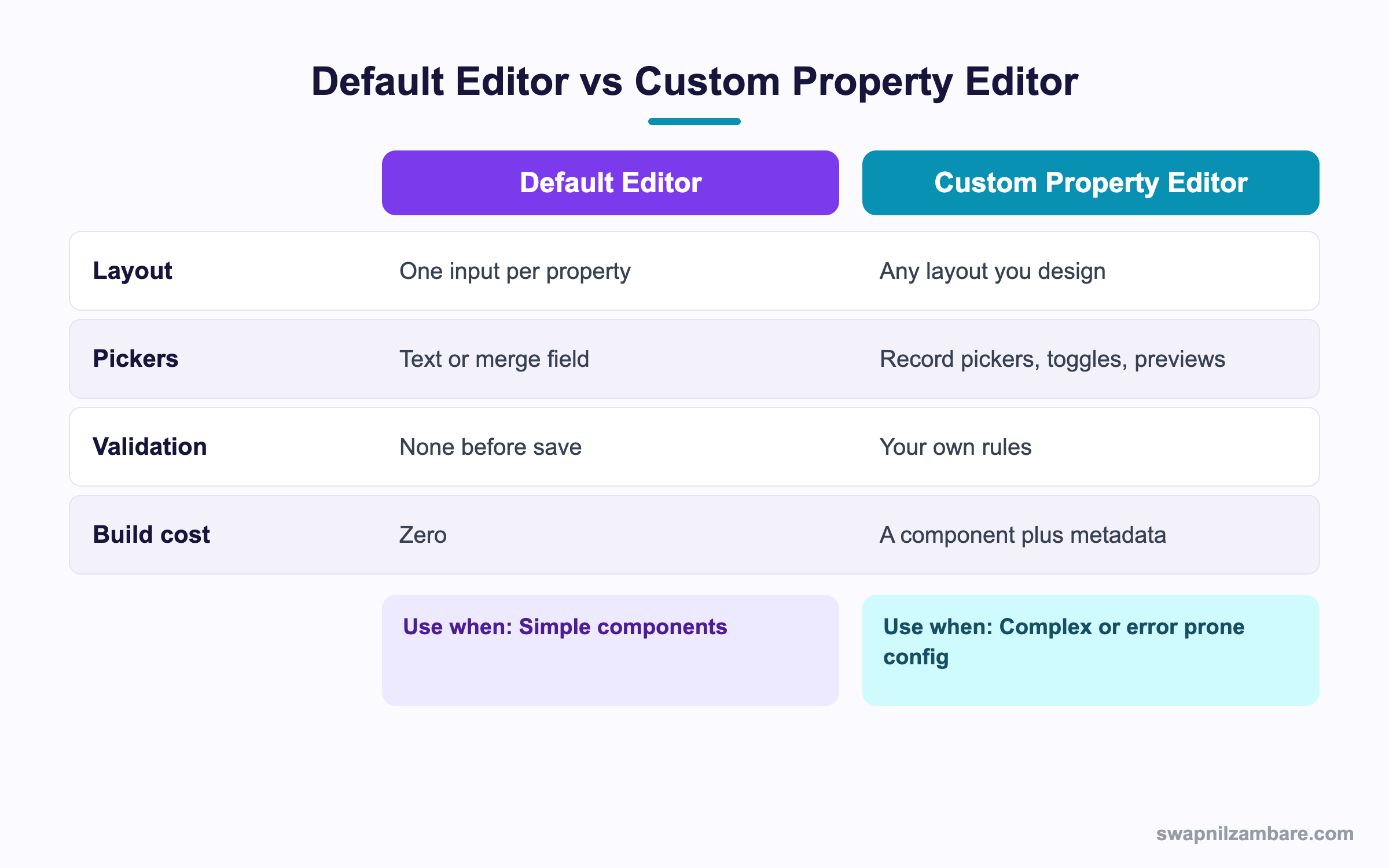
Caption: The build cost is real, so keep the default editor for simple components.
| Component settings | Reasonable choice |
|---|---|
| One or two text values | Default editor |
| A record id the admin must paste | Custom editor |
| Settings that depend on each other | Custom editor |
| A JSON string the admin has to write | Custom editor |
| A single checkbox | Default editor |
| Six or more related options | Custom editor |
The JSON row is the clearest case. If your component takes a JSON configuration string, an admin will eventually get a comma wrong and the screen will fail at runtime. An editor that builds the JSON for them makes that impossible.
A Real LWC Custom Property Editor Example
An LWC Custom Property Editor changed how our own admins work. Bright Path Tutors has a Flow screen component that shows course details and an optional fee. The settings are a course id, a flag for the fee, and a level filter.
The first version used the default editor. Admins pasted record ids by hand, and two Flows broke because an id came from a sandbox.
We built an editor with a record picker, a toggle and a level dropdown.
| Setting | Default editor | Custom editor |
|---|---|---|
| Course | Pasted 18 character id | lightning-record-picker |
| Show fee | Text box with true or false | lightning-input toggle |
| Level | Free text | Dropdown from the picklist |
| Bad value caught | At runtime | Before the Flow saves |
The record picker was the piece that paid for the work. It searches live records, so a sandbox id can no longer reach a production Flow. If record pickers are new to you, the post on base components lists what each one does.
Reading Flow Variables and Context
Flow Builder can also hand the LWC Custom Property Editor a list of the variables available in that Flow, through a property named builderContext.
@api builderContext;

get textVariables() {
  const vars = this.builderContext ? this.builderContext.variables : [];
  return vars
    .filter(v => v.dataType === 'String')
    .map(v => ({ label: v.name, value: v.name }));
}
That gives you a dropdown of the Flow’s own text variables, which is how a proper merge field picker is built. Send the chosen name with the reference data type so Flow resolves it at runtime.
Limits and Things to Watch
- An LWC Custom Property Editor runs only in Flow Builder, so it needs its own target in the meta file
- The event name and detail keys are fixed and case sensitive
- The editor cannot read Salesforce data through a wire adapter in every release, so test your data calls early
- Values arrive as strings, so convert numbers and booleans yourself
- The editor is not rendered at runtime, so never put business logic in it
- A screen component can have only one configuration editor
Common Mistakes with an LWC Custom Property Editor
| Mistake | What you see | Fix |
|---|---|---|
| Camel case configurationEditor name | The editor never appears | Use the kebab case name |
| Missing bubbles and composed | The value never saves | Set both to true on the event |
| Wrong detail keys | Silent no change | Use name, newValue and newValueDataType |
| Mutating inputVariables | A read only error | Treat it as read only and fire events |
| No validate method | Bad settings reach production | Add validate and return errors |
| Business logic in the editor | It never runs for users | Keep logic in the screen component |
| Wrong data type string | The value saves but is unusable | Match the type to the property |
Best Practices for an LWC Custom Property Editor
- Read values through getters rather than copying them into fields
- Fire one event per property that changed, not one for everything
- Always add a validate method, even for a single required setting
- Use record pickers and dropdowns in place of any text box holding an id
- Convert numbers and booleans explicitly, since values arrive as strings
- Name the editor bundle after the screen component with a clear suffix
- Write a Jest test for the event detail, since the keys are easy to get wrong
Most Asked LWC Custom Property Editor Interview Questions
Q1: What is a custom property editor?
A Lightning Web Component that replaces the default configuration panel an admin sees in Flow Builder.
Q2: Does the end user ever see it?
No. It runs only inside Flow Builder, while the screen component runs for the user.
Q3: Which target does the editor declare?
The lightning__FlowScreenPropertyEditor target in its meta file.
Q4: How does the screen component point at its editor?
With the configurationEditor attribute on its target config, using the kebab case component name.
Q5: Why does a camel case name fail?
The attribute expects the kebab case form, so a camel case value simply never matches.
Q6: How does the editor receive current values?
Through a public inputVariables property, which is an array of objects with name, value and type.
Q7: Can you change inputVariables directly?
No. It is read only, so you report changes with an event instead.
Q8: What is the event name?
configuration_editor_input_value_changed, spelled exactly that way.
Q9: Which event options are required?
Both bubbles and composed must be true so the event escapes the shadow boundary.
Q10: What keys go in the event detail?
The name, newValue and newValueDataType keys.
Q11: Which data type strings are used?
String, Number, Boolean and reference, among others.
Q12: What does the reference type mean?
The value names a Flow variable rather than holding a fixed value, so Flow resolves it at runtime.
Q13: How do you stop a Flow saving with bad settings?
Expose a public validate method and return an array of error objects.
Q14: What does validate return when all is well?
An empty array.
Q15: What is in each error object?
A key naming the property and an errorString holding the message.
Q16: What is builderContext for?
It gives the editor the Flow’s own variables and elements, so you can build a merge field picker.
Q17: Why is a record picker better than a text box for an id?
It searches live records, so an id from another org cannot be pasted in.
Q18: Does the LWC Custom Property Editor run business logic?
No. It only collects configuration, so logic belongs in the screen component or Apex.
Q19: Can one screen component have two editors?
No. Only one configuration editor is allowed per component.
Q20: Scenario: the editor renders but values never save. What is the first thing to check?
The event, specifically the bubbles and composed options and the detail key names.
Q21: Scenario: a number setting saves but arrives as text. Why?
The data type string was wrong, or the value was never converted before it was reported.
Q22: Scenario: the panel is blank in Flow Builder. What is wrong?
Usually the target is missing from the editor meta file, or the configurationEditor name is wrong.
Q23: Do App Builder components use the same pattern?
App Builder has its own property editor support, and the ideas carry over even though the targets differ.
Q24: How do you test the editor?
With Jest, by setting inputVariables and asserting the detail of the event your handler fires.
Q25: When is the default editor good enough?
When there are one or two plain values and nothing depends on anything else.
Q26: What is the strongest argument for building one?
Validation before save, since it turns a production failure into a build time message.
Q27: Can the editor query Salesforce data?
Treat data calls as something to test per release, since behaviour inside the builder has changed over time.
Q28: What is the one habit that avoids most of the pain?
Keep the editor thin, read values through getters, and report every change with a correctly shaped event.
Official Resources
- Lightning Web Components Developer Guide
- Flow Builder in Salesforce Help
- Build Flow Screen Components on Trailhead
What Is Next
Next, read TypeScript in LWC Setup and Type Safety Explained.