LWC Custom Events are how a child component tells its parent that something happened, such as “a course was selected” or “a form was saved”. The child creates a CustomEvent, adds any data in its detail, and dispatches it. The parent listens with an on handler in its template, just like it listens to a button click.
In this post, you will learn how to create and dispatch events, how to name them, what goes in detail, and when to use the bubbles and composed options. It builds on LWC parent to child communication, LWC loops and Salesforce Platform Events, which use the same publish and listen idea on the server.
What are LWC Custom Events?
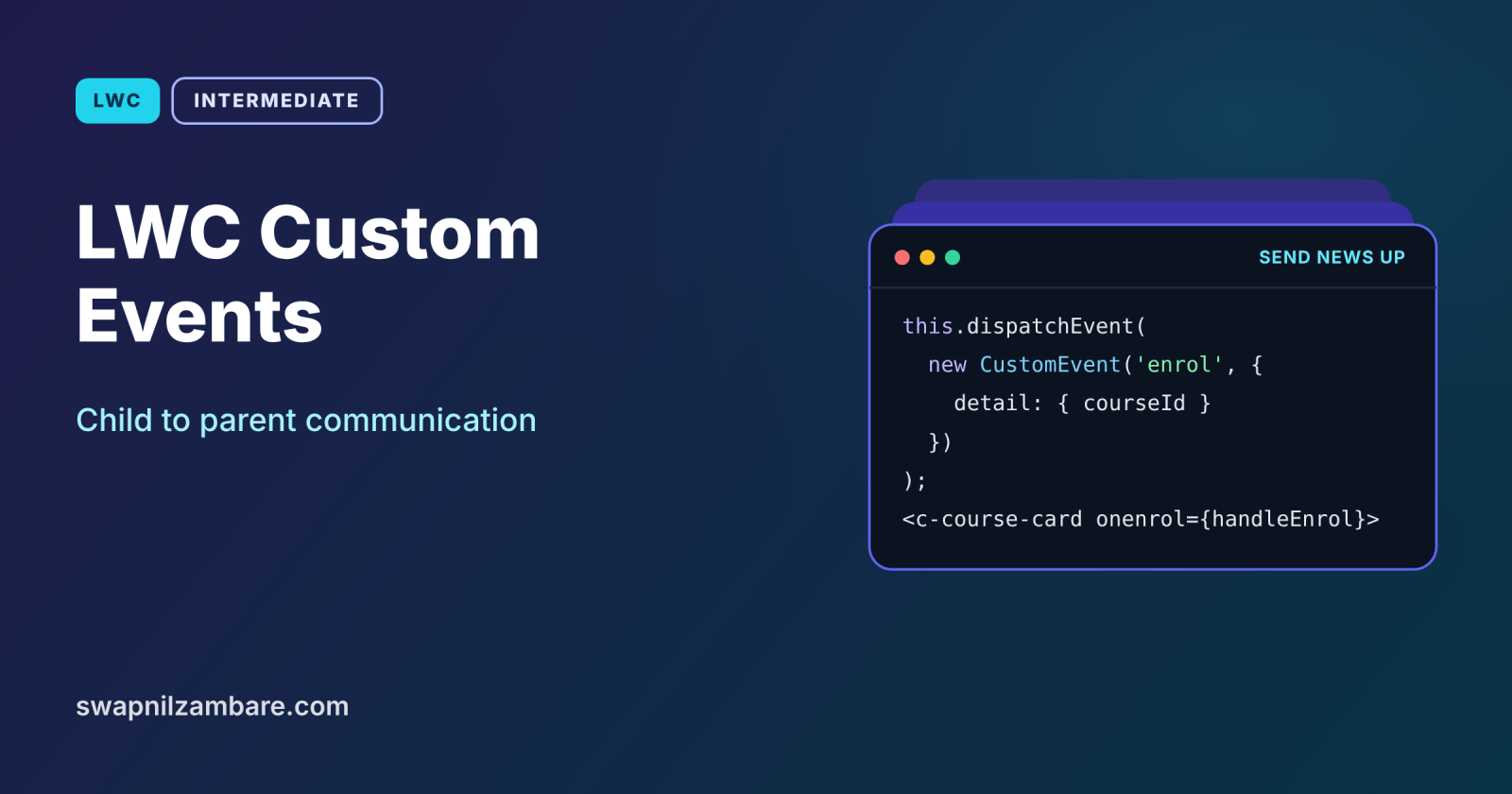
LWC Custom Events are standard browser CustomEvent objects that a component fires with this.dispatchEvent. Each event has a name, such as enrol, and an optional detail object with data. The parent handles it by adding onenrol={handleEnrol} to the child tag.
Think of a student raising a hand in class. The student does not walk to the teacher’s desk and change the timetable. Instead, they raise a hand and say “I have a question about chapter 3”. The teacher decides what to do. The raised hand is the event, and “chapter 3” is the detail.
Why LWC Custom Events Matter
Data flows down with @api, but actions start in children. Here is why LWC Custom Events matter at Bright Path Tutors.
- First, a course card must tell the catalog when a tutor clicks Enrol.
- Also, a search box must tell its parent the new search text.
- Next, a form must report that it saved, so the parent can refresh.
- Children stay reusable, because they do not know who their parent is.
- Finally, events keep the parent in charge of shared data.
So events complete the two-way conversation between components.
How LWC Custom Events Work
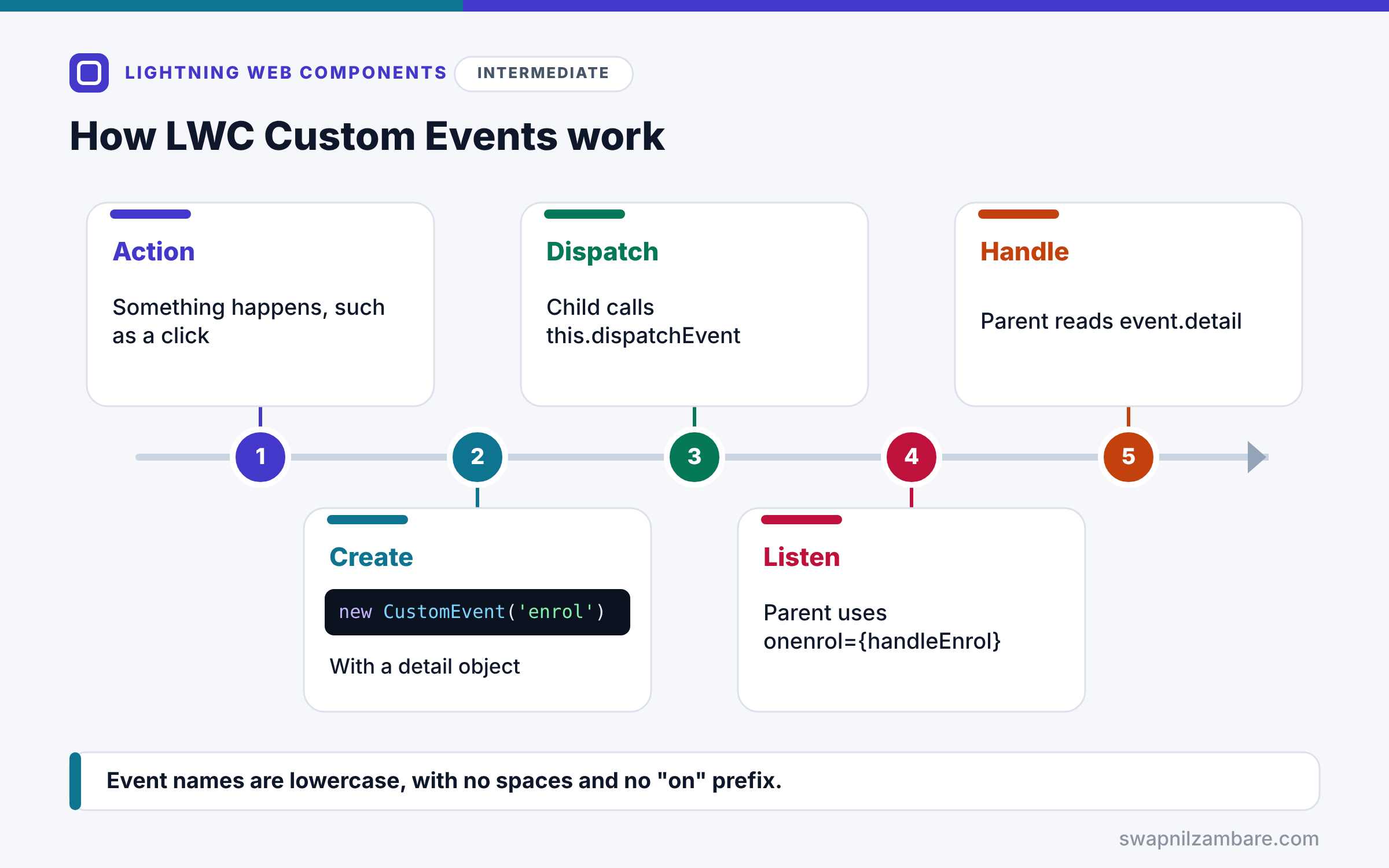
LWC Custom Events follow a clear path. First, something happens in the child, such as a button click. Next, the child creates new CustomEvent(‘enrol’, { detail: { courseId } }). Then it calls this.dispatchEvent(event). After that, the event travels to the parent, which listens with onenrol={handleEnrol} on the child tag. Finally, the parent’s handler reads event.detail and updates its own data.
Creating an Event
Create an event with new CustomEvent(name, options). The name is a plain string, such as enrol or search.
Naming Rules
Event names should be lowercase, with no spaces and no hyphens or uppercase letters. Do not start the name with “on”, because the parent adds “on” when listening.
The detail Property
detail carries the data, such as a record Id. Prefer simple values or a copy of the data, so the parent cannot change the child’s internal objects.
bubbles and composed
By default, an event goes only to the direct parent. bubbles: true lets it rise through the parent’s own DOM, and composed: true lets it cross shadow boundaries to higher components. Use these only when you really need them.
Listening in JavaScript
A parent can also listen with addEventListener, for example in connectedCallback. However, the template on-handler is simpler and cleans up automatically.
Event Options at a Glance
The table below sums up the event options.
| Option | Default | What it does |
|---|---|---|
| detail | null | Carries data to the listener |
| bubbles | false | Rises through the DOM tree |
| composed | false | Crosses shadow DOM boundaries |
| cancelable | false | Lets listeners call preventDefault |
@api Property vs Custom Event
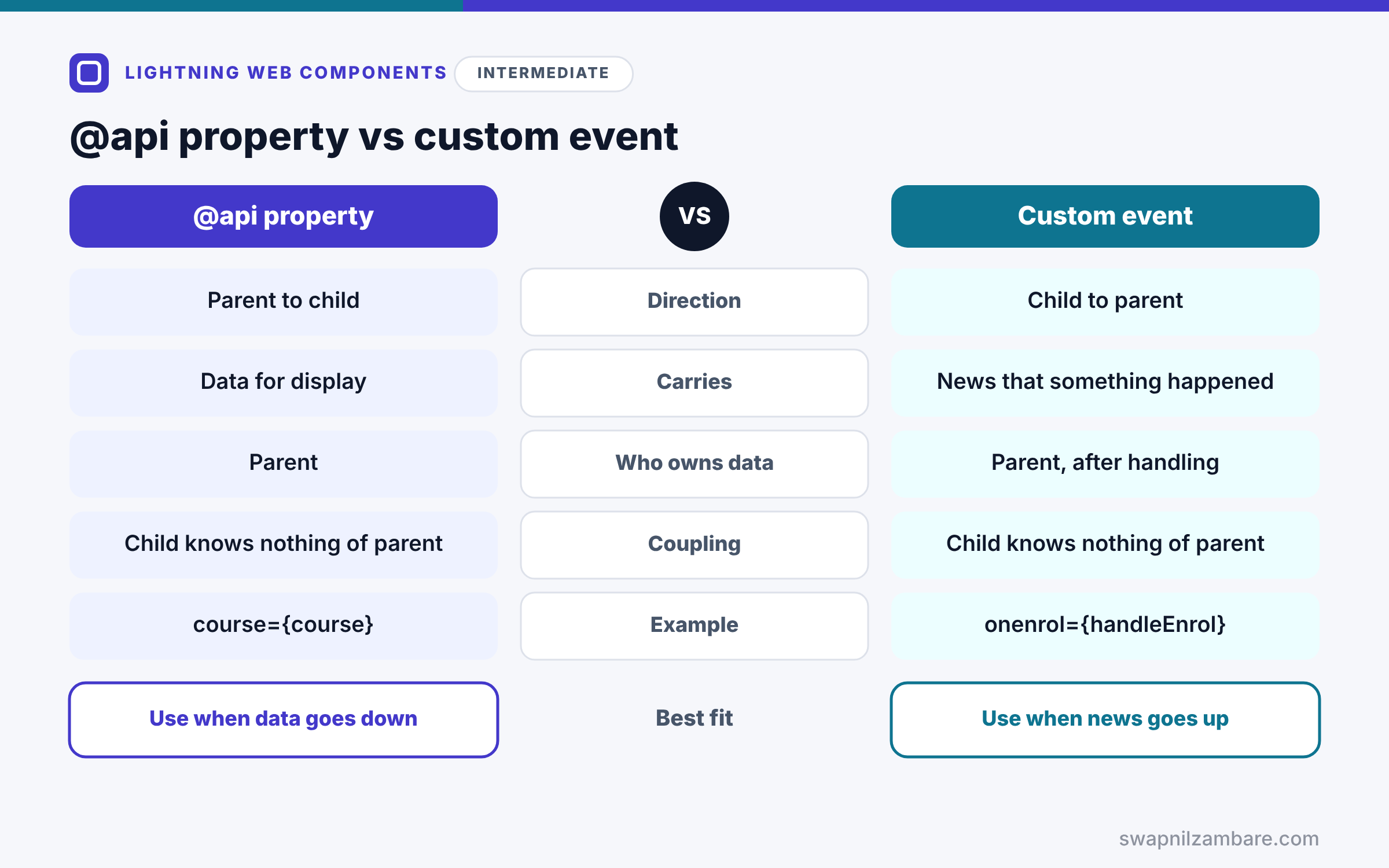
The table below compares the two directions of communication.
| Feature | @api property | Custom event |
|---|---|---|
| Direction | Parent to child | Child to parent |
| Carries | Data for display | News that something happened |
| Who owns data | Parent | Parent, after handling |
| Coupling | Child knows nothing of parent | Child knows nothing of parent |
| Example | course={course} | onenrol={handleEnrol} |
When to use which follows the direction. Send data down with @api properties. Send news up with LWC Custom Events.
A Real LWC Custom Events Example
Let’s add LWC Custom Events to Bright Path Tutors. Each course card fires an enrol event, and the catalog keeps a running list of chosen courses.
Step 1: The Child Fires the Event
// courseCard.js
import { LightningElement, api } from 'lwc';

export default class CourseCard extends LightningElement {
    @api course;

    handleEnrolClick() {
        const evt = new CustomEvent('enrol', {
            detail: { courseId: this.course.Id, name: this.course.Name }
        });
        this.dispatchEvent(evt);
    }
}
<!-- courseCard.html -->
<template>
<div class="slds-box slds-m-bottom_small">
{course.Name}
<lightning-button label="Enrol" onclick={handleEnrolClick}
class="slds-m-left_small"></lightning-button>
</div>
</template>When the tutor clicks Enrol, the card creates an enrol event. Its detail holds the course Id and name, both simple values.
Step 2: The Parent Listens
<!-- courseCatalog.html -->
<template>
    <template for:each={courses} for:item="c">
        <c-course-card key={c.Id} course={c} onenrol={handleEnrol}></c-course-card>
    </template>
    <p>Chosen: {chosenText}</p>
</template>
// courseCatalog.js
import { LightningElement } from 'lwc';
export default class CourseCatalog extends LightningElement {
courses = [
{ Id: 'a01A', Name: 'Apex Basics' },
{ Id: 'a01B', Name: 'SOQL Basics' }
];
chosen = [];
handleEnrol(event) {
const { courseId, name } = event.detail;
if (!this.chosen.some(c => c.courseId === courseId)) {
this.chosen = [...this.chosen, { courseId, name }];
}
}
get chosenText() {
return this.chosen.length ? this.chosen.map(c => c.name).join(', ') : 'None yet';
}
}The parent listens with onenrol on each card. Then handleEnrol reads the detail, skips duplicates, and assigns a new array, so the text updates.
Step 3: See It Work
Here is what the catalog shows after clicking Enrol on both cards.
Apex Basics [Enrol]
SOQL Basics [Enrol]
Chosen: Apex Basics, SOQL Basics
The cards never touched the parent’s list. They only announced what happened.
LWC Custom Events with bubbles and composed
If a grandparent needs the event, you could set bubbles: true and composed: true. However, that exposes the event to the whole page. A cleaner pattern is for the parent to handle the event and fire its own event upward. For unrelated components, use Lightning Message Service, which a later post covers.
Common Mistakes with LWC Custom Events
- Naming events with uppercase letters or hyphens.
- Starting the event name with “on”, such as onenrol.
- Passing the child’s internal objects in detail.
- Turning on bubbles and composed by default.
- Changing the parent’s data from the child instead of firing an event.
Best Practices for LWC Custom Events
- Use short, lowercase, meaningful event names.
- Put only the data the parent needs in detail.
- Keep bubbles and composed off unless truly needed.
- Handle events in the template with on-handlers.
- Use Lightning Message Service for unrelated components.
Practice Task
Add a remove event to each chosen course in the parent’s list, so a small child chip can ask the catalog to remove it. Hint: create a chip component that fires remove with the courseId, and filter the array in the parent.
Most Asked Interview Questions on LWC Custom Events
Event questions appear in almost every LWC interview. Here are the 21 questions asked most about LWC Custom Events.
Basic Questions on LWC Custom Events
Q1: How does a child send data to a parent in LWC?
It dispatches a CustomEvent with the data in detail, and the parent handles it.
Q2: How do you create a custom event?
Use new CustomEvent(‘name’, { detail: data }).
Q3: How do you fire it?
Call this.dispatchEvent(event) in the child.
Q4: How does the parent listen?
It adds on plus the event name on the child tag, such as onenrol={handleEnrol}.
Q5: Where is the event data?
In event.detail.
Q6: What are the naming rules for events?
Use lowercase letters with no spaces, hyphens or “on” prefix.
Q7: Does an event bubble by default?
No, so it reaches only the direct parent unless you set bubbles.
Code and Scenario Questions on LWC Custom Events
Q8: What does composed: true do?
It lets the event cross shadow DOM boundaries to higher components.
Q9: Why avoid putting objects in detail?
Because the parent could change them, so send primitives or a copy.
Q10: How do you pass two values in one event?
Put both in an object, such as detail: { courseId, name }.
Q11: Can a parent listen with JavaScript instead of markup?
Yes, with addEventListener, but you must remove the listener yourself.
Q12: How do you reach a grandparent?
Have the parent handle the event and fire a new one, or use bubbles and composed.
Q13: How do unrelated components communicate?
They use Lightning Message Service instead of DOM events.
Q14: What is event.target in a parent handler?
It is the child component that dispatched the event.
Advanced Questions on LWC Custom Events
Q15: Why keep bubbles and composed off by default?
Because events then stay private, so other components cannot rely on them.
Q16: What does cancelable do?
It lets listeners call preventDefault, so the child can check if an action was cancelled.
Q17: Can an event carry a function?
It can, but it is a poor pattern, so send data instead.
Q18: How do Aura parents handle LWC events?
They use an on-attribute in the Aura markup and read event.getParam(‘…’) for detail values.
Q19: How do you test that a component fires an event?
In Jest, add a listener to the element, click the button, and assert the handler was called.
Q20: Why is one-way data flow with events useful?
Because only the parent changes shared data, so bugs are easier to trace.
Q21: When would you choose LMS over events?
When the components are not in the same parent and child chain, such as utility bar items.
Official Resources
Quick Recap
- LWC Custom Events send news from a child to its parent.
- Create them with new CustomEvent and fire them with dispatchEvent.
- Use lowercase names without the “on” prefix.
- The parent listens with on plus the event name and reads event.detail.
- Keep bubbles and composed off unless truly needed.
What’s Next?
Some components are not parent and child at all. Next, read our guide to Lightning Message Service in LWC.