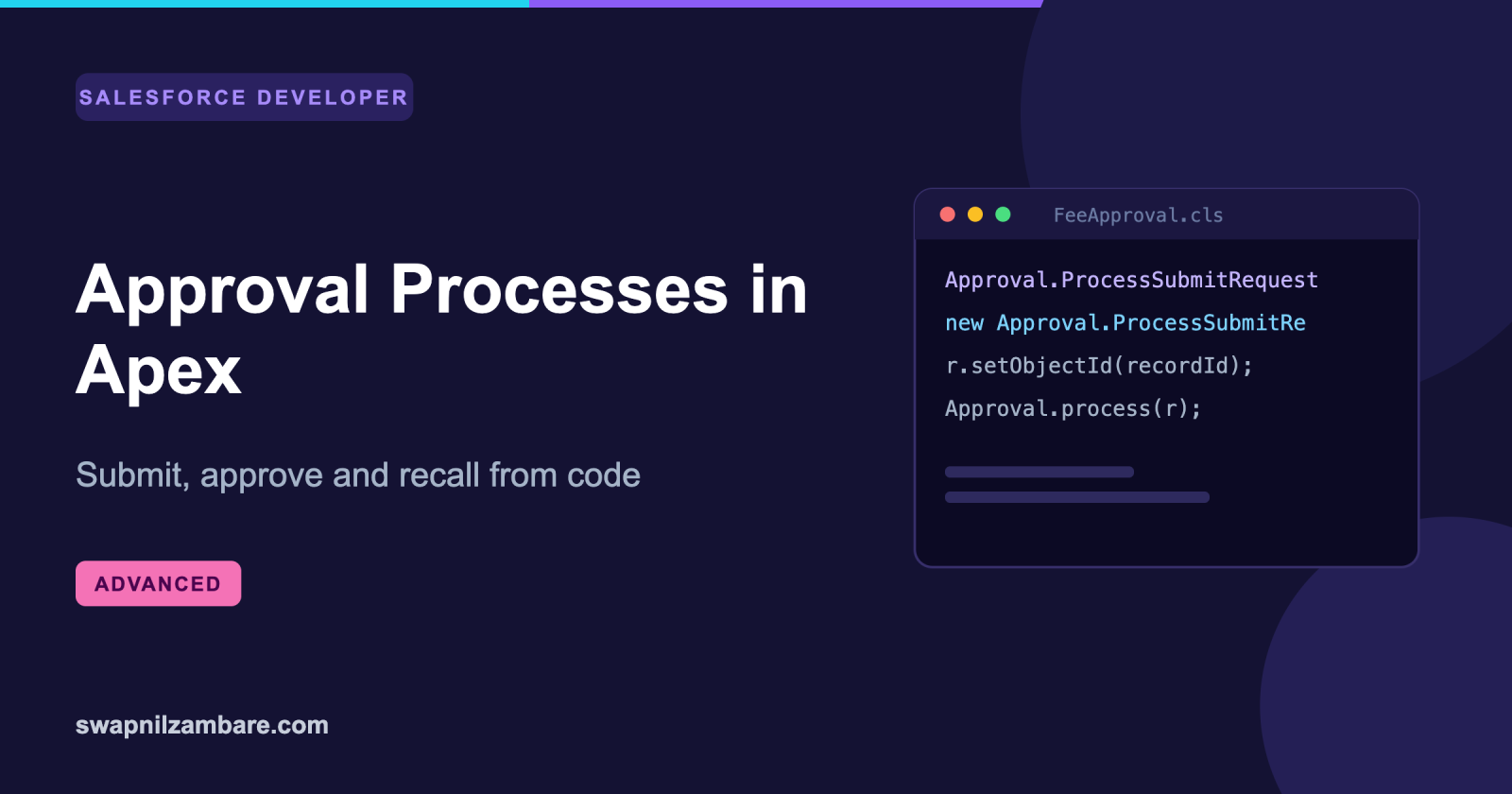
Approval Processes in Apex let your code submit a record for approval, approve it, reject it or recall it, without anyone clicking a button. A flow can submit every overdue fee waiver at midnight, and a manager’s bulk screen can approve fifty at once. So approvals fit into automation instead of blocking it.
This post builds on approval processes for admins and Apex triggers. We will automate fee waiver approvals at Bright Path Tutors.
What are Approval Processes in Apex?
Approval Processes in Apex are the Approval class methods that drive a standard approval process from code. The process itself is still built in Setup with its steps, approvers and final actions. Your Apex only starts it or responds to it.
Think of a leave form. Setup designs the form and decides who signs it. Apex is the clerk who drops it on the right desk and collects the signature.
Why Approval Processes in Apex Matter
Point and click submission works when a user clicks Submit for Approval. It falls down when the trigger is a rule, a schedule or an integration.
Approval Processes in Apex cover those cases. They also let you build a bulk approval screen, because the standard interface handles one record at a time.
How Approval Processes in Apex Work
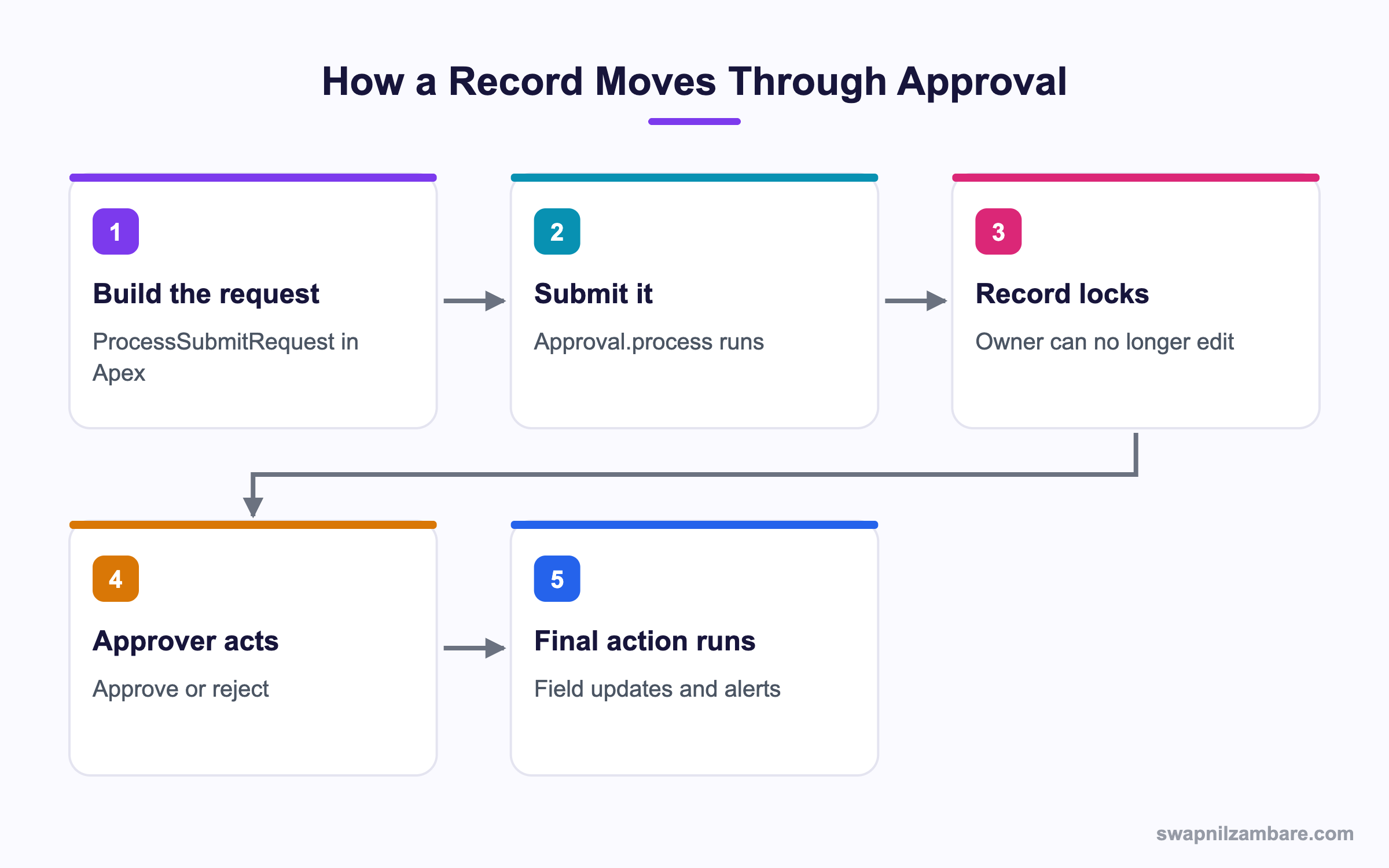
You build a request object, pass it to Approval.process and read the result. Submitting also locks the record, which is often the real reason teams want it.
Submitting a Record
Approval.ProcessSubmitRequest req = new Approval.ProcessSubmitRequest();
req.setObjectId(waiverId);
req.setComments('Submitted automatically by the fee job');
req.setSubmitterId(UserInfo.getUserId());
req.setProcessDefinitionNameOrId('Fee_Waiver_Approval');
req.setSkipEntryCriteria(false);

Approval.ProcessResult result = Approval.process(req);
System.debug('Success: ' + result.isSuccess());
System.debug('Status: ' + result.getInstanceStatus());
The debug shows whether it entered the process and where it now sits.
Success: true
Status: Pending
Naming the process matters when an object has several. Without it, Salesforce picks the first process whose entry criteria match.
Approving or Rejecting
To act on a pending step you need the work item Id, which lives on ProcessInstanceWorkitem.
List<ProcessInstanceWorkitem> items = [
    SELECT Id FROM ProcessInstanceWorkitem
    WHERE ProcessInstance.TargetObjectId = :waiverId
    LIMIT 1
];

if (!items.isEmpty()) {
    Approval.ProcessWorkitemRequest wi = new Approval.ProcessWorkitemRequest();
    wi.setWorkitemId(items[0].Id);
    wi.setAction('Approve');
    wi.setComments('Approved by the automated rule');
    Approval.process(wi);
}
The action string is one of Approve, Reject or Removed. The last one recalls the submission.
Submitting Many Records
Approval.process accepts a List, which keeps you inside the governor limits.
List<Approval.ProcessSubmitRequest> reqs = new List<Approval.ProcessSubmitRequest>();
for (Fee_Waiver__c w : waivers) {
    Approval.ProcessSubmitRequest r = new Approval.ProcessSubmitRequest();
    r.setObjectId(w.Id);
    reqs.add(r);
}
List<Approval.ProcessResult> results = Approval.process(reqs, false);
The second argument is allOrNone. Passing false lets the good records through when one fails.
Approval Class Method Summary
This table lists what each piece does.
| Class or method | Job |
|---|---|
| ProcessSubmitRequest | Starts an approval |
| setObjectId | Names the record to submit |
| setProcessDefinitionNameOrId | Picks which process to use |
| setNextApproverIds | Sets a manual approver |
| ProcessWorkitemRequest | Acts on a pending step |
| setAction | Approve, Reject or Removed |
| Approval.process | Runs one request or a List |
| ProcessResult | Holds success, status and errors |
Submit vs Work Item Requests
These two request types confuse people. This table separates them.
| Feature | ProcessSubmitRequest | ProcessWorkitemRequest |
|---|---|---|
| Starts the process | Yes | No |
| Acts on a step | No | Yes |
| Identifier needed | Record Id | Work item Id |
| Actions allowed | Submit | Approve, Reject, Removed |
| Query needed first | No | Yes |
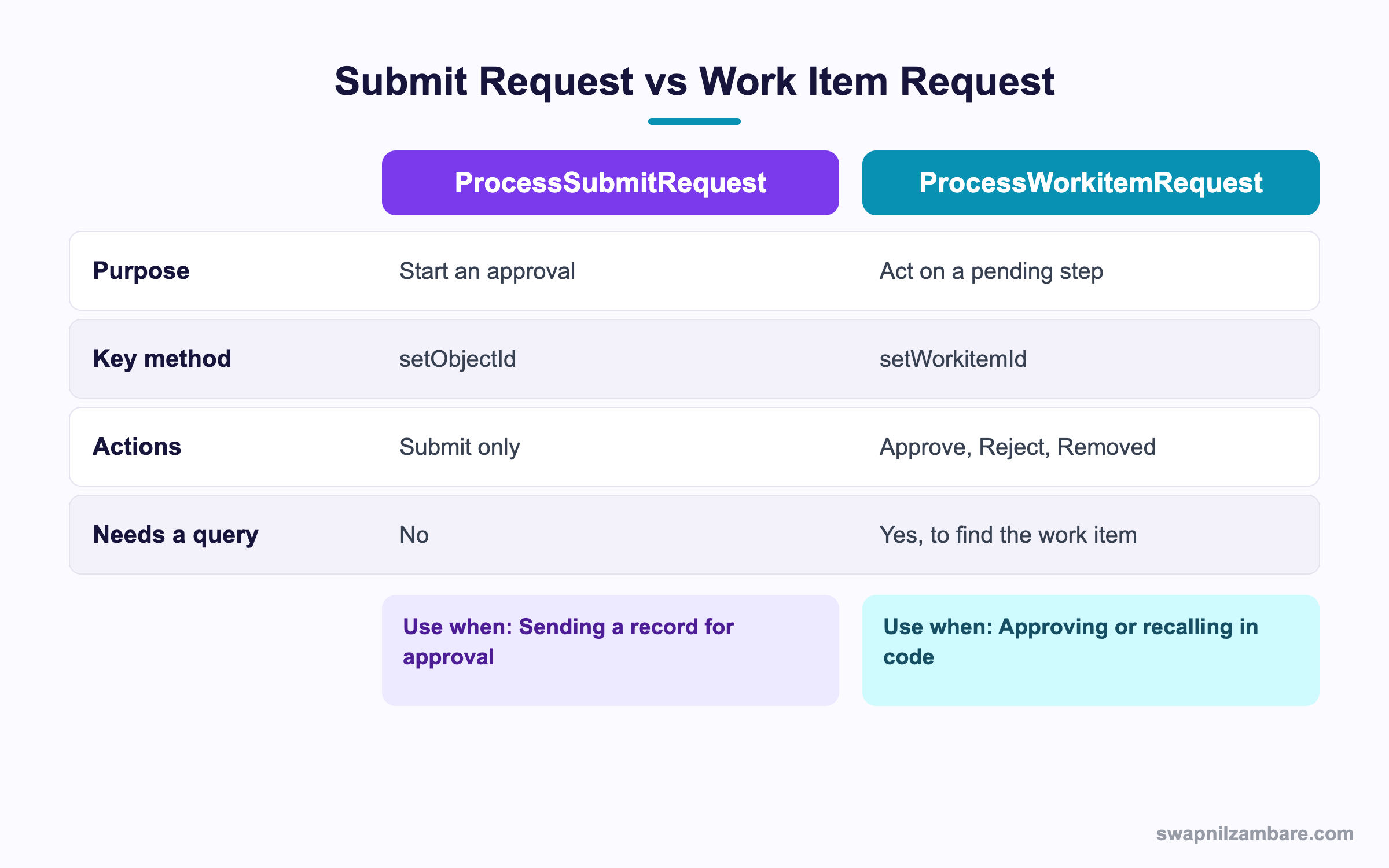
In short, submit starts the process and a work item request moves it along.
A Real Approval Processes in Apex Example
Bright Path waives fees for hardship cases. Counsellors raise a waiver, and anything over 5,000 rupees must be approved by the centre head.
Step 1: Submit from a Trigger Handler
Keep the submission out of the trigger body so it stays testable.
public with sharing class WaiverApprovalService {
    public static void submitLarge(List<Fee_Waiver__c> waivers) {
        List<Approval.ProcessSubmitRequest> reqs = new List<Approval.ProcessSubmitRequest>();
        for (Fee_Waiver__c w : waivers) {
            if (w.Amount__c != null && w.Amount__c > 5000) {
                Approval.ProcessSubmitRequest r = new Approval.ProcessSubmitRequest();
                r.setObjectId(w.Id);
                r.setComments('Auto submitted, amount above 5000');
                r.setProcessDefinitionNameOrId('Fee_Waiver_Approval');
                reqs.add(r);
            }
        }
        if (reqs.isEmpty()) { return; }

        List<Approval.ProcessResult> out = Approval.process(reqs, false);
        for (Approval.ProcessResult res : out) {
            if (!res.isSuccess()) {
                System.debug('Submit failed: ' + res.getErrors()[0].getMessage());
            }
        }
    }
}
Step 2: Check Who Must Approve
The result tells you the next approver, which is useful for notifications.
for (Approval.ProcessResult res : out) {
    if (res.isSuccess()) {
        System.debug('Next approver ids: ' + res.getNewWorkitemIds());
    }
}
Step 3: Test It
Tests must create the records and then assert on the process instance.
@isTest
private class WaiverApprovalServiceTest {
    @isTest static void submitsLargeWaivers() {
        Fee_Waiver__c w = new Fee_Waiver__c(Amount__c = 8000);
        insert w;

        Test.startTest();
        WaiverApprovalService.submitLarge(new List<Fee_Waiver__c>{ w });
        Test.stopTest();

        List<ProcessInstance> pi = [SELECT Status FROM ProcessInstance
                                    WHERE TargetObjectId = :w.Id];
        System.assertEquals(1, pi.size(), 'Should have one process instance');
    }
}
These are the objects you query when checking approvals.
| Object | Holds |
|---|---|
| ProcessInstance | One approval run for a record |
| ProcessInstanceWorkitem | A pending step awaiting action |
| ProcessInstanceStep | A completed step with its outcome |
| ProcessInstanceHistory | Steps and work items together |
Common Mistakes with Approval Processes in Apex
- Calling Approval.process inside a loop instead of passing a List.
- Forgetting that submission locks the record, so later updates in the same trigger fail.
- Not naming the process, so the wrong one runs when several match.
- Assuming a work item exists without querying for it first.
- Submitting a record that does not meet entry criteria, which returns an error.
The Record Lock Trap
This one catches most people. Once a record is submitted, the platform locks it, and further updates in the same transaction throw an error. So submit after your field updates, not before.
Best Practices for Approval Processes in Apex
- Build a List of requests and call process once.
- Always name the process definition explicitly.
- Pass false for allOrNone and log the failures.
- Submit last, after any field updates on the record.
- Keep the Apex thin, since the steps and approvers belong in Setup.
Practice Task
Write a method that recalls a pending approval for a given record Id. Hint: query ProcessInstanceWorkitem and use setAction with Removed.
Most Asked Approval Processes in Apex Interview Questions
These Approval Processes in Apex questions come up in automation interviews.
Basic Approval Processes in Apex Interview Questions
Q1: Which class submits a record for approval in Apex?
Approval Processes in Apex rely on the Approval class, using ProcessSubmitRequest to start a process.
Q2: How do you submit a record?
Build a ProcessSubmitRequest, call setObjectId with the record Id, then pass it to Approval.process.
Q3: What does setComments do?
It adds the comment shown in the approval history for that submission.
Q4: Which class approves a pending step?
ProcessWorkitemRequest, with setWorkitemId and setAction.
Q5: What are the valid action values?
Approve, Reject and Removed. Removed recalls the submission.
Q6: What does Approval.process return?
A ProcessResult, or a List of them, holding success, status and any errors.
Q7: Does submitting lock the record?
Yes. The platform locks it so the submitter cannot edit it while it waits.
Q8: Where are the approval steps defined?
They live in Setup, not in Apex. So the code only starts or advances the process.
Intermediate Approval Processes in Apex Interview Questions
Q9: How do you submit many records at once?
Build a List of ProcessSubmitRequest objects and pass the List to Approval.process.
Q10: What does the allOrNone parameter control?
Whether one failure blocks every submission. Passing false lets the valid ones continue.
Q11: Why name the process definition?
Because an object can have several processes. Without a name, the first matching one runs.
Q12: How do you find the pending work item?
Query ProcessInstanceWorkitem filtered by ProcessInstance.TargetObjectId.
Q13: What is setNextApproverIds for?
It names the approver when the step is set to let the submitter choose manually.
Q14: How do you check a record’s approval status?
Query ProcessInstance for the record and read its Status field.
Q15: What happens if entry criteria do not match?
The result comes back unsuccessful with an error, and no process instance is created.
Q16: Can Apex release the record lock?
Yes. The Approval class has lock and matching release methods that take a record or an Id.
Advanced Approval Processes in Apex Interview Questions
Q17: Scenario: a trigger submits then updates the record and fails. Why?
Submission locked the record, so the later update is blocked. Move the submit to the end, or release the lock first.
Q18: How would you build a bulk approval screen?
Query the pending work items for the user, then build a List of ProcessWorkitemRequest objects and process them in one call.
Q19: How do you test approvals without a real approver?
Create the test user, assign the right role, then query the work item and approve it inside the test.
Q20: Scenario: approvals must be triggered by an integration. What do you build?
An Apex REST service or invocable method that validates the record and calls Approval.process, with proper error handling.
Q21: What are the governor limits here?
Approval.process counts as DML, so the usual 150 DML statements per transaction apply. Bulk calls keep you safe.
Q22: How do you report on approval history?
Query ProcessInstanceStep and ProcessInstanceHistory, or build a report on the process instance objects.
Q23: Why keep approval logic in Setup rather than Apex?
Because admins can change approvers and steps without a deployment, which is the point of the declarative tool.
Q24: Can Flow replace Approval Processes in Apex?
Flow Approvals cover many cases now with no code. So reach for Apex only when the trigger or volume needs it.
Q25: Do Approval Processes in Apex fire validation rules?
Field updates in the final actions run the normal save path. So validation rules can fire and block the approval.
Q26: Can you submit a record twice?
Not while one approval is pending. So check ProcessInstance first, or handle the error that comes back.
Q27: How do Approval Processes in Apex behave in a test class?
They run normally, so the process instance is created. However, the approver must exist and meet the step rules.
Q28: What is the difference between an approval and a simple status field?
An approval keeps a signed history and locks the record. A status field does neither, so audits are much weaker.
Q29: Scenario: approvers change every quarter. Where do you handle it?
In Setup, by editing the process or using a queue. Keeping names out of Apex means no deployment is needed.
Official Resources
- Apex Reference: Approval Class
- Apex Developer Guide: Approval Processing
- Salesforce Help: Approval Processes
Quick Recap
- Approval Processes in Apex drive a Setup process from code.
- ProcessSubmitRequest starts it, ProcessWorkitemRequest advances it.
- Submission locks the record, so submit after your updates.
- Pass Lists and allOrNone false for bulk safety.
- Steps and approvers stay in Setup, not in Apex.
What’s Next?
Next, we read org settings from code with Hierarchy Custom Settings in Apex.