Inbound Email Services let Salesforce receive an email and run your Apex code on it. A parent emails an enquiry address, and your class reads the subject, pulls the student name out of the body and creates a Lead. So email becomes a data entry channel without anyone retyping it.
This post builds on Sending Email from Apex and Email-to-Case. We will handle course enquiries for Bright Path Tutors.
What are Inbound Email Services?
Inbound Email Services are a Salesforce feature where an email address is linked to an Apex class. When mail arrives at that address, Salesforce calls your class and passes it the message. Your class returns a result saying whether it succeeded.
Think of a post box with a clerk behind it. The clerk opens each letter, reads it and files it in the right cabinet. Your Apex class is that clerk.
Why Inbound Email Services Matter
Many businesses still receive work by email. Quotes, enquiries, supplier confirmations and forms all arrive as messages that someone copies into the system by hand.
Inbound Email Services remove that step. They also handle cases that Email-to-Case cannot, because you choose the object, the parsing rules and what happens when the sender is unknown.
How Inbound Email Services Work
Salesforce routes the mail to your class, which must implement one interface and one method.
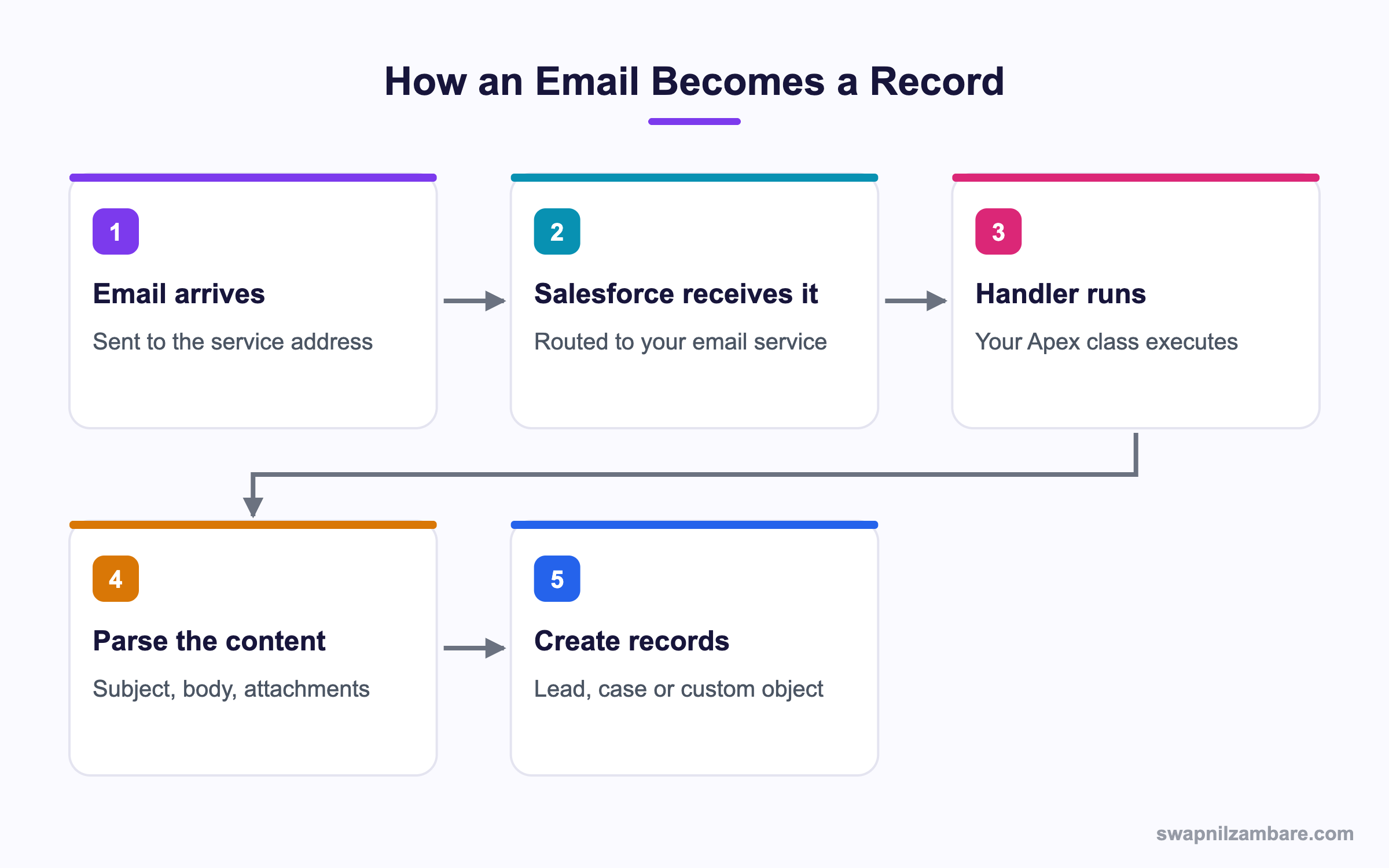
The Handler Class
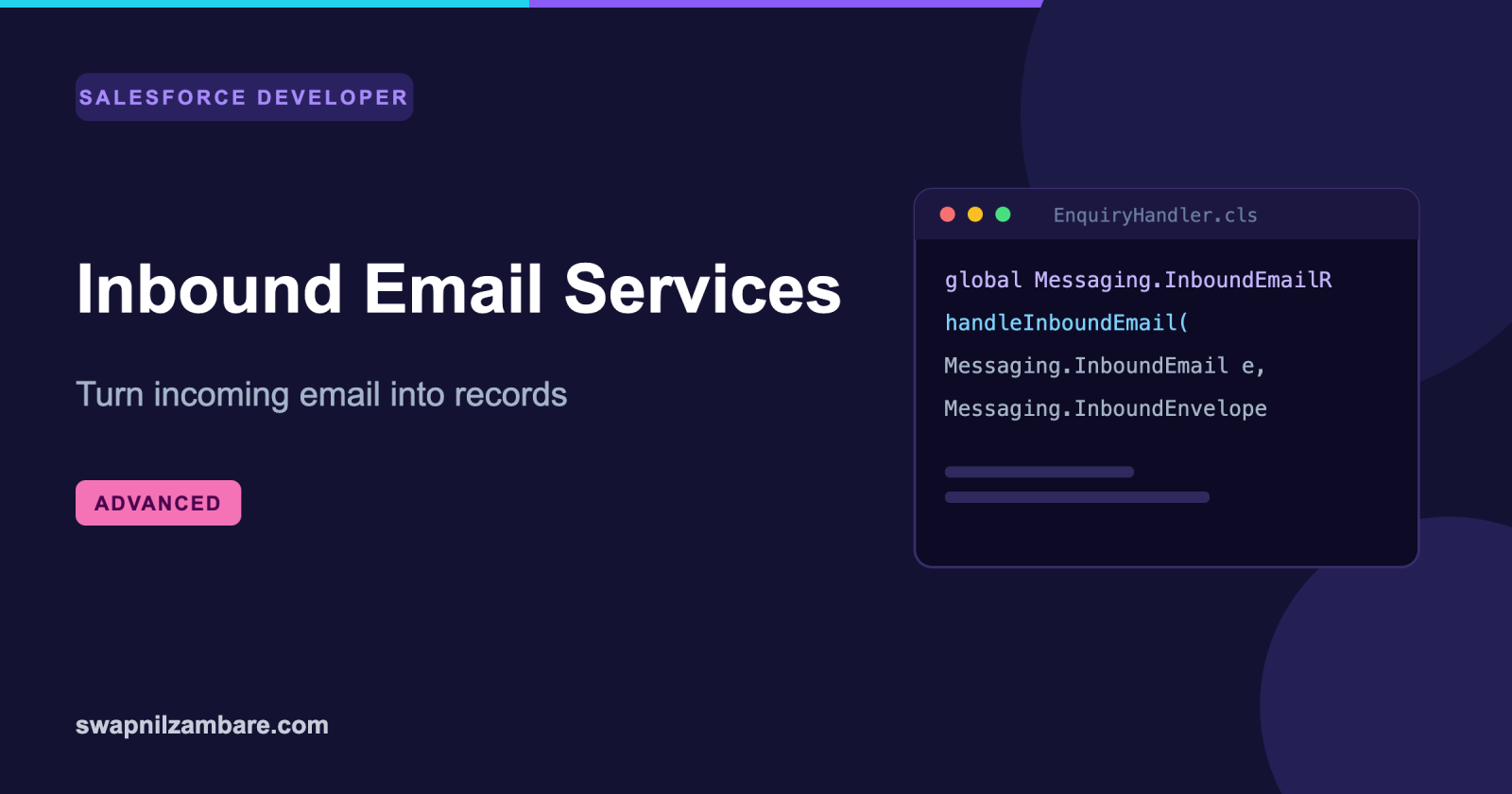
The class must be global and implement Messaging.InboundEmailHandler.
global class EnquiryHandler implements Messaging.InboundEmailHandler {

    global Messaging.InboundEmailResult handleInboundEmail(
            Messaging.InboundEmail email,
            Messaging.InboundEnvelope envelope) {

        Messaging.InboundEmailResult result = new Messaging.InboundEmailResult();
        try {
            Lead l = new Lead();
            l.LastName = (email.fromName == null) ? 'Unknown' : email.fromName;
            l.Company  = 'Email enquiry';
            l.Email    = envelope.fromAddress;
            l.Description = email.plainTextBody;
            insert l;
            result.success = true;
        } catch (Exception e) {
            result.success = false;
            result.message = 'Failed: ' + e.getMessage();
        }
        return result;
    }
}
Setting success to false tells Salesforce to bounce the message back to the sender with your text.
What the Email Object Gives You
This table lists the fields you will read most often.
| Property | Holds |
|---|---|
| subject | The subject line |
| plainTextBody | The message as plain text |
| htmlBody | The message as HTML |
| fromName | The sender’s display name |
| toAddresses | Who it was sent to |
| ccAddresses | Copied recipients |
| binaryAttachments | Files such as PDF or images |
| textAttachments | Plain text attachments |
| messageId | The unique message identifier |
The envelope is separate and holds fromAddress and toAddress, which are the real routing addresses.
Handling Attachments
if (email.binaryAttachments != null) {
    List<ContentVersion> files = new List<ContentVersion>();
    for (Messaging.InboundEmail.BinaryAttachment a : email.binaryAttachments) {
        ContentVersion cv = new ContentVersion();
        cv.Title = a.fileName;
        cv.PathOnClient = a.fileName;
        cv.VersionData = a.body;
        files.add(cv);
    }
    insert files;
}
Saving as ContentVersion creates a modern Salesforce File rather than an old attachment.
Parsing the Body
Real emails need rules. A simple approach reads labelled lines.
public static Map<String, String> parse(String body) {
    Map<String, String> out = new Map<String, String>();
    if (String.isBlank(body)) { return out; }
    for (String line : body.split('\n')) {
        if (line.contains(':')) {
            List<String> parts = line.split(':', 2);
            out.put(parts[0].trim().toLowerCase(), parts[1].trim());
        }
    }
    return out;
}
An email with Student: Asha Mehta then gives you a map you can read by key.
Setting Up the Email Service
After the class is saved, an admin creates the service in Setup.
- Open Setup and type “Email Services” in Quick Find.
- Click New Email Service and give it a name.
- Choose your Apex class in the Apex Class field.
- Set Accept Attachments to All if you need files.
- Save, then click New Email Address to generate the receiving address.
- Copy the long generated address and test by emailing it.
These are the settings that matter most.
| Setting | Why it matters |
|---|---|
| Apex Class | The handler that runs |
| Accept Attachments | None, text, binary or all |
| Accept Email From | Restricts senders, blank allows all |
| Active | Must be ticked to receive mail |
| Failure Response Settings | What happens on errors and limits |
Inbound Email Services vs Email-to-Case
Both turn email into records. This table shows the difference.
| Feature | Inbound Email Services | Email-to-Case |
|---|---|---|
| Target object | Any | Case only |
| Custom parsing | Full control | Limited |
| Setup effort | Apex plus config | Config only |
| Threading replies | You build it | Built in |
| Who maintains it | Developer | Admin |
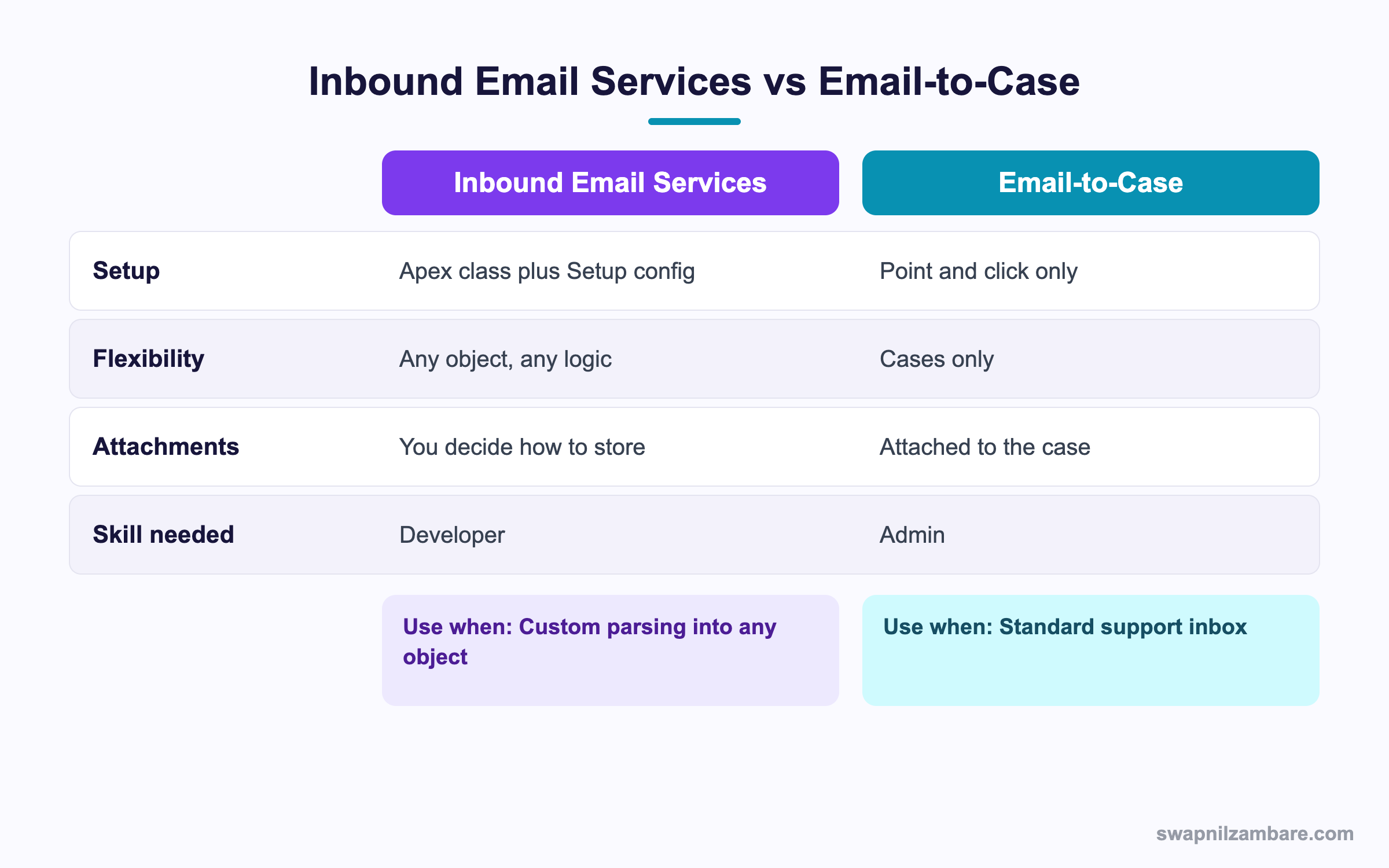
In short, use Email-to-Case for a normal support inbox. Use Inbound Email Services when you need custom parsing or a different object.
A Real Inbound Email Services Example
Bright Path receives enquiries at one address. Each email names a course and a student, and the team wants a Lead created and linked to that course.
Step 1: The Handler
global class CourseEnquiryHandler implements Messaging.InboundEmailHandler {
    global Messaging.InboundEmailResult handleInboundEmail(
            Messaging.InboundEmail email,
            Messaging.InboundEnvelope env) {

        Messaging.InboundEmailResult res = new Messaging.InboundEmailResult();
        Map<String, String> data = EmailParser.parse(email.plainTextBody);

        String courseName = data.get('course');
        List<Course__c> found = [SELECT Id FROM Course__c
                                 WHERE Name = :courseName LIMIT 1];

        Lead l = new Lead(
            LastName = data.containsKey('student') ? data.get('student') : 'Email enquiry',
            Company  = 'Web enquiry',
            Email    = env.fromAddress,
            LeadSource = 'Email',
            Description = email.subject + '\n' + email.plainTextBody
        );
        if (!found.isEmpty()) { l.Course__c = found[0].Id; }

        insert l;
        res.success = true;
        return res;
    }
}
Step 2: Testing It
You never send real mail in a test. Instead you build the objects and call the method.
@isTest
private class CourseEnquiryHandlerTest {
    @isTest static void createsLead() {
        Messaging.InboundEmail email = new Messaging.InboundEmail();
        email.subject = 'Enquiry';
        email.plainTextBody = 'Student: Asha Mehta\nCourse: Python Basics';
        email.fromName = 'Asha Mehta';

        Messaging.InboundEnvelope env = new Messaging.InboundEnvelope();
        env.fromAddress = 'asha@example.com';

        Test.startTest();
        new CourseEnquiryHandler().handleInboundEmail(email, env);
        Test.stopTest();

        Lead l = [SELECT LastName, Email FROM Lead LIMIT 1];
        System.assertEquals('Asha Mehta', l.LastName);
    }
}
Step 3: Watch the Limits
These limits apply to Inbound Email Services.
| Limit | Value |
|---|---|
| Daily messages processed | 1,000 times your user licence count, per org |
| Message size including attachments | 25 MB |
| Attachment portion | Around 10 MB |
| Over-limit behaviour | Bounce, discard or requeue, as configured |
Common Mistakes with Inbound Email Services
- Forgetting the global keyword, so the class cannot be chosen in Setup.
- Assuming plainTextBody is filled, when some senders provide HTML only.
- Trusting the sender address, which is easy to forge.
- Running SOQL per email line instead of one query for the whole message.
- Not setting Accept Email From, which leaves the address open to spam.
Guarding Against Spam
Because the address is public once shared, restrict it. Set Accept Email From to your known domains, and check the sender exists in Salesforce before creating records.
Best Practices for Inbound Email Services
- Wrap the whole method in try and catch, then set a clear failure message.
- Fall back to htmlBody when plainTextBody is blank.
- Store the original message on the record for an audit trail.
- Keep the handler thin and put parsing in a separate class you can test.
- Restrict senders and monitor the daily limit.
Practice Task
Write a handler that creates a Task from any email, using the subject as the Task subject. Hint: your class must be global and implement Messaging.InboundEmailHandler.
Most Asked Inbound Email Services Interview Questions
These Inbound Email Services questions appear in integration interviews.
Basic Inbound Email Services Interview Questions
Q1: What are Inbound Email Services in Salesforce?
Inbound Email Services connect an email address to an Apex class, so arriving mail runs your code and can create records.
Q2: Which interface must the class implement?
Messaging.InboundEmailHandler, with one method called handleInboundEmail.
Q3: Why must the class be global?
Because the platform calls it from outside your code, so it needs global access.
Q4: What two parameters does the method receive?
An InboundEmail with the content and an InboundEnvelope with the routing addresses.
Q5: What does the method return?
A Messaging.InboundEmailResult, whose success flag tells Salesforce whether to accept the mail.
Q6: Where do you read the sender’s real address?
From the envelope, using fromAddress, rather than from the email body.
Q7: How do you get the attachments?
Through binaryAttachments and textAttachments on the email object.
Q8: Where is the service configured?
In Setup under Email Services, where you pick the class and generate an address.
Intermediate Inbound Email Services Interview Questions
Q9: What happens when success is false?
Salesforce bounces the message back to the sender with your message text.
Q10: How do you test an email handler?
Build InboundEmail and InboundEnvelope objects in the test and call the method directly, since no real mail is sent.
Q11: What is the daily processing limit?
It is 1,000 messages for each user licence in the org, counted across all email services.
Q12: What is the maximum message size?
About 25 MB including attachments, with roughly 10 MB available for the attachment part.
Q13: How do you store an attachment as a modern file?
Create a ContentVersion with VersionData set to the attachment body, then link it to the record.
Q14: Why might plainTextBody be empty?
Because the sender’s client sent HTML only. So fall back to htmlBody and strip the tags.
Q15: How do you stop unknown senders?
Set Accept Email From on the service, and check the address against your records inside the handler.
Q16: Can one class serve several addresses?
Yes. Several email services can point at the same class, and the envelope tells you which address received it.
Advanced Inbound Email Services Interview Questions
Q17: Scenario: emails arrive in bursts and some are lost. What do you check?
The daily limit, the over-limit action and whether the handler throws. Set the failure response to requeue rather than discard.
Q18: How do you make processing idempotent?
Store the messageId on the record and skip any message you have already handled.
Q19: Why keep parsing out of the handler?
Because parsing is where the logic and the bugs live. A separate class is easier to unit test without building email objects.
Q20: Scenario: a supplier changes their email format and records break. How do you protect yourself?
Validate the parsed values, fail clearly with a bounce message and log the raw body so you can adjust the rules.
Q21: How do governor limits apply here?
The handler runs in a normal transaction, so the usual SOQL and DML limits apply per message.
Q22: Can you call a web service from the handler?
Yes, but keep it short. Better to queue the work with a Queueable so the email transaction finishes quickly.
Q23: How do you secure a public email address?
Restrict senders, verify against known contacts, and never execute instructions found in the body.
Q24: When would you choose Email-to-Case instead?
When the goal is a normal support inbox with threading and no custom parsing, since it needs no code.
Q25: Do Inbound Email Services work in a sandbox?
Yes, but each sandbox generates its own address. So remember to update any sender or test script after a refresh.
Q26: Can Inbound Email Services update an existing record?
Yes. Look up the record by a key in the subject or body, then update it instead of inserting a new one.
Q27: How do you handle replies to an existing thread?
Put a reference code in the subject when you send, then read that code on the way back. Otherwise replies create duplicates.
Q28: What happens if the handler throws an unhandled error?
The transaction rolls back and the platform applies your failure response setting. So catching errors yourself gives a far better message.
Q29: Are Inbound Email Services suitable for high volume?
Up to the daily cap they work well. However, for very large feeds an API or middleware integration is more reliable than email.
Q30: Can an email service run as a specific user?
It runs in a system context rather than as the sender. So add your own sharing and access checks where they matter.
Quick Recap
- Inbound Email Services run Apex when mail arrives at an address.
- The class is global and implements Messaging.InboundEmailHandler.
- The envelope holds the real sender address.
- Tests build the email objects by hand, since no mail is sent.
- Restrict senders and watch the daily processing limit.
What’s Next?
Next, we control approvals from code with Approval Processes in Apex.