Apex Data Types decide what kind of value each variable can hold. For example, a variable may hold a number, some text or a date. Every line of Apex you write uses them. If you pick the right type, your code stays correct and easy to read. If you pick the wrong one, you get rounding errors and confusing bugs.
In the last post, you wrote your first class in What is Salesforce Apex?. Then you ran it in the Developer Console. Now we look closely at variables, constants and the types behind them. We will keep using the Course__c object from our data model post.
What Are Apex Data Types?
A data type tells Apex what kind of value a variable stores and what you can do with it. For example, you can add two numbers, but you cannot add a number to a date in the same way. Apex checks these data types when it compiles your code. So many mistakes show up before the code ever runs, which saves you time in testing.
Think of variables as labelled jars in a kitchen. One jar is only for sugar, another only for rice. The label is the data type. You cannot pour rice into the sugar jar, and Apex will not let you put text into a number variable.
Why Apex Data Types Matter
Choosing the right Apex Data Types is not just a style choice. It affects how your code behaves in real situations.
- Money stays exact.
Decimalkeeps fees like 4999.50 precise, while other number types can round. - Errors appear early. The compiler catches a text value going into a number field.
- Fields match. Each Salesforce field type maps to an Apex type, so your code fits the data.
- Code reads clearly. A teammate sees
Date startDateand knows what it holds at once.
How Variables Work in Apex
A variable has three parts: a type, a name and an optional starting value. You write them in that order and end with a semicolon.
Integer seats = 30;
String courseName = 'Apex Basics';
Decimal fee = 4999.50;
Boolean isOnline = true;
Date startDate = Date.newInstance(2026, 9, 15);
Each line creates one variable. For example, seats is an Integer that starts at 30. The startDate line uses Date.newInstance to build a date from a year, month and day.
Variables Start as null
If you declare a variable without a value, it starts as null. This is true for every type in Apex, even Boolean and Integer. So Integer count; does not hold 0. It holds nothing at all.
This catches many beginners. If you try count + 1 while count is null, Apex throws a NullPointerException. So always give number variables a starting value, such as Integer count = 0;.
Naming Rules
Variable names must start with a letter. They can contain letters, numbers and underscores, but no spaces. Most Salesforce teams use camelCase, such as maxStudents or courseFee.
The Main Apex Data Types
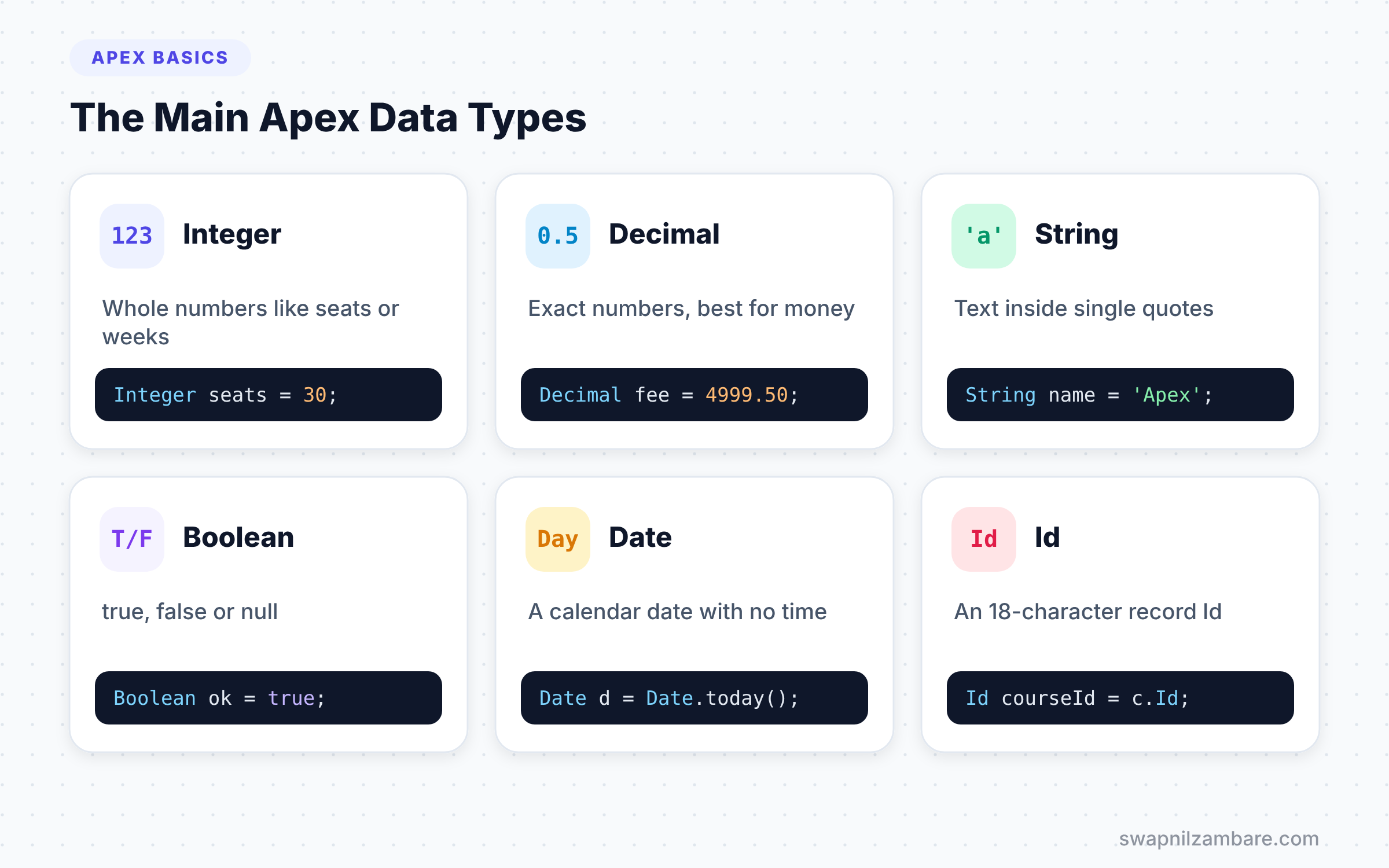
Apex has a set of built-in types called primitives. These are the Apex Data Types you will use every day. The table below lists the ones you will use most often, with a Bright Path Tutors example for each.
| Type | What it holds | Example |
|---|---|---|
| Integer | Whole numbers up to about 2.1 billion | Integer seats = 30; |
| Long | Very large whole numbers | Long views = 9000000000L; |
| Decimal | Exact numbers with decimals | Decimal fee = 4999.50; |
| Double | Large numbers with decimals | Double ratio = 0.333; |
| String | Text in single quotes | String level = ‘Beginner’; |
| Boolean | true, false or null | Boolean isOnline = true; |
| Date | A calendar date | Date d = Date.today(); |
| Datetime | A date with a time | Datetime now = Datetime.now(); |
| Id | An 18-character record Id | Id courseId = c.Id; |
Numbers: Integer, Long, Decimal and Double
Use Integer for counts, such as seats or weeks. Use Long only when a number may pass about 2.1 billion. For money and percentages, use Decimal, because currency fields in Salesforce map to it. Double is fine for science-style values where tiny rounding does not matter.
Text: String
A String holds any text, from one letter to a long paragraph. Always use single quotes. To add a quote inside text, use a backslash, such as 'Asha\'s course'.
True or False: Boolean
A Boolean answers yes or no questions, such as “Is this course online?”. Checkbox fields in Salesforce map to Boolean.
Dates and Times
Date holds a day with no time, such as a course start date. Datetime holds a day plus a time, such as when a student logged in. There is also Time for a time with no date.
Id
The Id type holds a Salesforce record Id. Apex checks that the value really looks like an Id, so it is safer than storing Ids in a String.
Constants in Apex
A constant is a variable whose value never changes after you set it. In Apex, you create one with the final keyword. Most constants also use static, so the class shares one copy.
public with sharing class CourseRules {
    // Constants are written in capital letters by convention
    public static final Integer MAX_SEATS = 40;
    public static final Decimal MIN_FEE = 500;
    public static final String DEFAULT_LEVEL = 'Beginner';
}
Now any code can use CourseRules.MAX_SEATS. If someone tries to change it later, such as CourseRules.MAX_SEATS = 50;, the compiler stops them. Constants remove “magic numbers” scattered across your code, so a rule lives in one clear place.
Variables vs Constants
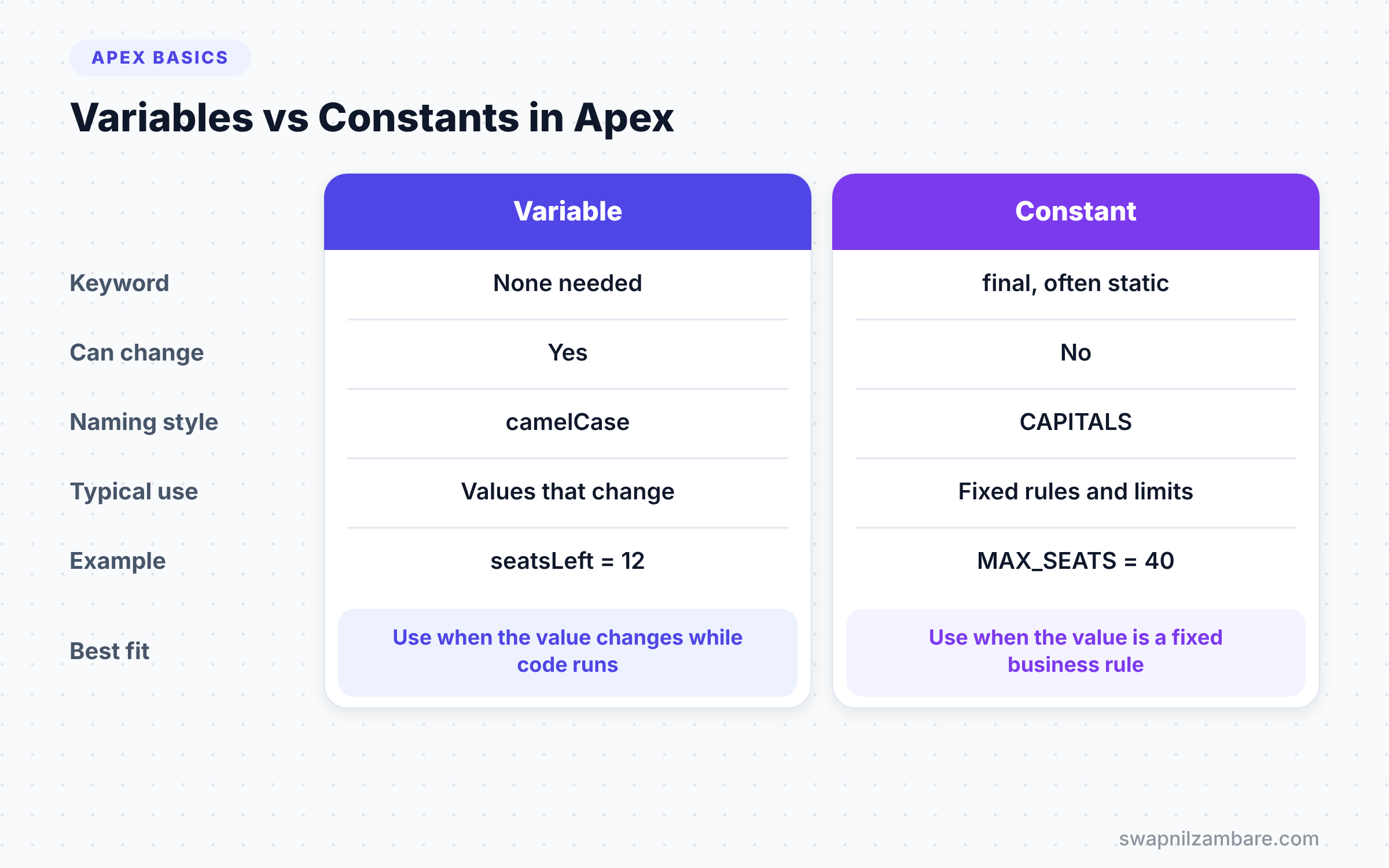
The table below compares variables and constants side by side.
| Feature | Variable | Constant |
|---|---|---|
| Keyword | None needed | final, often with static |
| Can change later | Yes | No |
| Naming style | camelCase, such as courseFee | CAPITALS, such as MIN_FEE |
| Typical use | Values that change while code runs | Fixed rules and limits |
| Example | Integer seatsLeft = 12; | static final Integer MAX_SEATS = 40; |
When to use which is easy. Use a variable when the value changes, and a constant when it is a fixed rule.
A Real Apex Data Types Example
Let’s put Apex Data Types to work for Bright Path Tutors. We want to check a course before we open it for sign-ups. The course needs a fee of at least 500, and the start date must be in the future.
// Values for a new course
String courseName = 'LWC Basics';
Decimal fee = 3500.00;
Integer seatsBooked = 12;
Date startDate = Date.today().addDays(10);
Boolean isOnline = true;

// Work out the result
Integer seatsLeft = CourseRules.MAX_SEATS - seatsBooked;
Boolean feeOk = fee >= CourseRules.MIN_FEE;
Boolean dateOk = startDate > Date.today();

System.debug(courseName + ' | seats left: ' + seatsLeft);
System.debug('Ready to open: ' + (feeOk && dateOk));
The first block stores values in five different types. Then seatsLeft uses the MAX_SEATS constant to work out free seats. Next, two Boolean variables hold the results of simple checks. Finally, System.debug joins text and numbers into one message. Run it in anonymous Apex, and the log shows this.
USER_DEBUG [12]|DEBUG|LWC Basics | seats left: 28
USER_DEBUG [13]|DEBUG|Ready to open: true
Converting Between Apex Data Types
Sometimes data arrives in the wrong type. For example, a value from a web form often comes as text. Apex gives you valueOf methods to convert it.
String seatsText = '25';
Integer seats = Integer.valueOf(seatsText);

String feeText = '4999.50';
Decimal fee = Decimal.valueOf(feeText);

String label = String.valueOf(seats) + ' seats';
System.debug(label);
Integer.valueOf turns text into a whole number, and Decimal.valueOf turns text into an exact decimal. String.valueOf goes the other way and turns any value into text. If the text is not a valid number, such as 'abc', Apex throws a TypeException, so check your input first.
How Salesforce Fields Map to Apex Data Types
Every field you create in Object Manager has a matching Apex type. When you read a record in Apex, the field value arrives in that type. So it helps to know the mapping by heart.
- Text, Text Area, Email, Phone, URL and Picklist fields become
String. - Number fields with no decimals still arrive as
Decimal. - Currency and Percent fields become
Decimal. - Checkbox fields become
Boolean. - Date fields become
Date, and Date/Time fields becomeDatetime. - Lookup and Master-Detail fields hold an
Id.
Look at the Number field point closely. Our Duration_in_Weeks__c field is a Number, so Apex gives you a Decimal. If you want an Integer, you convert it with .intValue(), such as Integer weeks = c.Duration_in_Weeks__c.intValue();. This small detail trips up many new developers, so keep this list of Apex Data Types close.
Apex Data Types and null Safety
Because every variable can be null, safe code checks for it. The classic way is an if check before you use the value. However, Apex also has two short operators that make this easier.
The safe navigation operator ?. returns null instead of throwing an error when the left side is null. For example, c?.Fee__c gives null if c is null. The null coalescing operator ?? gives a fallback value, such as Decimal fee = c.Fee__c ?? 0;.
Together, these keep your code short and safe. We will use both again in the next post on operators. For now, remember the rule. Before you do maths with any of the Apex Data Types, make sure the value is not null.
Common Mistakes with Apex Data Types
- Using
Doublefor money. UseDecimal, so fees never pick up tiny rounding errors. - Expecting new variables to be 0 or false. They start as null, so set a value first.
- Using double quotes for text. Apex only accepts single quotes.
- Storing Ids in a
String. TheIdtype checks the format for you. - Hardcoding the same number in many places. Put it in a constant instead.
Best Practices for Apex Data Types
- Match each variable to the field type it works with, such as
Decimalfor currency fields. - Give every number variable a starting value, so you never add to null.
- Use clear camelCase names that describe the value, like
seatsLeft. - Keep business rules in
static finalconstants inside one class. - Convert text with
valueOfinside a try-catch when the input comes from users.
Practice Task
Write anonymous Apex that stores a course fee of 7200 and a discount of 15. Also store a start date 30 days from today. Then print the final fee and the start date. Hint: use Decimal for both numbers and Date.today().addDays(30) for the date.
Official Resources
- Apex Developer Guide: Primitive Data Types
- Apex Developer Guide: Variables
- Trailhead: Apex Basics and Database
Quick Recap
- Apex Data Types decide what each variable can hold.
- New variables start as null, even numbers and Booleans.
- Use
Decimalfor money,Integerfor counts andIdfor record Ids. - Constants use
final, usually withstatic, and never change. - Convert text to numbers with
Integer.valueOfandDecimal.valueOf.
What’s Next?
Now that you can store values, you need to work with them. Next, read Apex operators and expressions to learn how to add, compare and combine values.


