Apex Operators are the symbols that let your code add numbers, compare values and combine conditions. Without them, variables would just sit there holding data. With them, you can work out a fee, check a date or decide whether a course is full.
In the previous post, you learned Apex data types, variables and constants. Now we will use operators to work with those values. If you need a refresher on running code, see our Developer Console guide. Every example here runs in anonymous Apex.
What Are Apex Operators?
An operator is a symbol that performs an action on one or more values. We call the values operands. For example, in fee + tax, the + is the operator, and fee and tax are the operands.
An expression is any piece of code that produces a value. So fee + tax is an expression, and so is seats > 30. You can then store the result in a variable or use it in a decision.
Think of operators as the buttons on a calculator. The numbers are your data, and the buttons tell the calculator what to do with them. Apex just has a few more buttons than a normal calculator.
Why Apex Operators Matter
Almost every line of real business logic uses Apex Operators. Here are a few things Bright Path Tutors needs every day.
- Work out a fee after a discount, using arithmetic.
- Check whether a course has seats left, using comparison.
- Decide if a course is both online and cheap, using logical operators.
- Count students one by one, using increment.
- Avoid errors when a field is empty, using null-safe operators.
So once you know Apex Operators, you can turn business rules into working code.
How Apex Operators Work
Apex reads an expression and applies each operator in a fixed order. Then it returns one final value. Developers call this order precedence. For example, multiplication runs before addition, just like in school maths.
So 100 + 20 * 2 gives 140, not 240. If you want the addition first, use brackets, such as (100 + 20) * 2, which gives 240. Brackets always win, and they also make code easier to read.
Types of Apex Operators
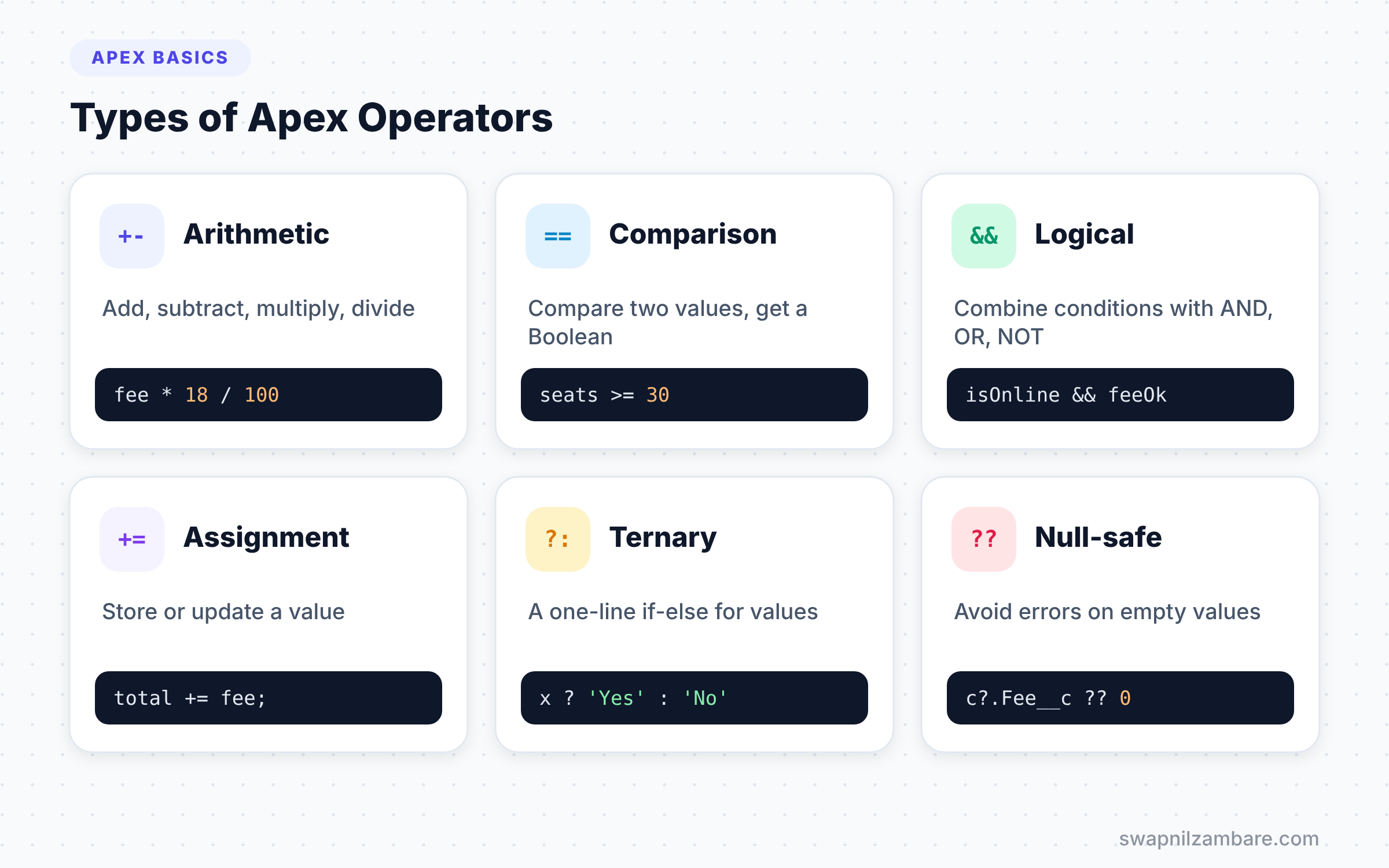
Apex groups Apex Operators into a few families, and each family has a clear job. The table below shows the main ones with a quick example of each.
| Group | Operators | Example |
|---|---|---|
| Arithmetic | + – * / | fee * 2 |
| Assignment | = += -= *= /= | total += fee |
| Increment and decrement | ++ — | count++ |
| Comparison | == != < > <= >= | seats >= 30 |
| Logical | && or ! | isOnline && feeOk |
| Ternary | ? : | isOnline ? ‘Online’ : ‘Classroom’ |
| Null-safe | ?. ?? | c?.Fee__c ?? 0 |
In the table, “or” stands for the double pipe symbol ||, which means logical OR.
Arithmetic Operators
These do basic maths: + adds, - subtracts, * multiplies and / divides. The + sign also joins strings, such as 'Hi ' + name.
Apex has no % operator for remainders. Instead, use Math.mod(10, 3), which returns 1. Many people coming from Java or JavaScript miss this.
Integer Division
When you divide two Integers, Apex drops the decimal part. So 7 / 2 gives 3, not 3.5. To keep the decimal, make one side a Decimal, such as 7.0 / 2, which gives 3.5. Also, dividing by zero throws a MathException, so check the divisor first.
Assignment Operators
The = sign stores a value in a variable. The short forms combine maths and assignment. For example, total += fee; means the same as total = total + fee;.
Increment and Decrement
count++ adds 1 to count, and count-- takes 1 away. You will use these a lot inside loops.
Comparison Operators
These compare two values and return a Boolean. == means equal, != means not equal, and the others check greater or less than.
Here is a surprise for many beginners. When you compare Strings with ==, Apex ignores case. So 'apex' == 'APEX' is true. If case matters, use 'apex'.equals('APEX'), which returns false.
Logical Operators
The && operator means AND, so both sides must be true. Next, || means OR, so at least one side must be true. Finally, ! means NOT, and it flips true to false.
Apex also short-circuits. With &&, if the left side is false, Apex skips the right side. This is handy for safety, such as c != null && c.Fee__c > 500.
The Ternary Operator
The ternary operator is a short if-else in one line. It has three parts: a condition, a value if true and a value if false.
Safe Navigation and Null Coalescing
The ?. operator stops a NullPointerException. If the left side is null, the whole expression returns null. The ?? operator gives a fallback when a value is null. Together, they replace many long null checks.
A Real Apex Operators Example
Let’s build a fee calculator for Bright Path Tutors with Apex Operators. Online courses get a 10% discount, and students pay an 18% tax on the final amount. We also want a label for the course mode.
Decimal baseFee = 6000;
Boolean isOnline = true;
Integer seatsBooked = 28;
Integer maxSeats = 30;

// Arithmetic and ternary
Decimal discount = isOnline ? baseFee * 10 / 100 : 0;
Decimal feeAfterDiscount = baseFee - discount;
Decimal tax = feeAfterDiscount * 18 / 100;
Decimal finalFee = feeAfterDiscount + tax;

// Comparison and logical
Boolean almostFull = seatsBooked >= maxSeats - 2;
Boolean showWarning = almostFull && isOnline;

String mode = isOnline ? 'Online' : 'Classroom';
System.debug(mode + ' fee: ' + finalFee);
System.debug('Show warning: ' + showWarning);
The ternary line sets discount to 600 for online courses and 0 for classroom ones. Then the next lines subtract the discount and add 18% tax. The comparison checks if only 2 or fewer seats remain. Finally, && joins two conditions into one Boolean. Here is the log output.
USER_DEBUG [17]|DEBUG|Online fee: 6372.00
USER_DEBUG [18]|DEBUG|Show warning: true
Handling Empty Fields with Apex Operators
Real records often have empty fields. Here, a course has no fee yet, and the code must not crash.
Course__c c = new Course__c(Name = 'Git Basics');

// Without a check, c.Fee__c * 2 would throw an error
Decimal fee = c.Fee__c ?? 0;
Integer weeks = (c.Duration_in_Weeks__c ?? 4).intValue();

Course__c missing = null;
String name = missing?.Name;

System.debug('Fee: ' + fee + ', weeks: ' + weeks + ', name: ' + name);
The ?? operator gives 0 when the fee is empty, and 4 when the duration is empty. Then intValue() turns the Decimal duration into an Integer. The ?. line returns null instead of failing on a null record. So the log shows Fee: 0, weeks: 4, name: null.
== vs equals() for Strings
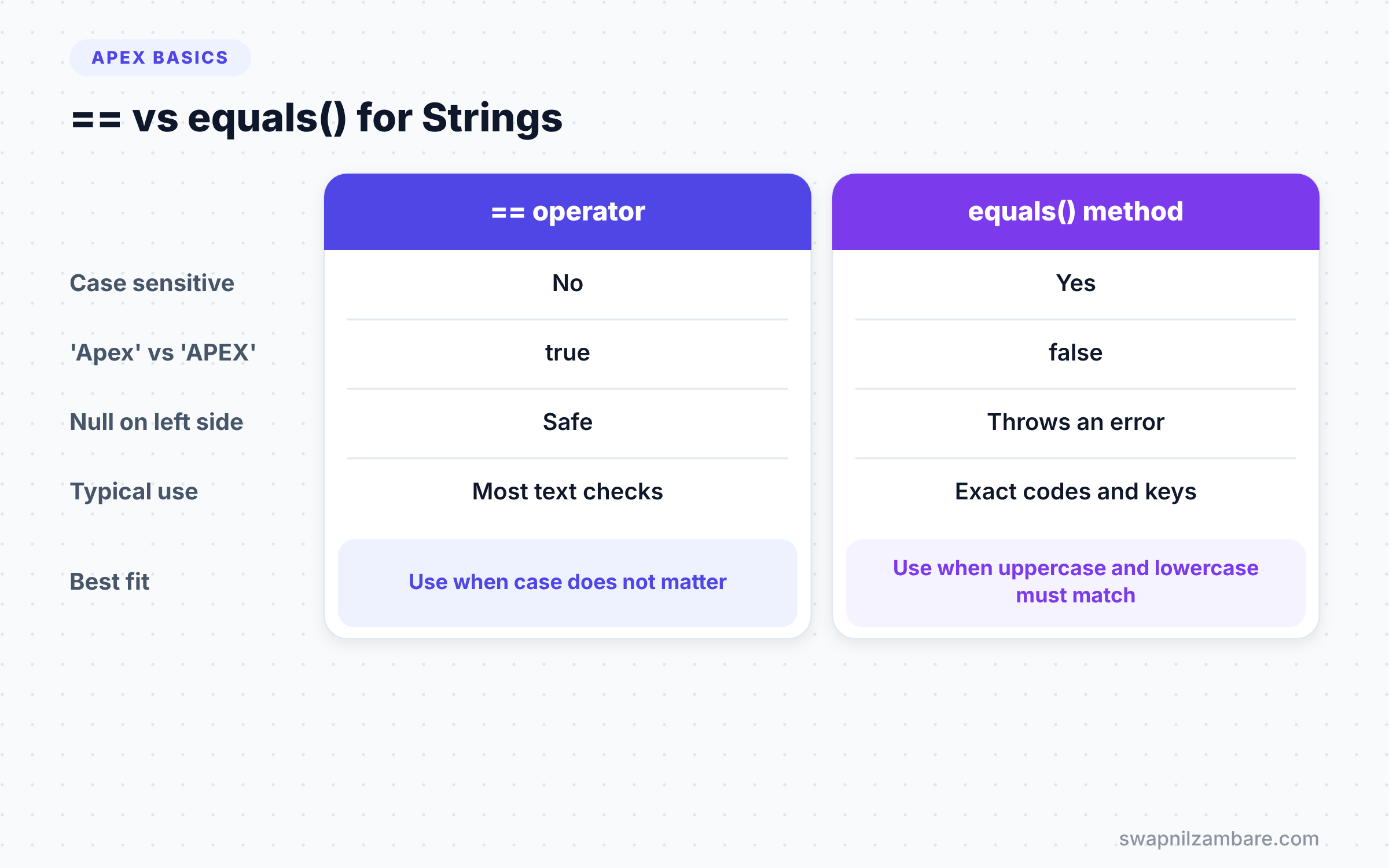
This is one of the most common interview questions on Apex Operators. The table below compares the two ways to check text.
| Feature | == operator | equals() method |
|---|---|---|
| Case sensitive | No | Yes |
| ‘Apex’ vs ‘APEX’ | true | false |
| Safe when left side is null | Yes | No, throws an error |
| Works for numbers too | Yes | Yes, through the object |
| Typical use | Most text checks | Exact matches, such as codes |
When to use which depends on case. Use == for normal text checks, and equals() when uppercase and lowercase must match exactly.
Operator Precedence Cheat Sheet
When an expression mixes many operators, Apex follows a set order. Here is a simple version, from first to last.
- Brackets
( ). - Increment, decrement and NOT, such as
++and!. - Multiply and divide,
*and/. - Add and subtract,
+and-. - Comparisons, such as
<and>=. - Equality,
==and!=. - Logical AND
&&, then logical OR. - Ternary, then assignment, such as
=and+=.
You do not need to memorise this list. Instead, add brackets whenever an expression looks unclear. Your teammates will thank you.
Joining Text with Apex Operators
The + operator does double duty in Apex. With numbers, it adds. With Strings, it joins text together. If one side is a String, Apex turns the other side into text first.
So 'Seats: ' + 30 gives 'Seats: 30'. However, watch the order. 'Total: ' + 10 + 5 gives 'Total: 105', because Apex joins from left to right. To add first, use brackets, such as 'Total: ' + (10 + 5), which gives 'Total: 15'.
For long messages, String.format is often cleaner than many plus signs. We will cover it in the post on built-in methods.
Apex Operators in Everyday Code
You will meet the same few patterns again and again. Learning them now makes later topics, such as triggers and loops, much easier.
First, counters use ++, such as enrolled++ for every student who joins. Next, totals use +=, such as totalFees += c.Fee__c. Then guards use && with a null check on the left, such as c != null && c.Is_Online__c. Finally, labels use the ternary, such as fee > 8000 ? 'Premium' : 'Standard'.
These four patterns cover most of the Apex Operators you will write in your first year. So practise them until they feel natural.
Common Mistakes with Apex Operators
- Using
%for remainders. Apex does not support it, so useMath.mod(). - Forgetting Integer division.
7 / 2gives 3, so use a Decimal when you need 3.5. - Expecting
==to be case sensitive for Strings. It is not, so useequals()for exact matches. - Doing maths on null fields. Use
??or anifcheck first. - Writing long expressions with no brackets. They are hard to read and easy to get wrong.
Best Practices for Apex Operators
- Use brackets to show your intent, even when precedence would work anyway.
- Use
Decimalfor money maths, so results stay exact. - Put the null check on the left of
&&, so short-circuiting protects you. - Keep ternary expressions short. If one gets long, use a normal
ifstatement. - Use
??for safe defaults, so empty fields never break your code.
Practice Task
Write anonymous Apex that takes 47 students and puts them into batches of 10. Print how many full batches you get. Then print how many students remain. Hint: use / with Integers for full batches and Math.mod(47, 10) for the rest.
Official Resources
- Apex Developer Guide: Expression Operators
- Apex Developer Guide: Safe Navigation Operator
- Trailhead: Apex Basics and Database
Quick Recap
- Apex Operators let you calculate, compare and combine values.
- Apex has no
%operator, so useMath.mod()for remainders. - Dividing two Integers drops the decimal part.
==ignores case for Strings, whileequals()does not.?.and??keep your code safe when values are null.
What’s Next?
Operators give you true or false answers. Next, we use those answers to make decisions in Apex conditional statements with if, else and switch.


