Visualforce PDF rendering is still the simplest way to produce a document from Salesforce data without buying anything. Add one attribute to a page and the platform returns a file instead of a web page. So a fee receipt, a certificate or a statement becomes a button click.
This post builds on Visualforce Basics and Custom Controllers. We will build a fee receipt for Bright Path Tutors.
What is Visualforce PDF Rendering?
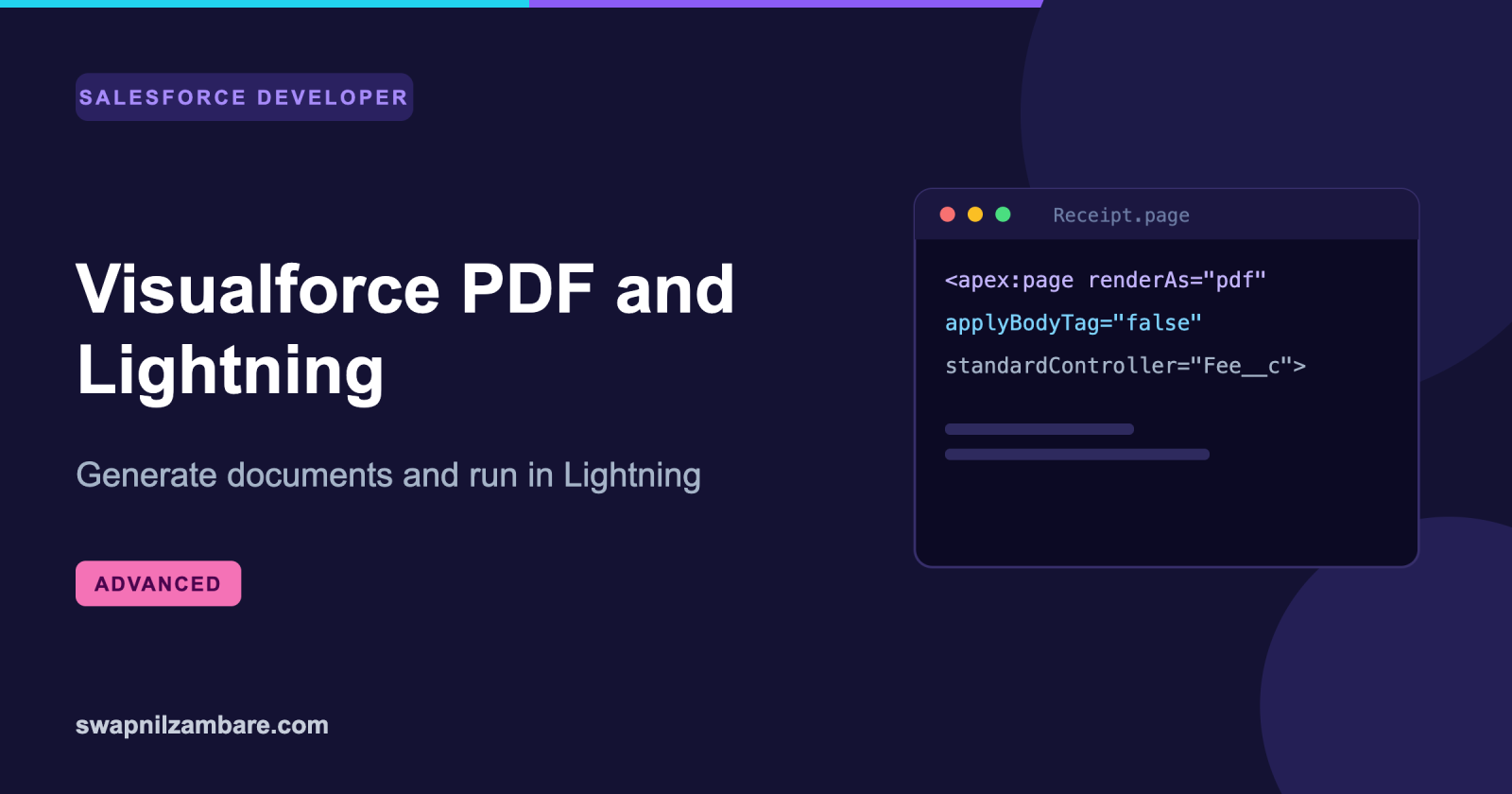
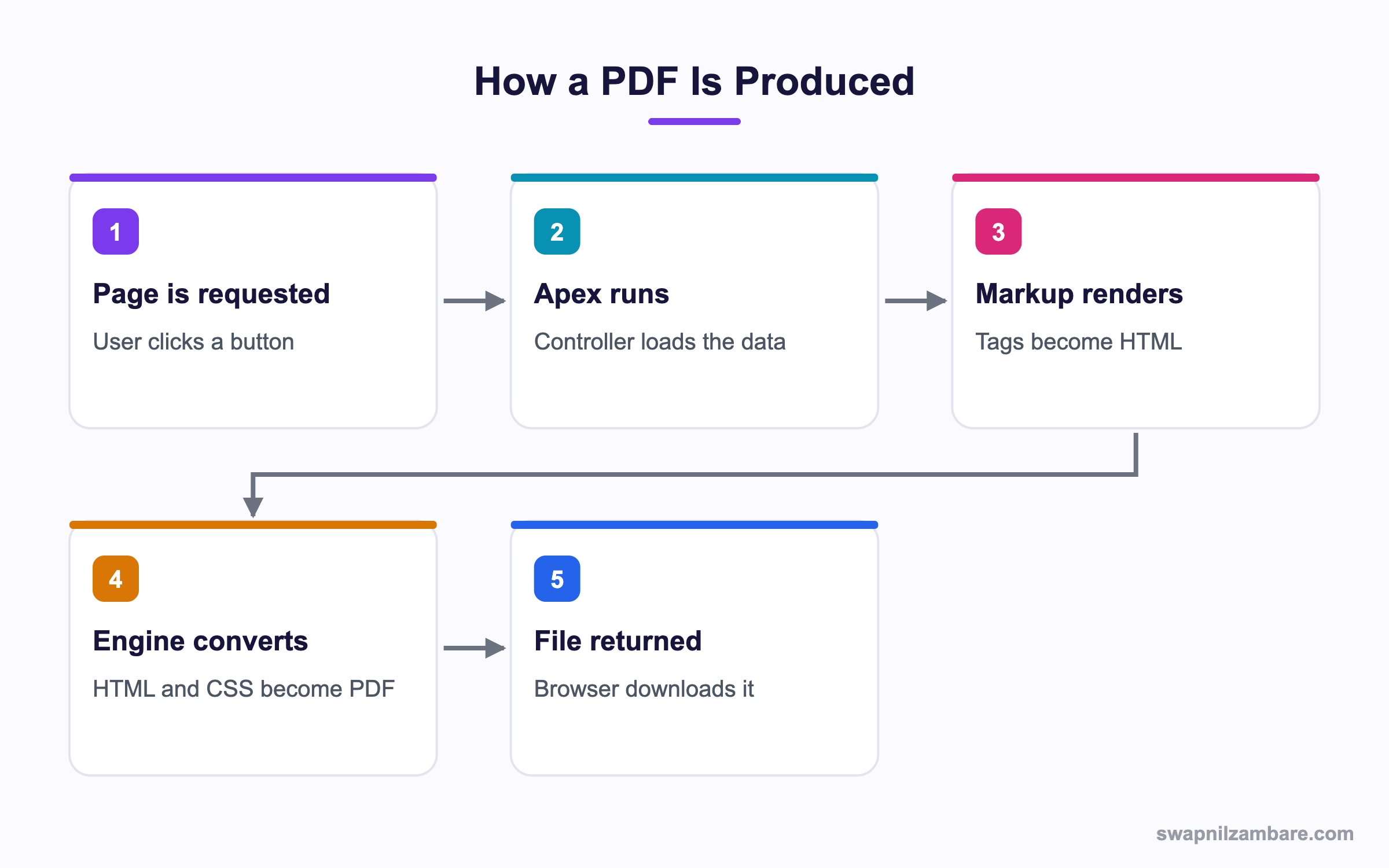
Visualforce PDF rendering means setting renderAs="pdf" on a page. Salesforce builds the HTML as usual, then passes it to a conversion engine that produces a PDF file. The user gets a download rather than a page.
Think of printing a web page to PDF from your browser. The difference is that Salesforce does it on the server, so the file is identical for everyone and can be attached to a record.
Why Visualforce PDF Still Matters
Lightning Web Components cannot generate a PDF. Neither can Flow on its own. So when a business asks for a printable receipt, Visualforce is usually the answer that costs nothing.
Visualforce PDF output is also predictable. Because it renders server side, the result does not change with the user’s browser, which matters for anything official.
How Visualforce PDF Works
The page runs normally, then a conversion step turns the HTML into a file.
The Minimum Page
<apex:page standardController="Fee__c"
           renderAs="pdf"
           applyBodyTag="false"
           showHeader="false"
           standardStylesheets="false">
    <head>
        <style type="text/css">
            @page { size: A4; margin: 20mm; }
            body { font-family: Arial, sans-serif; font-size: 11pt; }
        </style>
    </head>
    <body>
        <h2>Fee receipt</h2>
        <p>Received from {!Fee__c.Student_Name__c}</p>
        <p>Amount: {!Fee__c.Amount__c}</p>
    </body>
</apex:page>
Those four attributes matter. Turning off the header and standard stylesheets stops Salesforce styling from leaking into the document.
Page Size and Margins
The @page rule is where you control paper.
@page {
    size: A4 portrait;
    margin: 15mm 20mm;

    @top-center { content: "Bright Path Tutors"; }
    @bottom-right { content: "Page " counter(page) " of " counter(pages); }
}
Those at-rules give you a running header and automatic page numbers, which plain HTML cannot do.
Controlling Page Breaks
<div style="page-break-after: always;">First page content</div>
<table style="page-break-inside: avoid;">...</table>
Use page-break-inside: avoid on tables and blocks you do not want split across pages.
Fonts and Unicode
The PDF engine ships a limited font set. Arial, Times New Roman and Courier are safe. For Indian language text, you usually need to embed a font.
@font-face {
    font-family: 'Noto';
    src: url('{!URLFOR($Resource.NotoFont)}');
}
body { font-family: 'Noto', Arial, sans-serif; }
Upload the font file as a static resource first. Without this, non-Latin characters often render as empty boxes.
Visualforce PDF Attributes
This table lists the attributes that control the output.
| Attribute | Effect |
|---|---|
| renderAs=”pdf” | Produces a PDF instead of HTML |
| applyBodyTag=”false” | Lets you write your own head and body |
| showHeader=”false” | Removes the Salesforce chrome |
| standardStylesheets=”false” | Stops platform CSS interfering |
| cache=”false” | Prevents a stale document being served |
| contentType | Can force a download with a file name |
Saving the PDF to a Record
Generating the file is half the job. Attaching it needs Apex.
public with sharing class ReceiptService {
    public static void attach(Id feeId) {
        PageReference p = Page.FeeReceipt;
        p.getParameters().put('id', feeId);

        Blob body = Test.isRunningTest()
            ? Blob.valueOf('test')
            : p.getContentAsPDF();

        ContentVersion cv = new ContentVersion();
        cv.Title = 'Receipt';
        cv.PathOnClient = 'Receipt.pdf';
        cv.VersionData = body;
        insert cv;
    }
}
getContentAsPDF throws inside a test, which is why the check is there. That single line catches most developers out.
Visualforce in Lightning Experience
Old pages do not automatically work in Lightning. Two settings control it.
- Open Setup, then Visualforce Pages.
- Click Edit on the page.
- Tick Available for Lightning Experience, Experience Builder sites, and the mobile app.
- Save, then test the page inside Lightning.
These are the common problems after switching.
| Problem | Cause |
|---|---|
| Page looks unstyled | Standard stylesheets turned off |
| window.location fails | Page runs inside an iframe |
| Buttons do nothing | The container blocks page redirects |
| Styling clashes | Salesforce Lightning Design System not applied |
To move the user elsewhere inside Lightning, use the sforce.one object rather than changing the browser location.
if (typeof sforce != 'undefined' && sforce.one) {
    sforce.one.navigateToSObject('{!Fee__c.Id}');
} else {
    window.location.href = '/{!Fee__c.Id}';
}
Visualforce PDF vs a Document App
This table shows when free is not enough.
| Feature | Visualforce PDF | Paid app |
|---|---|---|
| Cost | Free | Licensed |
| Who builds it | Developer | Admin |
| Complex layouts | Difficult | Designed for it |
| E-signature | No | Usually yes |
| Word output | No | Often yes |
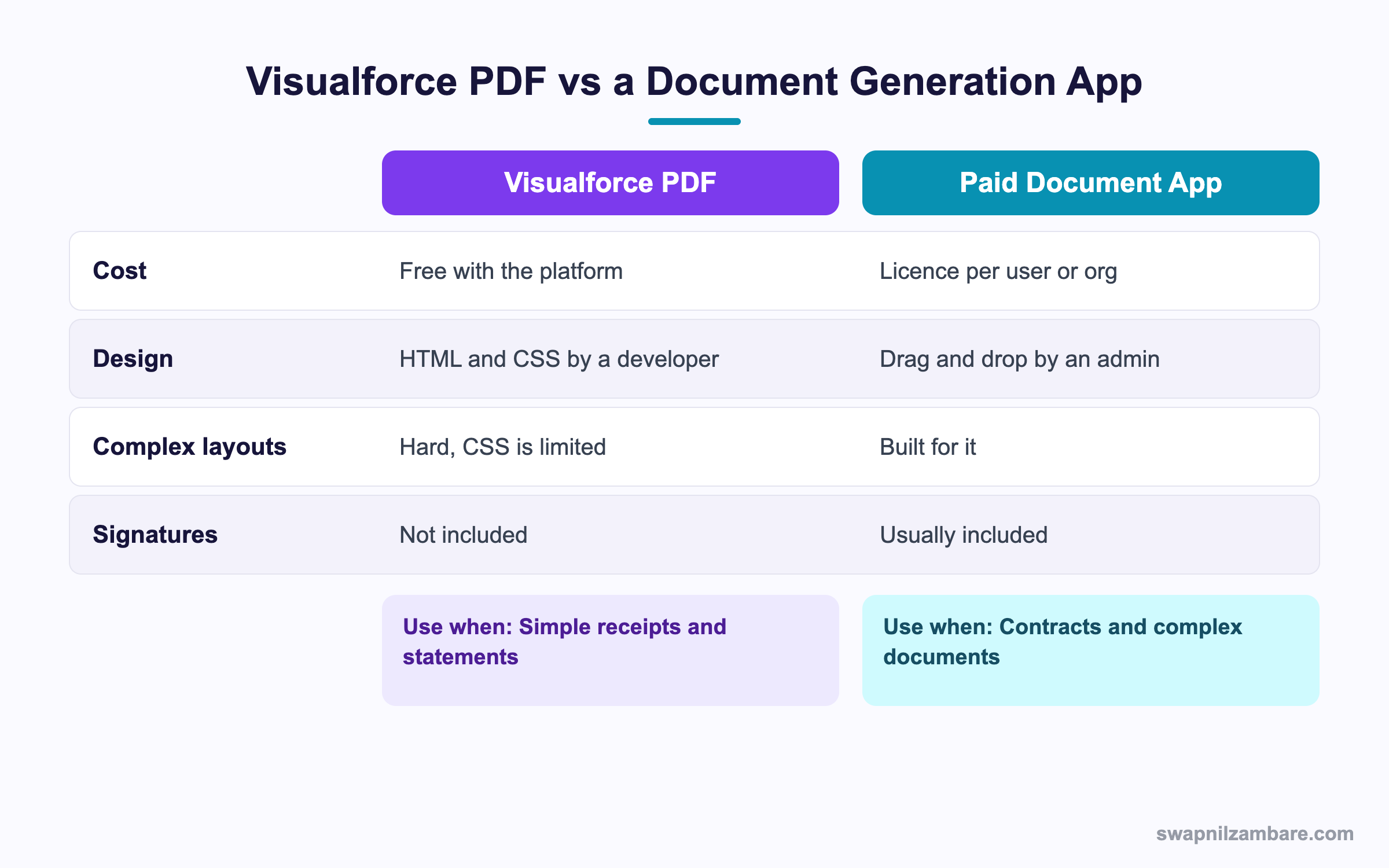
In short, use Visualforce for simple receipts and statements. Buy a tool when you need contracts, signatures or admin-built templates.
A Real Visualforce PDF Example
Bright Path emails a receipt when a parent pays. The receipt must carry the centre logo and be attached to the fee record.
Step 1: Add the Logo
Upload the image as a static resource, then reference it.
<img src="{!URLFOR($Resource.BrightPathLogo)}" width="120"/>Images must come from a static resource or a full URL. A relative path will not resolve during conversion.
Step 2: Build the Receipt
<apex:page standardController="Fee__c" renderAs="pdf"
           applyBodyTag="false" showHeader="false" standardStylesheets="false">
    <head>
        <style type="text/css">
            @page { size: A4; margin: 18mm; @bottom-center { content: counter(page); } }
            body { font-family: Arial, sans-serif; font-size: 11pt; color: #222; }
            .total { font-weight: bold; border-top: 2px solid #333; }
            table { width: 100%; border-collapse: collapse; }
            td { padding: 6px 0; }
        </style>
    </head>
    <body>
        <img src="{!URLFOR($Resource.BrightPathLogo)}" width="120"/>
        <h2>Fee Receipt</h2>
        <table>
            <tr><td>Student</td><td>{!Fee__c.Student_Name__c}</td></tr>
            <tr><td>Course</td><td>{!Fee__c.Course__r.Name}</td></tr>
            <tr><td>Date</td><td>{!Fee__c.Paid_On__c}</td></tr>
            <tr class="total"><td>Amount</td><td>{!Fee__c.Amount__c}</td></tr>
        </table>
    </body>
</apex:page>
Step 3: Watch the Limits
These limits apply to Visualforce PDF output.
| Limit | Value |
|---|---|
| Response size | 15 MB maximum |
| Rendering time | Times out on very large documents |
| Images | Must be static resources or full URLs |
| JavaScript | Not executed during conversion |
| getContentAsPDF in tests | Throws, so guard it |
Common Mistakes with Visualforce PDF
- Leaving standard stylesheets on, which breaks the print layout.
- Using relative image paths that do not resolve in the PDF engine.
- Expecting JavaScript to run, when the engine ignores it entirely.
- Calling getContentAsPDF in a test without a guard.
- Forgetting to tick Available for Lightning Experience on old pages.
Best Practices for Visualforce PDF
- Turn off the header and standard stylesheets on every PDF page.
- Use the @page rule for size, margins and page numbers.
- Embed a font when you need non-Latin characters.
- Keep documents short, since large ones time out.
- Test the PDF on real data before release, not just a sample record.
Practice Task
Build a one-page PDF for any object with a logo, three fields and a page number in the footer. Hint: the page number comes from counter(page) inside the @page rule.
Most Asked Visualforce PDF Interview Questions
These Visualforce PDF questions come up when an interviewer asks about documents.
Basic Visualforce PDF Interview Questions
Q1: How do you render a page as a PDF?
Visualforce PDF output comes from setting renderAs equal to pdf on the apex:page tag.
Q2: Why turn off standard stylesheets?
Because platform CSS is built for screens and breaks print layout.
Q3: Does JavaScript run in a PDF?
No. The conversion engine ignores scripts entirely.
Q4: How do you add an image?
Reference a static resource with URLFOR, or use a full absolute URL.
Q5: How do you set the paper size?
With the @page CSS rule, for example size A4 with margins.
Q6: How do you force a page break?
Use the CSS property page-break-after or page-break-before on an element.
Q7: What is the response size limit?
Fifteen megabytes for the generated file.
Q8: Can LWC generate a PDF?
No. It must call a Visualforce page or an external service.
Intermediate Visualforce PDF Interview Questions
Q9: How do you attach the PDF to a record?
Call getContentAsPDF on a PageReference in Apex, then save the Blob as a ContentVersion.
Q10: Why does getContentAsPDF fail in tests?
It is not supported in a test context, so guard it with Test.isRunningTest and use a dummy Blob.
Q11: How do you add page numbers?
Use counter(page) and counter(pages) inside an @page at-rule such as bottom-center.
Q12: Why do non-Latin characters show as boxes?
The default fonts lack those glyphs. So embed a font through a static resource with font-face.
Q13: How do you stop a table splitting across pages?
Apply page-break-inside avoid to the table or the wrapping element.
Q14: What makes a Visualforce page work in Lightning?
Ticking Available for Lightning Experience on the page, then testing links and buttons inside the container.
Q15: Why does window.location fail in Lightning?
Because the page runs inside an iframe. So use the sforce.one methods instead.
Q16: How do you email the PDF?
Generate the Blob, add it as an EmailFileAttachment and send with Messaging.sendEmail.
Advanced Visualforce PDF Interview Questions
Q17: Scenario: a PDF times out for large invoices. What do you change?
Reduce rows per document, split into several files, or move generation to a Batch Apex job that saves files one at a time.
Q18: How would you generate 5,000 receipts overnight?
Use Batch Apex with a small scope, call getContentAsPDF per record and insert the ContentVersion records in bulk.
Q19: Scenario: the PDF looks fine for admins but breaks for users. Why?
Field level security hides fields, so expressions render blank. Check access on every field used.
Q20: How do you keep the design maintainable?
Put CSS in a static resource and reference it, so designers can change the look without touching the page.
Q21: What are the alternatives to Visualforce PDF?
A paid document app, an external rendering service called from Apex, or client-side generation in LWC with a JavaScript library.
Q22: How do you version a document template?
Keep the page in source control and record the template version on the generated file, so you know which layout produced it.
Q23: Does Visualforce PDF respect sharing?
It follows the controller. So a standard controller respects user access, while a custom controller needs with sharing.
Q24: Why avoid heavy CSS in a PDF page?
The engine supports an older CSS subset, so flexbox and grid often fail. Simple tables remain the most reliable layout.
Q25: Can a Visualforce PDF include a chart?
Only as an image. Because scripts do not run, a chart library will not draw, so generate the image first or build it with table cells.
Q26: How do you preview a Visualforce PDF while developing?
Open the page URL with a record Id and add the parameter to render it. Then check the file, since the browser view can differ.
Q27: Does a Visualforce PDF count against API limits?
No, it is a page request rather than an API call. However, generating many in a batch still uses CPU time and heap.
Q28: Scenario: the logo is missing from the PDF only in production. What do you check?
Whether the static resource deployed and whether the URLFOR reference matches its name. A missing resource renders nothing.
Q29: Should new document needs always use Visualforce PDF?
For simple layouts, yes, since it is free. For contracts or admin-edited templates, a purpose built tool saves far more time.
Official Resources
- Visualforce Guide: Rendering a Page as a PDF
- Visualforce Guide: Visualforce in Lightning Experience
- Apex Reference: PageReference Class
Quick Recap
- Visualforce PDF output comes from one attribute, renderAs pdf.
- Turn off the header and standard stylesheets for clean print.
- The @page rule controls size, margins and page numbers.
- getContentAsPDF attaches the file, but throws inside tests.
- Old pages need Available for Lightning Experience ticked.
What’s Next?
Next, we modernise old pages with Migrating Visualforce to LWC.