
Salesforce Schema Builder shows your objects, fields and relationships on one visual canvas, and it lets you add new objects and fields by dragging them onto the page. It is the quickest way to see how your data model fits together. In our data model guide, you learned objects, fields and relationships one at a time. Schema Builder puts them all in one picture.
In this post, you will learn how to open and filter the canvas, read relationship lines, create objects and fields with drag and drop, and avoid the common traps. Then you will add a Teacher object to the Bright Path Tutors model and link it to Course, all from Schema Builder. You will also see when Object Manager is still the better tool, which ties back to our master-detail vs lookup guide.
What is Salesforce Schema Builder?
Schema Builder is a Setup tool that draws your data model as a diagram. Each object appears as a box with its fields listed inside. Lines between the boxes show lookup and master-detail relationships.
It is also an editor. From the left panel, you can drag a new custom object or a new field onto the canvas, fill in a short form, and save. Salesforce creates the real object or field at once.
Here is a simple analogy. Think of a family tree drawn on a big sheet of paper. Each person is a box, and lines show who is related to whom. You can add a new cousin by drawing a new box and a line. Schema Builder is that family tree for your Salesforce data.
Why Salesforce Schema Builder Matters
Object Manager shows one object at a time. That makes it hard to see the big picture, especially in an org with fifty custom objects. Schema Builder answers questions like “what points to Course?” in seconds.
Here are some real situations at Bright Path Tutors.
- A new admin needs to understand how Course, Enrollment and Contact connect.
- The academic head asks for a Teacher object linked to courses, and wants to see it drawn out.
- A consultant wants a screenshot of the data model for a design review.
- The team must find every object that looks up to Account before a cleanup.
So Schema Builder saves time when you design, explain or review a data model.
How Salesforce Schema Builder Works
Using Schema Builder follows a simple loop. First, you open it from Setup and choose which objects to show. Next, the canvas draws those objects and the lines between them. Then you drag elements from the left panel, such as Object or Lookup Relationship, onto the canvas. After that, you fill in the field or object details in a pop-up and save. Finally, Salesforce creates the item in your org, and the canvas updates.
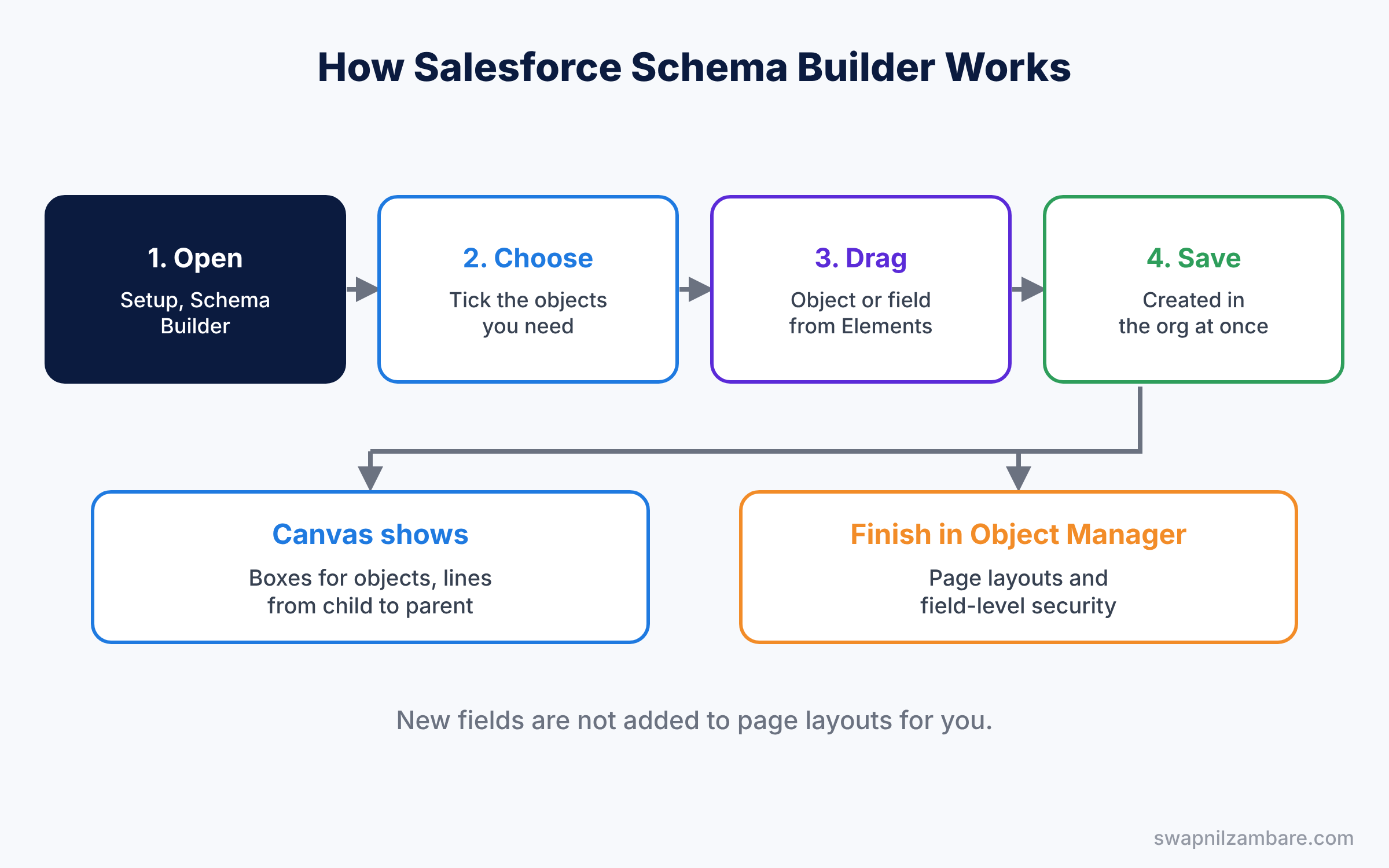
The layout you arrange is saved for you. So the next time you open Schema Builder, your objects sit where you left them. This is handy in a busy org. For example, you can place the four learning objects in the centre once, and they stay there every time the academic team asks for a change.
Key Parts of Salesforce Schema Builder
The Objects panel
First, the left panel has an Objects tab with a checkbox for every object. Tick only the objects you care about, such as Account, Contact, Course and Enrollment. A filter at the top shows all, selected, standard or custom objects.
The Elements panel
Next, the Elements tab lists what you can create. It includes Object and common field types, such as Text, Number, Picklist, Formula, Lookup Relationship and Master-Detail Relationship. You drag one onto the canvas or onto an object box to start.
Relationship lines
Then the lines show how objects connect. Each line runs from the child object to the parent object. Hover over a line to see the field name and the relationship type.
Canvas tools
The toolbar has Auto-Layout, which tidies the boxes, and options to show field labels or API names. You can also hide relationship lines when the picture gets busy, and zoom with the mini-map.
Limits to remember
Finally, Schema Builder does not do everything. New fields are not added to page layouts, so you add them yourself. Some settings, like field history or detailed security, still need Object Manager.
The table below lists the Elements you will use most.
| Element | Creates | Example at Bright Path Tutors |
|---|---|---|
| Object | A new custom object | Teacher |
| Text | A text field | Teacher Email Domain |
| Lookup Relationship | A loose link to a parent | Course to Teacher |
| Master-Detail Relationship | A tight link to a parent | Enrollment to Course |
| Formula | A calculated field | Teacher Name on Course |
Schema Builder vs Object Manager
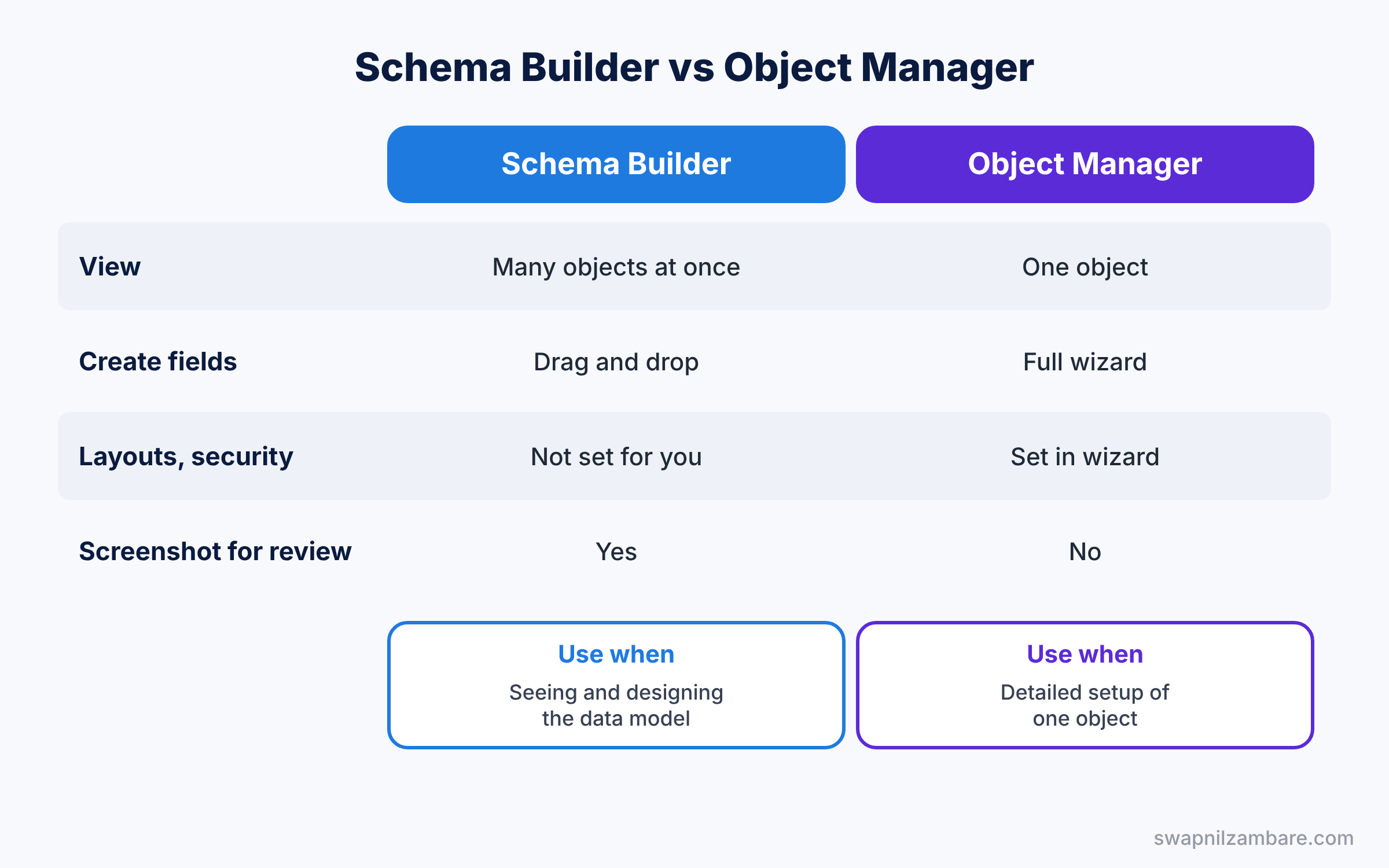
Both tools create objects and fields, so it helps to know when to use each one. The table below compares them.
| Feature | Schema Builder | Object Manager |
|---|---|---|
| View | Many objects in one diagram | One object at a time |
| Create fields | Drag and drop, short form | Full wizard with all steps |
| Page layouts and security | Not set for you | Set in the wizard |
| Best for | Seeing and designing the model | Detailed setup of one object |
| Quick screenshot for a review | Yes | No |
In short, use Salesforce Schema Builder to see and sketch your model. Use Object Manager when you need every setting, such as layouts and field-level security.
Hands-on Example: Salesforce Schema Builder for a Teacher Object
Let’s add a Teacher object in your Developer Edition org.
Step 1: Open Schema Builder
- Go to Setup, type “Schema Builder” in Quick Find, and click it.
- In the Objects panel, click Clear All, then tick Account, Contact, Course and Enrollment.
- Click Auto-Layout so the boxes do not overlap.
Step 2: Create the Teacher object
- Open the Elements tab and drag Object onto an empty part of the canvas.
- Fill in the values from the table below and click Save.
| Field | Value |
|---|---|
| Label | Teacher |
| Plural Label | Teachers |
| Object Name | Teacher |
| Record Name | Teacher Name, Text |
| Allow Reports | Ticked |
Step 3: Add fields
- Drag Email onto the Teacher box. Name it “Work Email” and save.
- Drag Picklist onto Teacher, name it “Subject Area”, and add English, Coding and Maths.
Step 4: Link Course to Teacher
- Drag Lookup Relationship onto the Course box.
- Set Field Label to “Teacher”, choose Teacher as the related object, and save.
- A new line now runs from Course to Teacher on the canvas.
Step 5: Finish in Object Manager and check with SOQL
Schema Builder does not add the new fields to page layouts. So open Object Manager, then Course, then Page Layouts, and drag the Teacher field onto the layout. Do the same for Teacher’s own fields.
Then create a teacher, link two courses to her, and check the link with this query.
SELECT Name, Work_Email__c,
       (SELECT Name, Fee__c FROM Courses__r)
FROM Teacher__c
ORDER BY Name
The result might look like this.
Name          Work_Email__c                 Courses__r
Meera Iyer    meera@brightpathtutors.in     Spoken English, Public Speaking
Courses__r is the child relationship name that Salesforce created from the Lookup field. So the query shows each teacher with the courses she teaches.
Common Mistakes with Salesforce Schema Builder
- Showing every object. The canvas becomes a maze, so filter to the objects you need.
- Forgetting page layouts. New fields stay invisible to users until you add them.
- Skipping field-level security. Check that the right profiles can see the new fields.
- Deleting by accident. You can delete fields from the canvas, so read before you click.
- Using it for detailed settings. Help text and history tracking are easier in Object Manager.
Best Practices for Salesforce Schema Builder
- Design before you build. Sketch new objects on the canvas in a sandbox first.
- Use API names view for developers. They need exact names for SOQL and Apex.
- Save a screenshot for documentation. A picture explains the model faster than a list.
- Keep layouts tidy. Run Auto-Layout, then move key objects to the centre.
- Follow up in Object Manager. Finish layouts, security and help text there.
Practice Task
Add a Master-Detail Relationship from a new “Class Session” object to Course using Schema Builder. Then add a roll-up summary on Course that counts sessions.
Hint: create the roll-up from Object Manager, as our roll-up summary fields post shows.
Salesforce Schema Builder FAQ
Can I create standard objects in Schema Builder?
No. You can view standard objects and add custom fields to them, but not create new standard objects.
Does Schema Builder change the org right away?
Yes. When you save an object or field, it exists in the org immediately.
Is Schema Builder available in Developer Edition?
Yes. It is a standard Setup tool, so you can practise in your free org.
Official Resources
Quick Recap
- Salesforce Schema Builder draws objects, fields and relationships on one canvas.
- Drag elements to create objects and fields without leaving the diagram.
- Lines run from child objects to their parents.
- New fields are not added to page layouts, so finish in Object Manager.
- Use it to design, explain and review your data model.
What’s Next?
You can now see your whole data model. Next, learn the exact order in which Salesforce runs rules, flows and triggers when a record is saved. Read Salesforce Order of Execution Explained for Admins.


