Salesforce Password Policies decide how strong passwords must be, how often they expire and what happens after wrong tries. Good settings stop attackers without flooding the admin with reset tickets. So every admin should know them well.
This post builds on org security and MFA and user management. We will set policies for Bright Path Tutors and handle a locked user.
What are Salesforce Password Policies?
Salesforce Password Policies are org settings that control password rules. They cover expiry, history, length, complexity, lockout and the forgot-password process. You find them in Setup under Password Policies.
Think of them as the rules for keys in an office. Keys must be hard to copy, changed now and then, and taken away after misuse. Password rules do the same for logins.
Why Salesforce Password Policies Matter
Weak or reused passwords are a common way into any system. Also, users often share passwords or write them on notes. Strong Salesforce Password Policies reduce this risk.
However, rules that are too strict cause many lockouts and reset requests. So the goal is a balance. MFA adds the strongest protection, and password rules support it.
How Salesforce Password Policies Work
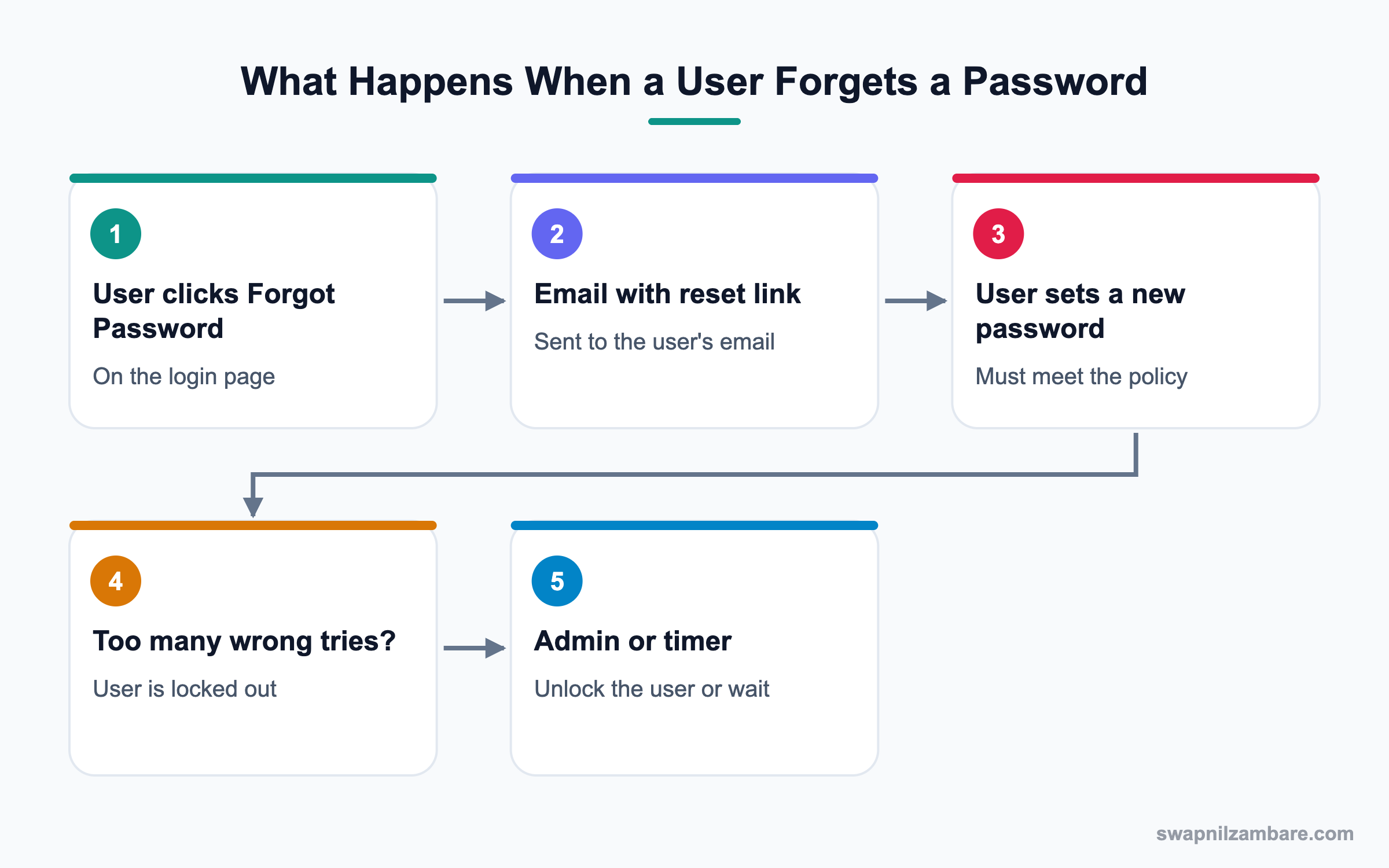
When a user sets or changes a password, Salesforce checks it against the policy. If the password is too short or too simple, the user must try again. Then, at login, Salesforce counts wrong attempts and locks the user after the limit.
Expiry and History
User passwords expire in sets how long a password lasts, such as 90 days. Enforce password history stops users from reusing their last few passwords.
Length and Complexity
Minimum password length sets how many characters are needed. Password complexity requirement decides the mix, such as letters and numbers, or also special characters.
Lockout Rules
Maximum invalid login attempts sets how many wrong tries are allowed. Lockout effective period sets how long the user stays locked, or until an admin resets them.
Forgot Password and Self-Service
Users click Forgot Your Password on the login page. Then Salesforce emails a reset link. Admins can set a custom forgot-password message, such as a help desk number.
Key Salesforce Password Policies Settings
This table explains the main fields in plain words.
| Setting | What it does | Good starting value |
|---|---|---|
| User passwords expire in | How long a password lasts | 90 days |
| Enforce password history | How many old passwords are blocked | 3 passwords remembered |
| Minimum password length | Fewest characters allowed | 10 or more |
| Password complexity requirement | Mix of character types | Letters, numbers, special characters |
| Maximum invalid login attempts | Wrong tries before lockout | 5 |
| Lockout effective period | How long the lock lasts | 30 minutes |
Org-Wide vs Profile Salesforce Password Policies
You can set policies for the whole org and also for a single profile. This table shows the difference.
| Feature | Org-wide policies | Profile policies |
|---|---|---|
| Applies to | All users | Users of one profile |
| Set in | Setup, Password Policies | Profile, Password Policies |
| Priority | Default | Overrides org-wide |
| Typical use | Normal staff | Admins or high-risk roles |
| Upkeep | One place | One per profile |
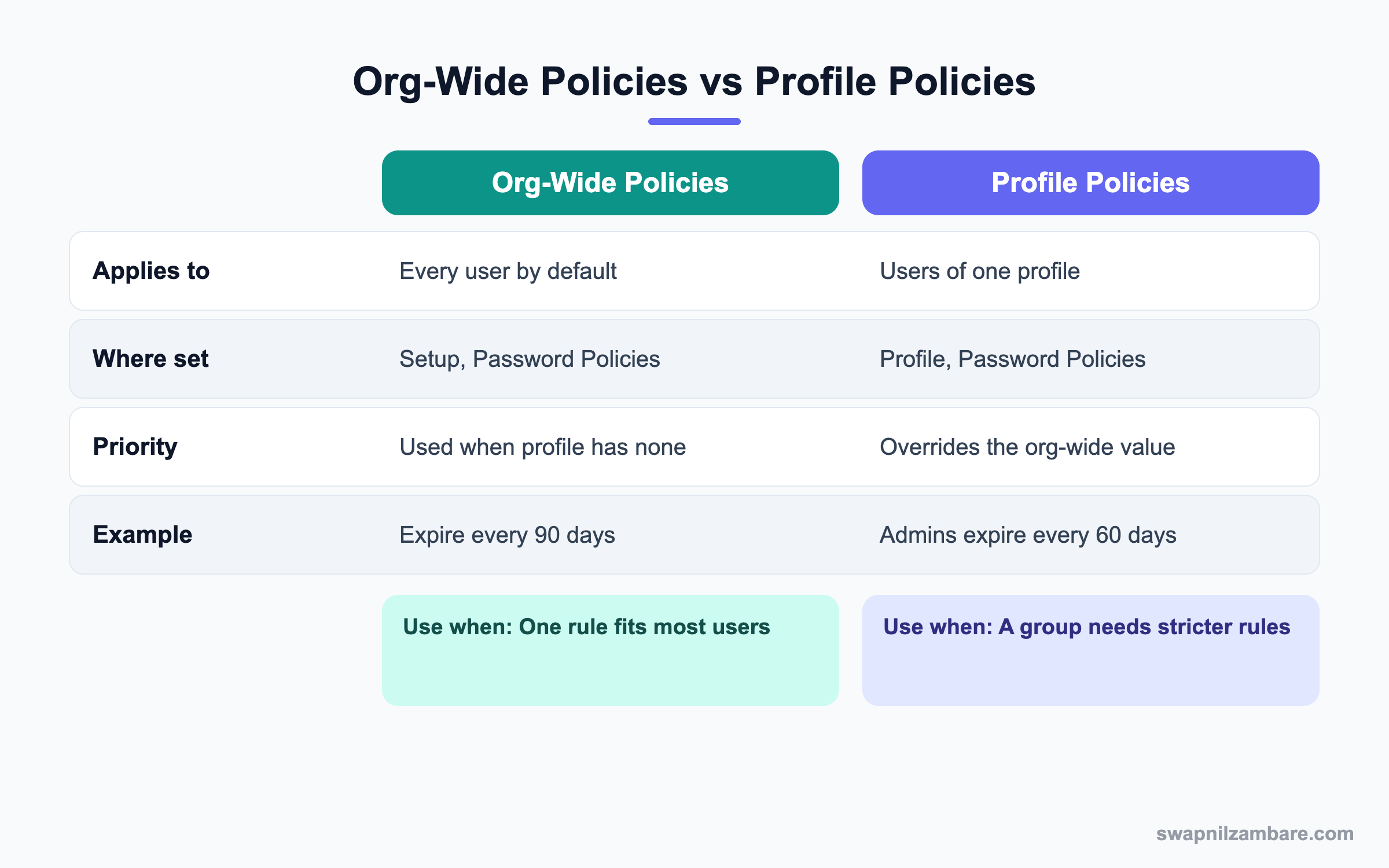
In short, set a sensible org-wide policy first. Then add stricter profile policies only for powerful roles like System Administrator.
A Real Salesforce Password Policies Example
Bright Path Tutors had many weak passwords. Also, tutors kept calling Ravi when they were locked out. Let’s fix both problems.
Step 1: Set the Org-Wide Policy
- Open Setup and type “Password Policies” in Quick Find.
- Set the values from the table below.
- Add a Forgot Password message with the help desk email.
- Click Save.
| Setting | Value |
|---|---|
| User passwords expire in | 90 days |
| Enforce password history | 5 passwords remembered |
| Minimum password length | 10 |
| Password complexity requirement | Must include alpha, numeric and special characters |
| Maximum invalid login attempts | 5 |
| Lockout effective period | 30 minutes |
Step 2: Add a Stricter Admin Policy
- Open Setup, then Profiles, then System Administrator.
- Find the Password Policies section and click Edit.
- Set User passwords expire in to 60 days and Minimum password length to 14.
- Save the profile.
Step 3: Help a Locked Tutor
Neha typed her password wrong five times and is now locked. So Ravi helps her.
- Open Setup, then Users, then Neha’s user record.
- Click the Unlock button to unlock the user.
- If she forgot the password, click Reset Password, so she gets an email link.
- Check Login History to confirm the failed attempts came from her own device.
Step 4: Check Login Problems in Bulk
Ravi wants to see how many lockouts happened this week. So he runs a quick SOQL query in the Developer Console.
SELECT UserId, LoginTime, Status, SourceIp
FROM LoginHistory
WHERE Status = 'Password Lockout'
AND LoginTime = LAST_N_DAYS:7
If the same IP shows up for many users, it may be an attack. Then he would review login IP ranges and MFA.
Common Mistakes with Salesforce Password Policies
- Setting passwords to never expire for all users without MFA.
- Using a lockout period of Forever, so the admin must reset every lockout.
- Forgetting that profile policies override the org-wide policy.
- Not adding a helpful forgot-password message.
- Resetting passwords over chat instead of using the reset link.
Best Practices for Salesforce Password Policies
- Turn on MFA for every user, then set password rules to support it.
- Use a minimum length of 10 or more, because length beats complexity.
- Keep the lockout period short, so users recover on their own.
- Give stricter profile policies to admins and integration owners.
- Review Login History weekly for repeated lockouts.
Practice Task
In your practice org, set Maximum invalid login attempts to 3. Then create a test user and lock them by typing a wrong password. Finally, unlock the user from Setup. Hint: use a private browser window for the test login.
Most Asked Salesforce Password Policies Interview Questions
These Salesforce Password Policies questions often appear in security rounds of admin interviews.
Basic Salesforce Password Policies Interview Questions
Q1: What are Salesforce Password Policies?
Salesforce Password Policies are settings that control password rules for users. They include expiry, history, length, complexity, lockout and forgot-password options.
Q2: Where do you set password policies?
In Setup, under Password Policies, for the whole org. You can also set them on a profile.
Q3: What does Enforce password history do?
It remembers a number of old passwords. Users cannot reuse any of them when they change their password.
Q4: What happens after too many wrong login attempts?
The user is locked out. They wait for the lockout period to end, or an admin unlocks the user.
Q5: How do you unlock the user after a lockout?
Open the user record in Setup and click the Unlock button. The button shows only when the user is locked.
Q6: How does a user reset a forgotten password?
They click Forgot Your Password on the login page and follow the email link. An admin can also click Reset Password on the user record.
Q7: What is the difference between Reset Password and the Unlock button?
The Unlock button only removes the lock, so the user can try their known password again. Reset Password sends a link to set a new password.
Intermediate Salesforce Password Policies Interview Questions
Q8: Which wins, a profile password policy or the org-wide policy?
Among Salesforce Password Policies, the profile policy wins for users of that profile. The org-wide policy applies to everyone else.
Q9: What does Expire All Passwords do?
It forces every user to set a new password at next login. Admins use it after a security incident.
Q10: How do you see why a user cannot log in?
Check Login History on the user record. The Status column shows reasons like Invalid Password or Password Lockout.
Q11: What is the Lockout effective period?
It is how long a user stays locked, such as 15, 30 or 60 minutes. It can also be Forever, which needs an admin to unlock the user.
Q12: Do password policies apply to users who log in with SSO?
No. With SSO, the identity provider checks the password. Salesforce password rules apply only to users who log in with a Salesforce password.
Q13: How does MFA relate to password policies?
MFA adds a second check after the password. So even a stolen password is not enough to log in.
Q14: Can you require a minimum password lifetime?
Yes. The Require a minimum 1 day password lifetime option stops users from changing passwords many times to reuse an old one.
Q15: What is the forgot password message?
It is custom text shown on the reset page. Admins add a help desk contact so users know who to call.
Advanced Salesforce Password Policies Interview Questions
Q16: Scenario: one IP address causes lockouts for many users. What do you do?
Treat it as a possible attack. Review Login History, block or restrict the IP with login IP ranges and confirm MFA is on for all users.
Q17: Scenario: the CEO keeps getting locked out. How do you help without weakening security?
Check the device and Login History first. Then suggest a password manager and MFA, and keep the lockout period short instead of raising attempts.
Q18: How would you handle password rules for an integration user?
Use an API-only integration user with OAuth, not a password login. If a password is used, give it a strict policy and store it securely.
Q19: How do you report on users with expired or old passwords?
Use the user list view or a report on Users with Last Password Change fields. Then remind users or reset as needed.
Q20: Why might an admin set passwords to never expire?
When strong MFA or SSO is in place, frequent expiry adds little value. Many security teams now prefer long passwords and MFA over forced changes.
Q21: What is Password Lockout in Login History?
It is a status showing the user hit the limit of wrong attempts. Admins use it to spot lockout patterns.
Q22: Can Salesforce Password Policies differ for community users?
Yes. Experience Cloud sites have their own login settings, and profile policies apply to external users too. So check the site and profile settings together.
Q23: How do Salesforce Password Policies affect new users?
New users set their first password from the welcome email. Then that password must already meet the current policy.
Q24: Scenario: users complain that passwords expire too often. What do you suggest?
First check whether MFA is on for everyone. If so, you can make expiry longer and raise the minimum length instead.
Q25: What is the Obscure secret answer setting?
It hides the answer to the security question while the user types it. So nobody nearby can read it on the screen.
Q26: Can you see a user’s password as an admin?
No. Salesforce stores passwords in a protected form, so admins can only reset them. This keeps users safe even from insiders.
Official Resources
- Salesforce Help: Set Password Policies
- Trailhead: User Authentication
- Salesforce Help: Reset Passwords for Your Users
Quick Recap
- Salesforce Password Policies control expiry, history, length, complexity and lockouts.
- Profile policies override the org-wide policy for their users.
- The Unlock button removes a lock, while Reset Password sends a new link.
- Login History shows failed logins and lockouts.
- MFA plus long passwords gives the best protection.
What’s Next?
Next, we plan your growth with the Salesforce Admin Career Roadmap.