The Salesforce Mobile App lets users work on their phone with the same data they use on the desktop. Tutors can log attendance in class, and sales reps can update deals after a meeting. However, a phone screen is small, so the admin must shape what users see.
This post builds on quick actions and compact layouts. We will set up the app for the Bright Path Tutors field team.
What is the Salesforce Mobile App?
The Salesforce Mobile App is the official app for iPhone and Android phones and tablets. Users download it from the app store and log in with their normal Salesforce username. The app shows Lightning apps, records, list views, reports and dashboards.
Think of it like the mobile version of your bank. You do the common tasks on the phone, like checking a balance. For the long tasks, you still use the website. So the phone version should focus on the quick, frequent jobs.
Why the Salesforce Mobile App Matters
Many users are not at a desk all day. For example, tutors move between classrooms and sales reps visit schools. If they wait until evening to update records, data goes stale and details get lost.
So a good Salesforce Mobile App setup raises data quality and saves time. Also, managers can approve requests and check dashboards from anywhere.
How the Salesforce Mobile App Works
The app reads the same metadata as Lightning Experience. Your apps, tabs, record pages, compact layouts and actions all appear on the phone. As a result, most of the setup is work you already did for the desktop.
However, you can add phone-specific choices. For example, you can build a Lightning record page only for the Phone form factor. Then phone users see a short, focused page.
Navigation
The mobile navigation menu comes from the navigation items of the Lightning app the user opens. So keep the most used items, like Courses and Tasks, at the top of the app’s navigation.
Compact Layouts
The compact layout decides the key fields at the top of a record on the phone. Pick four or five fields that users need at a glance.
Actions
Quick actions appear in the action bar at the bottom of the record. Put the most common actions, like Log a Call or Mark Attendance, first.
Offline with Briefcase
Briefcase Builder in Setup lets you choose records users can see without a network. For example, tutors can see today’s Course records even in a basement classroom.
Security
Admins control the session timeout, PIN lock and device rules through the Salesforce mobile connected app policies. Mobile security settings help protect data if a phone is lost.
Key Settings for the Salesforce Mobile App
This table lists the main settings and where they live.
| What to set | Where in Setup | Why |
|---|---|---|
| Phone record pages | Lightning App Builder | Short, focused pages |
| Compact layouts | Object Manager | Key fields at the top |
| Actions | Page layout or Dynamic Actions | Quick tasks on the go |
| Offline records | Briefcase Builder | Work without network |
| PIN and session | Connected Apps, Salesforce for iOS or Android | Protect lost phones |
| Push notifications | Custom Notifications | Alerts on the phone |
Desktop Page vs Phone Page
This table compares the two kinds of record pages.
| Feature | Desktop Record Page | Phone Record Page |
|---|---|---|
| Layout | Many columns | One column |
| Content | Full details, related lists, charts | Key fields and actions |
| Users | Office staff | Field staff |
| Form factor setting | Desktop | Phone |
| Load speed | Can be heavier | Must be light |
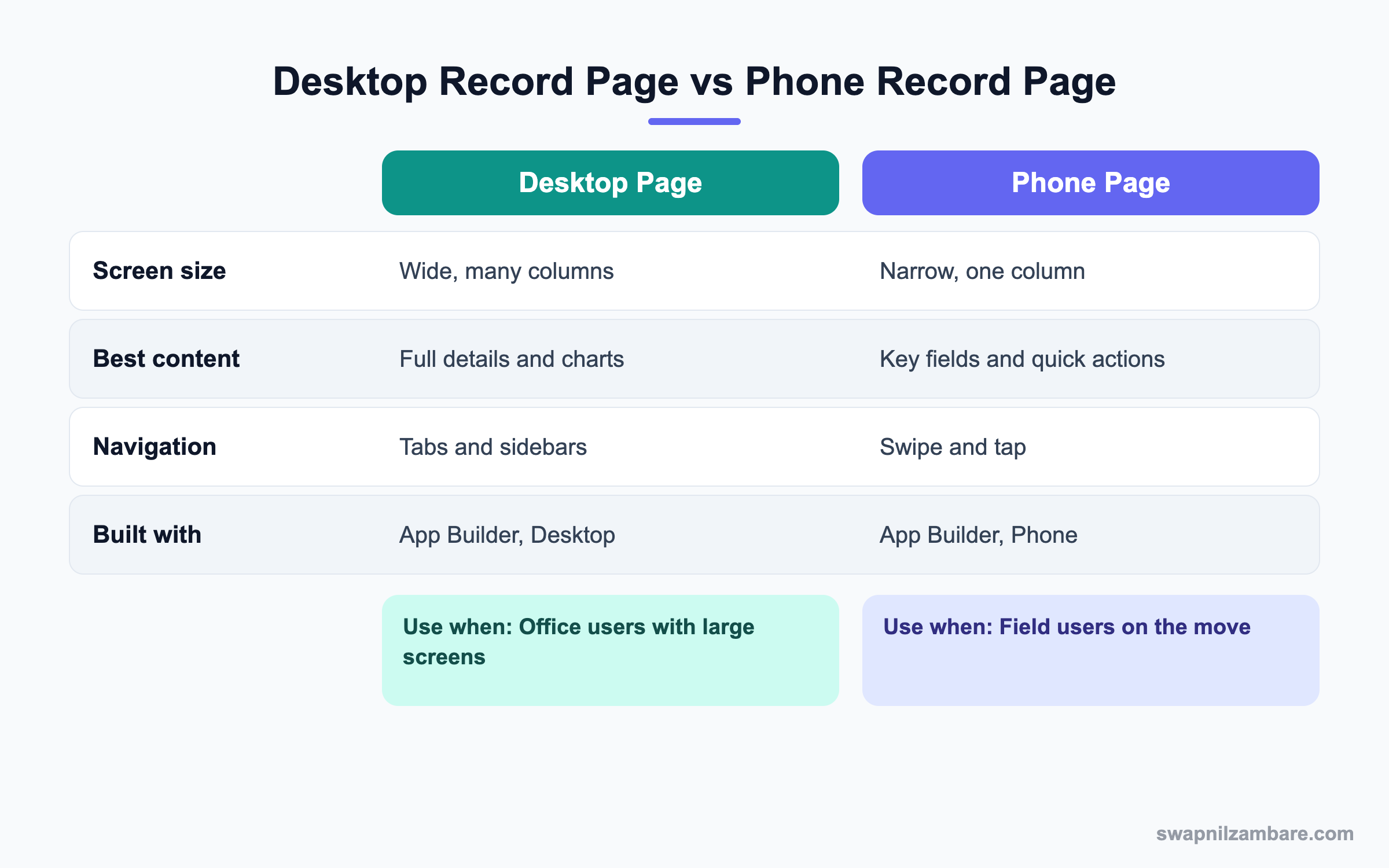
In short, use one page for both when the page is simple. Then add a phone page when field users need fewer fields and faster actions.
A Real Salesforce Mobile App Example
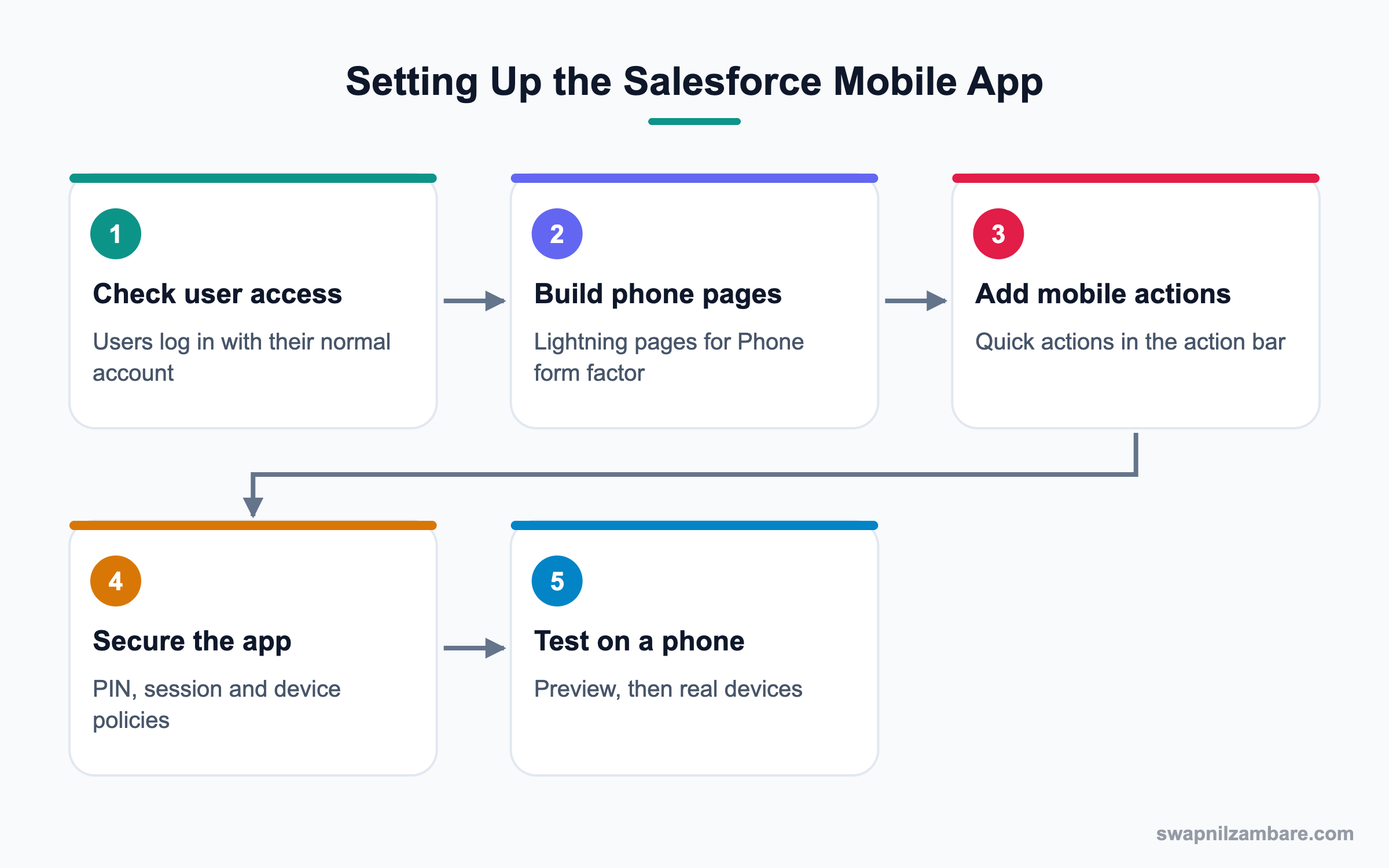
Tutors at Bright Path Tutors want to mark attendance and see today’s batch on their phones. Let’s set it up.
Step 1: Create a Mark Attendance Action
- Open Object Manager, then Course, then Buttons, Links, and Actions.
- Click New Action and choose Action Type Update a Record.
- Set Label to Mark Attendance and add the fields Attendance Count and Class Notes.
- Save, then add the action to the Course page layout in the mobile actions section.
Step 2: Build a Phone Record Page
- Open Lightning App Builder and click New, then Record Page.
- Name it Course Phone Page and pick the Course object.
- Choose the One Region template.
- Add Highlights Panel, the Related List Single for Students and Activities.
- Click Save, then Activation, and assign it with Form Factor set to Phone.
Step 3: Set Up Offline Access
- Type “Briefcase Builder” in Quick Find and click New Briefcase.
- Name it Tutor Briefcase and add the Course object.
- Add a filter so only courses starting this week are included.
- Assign the briefcase to the Tutors public group and activate it.
These are the briefcase settings we used.
| Setting | Value |
|---|---|
| Briefcase Name | Tutor Briefcase |
| Object | Course |
| Filter | Start Date equals THIS WEEK |
| Record limit | 500 |
| Assigned to | Tutors public group |
Step 4: Secure the App
- Type “Connected Apps OAuth Usage” or “Manage Connected Apps” in Quick Find.
- Open Salesforce for iOS and then Salesforce for Android.
- Set the PIN length and the Lock App After time in the mobile policies.
- Save and test on a real phone.
Finally, test with a tutor login on a real phone. Check the action bar, the phone page and offline records with airplane mode on.
Common Mistakes with the Salesforce Mobile App
- Putting desktop pages with ten components on the phone, which load slowly.
- Leaving the action bar full of rarely used actions.
- Forgetting compact layouts, so users see useless fields at the top.
- Skipping PIN and session settings for company phones.
- Testing only in the desktop preview, never on a real device.
Best Practices for the Salesforce Mobile App
- Ask field users which three tasks they do most, then design for those.
- Use phone form factor pages for objects field users open often.
- Keep the first five actions in the action bar the most useful ones.
- Use Briefcase for users who work where the network is weak.
- Turn on custom notifications for urgent items, like new case assignments.
Practice Task
Create a phone record page for the Contact object with only the Highlights Panel and Activities. Then open the Salesforce Mobile App on your phone with your practice org and compare it with the desktop page. Hint: set Form Factor to Phone during activation.
Most Asked Salesforce Mobile App Interview Questions
These Salesforce Mobile App questions are common in admin interviews, especially for field service and sales teams.
Basic Salesforce Mobile App Interview Questions
Q1: What is the Salesforce Mobile App?
It is the official Salesforce app for iOS and Android. Users log in with their normal account and work with records, list views, dashboards and actions.
Q2: Do users need a separate license for the mobile app?
No. Users with a standard Salesforce license can use the Salesforce Mobile App at no extra cost.
Q3: Where does the mobile navigation menu come from?
It comes from the navigation items of the Lightning app the user selects. So the app order on desktop shapes the phone menu.
Q4: What is a compact layout used for on mobile?
It controls the key fields shown in the highlights area at the top of a record. Mobile users see these first.
Q5: How do you add actions to the mobile action bar?
Add quick actions to the Salesforce Mobile and Lightning Experience Actions section of the page layout. Dynamic Actions can also control them.
Q6: How do you preview a page for mobile?
In Lightning App Builder, switch the preview to Phone. Then test on a real device too.
Q7: Can users access reports and dashboards on mobile?
Yes. Most reports and dashboards display on the phone, though very wide reports are harder to read.
Intermediate Salesforce Mobile App Interview Questions
Q8: What is form factor in Lightning App Builder?
Form factor tells Salesforce which device a page is for, Desktop or Phone. You can assign different pages to each form factor.
Q9: What is Briefcase Builder?
It is a Setup tool that lets admins choose records for offline use. Users can then view and edit them without a network.
Q10: How do you secure the Salesforce Mobile App?
Set mobile policies on the Salesforce for iOS and Android connected apps, such as PIN length and lock time. Also use session settings and MFA.
Q11: How do you send push notifications to the mobile app?
Create a custom notification type and send it from a flow. Users receive it on their phone if notifications are on.
Q12: Why might a component not show on mobile?
Some components do not support the phone form factor. Also, component visibility rules may hide it by device.
Q13: What are global actions in mobile?
Global actions are not tied to a record, like New Task or Log a Call. They appear in the mobile app’s global action menu.
Q14: Can Visualforce pages work in the mobile app?
Yes, if the page is marked Available for Lightning Experience, Experience Builder sites, and the mobile app. However, it may need mobile-friendly design.
Advanced Salesforce Mobile App Interview Questions
Q15: Scenario: field users say the record page is slow on phones. What do you do?
Build a phone-only page with fewer components. Also, move heavy related lists into tabs and test with Lightning Page Performance.
Q16: Scenario: a company phone is lost. What should the admin do?
Freeze or deactivate the user if needed, and revoke the mobile session from the user’s OAuth connections. PIN and lock settings also protect the data.
Q17: How do you plan an offline strategy?
First list the records users need without a network. Then build a briefcase with tight filters and test record limits on real devices.
Q18: How do you track mobile adoption?
Use the Lightning Usage app and login history, which show the app or platform used. Also ask field managers for feedback.
Q19: What is Mobile Publisher?
Mobile Publisher lets a company publish its own branded app built on Salesforce, often for Experience Cloud sites. It needs a separate license.
Q20: Scenario: users can edit a field on desktop but not on mobile. What do you check?
Check the phone record page, the compact layout and the action layout. The field may be missing from the mobile page or action, not blocked by security.
Q21: How do Dynamic Actions help on mobile?
Dynamic Actions show actions only when rules match, such as record status. So the mobile action bar stays short and relevant.
Official Resources
- Trailhead: Salesforce Mobile App Customization
- Salesforce Help: Briefcase Builder
- Salesforce Help: Salesforce Mobile App Security
Quick Recap
- The Salesforce Mobile App uses the same apps, pages and actions as desktop.
- Phone record pages give field users short, focused screens.
- Compact layouts and the action bar decide what users see first.
- Briefcase Builder enables offline records.
- Mobile policies like PIN and session timeout protect lost phones.
What’s Next?
Next, we lock down logins with Password Policies and User Self-Service.