Outlook and Gmail Integration lets users see and update Salesforce without leaving their inbox. A counsellor reads a parent’s email, sees the student record in a side pane and logs the email in one click. As a result, the activity history stays complete without copy and paste.
This post builds on activities and email integration and Einstein Activity Capture. We will set it up for the Bright Path Tutors counselling team.
What is Outlook and Gmail Integration?
Outlook and Gmail Integration is a Salesforce feature that adds a Salesforce pane inside Outlook or Gmail. The pane shows matching contacts, leads, accounts and opportunities for the people in an email. Users can log emails and events, create records and add tasks from there.
Think of it like a helpful assistant sitting beside your mailbox. When a letter arrives, the assistant pulls the right customer file and hands it to you. Then you file the letter in that customer’s folder.
Why Outlook and Gmail Integration Matters
Most customer talks happen over email. However, if emails stay only in personal inboxes, the team loses the history when someone is on leave. Managers also cannot see what was promised.
So Outlook and Gmail Integration keeps conversations attached to Salesforce records. Also, users save time, because they no longer switch tabs to look up a record.
How Outlook and Gmail Integration Works
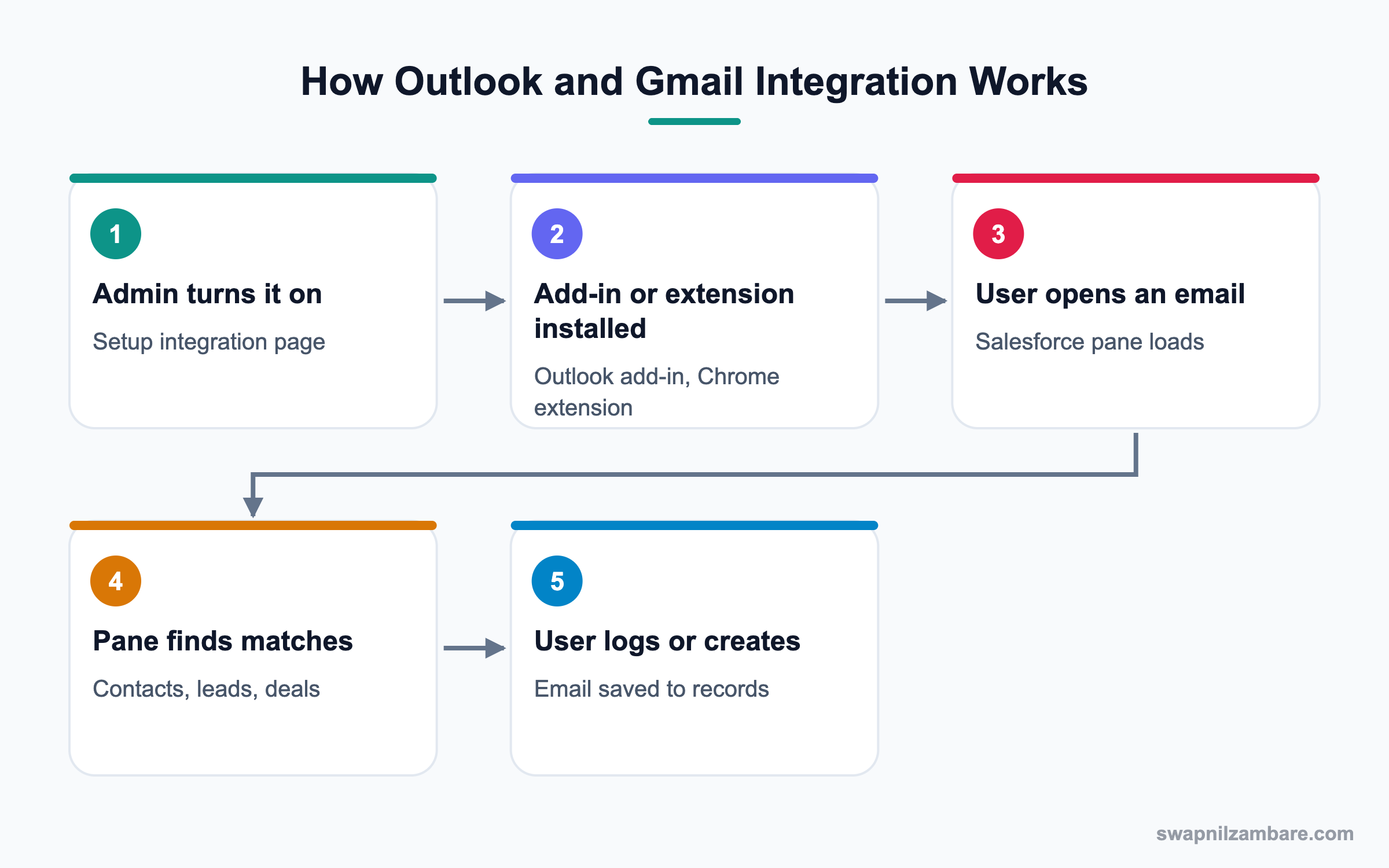
The admin turns on the integration in Setup. Then users install the Outlook add-in or the Gmail Chrome extension. When a user opens an email, the pane matches email addresses with Salesforce records.
The Outlook Add-In
In Microsoft 365, the Salesforce add-in can be deployed by the Microsoft admin to all users. It works in Outlook on the web, desktop and some mobile clients.
The Gmail Chrome Extension
In Google Workspace, users add the Salesforce extension from the Chrome Web Store. Then they see the pane on the right side of Gmail.
Email Application Panes
Admins design the pane in Lightning App Builder as an Email Application Pane. For example, you can add a Course related list or a quick action.
Logging Emails and Events
Users click Log Email and pick records to relate. With Enhanced Email, the logged email is saved as an EmailMessage record and appears in the activity timeline.
Sync Options
Background sync of contacts and events is handled by Einstein Activity Capture in modern orgs. It is a separate feature with its own settings.
Key Settings for Outlook and Gmail Integration
This table lists the main settings and their purpose.
| Setting | Where | Purpose |
|---|---|---|
| Outlook Integration toggle | Setup, Outlook Integration and Sync | Turn on Outlook pane |
| Gmail Integration toggle | Setup, Gmail Integration and Sync | Turn on Gmail pane |
| Enhanced Email with Outlook or Gmail | Same setup pages | Log emails as EmailMessage |
| Email Application Pane | Lightning App Builder | Design the pane |
| Pane assignment | App Builder activation | Who sees which pane |
| Einstein Activity Capture | Setup | Automatic sync |
Outlook and Gmail Integration vs Einstein Activity Capture
These two features often appear together. This table shows how they differ.
| Feature | Outlook and Gmail Integration | Einstein Activity Capture |
|---|---|---|
| Main job | Work in the inbox | Background sync |
| User control | User picks what to log | Automatic |
| Storage | Salesforce records | Activity timeline data |
| Reporting | Standard activity reports | Limited, through Activity Metrics |
| Setup effort | Low | Medium |
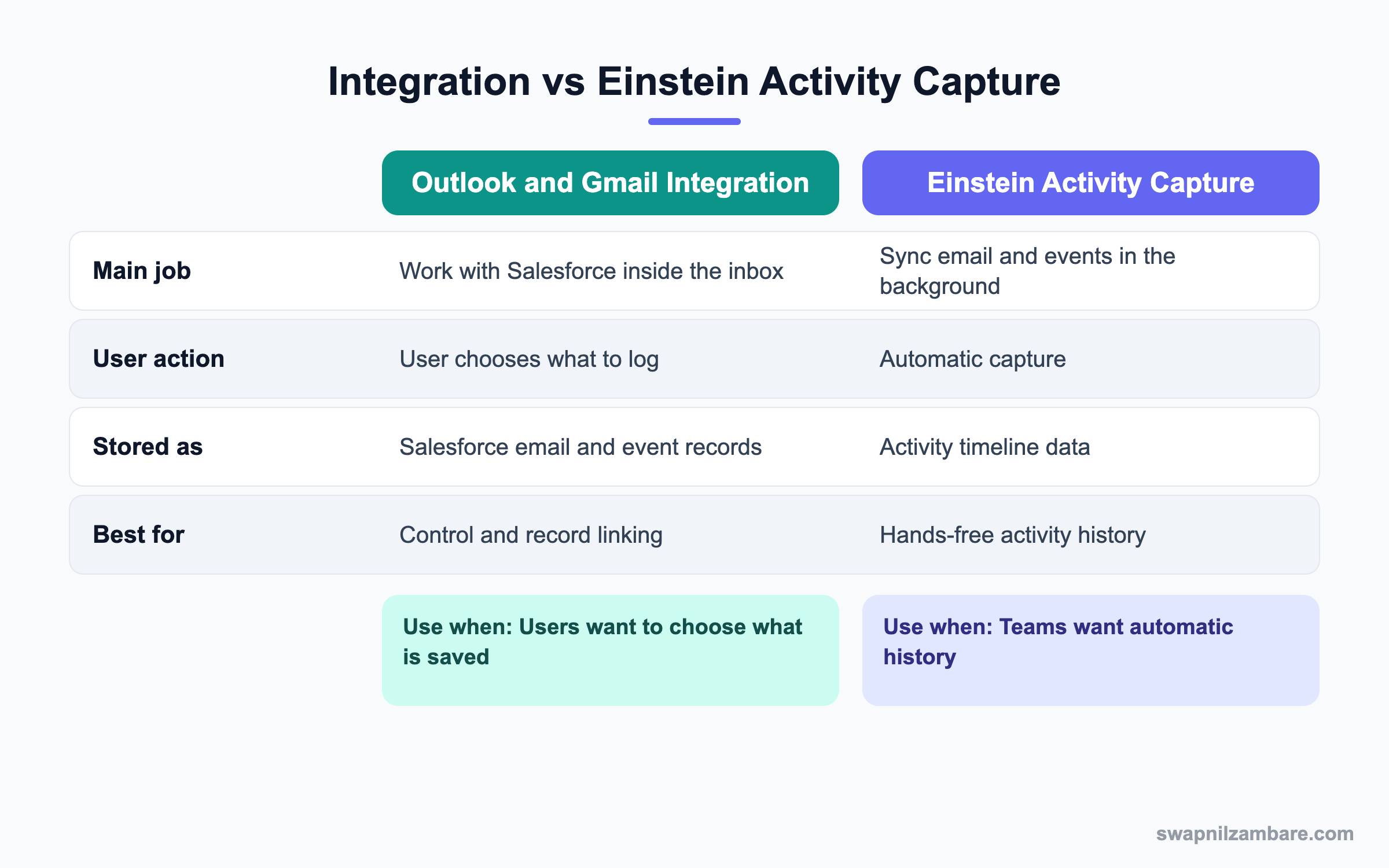
In short, use the integration when users want control over what is saved. Add Activity Capture when you also want automatic history.
A Real Outlook and Gmail Integration Example
Bright Path Tutors uses Microsoft 365. Counsellors want to see student details and log parent emails from Outlook. Let’s set it up.
Step 1: Turn On the Integration
- Open Setup and type “Outlook Integration and Sync” in Quick Find.
- Turn on Let users access Salesforce records from Outlook.
- Turn on Use Enhanced Email with Outlook.
- Ask the Microsoft 365 admin to deploy the Salesforce add-in to the counsellors group.
Step 2: Design the Email Pane
- Open Lightning App Builder and click New, then Email Application Pane.
- Name it Counsellor Inbox Pane.
- Add Record Details for Contact, an Enrolments related list and a Log a Call action.
- Save and activate it for the Counsellor profile.
These are the components we used.
| Component | Purpose |
|---|---|
| Related Records | Show matching contacts and leads |
| Enrolments list | Show the student’s courses |
| Log a Call | Record a phone follow-up |
| New Task | Plan the next step |
Step 3: Train Users to Log
- Open a parent’s email in Outlook.
- Click the Salesforce icon to open the pane.
- Check that the right contact appears, then click Log Email.
- Relate it to the student and the course enrolment, then save.
Step 4: Check the Result
Open the contact in Salesforce and look at the activity timeline. You can also count logged emails with a quick query.
SELECT Subject, FromAddress, MessageDate
FROM EmailMessage
WHERE CreatedDate = THIS_WEEK
ORDER BY MessageDate DESC
LIMIT 10
Common Mistakes with Outlook and Gmail Integration
- Turning on the feature but not deploying the add-in or extension.
- Leaving the default pane, which lacks the records users need.
- Expecting automatic logging when only the integration is on.
- Logging private emails to customer records by mistake.
- Not checking that users’ email addresses match their Salesforce login domain rules.
Best Practices for Outlook and Gmail Integration
- Design a pane per team with only useful components.
- Turn on Enhanced Email so logged emails are full records.
- Tell users what to log and what to keep private.
- Pilot with a small group, then roll out by profile.
- Review logged email counts monthly to track adoption.
Practice Task
In a Developer Edition org, turn on Gmail Integration and add the Chrome extension. Then open an email from a contact’s address and log it. Hint: create a contact with your own second email address first.
Most Asked Outlook and Gmail Integration Interview Questions
These Outlook and Gmail Integration questions test whether you can support sales and service teams who live in email.
Basic Outlook and Gmail Integration Interview Questions
Q1: What is Outlook and Gmail Integration?
It adds a Salesforce pane to Outlook or Gmail. Users can see related records, log emails and create records from the inbox.
Q2: How do users install it in Outlook?
Through the Salesforce add-in, often deployed by the Microsoft 365 admin. Users can also add it themselves if allowed.
Q3: How do users install it in Gmail?
They add the Salesforce extension from the Chrome Web Store, after the admin turns on Gmail Integration.
Q4: What does Log Email do?
It saves the email in Salesforce and relates it to chosen records. The email then appears in the activity timeline.
Q5: Can users create records from the inbox?
Yes. They can create contacts, leads and other records through actions in the pane.
Q6: Where do you turn the feature on?
In Setup, on the Outlook Integration and Sync or Gmail Integration and Sync page.
Q7: Does the integration log emails automatically?
No. Users choose what to log. Automatic capture needs Einstein Activity Capture.
Intermediate Outlook and Gmail Integration Interview Questions
Q8: What is an Email Application Pane?
It is a Lightning page type for the inbox pane. Admins design it in App Builder and assign it to users.
Q9: What is Enhanced Email in this context?
It saves logged emails as EmailMessage records with full content. So emails act like proper Salesforce records.
Q10: How do you show different panes to different teams?
Create a pane per team and assign each to the right profiles during activation.
Q11: What is the difference between the integration and Einstein Activity Capture?
The integration lets users work and log from the inbox. Activity Capture syncs emails and events automatically in the background.
Q12: Why might the pane show no matching records?
The sender’s email may not exist on any contact or lead, or the user lacks access. Check the record and sharing.
Q13: Can the integration log calendar events?
Yes. Users can log events from Outlook or Gmail calendars and relate them to records.
Q14: How do email templates work in the inbox?
Users can insert Salesforce email templates from the pane, if templates are shared with them. Merge fields fill from the related record.
Advanced Outlook and Gmail Integration Interview Questions
Q15: Scenario: users say the Outlook pane is blank. What do you check?
Check that the add-in is deployed, the integration is on and the user has a pane assigned. Also check browser or Outlook version support.
Q16: How would you roll out the integration to 300 users?
Pilot with one team, refine the pane and write a short guide. Then ask IT to deploy the add-in in waves.
Q17: How do you protect privacy when logging emails?
Train users to log only business emails and to relate them carefully. Also review sharing on logged emails.
Q18: Scenario: managers want every customer email saved without user action. What do you suggest?
Add Einstein Activity Capture with the right configuration. Explain its storage and reporting limits before rollout.
Q19: How do you measure adoption?
Report on EmailMessage records created through the integration and on events logged. Compare by team each month.
Q20: Can you add custom actions to the inbox pane?
Yes. Add quick actions or custom Lightning components to the Email Application Pane.
Q21: Which email platforms does Outlook and Gmail Integration support?
Microsoft 365 and Exchange based Outlook, and Google Workspace or Gmail. So check the supported versions list before rollout.
Q22: Do users need a separate license for Outlook and Gmail Integration?
No. The basic integration comes with Sales Cloud and Service Cloud licenses. However, some inbox productivity features need extra licenses.
Q23: What happens if two contacts share one email address?
The pane shows both matches, and the user picks the right one. So duplicate rules help keep emails unique.
Q24: Can Outlook and Gmail Integration work on mobile?
Some mobile clients support the add-in. Still, most users log emails from desktop or web.
Q25: Scenario: logged emails are visible to the whole company. Why?
Logged emails follow the sharing of related records and activity settings. So review the related records’ access.
Q26: How does Outlook and Gmail Integration help managers?
Managers see customer emails on records, so handovers are easy. Also, they can coach reps using real conversations.
Q27: Should every email be logged to Salesforce?
No. Log emails that matter to the customer relationship, such as quotes and promises. So personal or internal chatter stays out.
Q28: How do you stop users from logging to the wrong record?
Train them to check the record name in the pane before saving. Also, keep contacts clean, because duplicates cause wrong matches.
Official Resources
- Salesforce Help: Outlook Integration
- Salesforce Help: Gmail Integration
- Trailhead: Inbox and Email Integration
Quick Recap
- Outlook and Gmail Integration puts a Salesforce pane in the inbox.
- Users log emails and events and create records from the pane.
- Admins design panes in App Builder as Email Application Panes.
- Enhanced Email saves logged emails as full records.
- Einstein Activity Capture adds automatic background sync.
What’s Next?
Next, we build follow-up plans with Sales Engagement Cadences.