Lightning Email Templates help users send the same well-written email in seconds, with names and details filled in for them. A counsellor can send a course welcome email with the student’s name, course and start date. Because the template is shared, every email looks the same and follows the brand.
This post builds on email templates and alerts and org-wide email addresses. We will build a branded welcome template for Bright Path Tutors.
What are Lightning Email Templates?
Lightning Email Templates are reusable emails created in Lightning Experience. They contain a subject, a body, merge fields and optional attachments. Users insert them from the email composer on a record.
Think of a wedding card printer. The design stays the same, but each card gets a different guest name. Lightning Email Templates work the same way with merge fields.
Why Lightning Email Templates Matter
Typing the same email again and again wastes time and causes mistakes. For example, a counsellor may write the wrong course date. Templates fix this, because the data comes straight from the record.
Also, templates keep the brand consistent. Marketing can approve one version, and every user sends it. So Lightning Email Templates save time and protect quality.
How Lightning Email Templates Work
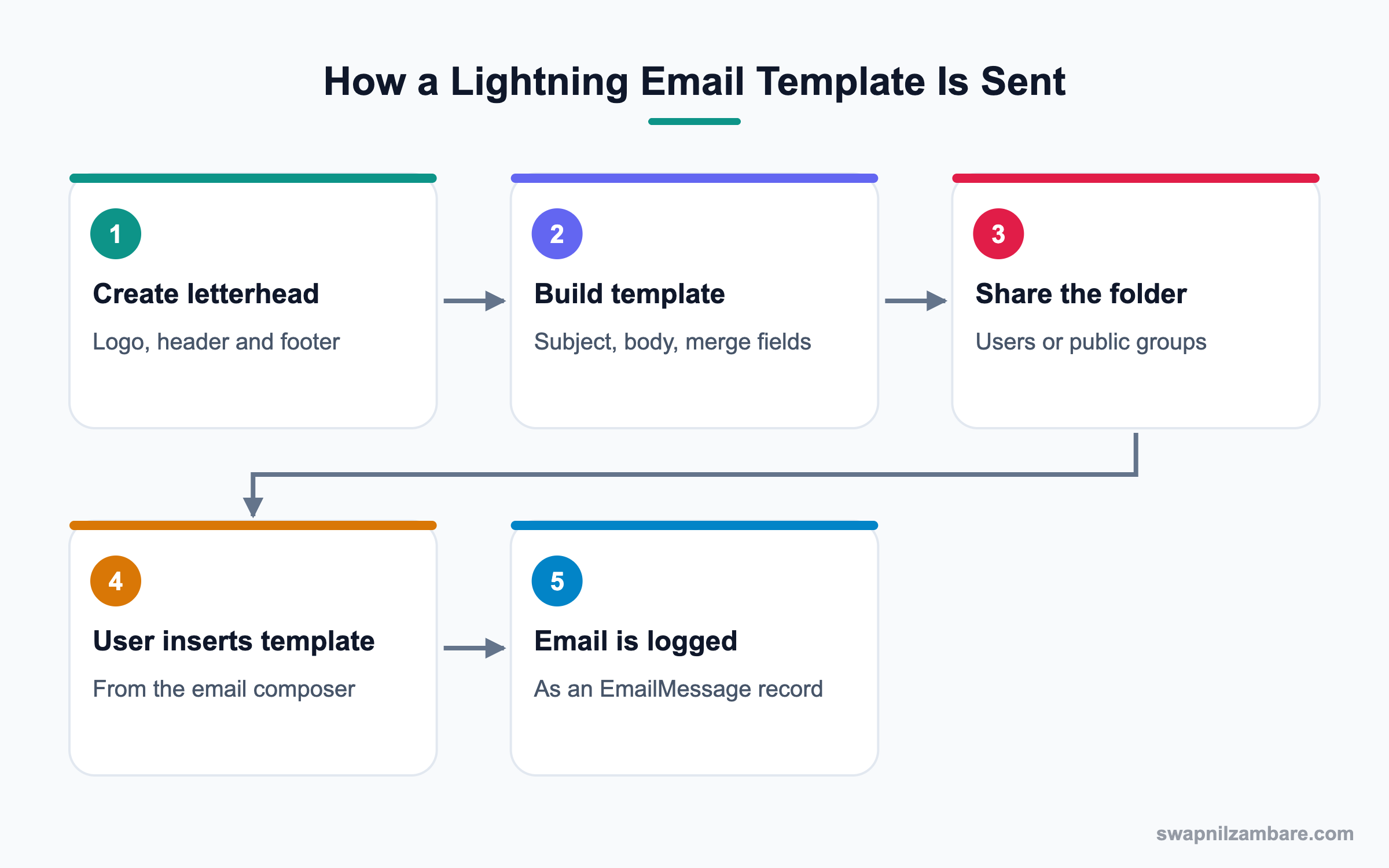
You create templates in the Email Templates tab and save them in folders. Then users open a record, click Email and choose Insert a template. Salesforce fills the merge fields with values from the related record.
Merge Fields
Lightning templates use triple braces, such as {{{Recipient.FirstName}}}. Recipient means the contact or lead the email goes to. The related object, like Opportunity, is chosen as the Related Entity Type.
Enhanced Letterheads
Enhanced Letterheads add a header and footer, such as a logo and an address. You create them in Setup and pick them on the template.
Email Template Builder
The Email Template Builder gives a drag-and-drop editor with components like images, buttons and columns. It is useful for rich designs.
Folders and Sharing
Templates live in folders, like reports. You share folders with users, roles or public groups, and choose View or Edit access.
Enhanced Email
Enhanced Email saves sent emails as EmailMessage records linked to the related records. So the email shows in the activity timeline with its full content.
Key Parts of Lightning Email Templates
This table shows each part and what it does.
| Part | What it does | Example |
|---|---|---|
| Subject | Email subject line | Welcome to {{{Course__c.Name}}} |
| Related Entity Type | Object used for merge fields | Course |
| Merge fields | Fill in record values | {{{Recipient.FirstName}}} |
| Enhanced Letterhead | Header and footer design | Bright Path logo and address |
| Folder | Controls who can use it | Counsellor Templates |
| Attachments | Files sent with the email | Course brochure PDF |
Lightning vs Classic Email Templates
This table shows how the two template types differ.
| Feature | Lightning templates | Classic templates |
|---|---|---|
| Created in | Email Templates tab | Setup |
| Merge syntax | Triple braces | Braces with an exclamation mark |
| Drag-and-drop builder | Yes | No |
| Letterhead | Enhanced Letterheads | Classic letterheads |
| Best for | New templates | Legacy templates |
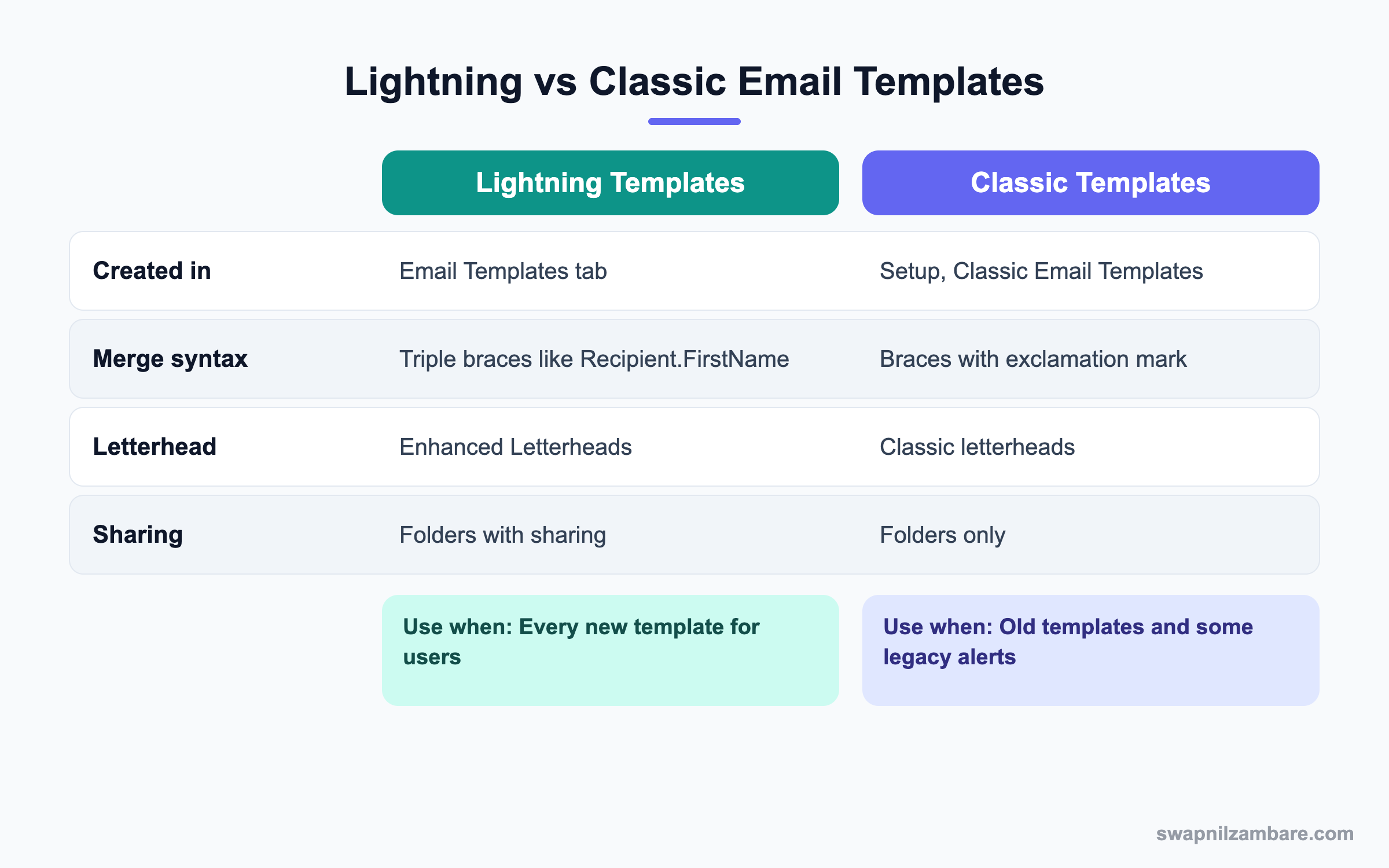
In short, build every new template in Lightning. Keep Classic templates only where an old process still needs them.
A Real Lightning Email Templates Example
Bright Path Tutors wants a welcome email sent when a student enrols. It must show the student’s first name, the course name and the start date, with the company logo.
Step 1: Create an Enhanced Letterhead
- Open Setup and type “Enhanced Letterheads” in Quick Find.
- Click New Enhanced Letterhead and name it Bright Path Brand.
- Add the logo in the header and the address and phone in the footer.
- Click Save.
Step 2: Create the Template
- Open the App Launcher and click Email Templates.
- Click New Email Template.
- Fill in the values from the table below.
- Write the body and insert merge fields with the merge field picker.
- Click Save.
| Field | Value |
|---|---|
| Email Template Name | Course Welcome |
| Related Entity Type | Course |
| Folder | Counsellor Templates |
| Enhanced Letterhead | Bright Path Brand |
| Subject | Welcome to {{{Course__c.Name}}} |
This is the body we used. The merge fields fill in when the email is sent.
Hi {{{Recipient.FirstName}}},

Welcome to {{{Course__c.Name}}} at Bright Path Tutors.
Your first class starts on {{{Course__c.Start_Date__c}}}.

If you have questions, reply to this email or call us.

Regards,
{{{Sender.Name}}}
Step 3: Share the Folder
- On the Email Templates tab, open the Counsellor Templates folder menu.
- Click Share and add the Counsellors public group with View access.
- Give the marketing lead Manage access, so she can edit templates.
Step 4: Send and Check
- Open a Course record and click Email in the activity panel.
- Choose the student contact as recipient.
- Click Insert a template and pick Course Welcome.
- Check the preview and click Send.
- Open the activity timeline and confirm the email is logged.
Common Mistakes with Lightning Email Templates
- Using a merge field from the wrong related object, so it shows blank.
- Saving templates in a private folder, so users cannot find them.
- Mixing Classic merge syntax into a Lightning template.
- Forgetting to test with a record that has empty fields.
- Using a large image that makes the email slow to load.
Best Practices for Lightning Email Templates
- Name templates clearly by purpose, like Course Welcome or Fee Reminder.
- Keep one folder per team and share folders with public groups.
- Always test with real-looking records before rollout.
- Use Enhanced Letterheads for a consistent brand.
- Review templates every quarter and archive old ones.
Practice Task
Create a Lightning Email Template on the Contact object with the subject “Thanks for visiting, {{{Recipient.FirstName}}}”. Then send it to yourself from a contact record. Hint: set the contact’s email to your own address.
Most Asked Lightning Email Templates Interview Questions
These Lightning Email Templates questions are common for admin and service roles.
Basic Lightning Email Templates Interview Questions
Q1: What are Lightning Email Templates?
They are reusable email designs created in Lightning Experience. They include a subject, body, merge fields and optional attachments.
Q2: Where do you create a Lightning email template?
In the Email Templates tab from the App Launcher. Classic templates are created in Setup instead.
Q3: What is a merge field?
It is a placeholder that is replaced with a record value when the email is sent. For example, the recipient’s first name.
Q4: What merge syntax do Lightning templates use?
They use triple braces, such as {{{Recipient.FirstName}}}. Classic templates use braces with an exclamation mark.
Q5: What is an Enhanced Letterhead?
It is a reusable header and footer for Lightning templates, such as a logo and company address.
Q6: How do users insert a template?
In the email composer on a record, they click Insert a template and choose one.
Q7: How do you control who can use a template?
Save it in a folder and share the folder with users, roles or public groups.
Intermediate Lightning Email Templates Interview Questions
Q8: What is the Related Entity Type?
It is the object whose fields you can merge, like Opportunity or Course. It is set when you create the template.
Q9: What is Enhanced Email?
It stores sent emails as EmailMessage records related to records. So emails show in the activity timeline with full content.
Q10: What is the difference between Recipient and the related record?
Recipient is the person receiving the email, such as a contact or lead. The related record is the object the email is about.
Q11: Can you attach files to a Lightning template?
Yes. Add attachments to the template, and they are sent with every email.
Q12: Can flows send Lightning email templates?
Yes. The Send Email action in Flow can use an email template and a related record. Always test the result first.
Q13: What is the Email Template Builder?
It is a drag-and-drop editor for rich templates with images, buttons and columns. It suits marketing-style emails.
Q14: Why might a merge field show blank in the sent email?
The field may be empty, from the wrong object, or not visible to the sender. Check the Related Entity Type and field access.
Advanced Lightning Email Templates Interview Questions
Q15: Scenario: emails show the wrong sender name. What do you check?
Check the From address selection and organization-wide email addresses. Also check the user’s email settings.
Q16: How would you move many Classic templates to Lightning?
List the active templates first, rebuild the ones still used in Lightning and update their merge syntax. Then retire the rest.
Q17: Scenario: marketing wants every email to carry the same footer. How?
Create one Enhanced Letterhead and use it on all Lightning templates. Then lock template folders to editors only.
Q18: How do you track if template emails are opened?
Use email tracking for HTML emails, which logs opens when enabled. Einstein Activity Capture or engagement tools add more detail.
Q19: How do Lightning Email Templates help Agentforce or AI features?
Templates give approved wording that automation and agents can reuse. So the tone stays consistent across people and bots.
Q20: How do you deploy templates between orgs?
Add EmailTemplate and letterhead metadata to a change set or DevOps Center. Also deploy the folders.
Q21: Can users create their own Lightning Email Templates?
Yes, if they have permission to create templates. Then they can save them in their private folder or a shared one.
Q22: How do you stop users from editing team templates?
Share the folder with View access only. So only folder managers can change the templates.
Q23: Can Lightning Email Templates be used in list email?
Yes. Users can send a list email to many contacts or leads and pick a template. However, each org has daily list email limits.
Q24: How do you add a link to a course page in a template?
Insert a hyperlink in the body and use a merge field in the address if needed. Then test the link before sharing the template.
Q25: What happens if a template’s related object field is deleted?
The merge field shows blank or an error when used. So check Where is this used before you delete fields.
Q26: How do you keep Lightning Email Templates easy to find?
Use clear names, team folders and a short description on each template. Also, archive templates nobody uses.
Q27: Should every team share one folder of templates?
No. Instead, give each team its own folder, because their emails differ. Then share common templates in one company-wide folder.
Official Resources
- Salesforce Help: Create a Lightning Email Template
- Salesforce Help: Enhanced Letterheads
- Trailhead: Email Templates in Lightning Experience
Quick Recap
- Lightning Email Templates are reusable emails with merge fields.
- They use triple-brace merge syntax and a Related Entity Type.
- Enhanced Letterheads give every email the same brand.
- Folders and sharing decide who can use templates.
- Enhanced Email logs sent emails as EmailMessage records.
What’s Next?
Next, we connect inboxes with Outlook and Gmail Integration.