Salesforce Scheduled Jobs and the other job monitors in Setup show the work your org does in the background. Reports run at night, batch Apex updates records and flows wait for scheduled paths. If one of them fails quietly, users only notice days later. So a good admin checks these pages every week.
This post builds on debug logs for admins and data loads with Data Loader. We will follow a failed nightly job at Bright Path Tutors.
What are Salesforce Scheduled Jobs?
Salesforce Scheduled Jobs is a Setup page that lists work planned to run later. It shows scheduled Apex, scheduled report runs, dashboard refreshes and the weekly data export. Each row shows who submitted it, the type and the next run time.
Think of it as the timetable board in a school. It tells you which class happens when. Apex Jobs, on the other hand, is the attendance register that shows what actually happened.
Why Monitoring Salesforce Scheduled Jobs Matters
Background jobs do important work. For example, a nightly batch marks overdue fees, and a scheduled flow sends reminders. When one fails, nobody sees an error on screen.
Also, jobs often run as the user who scheduled them. If that user is deactivated, the job can stop. So monitoring Salesforce Scheduled Jobs protects both data and processes.
How Salesforce Scheduled Jobs Monitoring Works
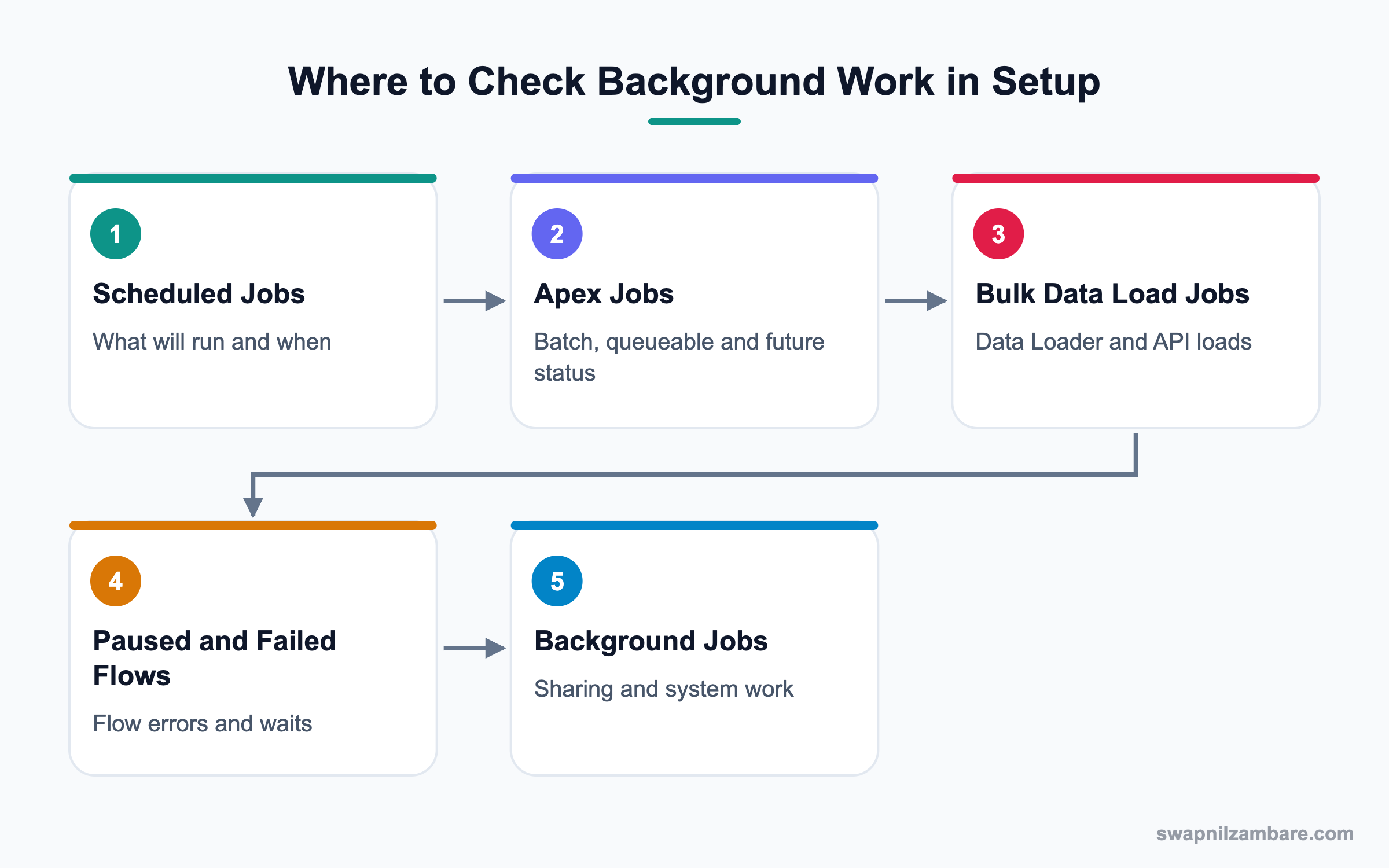
Salesforce Scheduled Jobs is one of several monitor pages in Setup. Each one covers a different kind of work. Together they give a full picture.
Scheduled Jobs
This page lists future work. Columns include Job Name, Submitted By, Type and Next Scheduled Run. You can delete a job here, then schedule it again.
Apex Jobs
This page shows asynchronous Apex, such as batch, queueable and future jobs. Status values include Queued, Processing, Completed, Failed and Aborted. You can abort a running job.
Apex Flex Queue
Batch jobs wait here with Holding status when the system is busy. You can reorder them to run an urgent one first.
Bulk Data Load Jobs
This page lists Bulk API jobs, including Data Loader in bulk mode. It shows records processed, records failed and a link to results.
Paused and Failed Flow Interviews
This page shows flows that are waiting, like scheduled paths, and flows that failed. You can resume or delete them.
Background Jobs
This page shows system work, such as sharing recalculation after a rule change. It helps explain why a big change takes time.
Salesforce Scheduled Jobs Monitor Pages at a Glance
This table shows each page, what it covers and what to look for.
| Setup page | Covers | Look for |
|---|---|---|
| Scheduled Jobs | Future runs | Jobs owned by inactive users |
| Apex Jobs | Async Apex | Failed status, error details |
| Apex Flex Queue | Waiting batch jobs | Long holding times |
| Bulk Data Load Jobs | Bulk API loads | Records failed |
| Paused and Failed Flow Interviews | Flow waits and errors | Repeated failures |
| Background Jobs | System recalculations | Long running jobs |
Scheduled Jobs vs Apex Jobs
New admins often open the wrong page. This table compares the two most used ones.
| Feature | Scheduled Jobs | Apex Jobs |
|---|---|---|
| Time view | Future | Running and past |
| Job types | Scheduled Apex, reports, exports | Batch, queueable, future |
| Key field | Next Scheduled Run | Status and Status Detail |
| Main action | Delete | Abort |
| Use it to | Plan and clean schedules | Find failures |
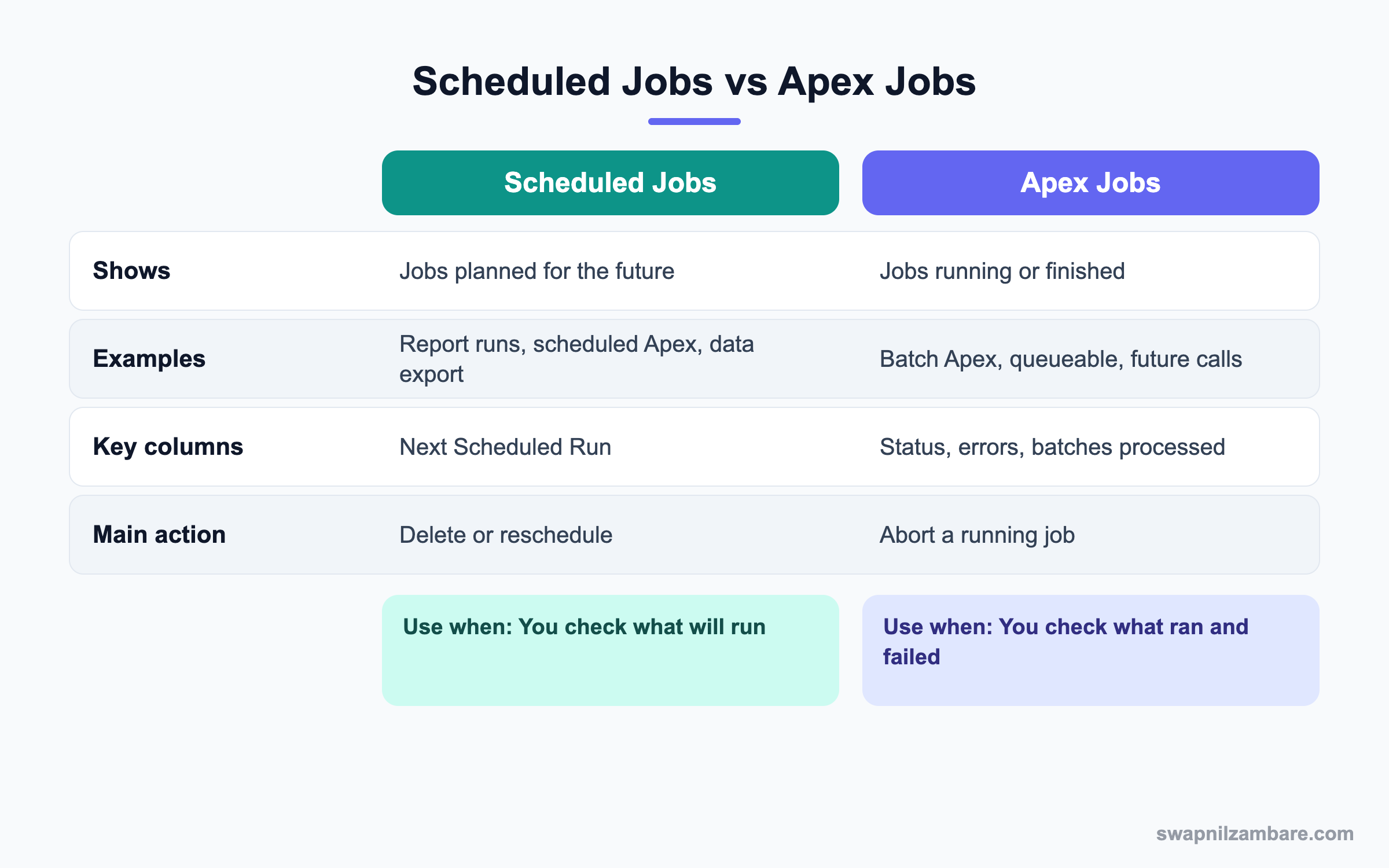
In short, check Scheduled Jobs to see what will run. Then check Apex Jobs to see what ran and failed.
A Real Salesforce Scheduled Jobs Example
At Bright Path Tutors, a nightly batch called OverdueFeeBatch marks unpaid enrolments as Overdue. This week, finance says nothing was marked since Monday. Let’s investigate.
Step 1: Check the Schedule
- Open Setup and type “Scheduled Jobs” in Quick Find.
- Find OverdueFeeBatch Nightly in the list.
- Look at Submitted By. It shows Neha, who left last week and was deactivated.
Step 2: Check Apex Jobs
- Type “Apex Jobs” in Quick Find and open it.
- Filter by Apex Class OverdueFeeBatch.
- Read the Status and the Status Detail column for the last runs.
Step 3: Confirm with SOQL
Ravi runs a query in the Developer Console to see recent runs.
SELECT ApexClass.Name, Status, JobItemsProcessed,
       NumberOfErrors, ExtendedStatus, CompletedDate
FROM AsyncApexJob
WHERE ApexClass.Name = 'OverdueFeeBatch'
ORDER BY CreatedDate DESC
LIMIT 5
The result shows no runs after Monday. So the schedule itself stopped, not the batch logic.
Step 4: Reschedule as an Integration User
- Delete the old scheduled job on the Scheduled Jobs page.
- Log in as the dedicated integration admin user, or ask a developer to schedule it with that user.
- Schedule the class again for 1 AM daily from Apex Classes, Schedule Apex.
- Set Apex Exception Email recipients, so failures email the admin team.
These are the settings we used.
| Setting | Value |
|---|---|
| Job Name | OverdueFeeBatch Nightly |
| Apex Class | OverdueFeeScheduler |
| Frequency | Daily |
| Preferred Start Time | 1:00 AM |
| Run as | Integration Admin user |
Common Mistakes with Salesforce Scheduled Jobs
- Scheduling jobs as a personal user who may leave the company.
- Never checking Apex Jobs, so failures go unnoticed.
- Running big jobs during business hours, which slows users down.
- Ignoring the failed records file after a bulk load.
- Leaving Apex Exception Email and flow error emails empty.
Best Practices for Salesforce Scheduled Jobs
- Use a dedicated integration or automation user for scheduled work.
- Check Scheduled Jobs before deactivating any admin.
- Review Apex Jobs and failed flows every week.
- Set error email recipients for Apex and flows.
- Keep a list of all scheduled jobs with their owner and purpose.
Practice Task
In your practice org, schedule a report to run weekly. Then open Salesforce Scheduled Jobs and find it in the list. Finally, delete it and check that it disappears. Hint: use the Subscribe or Schedule option on the report.
Most Asked Salesforce Scheduled Jobs Interview Questions
These Salesforce Scheduled Jobs questions test whether you can support an org after go-live.
Basic Salesforce Scheduled Jobs Interview Questions
Q1: What is the Scheduled Jobs page?
Salesforce Scheduled Jobs is a Setup page that lists work planned for the future, like scheduled Apex, report runs and data exports. It shows the next run time and who scheduled it.
Q2: What is the Apex Jobs page?
It shows asynchronous Apex jobs and their status. You use it to find failed batch, queueable and future jobs.
Q3: How do you stop a running batch job?
Open Apex Jobs and click Abort next to the job. It stops after the current batch finishes.
Q4: Where do you see Data Loader bulk jobs?
In Setup, Bulk Data Load Jobs. It shows processed and failed records for each job.
Q5: Where do you see failed flows?
In Paused and Failed Flow Interviews. You can also receive flow error emails.
Q6: What does Submitted By mean on a scheduled job?
It is the user who scheduled the job. Many jobs run with that user’s access.
Q7: Can you edit a scheduled job?
Usually no. You delete it and schedule it again with the new settings.
Intermediate Salesforce Scheduled Jobs Interview Questions
Q8: What is the Apex Flex Queue?
It holds batch jobs waiting to run, with Holding status. Admins can reorder them so an urgent job runs first.
Q9: What happens to a scheduled job when its owner is deactivated?
It may fail or stop running, because the job runs as that user. So reschedule it under an active automation user.
Q10: How do you get alerts for Apex failures?
Set Apex Exception Email in Setup with admin addresses. Developers can also add custom logging.
Q11: How many Apex jobs can be scheduled at once?
An org can have up to 100 scheduled Apex jobs at one time. Clean up old jobs to stay under this limit.
Q12: What does Background Jobs show?
It shows system tasks like sharing recalculation and index work. It explains delays after big security changes.
Q13: Which object stores async Apex job details?
AsyncApexJob stores them. CronTrigger stores scheduled job details like the next fire time.
Q14: How do you check a scheduled path in a flow?
Waiting scheduled paths appear in Paused and Failed Flow Interviews or the Time-Based Workflow page, depending on the setup.
Advanced Salesforce Scheduled Jobs Interview Questions
Q15: Scenario: a nightly batch failed for three days. What do you do?
Check Apex Jobs for the error, fix the cause and rerun the batch for the missed days. Then add alerts so it does not go unnoticed again.
Q16: Scenario: users say the org is slow every day at 11 AM. What do you check?
Look at Scheduled Jobs and Apex Jobs for jobs running at that time. Move heavy jobs to night hours.
Q17: How would you build a job monitoring dashboard?
Use a custom report type or an app on AsyncApexJob, or log results to a custom object. Then chart failures by day.
Q18: Why use a dedicated automation user?
It never leaves the company and has stable permissions. So scheduled jobs and integrations keep running.
Q19: How do you handle failed records in a bulk load?
Download the error results from Bulk Data Load Jobs, fix the data and reload only the failed rows.
Q20: Scenario: the Apex Flex Queue is full. What is the impact?
New batch jobs cannot be added until space frees up. So review and remove stuck or duplicate jobs.
Q21: Can you see scheduled flows in Salesforce Scheduled Jobs?
Yes. Schedule-triggered flows appear there with their next run time. So you can check them next to scheduled Apex.
Q22: How do you find all Salesforce Scheduled Jobs owned by one user?
Sort the Scheduled Jobs page by Submitted By, or query CronTrigger with the owner. Then move each job before that user leaves.
Q23: What is the difference between a queued and a holding batch job?
A queued job is ready to run soon. A holding job waits in the Apex Flex Queue until a slot opens.
Q24: How do you test a scheduled job safely?
First run it in a sandbox with test data. Then check Apex Jobs for errors before you schedule it in production.
Q25: Why might a scheduled report not arrive by email?
The running user may be inactive, or the recipients may lack access to the report folder. Also check email deliverability settings.
Q26: What should a weekly job review include?
Check failed Apex jobs, failed flows, bulk load errors and Salesforce Scheduled Jobs owned by inactive users. Then note any fixes in your change log.
Official Resources
- Salesforce Help: Monitor Scheduled Jobs
- Salesforce Help: Monitoring the Apex Job Queue
- Salesforce Developers: AsyncApexJob Object
Quick Recap
- Salesforce Scheduled Jobs shows what will run in the future.
- Apex Jobs shows async Apex status and errors.
- Bulk Data Load Jobs and failed flow pages cover loads and flows.
- Schedule work as a dedicated automation user.
- Set error emails and review the monitors every week.
What’s Next?
Next, we put charts where people work with Report Charts and dashboard components.