Salesforce Field Service helps companies manage work that happens outside the office, such as repairs, installations and site visits. It decides who should go, when they should go and what they need to bring. Then technicians see their jobs and update them from a mobile app.
In this post, you will learn the main Salesforce Field Service objects, how a job moves from request to completion, and how to set up a simple example. It builds on cases, Web-to-Case and Email-to-Case, because many field jobs start as cases. It also connects to products and price books and to business hours and company settings.
What is Salesforce Field Service?
Salesforce Field Service is a set of objects, tools and a mobile app for planning and doing on-site work. It extends Service Cloud. Office teams create and schedule jobs, dispatchers balance the workload, and technicians complete the jobs on their phones.
Think of a pizza delivery shop. Orders come in, the manager assigns each one to a rider based on location, and each rider follows a route on their phone. Salesforce Field Service is that system, but for technicians, engineers and trainers.
Why Salesforce Field Service Matters
Field work is expensive. Every wasted trip costs fuel, time and customer patience. Salesforce Field Service reduces that waste. Bright Path Tutors also runs a small team of lab engineers who set up computer labs at partner colleges. Here is how Field Service helps them.
- First, each college request becomes a clear job with a time window.
- Also, the right engineer goes, based on skills such as “Network Setup”.
- Next, dispatchers see every engineer’s day on one screen.
- Engineers update jobs offline when college Wi-Fi is weak.
- Finally, managers report on travel time and first-time fix rates.
So Field Service turns phone calls and spreadsheets into one organised system.
How Salesforce Field Service Works
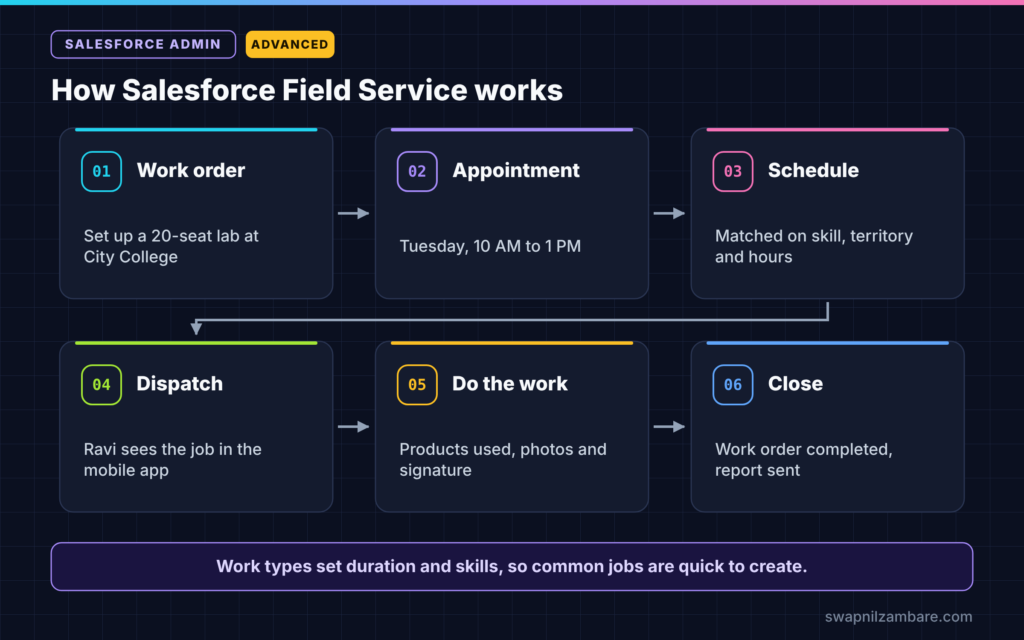
Salesforce Field Service follows a clear flow. First, a customer request creates a work order. Next, Salesforce creates a service appointment for that work. Then the scheduling engine or a dispatcher assigns the appointment to a service resource. After that, the technician travels, does the work and updates the job in the mobile app. Finally, the work order is closed and the customer gets a report.
Work Orders and Line Items
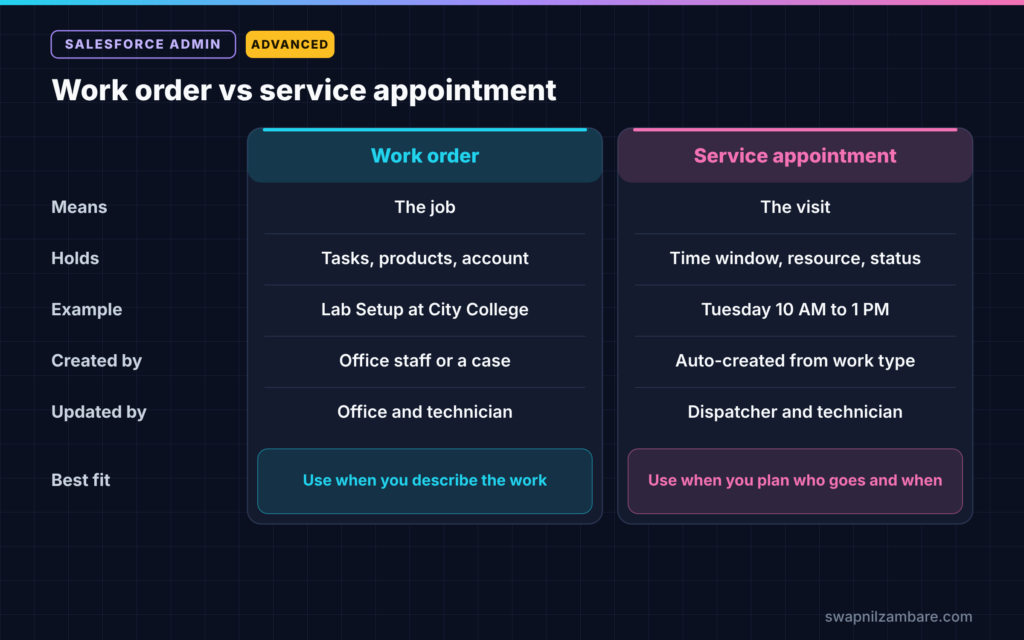
A work order describes the job, such as “Set up 20-seat computer lab”. Work order line items break it into tasks, such as “Install switches” and “Test internet”.
Service Appointments
A service appointment is the scheduled visit. It has a time window, an assigned resource and a status, such as Scheduled, Dispatched or Completed.
Service Resources and Skills
A service resource is usually a person linked to a user, such as an engineer. Resources have skills, so the scheduler can match the right person to the right job.
Service Territories and Operating Hours
A service territory is an area, such as “Pune Region”. Operating hours decide when work can happen in that territory.
Work Types
A work type is a template for common jobs. It sets the expected duration, the required skills and default line items. So office staff do not start from scratch each time.
Key Salesforce Field Service Objects
The table below summarises the core objects and their simple meanings.
| Object | Simple meaning | Example |
|---|---|---|
| Work Order | The job | Set up computer lab at City College |
| Service Appointment | The visit | Tuesday 10 AM to 1 PM |
| Service Resource | Who does it | Ravi Kumar, lab engineer |
| Service Territory | Where | Pune Region |
| Work Type | Job template | Lab Setup, 3 hours, skill Network Setup |
| Skill | What the person can do | Network Setup |
When to use each object becomes clear with practice. Start with work orders and service appointments, then add territories, skills and work types as the team grows.
How to Set Up Salesforce Field Service Step by Step
Let’s set up a simple Salesforce Field Service process for lab installations at Bright Path Tutors.
Step 1: Turn On Field Service
- Go to Setup and search for Field Service Settings.
- Then turn on Field Service.
- Next, install the Field Service managed package from Salesforce if you need the scheduler and dispatcher console.
- Assign the Field Service permission sets to admins, dispatchers and engineers.
Step 2: Create the Territory and Hours
- Create operating hours called “Pune Weekdays”, Monday to Friday, 9 AM to 6 PM.
- Then create a service territory called “Pune Region” with those hours.
Step 3: Create Skills and Resources
- Create a skill called Network Setup.
- Next, create a service resource for Ravi Kumar and link him to his user.
- Then give Ravi the Network Setup skill and add him to the Pune Region territory.
Step 4: Create a Work Type
The table below shows the work type settings.
| Setting | Value |
|---|---|
| Name | Lab Setup |
| Estimated Duration | 3 hours |
| Required Skill | Network Setup |
| Auto-Create Service Appointment | Checked |
Step 5: Create and Schedule a Job
- Create a work order for City College using the Lab Setup work type.
- Salesforce creates a service appointment automatically.
- Next, open the dispatcher console and drag the appointment onto Ravi’s Tuesday.
- Then change the status to Dispatched, so Ravi sees it on his phone.
Step 6: Complete the Job on Mobile
- Ravi opens the Field Service mobile app and sees the job.
- Next, he sets the status to In Progress when he arrives.
- Then he records products used and takes a photo of the finished lab.
- Finally, he captures the college contact’s signature and marks it Completed.
Scheduling and the Dispatcher Console
The dispatcher console shows a map, a list of appointments and a timeline for each resource. Dispatchers drag jobs onto people or ask the scheduler to find the best slot. Scheduling policies decide what matters most, such as shortest travel or matching skills.
Start with a simple policy. Then adjust it after you see real results for a few weeks.
The Salesforce Field Service Mobile App
Technicians do most of their work in the Field Service mobile app. It works offline and syncs when the signal returns. Admins can add quick actions, flows and service report templates to the app. Our post on quick actions and the mobile app covers mobile basics that also apply here.
Common Mistakes with Salesforce Field Service
- Skipping skills, so the wrong engineer gets the job.
- Forgetting operating hours, so jobs land outside working time.
- Building every job from scratch instead of using work types.
- Not testing the mobile app offline before go-live.
- Giving dispatchers too many territories to manage at once.
Best Practices for Salesforce Field Service
- Start with one territory and one work type, then grow.
- Keep skills simple and clearly named.
- Use work types for every common job.
- Train engineers on the mobile app with real jobs.
- Report weekly on travel time and first-time completion.
Practice Task
Create a second work type called “Lab Health Check” with a 1-hour duration. Then create a work order using it and schedule it for Ravi. Hint: check that the service appointment was created automatically.
Most Asked Interview Questions on Salesforce Field Service
Questions on Salesforce Field Service focus on the core objects and how a job flows. Here are the ones asked most.
Basic Questions on Salesforce Field Service
Q1. What is Field Service?
It is a Salesforce product for planning, scheduling and completing on-site work. It includes core objects, scheduling tools and a mobile app.
Q2. What is the difference between a work order and a service appointment?
A work order is the job itself. A service appointment is the scheduled visit to do that job, with a time window and an assigned resource.
Q3. What is a service resource?
It is the person or equipment that does the work, usually linked to a Salesforce user.
Q4. What is a work type?
It is a template for a common job, with duration, required skills and default tasks.
Practical Questions on Salesforce Field Service
Q5. How do you make sure the right technician gets a job?
Give resources skills and add required skills to work types. Then the scheduler only offers matching resources.
Q6. How do technicians work without internet?
The Field Service mobile app works offline and syncs changes when the connection returns.
Q7. Jobs are being scheduled at night. What do you check?
First, check the operating hours on the territory. Next, check resource availability and the scheduling policy.
Q8. How would you start Field Service for a small team?
First, create one territory, a few skills and one work type. Next, train dispatchers and engineers. Then expand after a few weeks of real use.
Official Resources
Quick Recap
- Salesforce Field Service manages on-site work from request to completion.
- Work orders describe jobs, and service appointments schedule visits.
- Resources, skills and territories decide who goes where.
- Work types make common jobs quick to create.
- The mobile app lets technicians work offline.
What’s Next?
Service teams look after customers in the field. Marketing teams win them in the first place. Next, read our guide to Marketing Cloud Account Engagement basics.


