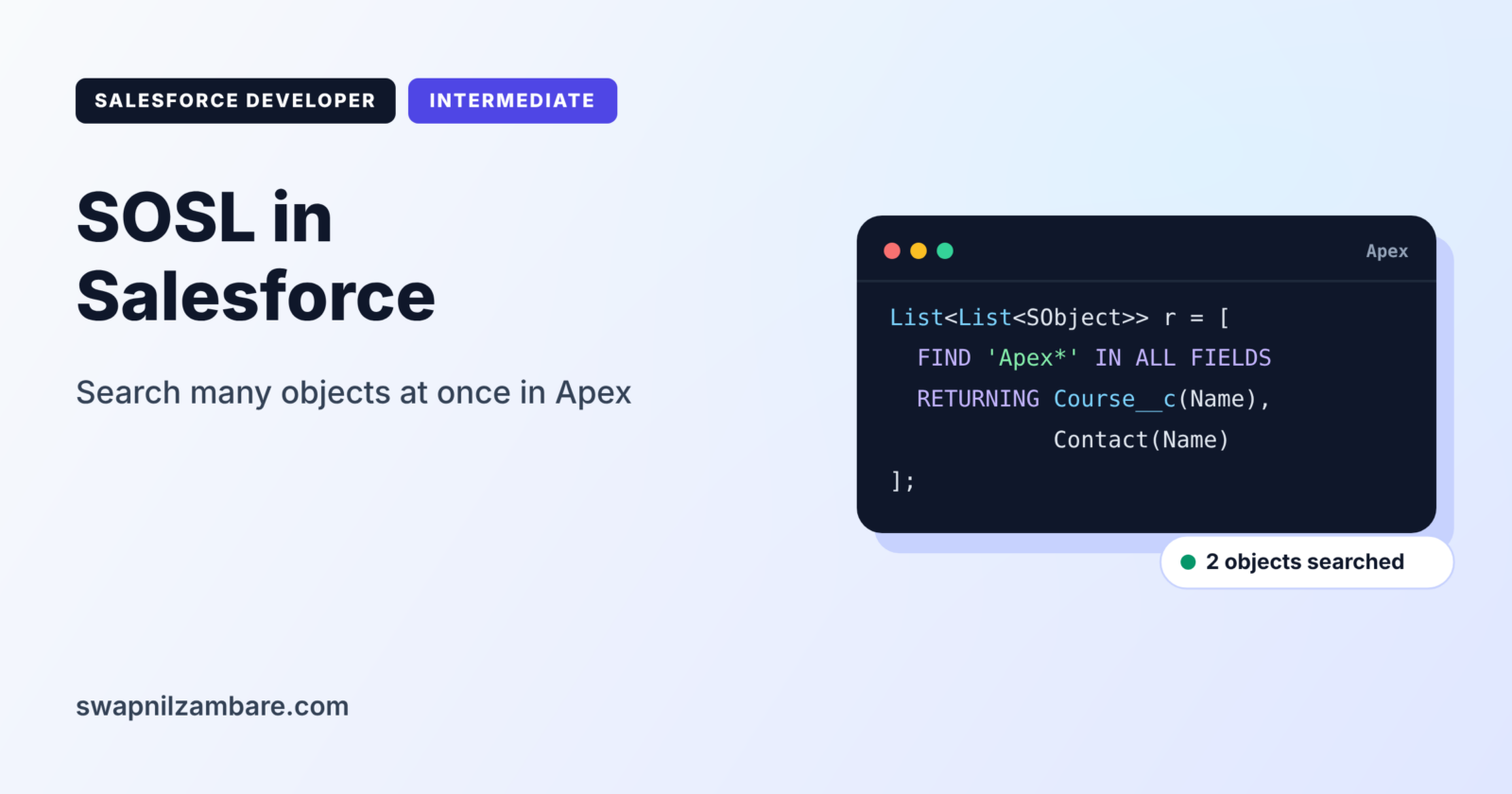
SOSL in Salesforce lets your code search for a word across many objects at once, just like the global search box. For example, one SOSL search can find “Infotech” in accounts, contacts and courses together. SOQL, by contrast, reads one object at a time with exact filters.
In this post, you will learn SOSL syntax, search groups, wildcards and how to read results in Apex. You will also learn when to choose SOSL over SOQL. This builds on SOQL Basics and SOQL date literals and bind variables. Admins who read our global search guide will find the same search index at work here.
What is SOSL in Salesforce?
SOSL stands for Salesforce Object Search Language. It searches the Salesforce search index for text, then returns matching records from the objects you name. A SOSL search starts with FIND, names the search term and lists the objects to return.
Think of searching a whole library catalogue for “Ruskin Bond” instead of walking to one shelf. You get books, magazines and audio books in one go. SOSL in Salesforce is that catalogue search for your org.
Why SOSL in Salesforce Matters
Users often know a word but not where it lives, and SOSL in Salesforce solves exactly that. Here is why SOSL in Salesforce matters at Bright Path Tutors.
- First, a support agent types a phone number and needs the matching student.
- Also, a custom search box must find courses, accounts and contacts together.
- Next, sales reps search company names that appear in several objects.
- A Lightning component offers type-ahead search across records.
- Finally, SOSL can find text in many fields at once, which SOQL cannot do easily.
So SOSL is the right tool when you search by text, not by exact values.
How SOSL in Salesforce Works
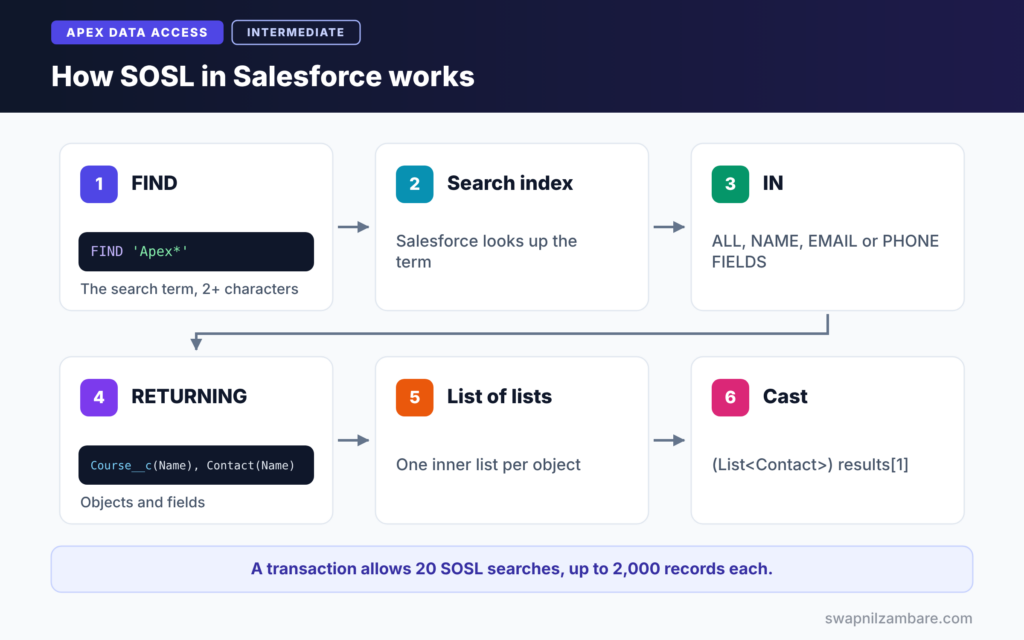
SOSL in Salesforce follows a simple path. First, your code sends a FIND clause with the search term. Next, Salesforce looks up the term in its search index. Then it filters results by the search group, such as ALL FIELDS or NAME FIELDS. After that, it returns records for each object in the RETURNING clause. Finally, Apex receives a list of lists, one list per object.
FIND
FIND holds the search term. In Apex brackets, the term goes in single quotes, such as FIND 'Infotech'. The term needs at least two characters.
IN Search Groups
The IN clause says which fields to search. ALL FIELDS is the default, while NAME FIELDS, EMAIL FIELDS and PHONE FIELDS narrow the search and speed it up.
RETURNING
RETURNING lists the objects and fields to return, such as Course__c(Id, Name, Fee__c). Each object can have its own WHERE, ORDER BY and LIMIT.
Wildcards
An asterisk matches zero or more characters, such as Info*. A question mark matches exactly one character. Wildcards work at the end or in the middle of terms.
SOSL Clauses at a Glance
The table below summarises the parts of a SOSL search.
| Clause | Example | Purpose |
|---|---|---|
| FIND | FIND ‘Apex*’ | The search term |
| IN | IN NAME FIELDS | Which fields to search |
| RETURNING | RETURNING Course__c(Name) | Objects and fields to return |
| WHERE in RETURNING | Course__c(Name WHERE Is_Online__c = true) | Filter one object |
| LIMIT | LIMIT 20 | Cap results |
SOSL vs SOQL
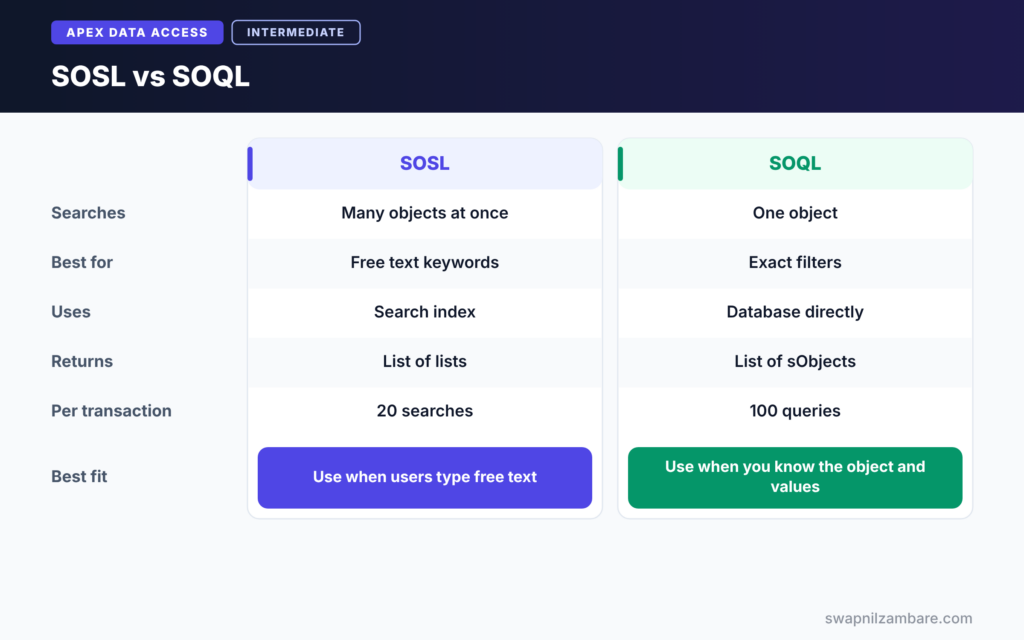
The table below compares the two languages.
| Feature | SOSL | SOQL |
|---|---|---|
| Searches | Many objects at once | One object, plus relationships |
| Best for | Text search by keyword | Exact filters on known fields |
| Uses | The search index | The database directly |
| Returns in Apex | List of lists | List of sObjects |
| Queries per transaction | 20 | 100 |
| Number field filters | Only inside RETURNING WHERE | Yes |
When to use which is simple. Use SOSL when users type free text and you do not know the object. Use SOQL when you know the object and exact filter values.
A Real SOSL in Salesforce Example in Apex
Let’s build a search service for Bright Path Tutors. Users type a word, and the service returns matching courses and contacts.
Step 1: A Simple Search
List<List<SObject>> results = [
    FIND 'Apex*' IN ALL FIELDS
    RETURNING Course__c(Id, Name, Fee__c WHERE Is_Online__c = true),
              Contact(Id, Name, Email)
    LIMIT 20
];

List<Course__c> courses = (List<Course__c>) results[0];
List<Contact> contacts = (List<Contact>) results[1];

System.debug('Courses found: ' + courses.size());
System.debug('Contacts found: ' + contacts.size());
The search finds any word that starts with Apex, in all text fields. Results come back in the same order as RETURNING, so index 0 holds courses and index 1 holds contacts. We cast each list to its real type.
Step 2: Read the Output
Here is an example of the debug log.
USER_DEBUG [9]|DEBUG|Courses found: 2
USER_DEBUG [10]|DEBUG|Contacts found: 1
Step 3: Search with a User’s Term
public with sharing class CourseSearchService {

    public static List<Course__c> searchCourses(String term) {
        if (String.isBlank(term) || term.trim().length() < 2) {
            return new List<Course__c>();
        }
        String safeTerm = term.trim() + '*';
        List<List<SObject>> found = [
            FIND :safeTerm IN NAME FIELDS
            RETURNING Course__c(Id, Name, Level__c ORDER BY Name LIMIT 10)
        ];
        return (List<Course__c>) found[0];
    }
}
The method checks for short or blank input first, because SOSL needs at least two characters. Then it adds a wildcard and binds the term with a colon, which keeps the search safe. IN NAME FIELDS keeps the search fast for a type-ahead box.
Step 4: Test SOSL Code
In test classes, SOSL returns empty results by default. So set the expected results with Test.setFixedSearchResults.
@IsTest
private class CourseSearchServiceTest {
    @IsTest
    static void returnsMatchingCourses() {
        Course__c c = new Course__c(Name = 'Apex Basics', Fee__c = 4500);
        insert c;
        Test.setFixedSearchResults(new List<Id>{ c.Id });

        List<Course__c> results = CourseSearchService.searchCourses('Apex');

        System.assertEquals(1, results.size(), 'One course should be found');
    }
}
The test inserts a course and tells SOSL which Ids to return. Then it calls the method and checks the result. We will cover testing fully in Level 5.
SOSL in Salesforce Limits
With SOSL in Salesforce, a transaction can run 20 searches. Each search returns at most 2,000 records in total. Also, new records may take a short time to appear in the search index. So use SOQL when you must read a record you just created.
Common Mistakes with SOSL in Salesforce
- Expecting results in a different order from the RETURNING clause.
- Searching with a one-character term.
- Forgetting Test.setFixedSearchResults in tests.
- Using SOSL to read a record created a moment ago.
- Searching ALL FIELDS when NAME FIELDS would be faster.
Best Practices for SOSL in Salesforce
- Use SOSL for free-text search across objects.
- Narrow the search group, such as NAME FIELDS or EMAIL FIELDS.
- Add WHERE and LIMIT inside RETURNING for each object.
- Bind user input with a colon instead of joining strings.
- Validate the search term length before searching.
Practice Task
Extend the search service so it also returns Accounts with their Phone field. Hint: add Account(Id, Name, Phone) to RETURNING and read found[1].
Most Asked Interview Questions on SOSL in Salesforce
Questions on SOSL in Salesforce often come paired with SOQL questions. Here are the 20 asked most, with short answers.
Basic Questions on SOSL in Salesforce
Q1: What is SOSL?
SOSL is the Salesforce Object Search Language. It searches text across many objects at once using the search index.
Q2: What does a SOSL search return in Apex?
A list of lists of sObjects, with one inner list per object in the RETURNING clause.
Q3: What is the RETURNING clause?
It lists the objects and fields to return, and it can include WHERE, ORDER BY and LIMIT per object.
Q4: What search groups does SOSL support?
For example, ALL FIELDS, NAME FIELDS, EMAIL FIELDS, PHONE FIELDS and SIDEBAR FIELDS.
Q5: Which wildcards does SOSL support?
An asterisk matches zero or more characters, and a question mark matches one character.
Q6: What is the minimum length of a search term?
Two characters. So validate user input before you search.
Q7: How many SOSL searches can a transaction run?
20 searches per transaction.
Code and Scenario Questions on SOSL in Salesforce
Q8: What is the difference between SOSL and SOQL?
SOSL searches text across many objects. In contrast, SOQL reads one object with exact filters.
Q9: How do you read results for each object?
Use the index that matches the RETURNING order, then cast it, such as (List<Contact>) results[1].
Q10: How many records can one SOSL search return?
At most 2,000 records in total.
Q11: How do you test code that uses SOSL?
Call Test.setFixedSearchResults with the Ids you expect, because SOSL returns nothing in tests by default.
Q12: Can you filter results by a field value?
Yes. Add WHERE inside RETURNING, such as Course__c(Name WHERE Is_Online__c = true).
Q13: How do you search only phone numbers?
Use IN PHONE FIELDS, which is faster and more accurate than ALL FIELDS.
Q14: How do you make a user’s search term safe?
Bind it with a colon in static SOSL. For dynamic SOSL, escape it with String.escapeSingleQuotes.
Advanced Questions on SOSL in Salesforce
Q15: Why might a new record not appear in SOSL results?
The search index updates shortly after a save. So a record created moments ago may not be indexed yet.
Q16: How do you run a dynamic SOSL search?
Build the search string and run it with Search.query, which returns a list of lists.
Q17: When is SOSL better than SOQL with LIKE?
When you search text across many fields or objects. SOQL LIKE with a leading wildcard can also be slow on large objects.
Q18: Does SOSL respect sharing?
Yes, SOSL in a with sharing class only returns records the user can access.
Q19: Can SOSL search number fields?
Not as text. Instead, filter numbers with WHERE inside RETURNING, after the text search finds the records.
Q20: How would you build a type-ahead search in LWC?
Call an Apex method that runs SOSL with IN NAME FIELDS, a wildcard and a small LIMIT. Also wait until the user types at least two characters.
Official Resources
Quick Recap
- SOSL in Salesforce searches text across many objects at once.
- FIND holds the term, IN sets the fields and RETURNING sets the objects.
- Results come back as a list of lists in RETURNING order.
- A transaction can run 20 searches, each returning up to 2,000 records.
- Use Test.setFixedSearchResults in tests and bind user input.
What’s Next?
So far, we have only read data. Next, learn to create and change records in our guide to DML operations in Apex.