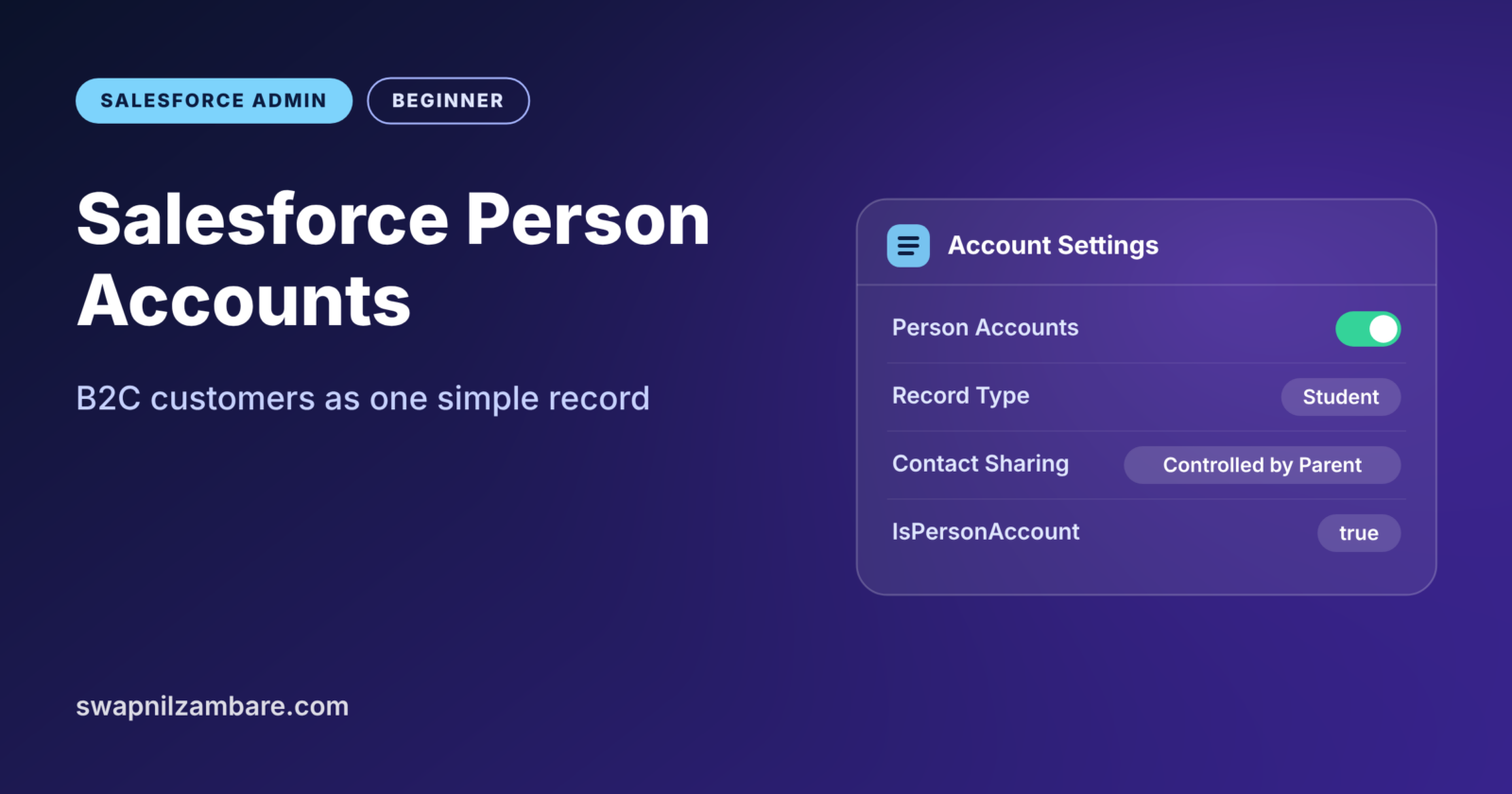
Salesforce Person Accounts let you store an individual customer, such as a student or a patient, as one simple record. Normally Salesforce expects every contact to belong to a company account. That works well for business sales, but it feels clumsy when your customers are just people.
In this post, you will learn what person accounts are and how they work behind the scenes. You will also learn how to turn them on safely. If you need a quick refresher first, read our guide to accounts and contacts. It also helps to know record types, because person accounts depend on them. At the end, you will find the interview questions hiring managers ask most about this topic.
What Are Salesforce Person Accounts?
A person account is a special kind of account that stores information about one individual. It combines an Account and a Contact into a single record. So you see one page with a name, email, phone and address. You no longer need a company record with a contact hanging off it.
Here is a simple way to picture it. A normal account is like an office building with many employees inside. A person account is like a single house where one family lives. You do not need a building and a separate list of residents. The house itself is the customer.
Why Salesforce Person Accounts Matter
However, many companies sell to people, not businesses. Salesforce Person Accounts were built for them. People call this model B2C, which means business to consumer. Banks, schools, clinics, car dealers and online shops all work this way.
Without person accounts, these companies use workarounds. A common one is creating a fake account called “Individual” and putting every customer contact under it. That quickly becomes messy, slow to report on, and hard to share safely.
Here is where person accounts help at our practice company, Bright Path Tutors.
- Each student who signs up alone becomes one clean record.
- Sales users can log calls and emails against the student directly.
- Reports show students as real customers, not as contacts under a dummy account.
- Opportunities, cases and activities link straight to the student.
- Corporate clients, such as a company that trains 50 staff, can still use normal business accounts.
How Salesforce Person Accounts Work
Behind the scenes, Salesforce Person Accounts are still two records: one Account and one Contact. Salesforce links them and shows them to users as a single record. You never see the hidden contact on its own.
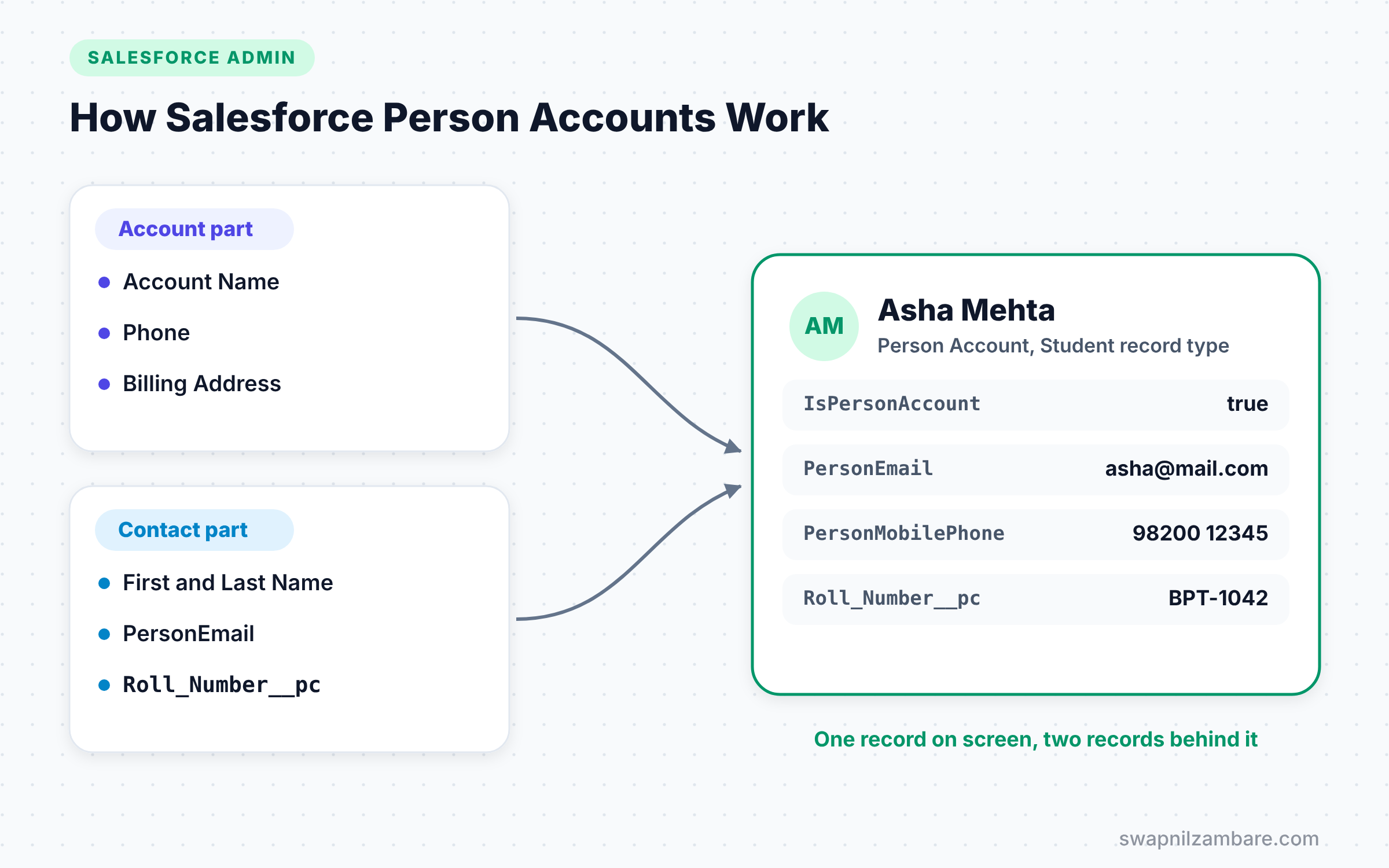
When you create a person account, Salesforce creates both records together. Then, if you edit the email, it updates the contact part. Finally, deleting the person account removes both parts.
Record Types Decide the Kind of Account
Salesforce tells business accounts and person accounts apart with record types. A business account record type creates normal accounts. A person account record type creates person accounts. That is why your org needs at least one account record type before you can enable the feature.
Special Fields on Person Accounts
Person accounts have both account fields and contact fields. Contact fields show up on the account with a “Person” prefix in the API, such as PersonEmail and PersonMobilePhone. Custom contact fields end in __pc instead of __c. For example, a custom contact field called Roll_Number__c appears on person accounts as Roll_Number__pc.
There is also a checkbox field called IsPersonAccount. It is true for person accounts and false for business accounts. Reports and list views use it all the time to split the two.
Business Accounts vs Salesforce Person Accounts
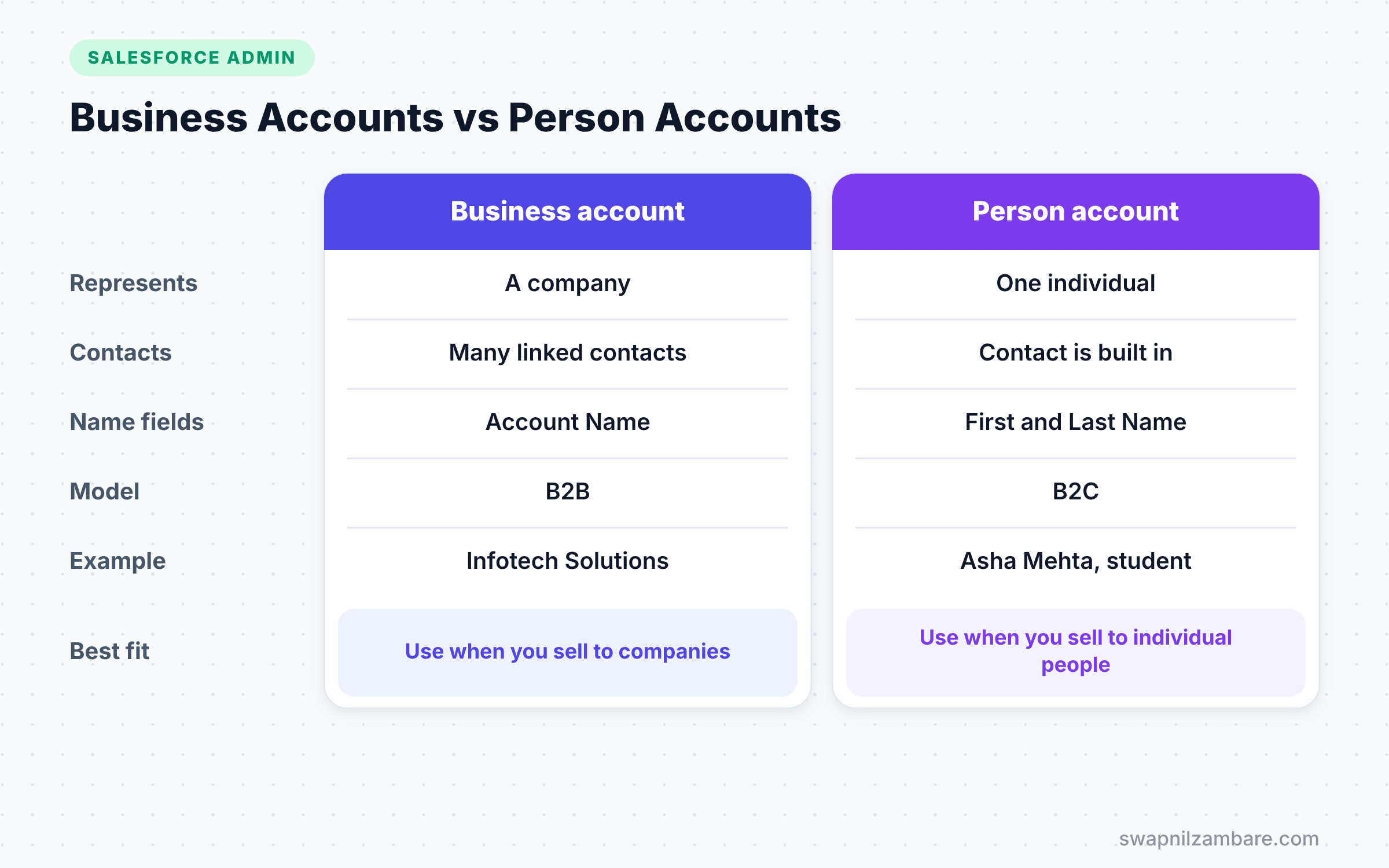
The table below compares the two kinds of accounts side by side.
| Feature | Business account | Person account |
|---|---|---|
| Represents | A company or organisation | One individual person |
| Contacts | Many contacts linked to it | Contact is built in |
| Name fields | One Account Name field | First Name and Last Name |
| Typical model | B2B, business to business | B2C, business to consumer |
| Record type | Business account record type | Person account record type |
| Example | Infotech Solutions Pvt Ltd | Asha Mehta, student |
When to use which is simple. Use business accounts for companies, and use person accounts for individual customers. Many orgs use both at the same time.
Before You Enable Salesforce Person Accounts
This is the most important section in this post, so read it slowly. Once you turn on person accounts, you can never turn them off. So check these points carefully, ideally in a sandbox first.
- Your org must have at least one record type on the Account object.
- Set Contact sharing to “Controlled by Parent” in Sharing Settings.
- Every profile that can read accounts should also be able to read contacts.
- Any validation rules on contacts that need an Account Name may need changes.
- Apex code or flows that assume every contact has an account may need updates.
Talk to your team before you enable it. Explain that the change is permanent and affects reports, sharing and code.
How to Enable Salesforce Person Accounts Step by Step
Let’s turn on Salesforce Person Accounts for Bright Path Tutors in a sandbox. We will then create a person account record type and a first student.
Step 1: Create a Business Account Record Type
- Go to Setup > Object Manager > Account > Record Types.
- Click New.
- Enter the values from the table below, then click Next and Save.
The table below shows the values to use for the first record type.
| Field | Value |
|---|---|
| Record Type Label | Business Account |
| Record Type Name | Business_Account |
| Active | Checked |
| Make available | All profiles that use accounts |
Step 2: Check Contact Sharing
- Go to Setup > Security > Sharing Settings.
- Click Edit in Organization-Wide Defaults.
- Set Contact to “Controlled by Parent” and save.
Step 3: Turn On Person Accounts
- In Setup, type “Person Accounts” in Quick Find and open the Person Accounts page.
- Read the checklist on the page and confirm each item.
- Click Enable and confirm that you understand the change is permanent.
Salesforce then creates a default person account record type for you. You can rename it to something clear, such as “Student”.
Step 4: Create Your First Person Account
- Open the Accounts tab and click New.
- Choose the Student record type.
- Fill in First Name “Asha”, Last Name “Mehta”, Email and Mobile.
- Click Save.
You now have one record that acts as both the account and the contact for Asha. You can add opportunities, cases and tasks straight to it.
Step 5: Report on Person Accounts
In reports, filter on “Is Person Account” equals True to see only students. You can also use a simple SOQL query in the Developer Console to check your data.
SELECT Name, PersonEmail, PersonMobilePhone, IsPersonAccount
FROM Account
WHERE IsPersonAccount = true
ORDER BY CreatedDate DESC
LIMIT 10
This query lists the ten newest person accounts with their email and mobile. Notice the Person prefix on contact fields.
Common Mistakes with Salesforce Person Accounts
- Enabling them in production without testing. The change is permanent, so always try it in a sandbox first.
- Forgetting about existing code. Apex or flows that read
Contact.AccountIdmay behave differently. - Using the wrong field names in imports. Contact fields need the Person prefix or the
__pcsuffix. - Mixing up page layouts. Business and person accounts need separate layouts for a clean experience.
- Ignoring storage. Each person account counts as both an account and a contact in data storage.
Best Practices for Salesforce Person Accounts
- Enable person accounts only when most of your customers are individuals.
- Give record types clear names, like “Business Account” and “Student”.
- Build separate page layouts and compact layouts for each kind of account.
- Use the
IsPersonAccountfield in reports and list views to keep views clean. - Write a short internal guide that explains when users should create each kind.
Practice Task
In a Developer Edition org or sandbox, enable person accounts and create three students. Then build a list view that shows only person accounts with their email and mobile. Hint: add a filter where “Is Person Account” equals True.
Most Asked Interview Questions on Salesforce Person Accounts
These are the questions interviewers ask most often about Salesforce Person Accounts. The answers are short and simple, so you can say them in your own words.
Basic Questions on Salesforce Person Accounts
Q1. What is a person account in Salesforce?
A person account stores information about one individual instead of a company. It combines an Account and a Contact into one record. Companies that sell to consumers, such as banks or schools, use it most.
Q2. Can you disable Salesforce Person Accounts after enabling them?
No. Once you enable person accounts, you cannot turn them off. That is why admins always test in a sandbox and get sign-off first.
Q3. What do you need before enabling person accounts?
You need at least one Account record type, and Contact sharing must be “Controlled by Parent”. Profiles that read accounts should also read contacts. You should also review code and validation rules that use contacts.
Q4. How does Salesforce store a person account?
It stores one Account record and one Contact record and links them. Users see them as a single record. So if you delete the person account, Salesforce deletes both records.
Practical Questions on Salesforce Person Accounts
Q5. How do you tell a person account from a business account?
Use the IsPersonAccount field, which is true for person accounts. Each kind also uses its own record type. Reports, list views and SOQL can filter on that field.
Q6. What happens to custom contact fields on person accounts?
They appear on the person account with a __pc suffix. For example, Roll_Number__c on Contact shows as Roll_Number__pc on the person account. Standard contact fields get a Person prefix, such as PersonEmail.
Q7. Can you convert a business account into a person account?
Yes, but only under strict conditions. For example, the business account must have exactly one contact. Also, it must not have a parent account. You then change its record type to a person account record type. Many teams do this with Data Loader for large volumes.
Q8. When would you not use person accounts?
Avoid them when nearly all customers are companies, or when one person often belongs to several companies. In those cases, normal accounts and contacts, or the Contacts to Multiple Accounts feature, fit better.
Official Resources
- Salesforce Help: Person Accounts
- Salesforce Help: Enable Person Accounts
- Trailhead: Accounts and Contacts for Lightning Experience
Quick Recap
- Salesforce Person Accounts store one individual as a single record.
- Behind the scenes, each one is an Account plus a hidden Contact.
- Record types separate business accounts from person accounts.
- You need an account record type and “Controlled by Parent” contact sharing first.
- Enabling person accounts is permanent, so always test in a sandbox.
What’s Next?
Person accounts look better with a clean header at the top of the page. Next, read our guide to compact layouts and the highlights panel to control which key fields users see first.


