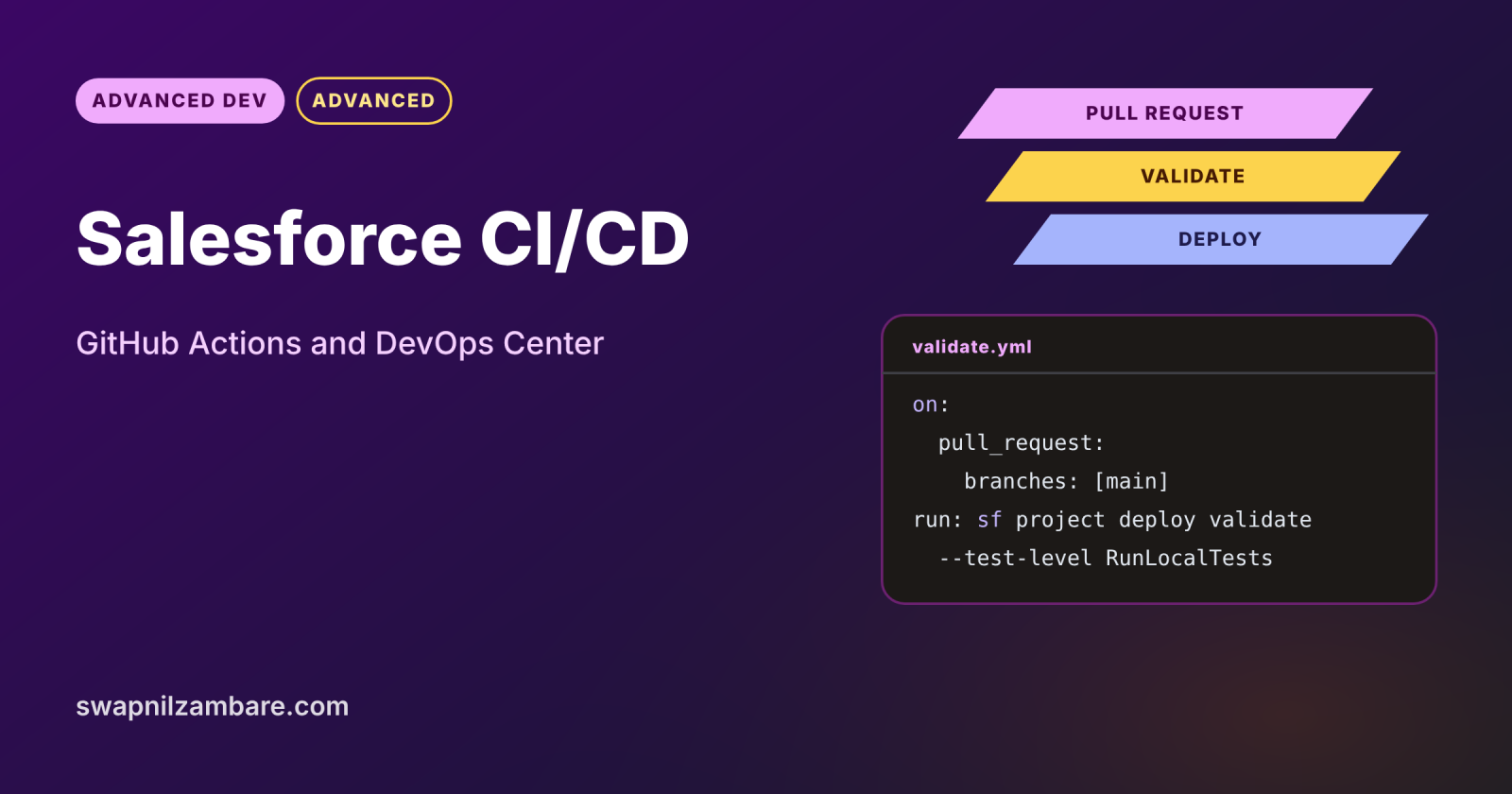
Salesforce CI/CD means every change is checked and deployed automatically, instead of by hand with change sets. CI, short for continuous integration, validates each pull request with tests and scans. CD, short for continuous delivery, deploys approved changes to the next org in a repeatable way.
In this post, you will build a GitHub Actions workflow that logs in with JWT, runs Code Analyzer and validates a deployment, and you will see how DevOps Center fits in. It builds on Git for Salesforce developers, Salesforce OAuth flows and unlocked packages.
What is Salesforce CI/CD?
Salesforce CI/CD is a pipeline that moves metadata from Git to orgs through automated steps. A tool, such as GitHub Actions, runs the Salesforce CLI on every pull request and merge. The result is fast feedback for developers and the same, tested release process every time.
Think of an airport security line. Every bag goes through the same scanner, and nothing reaches the plane without passing. CI is the scanner, and CD is the conveyor belt that carries checked bags to the right plane.
Why Salesforce CI/CD Matters
In short, manual releases are slow and easy to get wrong. Here is why Salesforce CI/CD matters at Bright Path Tutors.
- First, change sets often miss a field or a permission.
- Also, developers learn about failing tests only on release night.
- Next, two teams change the same class in different sandboxes.
- Security scans should run on every change, not once a year.
- Finally, auditors want a record of who approved each release.
So automation catches problems early and makes releases boring, in a good way.
How Salesforce CI/CD Works
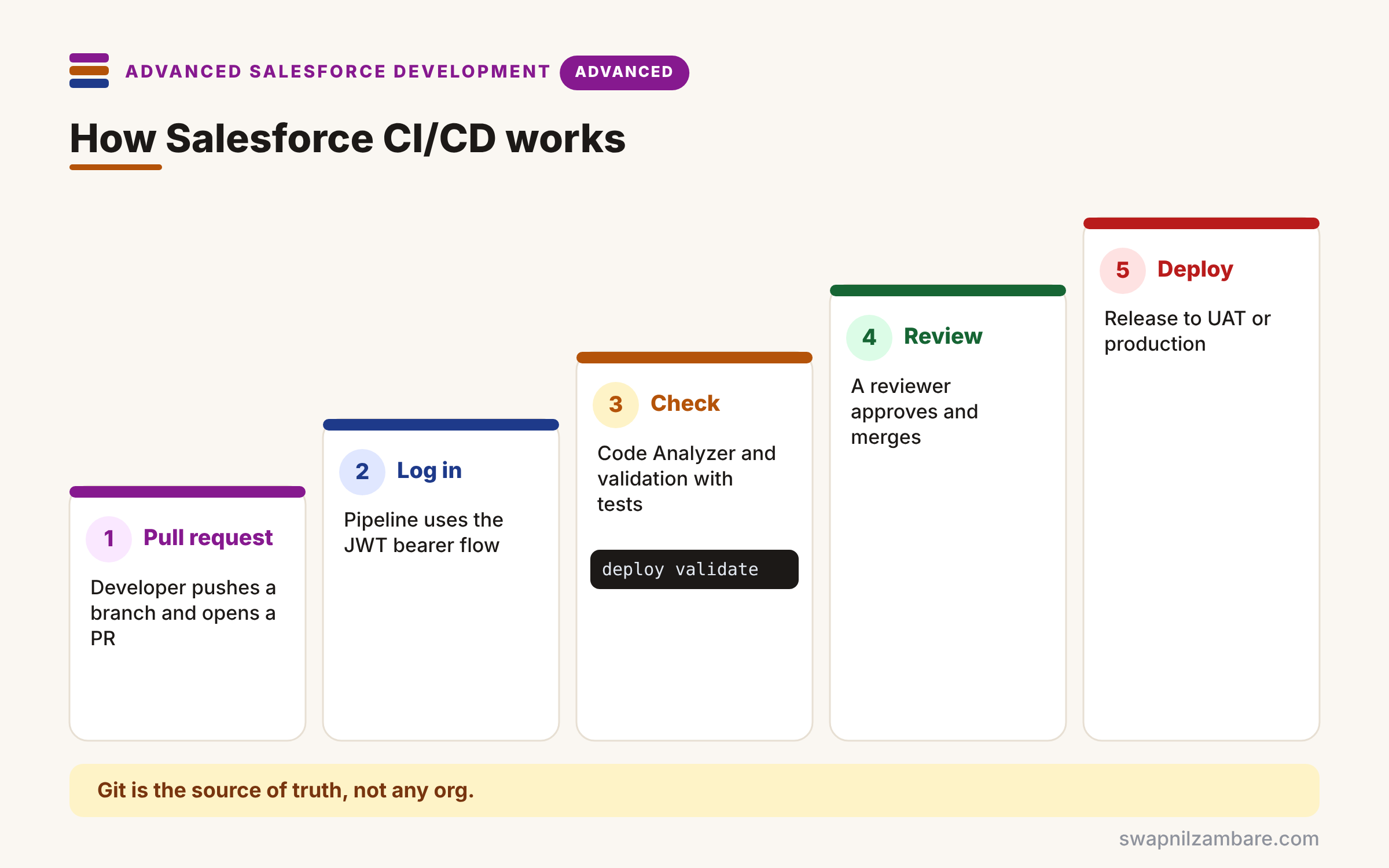
A typical Salesforce CI/CD pipeline has five steps. First, a developer pushes a branch and opens a pull request in GitHub. Next, the workflow logs in to a target org with the JWT bearer flow. Then it runs Code Analyzer and a validation deployment with Apex tests. After that, a reviewer approves and merges the pull request. Finally, a deploy job releases the change to the next org, such as UAT or production.
Source Control
In this setup, Git is the source of truth, not any org. So every change starts as a commit and a pull request.
Authentication
The pipeline uses the JWT bearer flow with an External Client App and a private key stored as a secret. As a result, no password is ever stored.
Validate
sf project deploy validate runs a check-only deployment with tests. So it proves the change will deploy without changing the org.
Deploy
After merging, sf project deploy start or a quick deploy releases the change. Quick deploy reuses a recent successful validation, so it skips rerunning tests.
DevOps Center
DevOps Center is Salesforce’s own point-and-click tool for work items, pipelines and stages, backed by GitHub. So admins and developers share one release process.
Pipeline Commands at a Glance
The table below lists the CLI commands most pipelines use.
| Step | Command |
|---|---|
| Log in with JWT | sf org login jwt |
| Scan code | sf code-analyzer run |
| Check-only deploy with tests | sf project deploy validate |
| Deploy | sf project deploy start |
| Deploy a validated job | sf project deploy quick |
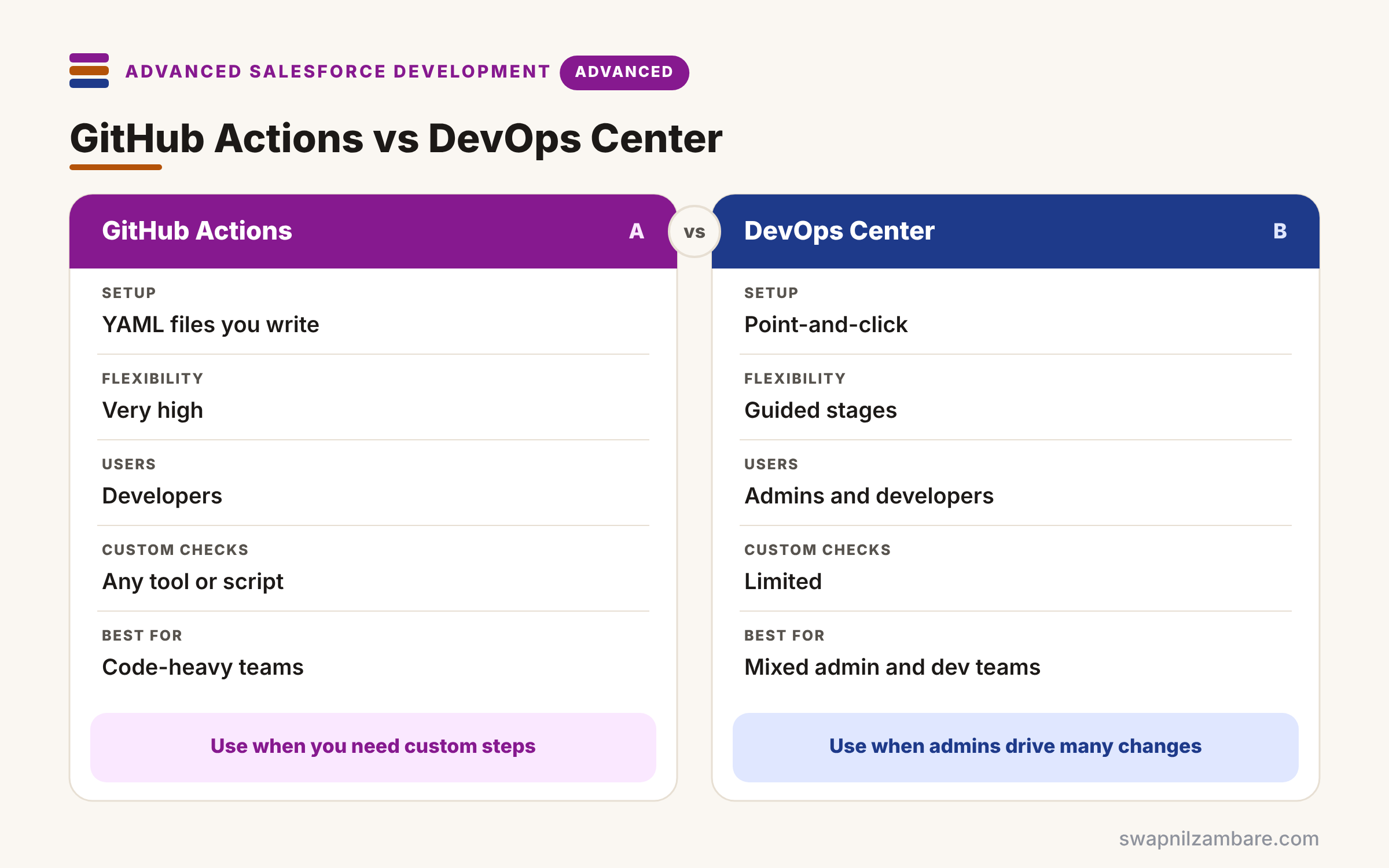
GitHub Actions vs DevOps Center
The table below compares a scripted pipeline with DevOps Center.
| Feature | GitHub Actions | DevOps Center |
|---|---|---|
| Setup | YAML files you write | Point-and-click |
| Flexibility | Very high | Guided stages |
| Users | Developers | Admins and developers |
| Custom checks | Any tool or script | Limited |
| Best for | Code-heavy teams | Mixed admin and dev teams |
When to use which depends on the team. Use DevOps Center when admins drive many changes. Use GitHub Actions when you need custom steps, or combine both.
A Real Salesforce CI/CD Example
Let’s build Salesforce CI/CD at Bright Path Tutors. Every pull request to main is scanned and validated against the UAT sandbox.
Step 1: Store the Secrets
- Create an External Client App with the JWT bearer flow and upload your certificate.
- Pre-authorise the CI integration user through a permission set.
- In GitHub, open Settings > Secrets and variables > Actions.
- Add SF_CLIENT_ID, SF_USERNAME and SF_JWT_KEY (the private key text).
Step 2: The Workflow File
# .github/workflows/validate.yml
name: Validate Salesforce changes
on:
  pull_request:
    branches: [main]
jobs:
  validate:
    runs-on: ubuntu-latest
    steps:
      - uses: actions/checkout@v4
      - uses: actions/setup-node@v4
        with:
          node-version: '20'
      - name: Install Salesforce CLI
        run: npm install --global @salesforce/cli
      - name: Log in with JWT
        run: |
          echo "${{ secrets.SF_JWT_KEY }}" > server.key
          sf org login jwt --client-id "${{ secrets.SF_CLIENT_ID }}" \
            --jwt-key-file server.key --username "${{ secrets.SF_USERNAME }}" \
            --instance-url https://test.salesforce.com --alias uat
      - name: Run Code Analyzer
        run: |
          sf plugins install code-analyzer
          sf code-analyzer run --target force-app --rule-selector Recommended --severity-threshold 2
      - name: Validate deployment with tests
        run: |
          sf project deploy validate --source-dir force-app \
            --test-level RunLocalTests --target-org uat --wait 60
The workflow runs on each pull request to main. Then it logs in to UAT without a password, fails on serious scan findings and runs a check-only deployment with local tests.
Step 3: See the Result
Here is the summary GitHub shows on the pull request.
Validate Salesforce changes / validate   Passed in 6m 12s
  Code Analyzer: 0 violations at severity 1-2
  Deploy validation: Succeeded, 48 components, 212 tests passed
  Job ID: 0AfKj00000Lm3pQKAR (ready for quick deploy)
A failing test or a critical finding blocks the merge. As a result, only checked changes reach main.
Salesforce CI/CD and Branching
Keep the branch model simple, such as feature branches into main, with one branch per long-lived org if needed. Also, refresh sandboxes regularly, so validations match production.
Common Mistakes with Salesforce CI/CD
- Treating a sandbox, not Git, as the source of truth.
- Storing passwords instead of using JWT with a private key secret.
- Skipping tests in validation to save time.
- Letting people deploy by hand around the pipeline.
- Running every test class on every commit in huge orgs without a plan.
Best Practices for Salesforce CI/CD
- Validate every pull request with RunLocalTests or specified tests.
- Use a dedicated CI user with least privilege.
- Add Code Analyzer with a severity threshold.
- Use quick deploy for fast, tested production releases.
- Combine DevOps Center for admins with scripted checks for code.
Practice Task
Add a second workflow that runs on push to main and quick-deploys the validated job to production. Hint: store the job ID as an artifact or rerun validate, then call sf project deploy quick –job-id.
Most Asked Interview Questions on Salesforce CI/CD
DevOps questions are standard for senior developers. Here are the 21 questions asked most about Salesforce CI/CD.
Basic Questions on Salesforce CI/CD
Q1: What is CI/CD?
Continuous integration checks every change, so continuous delivery can then deploy it in a repeatable way.
Q2: What is the source of truth in Salesforce CI/CD?
It is the Git repository, so orgs are built from it.
Q3: How does a pipeline log in to Salesforce?
It uses the JWT bearer flow, so it needs a client ID and a private key secret.
Q4: What does deploy validate do?
It runs a check-only deployment with tests, so nothing in the org changes.
Q5: What is quick deploy?
It deploys a recent successful validation without rerunning tests.
Q6: What is DevOps Center?
It is Salesforce’s guided tool for work items, pipelines and stages, and it uses GitHub behind the scenes.
Q7: Which tool runs the Salesforce commands in a pipeline?
The Salesforce CLI does, so the pipeline installs it with npm first.
Code and Scenario Questions on Salesforce CI/CD
Q8: Where do you store the private key?
Keep it in the CI tool’s encrypted secrets, because a repository is never safe for keys.
Q9: Which test level do you use for production?
RunLocalTests, or RunSpecifiedTests with a clear list, so coverage rules pass.
Q10: How do you fail a build on security issues?
Run Code Analyzer with a severity threshold, so serious findings stop the job.
Q11: How do you deploy only changed metadata?
Use a delta tool or package versions, so large orgs deploy faster.
Q12: A validation passed yesterday. Can you quick deploy today?
Yes, if it is still within the allowed window and nothing changed since.
Q13: How do admins take part in CI/CD?
They use DevOps Center work items, so their changes become commits and pull requests.
Q14: How do you keep sandboxes in sync?
Refresh them often and deploy from Git, so drift stays small.
Advanced Questions on Salesforce CI/CD
Q15: How do packages fit into CI/CD?
The pipeline builds package versions, installs them in test orgs and promotes them.
Q16: How do you handle destructive changes?
Use a destructive changes manifest or package version removals, reviewed like code.
Q17: How do you speed up long test runs?
Run specified tests for small changes and full local tests before release.
Q18: How do you secure the CI user?
Give it only deploy permissions it needs and restrict it to the External Client App.
Q19: What branching model suits most teams?
Most teams use short feature branches into main, so protected branches and required checks stay simple.
Q20: How do you roll back a bad release?
First, deploy the previous commit, or install the previous package version.
Q21: What metrics show a healthy pipeline?
For example, short build times, few failed releases and fast recovery when something breaks.
Official Resources
- Promote Work Items Through Your Pipeline (DevOps Center Help)
- Set Up DevOps Center for GitHub (Salesforce Help)
Quick Recap
- Salesforce CI/CD automates checks and deployments from Git.
- JWT login keeps passwords out of pipelines.
- Validate with tests on every pull request.
- Quick deploy releases a tested validation fast.
- DevOps Center helps admins join the same process.
What’s Next?
With code, packages and pipelines covered, it is time to certify your skills. Next, read our guide to the Salesforce Platform Developer certification.