MuleSoft Composer lets admins connect Salesforce with other business apps without writing code. For example, when a course is paid in the finance system, Composer can mark the enrolment as Paid in Salesforce. So data stays in sync, and nobody copies values between screens.
This post builds on Flow HTTP Callouts and integration basics for admins. We will sync payments for Bright Path Tutors.
What is MuleSoft Composer?
MuleSoft Composer is a no-code integration tool from Salesforce. You open it from the App Launcher and build flows on a simple canvas. Each flow has a trigger, then steps that read, transform and write data between connected systems.
Think of it like a courier between two offices. When a parcel is ready in one office, the courier picks it up, checks the label and delivers it to the right desk in the other office.
Why MuleSoft Composer Matters
Many companies use several apps, like an accounting system, a spreadsheet and Slack. Without integration, staff copy data by hand. That is slow and causes mistakes.
So MuleSoft Composer lets admins build common integrations themselves. Also, it avoids long developer queues for simple syncs.
How MuleSoft Composer Works
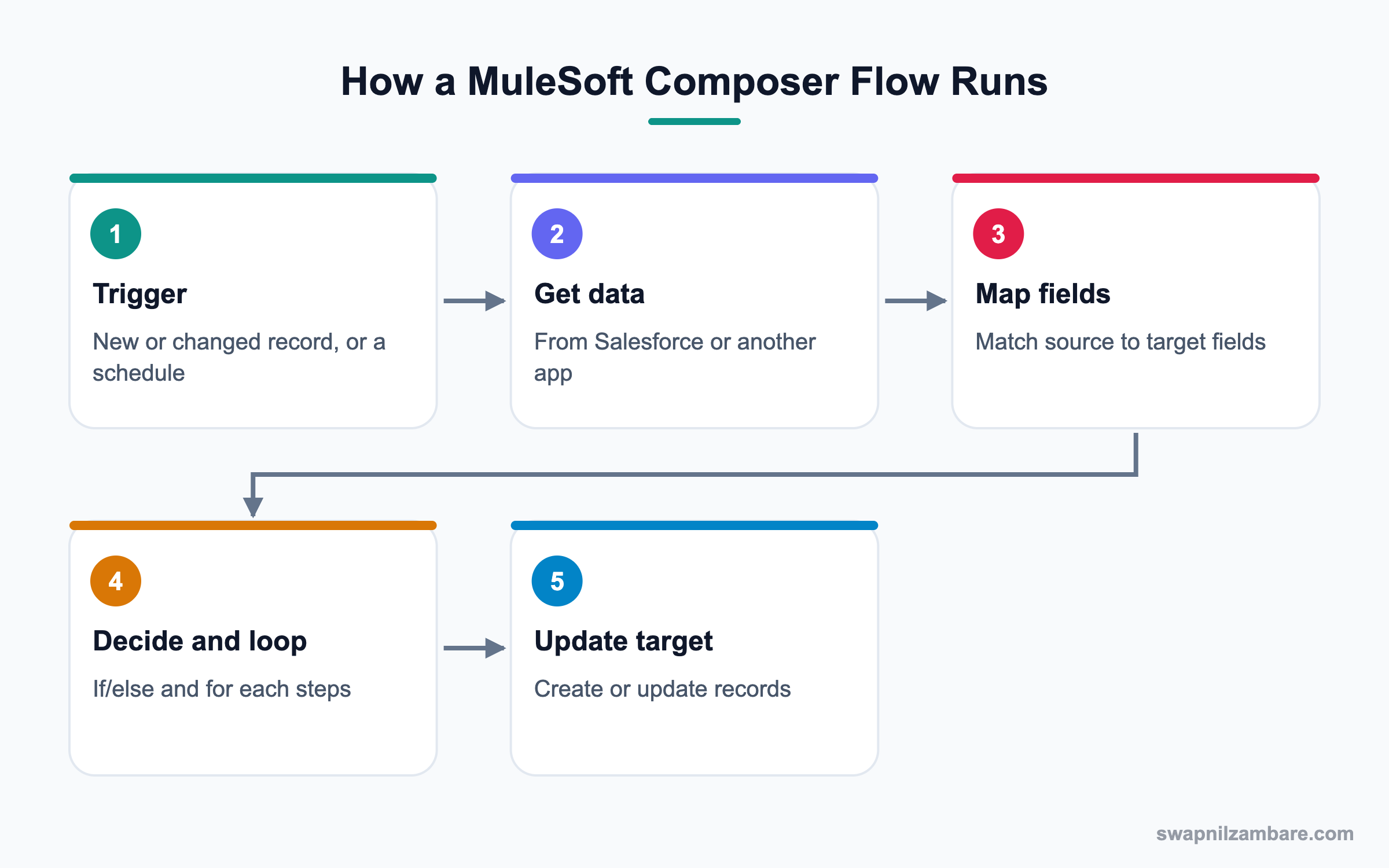
First, you create connections to each system with a secure login. Then you build a flow with a trigger, such as a new record in Salesforce or a schedule. Next, you add steps to get data, map fields, use if/else logic and update the target. Finally, you test and activate the flow, and Composer logs every run.
Connections
A connection stores secure access to one system, like Salesforce or NetSuite. Flows reuse connections.
Triggers
Triggers start a flow. They can be event-based, like a new record, or scheduled, like every hour.
Actions
Actions read or write data, such as Get Records, Create Record or Update Record.
Mapping and Formulas
You map fields from source to target and use simple formulas to change formats.
Logic Steps
If/else and for each steps handle choices and lists.
Run History
Each run is logged with status and details. Admins use it to find and fix errors.
Key MuleSoft Composer Building Blocks
This table summarises each block.
| Block | Purpose | Bright Path example |
|---|---|---|
| Connection | Secure access to a system | Finance system login |
| Trigger | Starts the flow | Payment created |
| Get step | Reads data | Find enrolment by number |
| Mapping | Matches fields | Amount to Amount Paid |
| If/else | Makes a choice | Full or part payment |
| Update step | Writes data | Set Fee Status to Paid |
| Run history | Shows results | Last 50 runs |
Flow HTTP Callouts vs MuleSoft Composer
Admins now have two no-code options. This table compares them.
| Feature | Flow HTTP Callouts | MuleSoft Composer |
|---|---|---|
| Where built | Flow Builder | Composer canvas |
| Connectors | Any REST API you define | Prebuilt for many apps |
| Best for | Single calls from a flow | Ongoing app-to-app sync |
| Monitoring | Flow error emails | Run history |
| Cost | Included | Extra license |
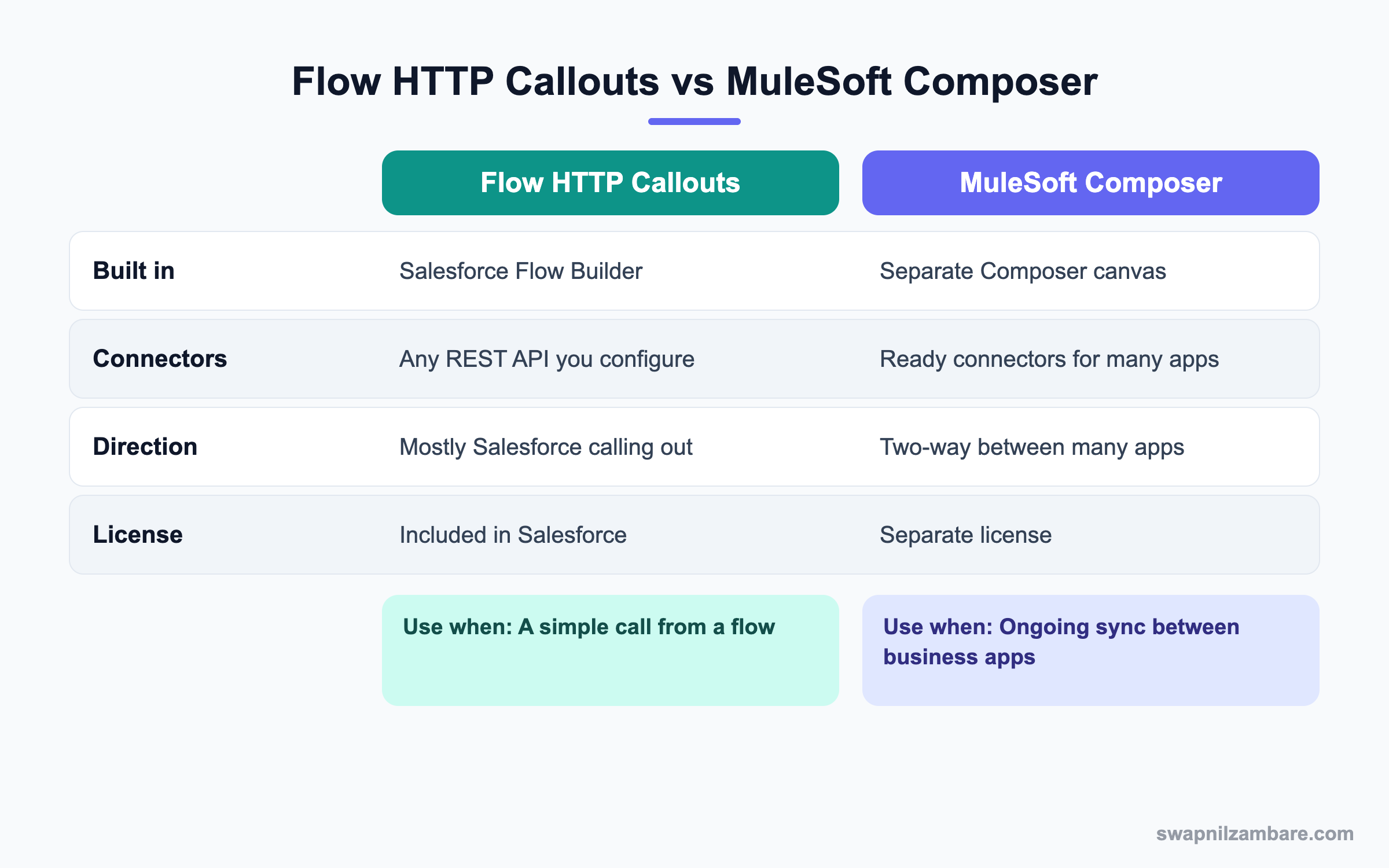
In short, use Flow HTTP callouts for a quick call from Salesforce. Use MuleSoft Composer when you need ready connectors and ongoing syncs between apps.
A Real MuleSoft Composer Example
Bright Path records payments in its finance system. Counsellors need Fee Status in Salesforce to show Paid within minutes.
Step 1: Create Connections
- Open MuleSoft Composer from the App Launcher.
- Create a Salesforce connection with an integration user.
- Create a connection to the finance system with its admin’s help.
Step 2: Build the Flow
- Click New Flow and name it Payment to Enrolment Sync.
- Choose the trigger New payment in the finance system.
- Add Get Records from Salesforce Enrolment where Enrolment Number equals the payment reference.
- Add an If/else step comparing Amount Paid with Fee Amount.
- Add Update Record to set Fee Status and Amount Paid.
These are the field mappings used.
| Finance field | Salesforce field | Note |
|---|---|---|
| Reference | Enrolment_Number__c | Used to find the record |
| Amount | Amount_Paid__c | Number |
| Payment Date | Last_Payment_Date__c | Date format |
| Status | Fee_Status__c | Paid or Part Paid |
Step 3: Test and Activate
- Click Test, create a sample payment and watch the run.
- Open the enrolment in Salesforce and confirm the update.
- Activate the flow.
Step 4: Monitor
Check run history daily in the first week. You can also confirm updates in Salesforce with a query.
SELECT Enrolment_Number__c, Fee_Status__c, Amount_Paid__c
FROM Enrolment__c
WHERE LastModifiedBy.Name = 'Integration User'
AND LastModifiedDate = TODAY
Common Mistakes with MuleSoft Composer
- Using a personal user for the Salesforce connection.
- Matching records on names instead of unique IDs.
- Activating without testing edge cases like part payments.
- Ignoring run history, so failures go unnoticed.
- Building two flows that update the same field and loop.
Best Practices for MuleSoft Composer
- Use a dedicated integration user with least privilege.
- Match records with external IDs or unique numbers.
- Test every branch before activation.
- Name flows clearly and document them in the automation inventory.
- Review run history and set alert routines.
Practice Task
Sketch a flow that posts a Slack message when a high-value opportunity closes. Write the trigger, the filter and the message fields. Hint: filter on Amount and Stage.
Most Asked MuleSoft Composer Interview Questions
These MuleSoft Composer questions are common for admins who handle integrations.
Basic MuleSoft Composer Interview Questions
Q1: What is MuleSoft Composer?
It is a no-code tool to build integrations between Salesforce and other apps. Admins create flows with triggers and steps on a simple canvas.
Q2: What is a connection?
A connection stores secure access to one system. Flows reuse it, so you log in once. Also, when a password or token changes, you update one connection instead of every flow.
Q3: What triggers can start a flow?
Events like a new or updated record can start a flow. Also, a schedule like every hour works well for systems that do not send events.
Q4: What is field mapping?
Matching fields from the source system to fields in the target system. For example, Amount to Amount Paid.
Q5: Where do you see if a flow worked?
In run history, which shows each run, its status and details. So you can open a failed run and see the exact step and error.
Q6: Does Composer need code?
No. It is designed for clicks, with simple formulas where needed. That is why admins and business analysts can build common syncs themselves.
Q7: Is MuleSoft Composer included with Salesforce?
No. It needs a separate license, often priced by the number of flows or usage. So confirm the license before you plan a project.
Intermediate MuleSoft Composer Interview Questions
Q8: How is Composer different from MuleSoft Anypoint Platform?
Composer is no-code for common business syncs. Anypoint is a full developer platform for complex, large integrations.
Q9: How do you avoid duplicate records?
Match on unique IDs or external IDs before creating records, and use update or upsert steps. Then a repeated event updates the same record instead of adding a copy.
Q10: How do you handle lists of records?
Use a for each step to process each item in the list. For example, loop through all payments from today and update each matching enrolment.
Q11: What user should the Salesforce connection use?
A dedicated integration user with only the permissions the flow needs.
Q12: How do you test safely?
Use test mode with sandbox connections and sample data before production.
Q13: What happens when a step fails?
The run shows an error in run history. Then you fix the data or flow and rerun if needed.
Q14: Can Composer connect to spreadsheets?
Yes. Connectors like Google Sheets let you read and write rows. For example, a flow can add each new enrolment to a sheet for a partner.
Advanced MuleSoft Composer Interview Questions
Q15: Scenario: two systems update each other and loop. How do you stop it?
Add conditions so a flow ignores changes made by the integration user, and keep one system as the owner of each field.
Q16: When would you choose Flow over Composer?
For simple calls from inside a Salesforce process, especially without a license for Composer.
Q17: When would you move from Composer to Anypoint?
When volume, complex logic, many APIs or strict governance need developer tools.
Q18: How do you secure integrations?
Use least-privilege users, protected connections and regular access reviews. Also remove connections that no flow uses any more.
Q19: How do you document Composer flows?
List trigger, systems, mappings, owner and failure handling in the automation inventory.
Q20: Scenario: payments sync late. What do you check?
Check trigger type, schedule interval, run history errors and source system delays.
Q21: How do you monitor many flows?
Review run history on a schedule and agree on who checks failures each day.
Q22: Why should one system own each field in MuleSoft Composer flows?
Because two owners cause conflicts and loops. So decide, for example, that finance owns Amount Paid and Salesforce only reads it.
Q23: How do you handle date and number formats?
Use formulas in the mapping to convert formats, such as text to date. Then test with real sample values from both systems.
Q24: Can MuleSoft Composer send data to Slack?
Yes. A Slack connector can post messages to a channel. For example, a flow can announce large school deals to the sales channel.
Q25: What should a MuleSoft Composer runbook contain?
Flow purpose, systems, owner, how to check run history and how to rerun failed records. Then anyone on the team can respond to an alert.
Q26: How do you plan a first MuleSoft Composer project?
Pick one simple, high-value sync with clear IDs, like payments. Then build, test and monitor it before adding more flows.
Official Resources
Quick Recap
- MuleSoft Composer builds no-code integrations between apps.
- Flows use connections, triggers, actions, mapping and logic.
- Use an integration user and match on unique IDs.
- Test every branch and watch run history.
- Use Flow callouts for simple calls and Anypoint for complex work.
What’s Next?
Next, we start industry clouds with Health Cloud Basics.